Can You Upgrade MacBook RAM and SSD to Boost Performance

Upgrading your MacBook RAM and SSD is one of the best ways to breathe new life into your device. Whether you own a MacBook Pro or MacBook Air, adding more memory and switching to a faster SSD can dramatically improve speed, multitasking, and overall responsiveness. This guide walks you through everything you need to know about upgrading MacBook RAM and SSD safely and effectively.
Many MacBook users face the same frustration. The laptop feels slow. Apps take forever to open. And multitasking becomes a real headache. The good news is that upgrading MacBook RAM and SSD can transform your experience. These two upgrades alone can make an older MacBook feel like new again.
Whether you have a MacBook Pro or a MacBook Air, understanding your upgrade options matters. Some models allow easy changes. Others have limitations you need to know about. This guide covers everything from memory to storage upgrades. You will learn what is possible, what tools you need, and how to get the best results.
We will walk through each step in plain language. No tech jargon. No confusing instructions. Just clear, practical advice you can follow today. Let us dive in and explore how to give your MacBook a serious performance boost.
Key Takeaways
- RAM upgrades improve multitasking: Adding more memory helps your MacBook handle multiple apps smoothly without slowdowns.
- SSD upgrades boost speed: Replacing your drive with a modern SSD dramatically reduces boot times and app launches.
- Check compatibility first: Not all MacBook models support RAM or SSD upgrades, especially Apple Silicon models.
- Apple Silicon changes the game: Newer MacBooks have soldered RAM, which limits upgrade options entirely.
- DIY upgrades save money: You can upgrade your MacBook yourself with basic tools and patience.
- Upgrade both for best results: Combining RAM and SSD upgrades delivers the most noticeable performance improvement.
📑 Table of Contents
- Why Upgrade MacBook RAM and SSD
- Understanding MacBook RAM and SSD Basics
- Can You Upgrade RAM on Every MacBook Model
- Step-by-Step Guide to Upgrading MacBook RAM
- How to Upgrade the SSD in Your MacBook
- Benefits of Upgrading Both RAM and SSD Together
- Common Mistakes to Avoid When Upgrading MacBook Components
- Conclusion
Why Upgrade MacBook RAM and SSD
Upgrading your MacBook’s memory and storage is one of the smartest investments you can make. Over time, software becomes heavier. Apps demand more resources. And your once-fast laptop starts to lag behind. A simple upgrade MacBook RAM and SSD can solve many of these problems without breaking the bank.
Performance degradation is normal for any laptop. As operating systems and applications grow, they require more memory and faster storage. A MacBook that struggled with basic tasks five years ago can feel sluggish today. The right upgrades bring it back to life.
Signs Your MacBook Needs More RAM
Your MacBook gives you clear warning signs when it needs more memory. The spinning beach ball appears frequently. Apps crash without warning. You struggle to keep multiple browser tabs open at the same time. These are all symptoms of low RAM. If your system constantly swaps memory to the disk, your SSD wears out faster too.
Think of RAM as your MacBook’s short-term memory. It handles everything you are doing right now. More RAM means smoother multitasking. You can run demanding apps side by side without slowdowns. For most users today, 8 GB is the bare minimum. But 16 GB or more makes a huge difference in daily use.
If you are still using an older Intel-based machine, upgrading RAM in a laptop follows similar principles across brands. However, MacBooks have their own specific requirements and limitations. Always check your model’s specifications before buying new memory.
When an SSD Upgrade Makes Sense
Your storage drive affects everything. Boot times, app launches, file transfers, and system responsiveness all depend on it. If you still use an older HDD or a slow SATA SSD, upgrading to a modern NVMe drive can be transformative. The difference in speed is immediate and noticeable.
Unlike RAM, SSD upgrades depend heavily on your MacBook model. Some newer MacBooks have soldered storage that cannot be replaced. But many older models allow straightforward drive replacements with minimal effort. Checking compatibility before purchasing is absolutely essential.
Understanding MacBook RAM and SSD Basics
Before you start upgrading, it helps to understand the basics. Knowing how these components work makes the process easier and less intimidating. You do not need to be a tech expert to succeed.
How RAM Affects MacBook Performance
RAM, or random access memory, temporarily stores data your MacBook needs right now. It is much faster than your storage drive. When you open apps, edit documents, or browse the web, RAM handles the active workload. Your storage drive is only involved when you save or load files.
More RAM means your MacBook can juggle more tasks at once. If you often use video editing software, run virtual machines, or work with large spreadsheets, extra RAM helps a lot. The system stays responsive instead of slowing down under pressure. You can switch between apps instantly without waiting for things to catch up.
For those wondering how to upgrade your laptop RAM, the general process is similar across most laptops. However, MacBooks have their own specific requirements and limitations. Always check your exact model number to find the right RAM type and capacity.
How SSD Differs from Traditional Storage
A solid-state drive has no moving parts. It uses flash memory to store data. This makes it significantly faster than a traditional hard disk drive. Boot times drop from minutes to seconds. Apps launch almost instantly. File transfers happen in a fraction of the time.
SSDs also improve overall system stability. They are more resistant to physical shocks and run cooler than HDDs. There is no spinning platter or read/write head to worry about. For MacBook users, switching to an SSD is often the single biggest performance improvement possible.
The speed difference is most noticeable during everyday tasks. Opening Finder, launching Safari, and switching between workspaces all feel snappier. Even older MacBooks benefit greatly from an SSD replacement.
Can You Upgrade RAM on Every MacBook Model
The short answer is no. Apple has changed its approach to memory over the years. Your ability to upgrade depends heavily on the model and year of your MacBook. Understanding these differences saves time and prevents wasted purchases.
Intel MacBook RAM Upgrade Options
If you own an older Intel-based MacBook, you likely have upgrade options. Many MacBook Pro models from 2012 to 2019 allow user-accessible RAM slots. You can open the back panel, remove the old memory modules, and install new ones. The process is straightforward if you follow the right steps.
You need the correct RAM type for your specific model. DDR3, DDR4, and LPDDR3 are common across different Intel MacBooks. Checking your exact model number on Apple’s support page ensures compatibility. Always match the speed and form factor specifications exactly.
For users looking to upgrade RAM on a laptop, Intel MacBooks are among the most accessible. Apple provided clear upgrade paths for years before moving to soldered memory designs. If your MacBook supports it, upgrading RAM is one of the easiest and most cost-effective improvements you can make.
Apple Silicon MacBook RAM Limitations
Apple’s transition to its own chips changed everything. M1, M2, and M3 series MacBooks have RAM soldered directly to the logic board. This means you cannot add or replace memory after purchase. It is a permanent part of the system.
This design choice improves performance and power efficiency significantly. But it completely removes the upgrade path. If you buy a MacBook with 8 GB of unified memory, that is what you are stuck with. Planning ahead and choosing the right configuration at purchase time is now essential.
For those who already own an Apple Silicon Mac, external storage or cloud solutions can help with some performance issues. But true RAM upgrades are simply not possible on these machines. Always verify your model’s upgradeability before making any purchase decisions.
Step-by-Step Guide to Upgrading MacBook RAM
If your MacBook supports RAM upgrades, following the right process ensures success and avoids unnecessary damage. Preparation and patience are your best tools.
What You Need Before Starting
Preparation makes all the difference. Before you begin, gather these essential items:
- The correct RAM modules for your specific MacBook model
- A small Phillips-head screwdriver set
- A soft, anti-static workspace mat
- A plastic spudger or prying tool
- A clean, well-lit workspace with plenty of room
- A microfiber cloth to protect your surfaces
Always purchase RAM from reputable brands. Corsair, Crucial, and Kingston offer reliable and tested options. Check your MacBook’s specific RAM specifications on Apple’s support page before buying anything. Using the wrong type of memory can cause compatibility issues or prevent your MacBook from booting.
The RAM Installation Process
Start by shutting down your MacBook completely. Disconnect the power adapter and any peripherals attached to it. Place your MacBook face-down on a soft, clean surface to avoid scratches.
Remove the bottom case screws carefully. Keep them in a small container so they do not get lost. Use the plastic spudger to gently pry open the case. The clips may require a bit of pressure, but never force anything.
Inside, locate the RAM slots. They are usually easy to access and clearly visible. Release the old RAM sticks by pushing the metal clips outward. The modules will pop up at an angle. Remove them gently and slowly.
Align the new RAM sticks at the correct angle and press firmly until the clips click into place. You should feel a satisfying click when they are seated properly. Replace the bottom case and screw it back in securely.
Power on your MacBook and check the system information to confirm the new RAM is recognized. If your MacBook does not detect the new memory, try reseating the modules. Sometimes they need a second push to lock in properly.
If you are unsure about any step during the process, consulting a professional is always a smart choice. Upgrading RAM on a laptop requires care and attention, but most users find it manageable with patience and the right guidance.
How to Upgrade the SSD in Your MacBook
Replacing your MacBook’s storage drive is another excellent way to boost overall performance. Here is how to approach the SSD upgrade process step by step.
Choosing the Right SSD for Your MacBook
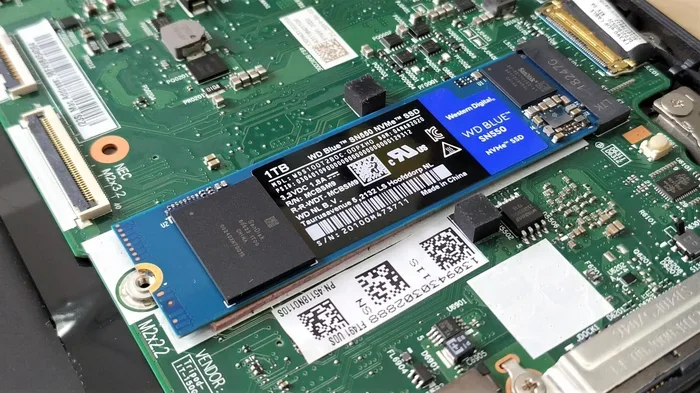
Not all SSDs work with every MacBook model. You need to match the form factor and interface precisely. Most modern MacBooks use M.2 NVMe SSDs or proprietary Apple SSD modules. Using the wrong type will not work, even if the capacity is correct.
Check your MacBook model number carefully and look up the exact SSD specifications. Capacity options typically range from 256 GB to 8 TB. Consider your storage needs realistically. If you work with large video files, photos, or creative projects, investing in more space pays off over time.
Brands like Samsung, WD, and SanDisk offer high-quality options for MacBook upgrades. Some manufacturers even sell MacBook-specific SSD kits that include installation tools and instructions. These kits make the process smoother for first-time upgraders.
Migrating Your Data to the New SSD
Moving your data to a new drive sounds daunting, but it is simpler than most people think. You can use Apple’s built-in Migration Assistant or clone your existing drive using trusted third-party software like Carbon Copy Cloner or SuperDuper.
Connect your new SSD externally using a USB adapter or enclosure. Clone your current drive to the new one exactly as it is. Once the cloning process is complete, shut down your MacBook, physically replace the old drive with the new one, and boot up.
This process preserves everything on your system. Your apps, settings, files, and user preferences all transfer over seamlessly. The first boot on your new SSD feels remarkably fast and responsive. You will immediately notice the difference in speed.
Benefits of Upgrading Both RAM and SSD Together
While each upgrade helps on its own, combining RAM and SSD upgrades delivers the best overall results. Your MacBook becomes noticeably faster in every aspect of daily use. Apps launch instantly. Multitasking feels effortless. The entire system responds more quickly to your commands.
Together, these upgrades address the two biggest bottlenecks in older MacBooks. Memory limitations cause slowdowns, stuttering, and app crashes. Slow storage creates frustrating wait times for every task. Fix both, and you essentially get a new machine without the new machine price tag.
The combined cost of both upgrades is usually far less than buying a brand-new MacBook. For many users, this is the most practical and economical way to extend the life of their device by several more years. It also reduces electronic waste, which is better for the environment.
If you are considering upgrades, start with the SSD. It provides the most noticeable improvement in everyday use. Then add RAM if your model supports it. This approach maximizes your budget and delivers the best performance gains in the shortest time.
Common Mistakes to Avoid When Upgrading MacBook Components
Even with the best intentions, mistakes happen during upgrades. Avoiding these common errors saves time, money, and unnecessary frustration. Learn from other users’ experiences.
- Buying incompatible RAM: Always double-check your MacBook model’s exact RAM specifications before making any purchase. Wrong RAM will not work.
- Skipping data backups: Always back up your data before opening your MacBook. Use Time Machine or a reliable cloud backup service.
- Using improper tools: Standard screwdrivers can easily strip screws. Use precision electronics tools designed for laptop disassembly.
- Rushing the process: Take your time with each step. Patience prevents accidental damage to sensitive internal components.
- Ignoring warranty status: Opening your MacBook may void the remaining warranty. Check with Apple Support before you begin any work.
Conclusion
Upgrading your MacBook RAM and SSD is one of the most effective ways to improve overall performance. These upgrades breathe new life into older machines and make daily tasks feel effortless and enjoyable. Whether you are a student, a professional, or a casual user, the benefits are clear and immediate.
Remember to check compatibility before purchasing any components. Intel MacBooks offer more upgrade flexibility, while Apple Silicon models have fixed configurations that cannot be changed. Plan accordingly and invest wisely based on your specific needs and budget.
With the right upgrades, your MacBook can continue serving you well for years to come. Do not settle for a slow, sluggish machine when a simple upgrade can make such a significant difference. Start your MacBook RAM and SSD upgrade journey today and experience the speed improvement for yourself.
Frequently Asked Questions
Can I upgrade the RAM on a MacBook Air?
Most MacBook Air models do not allow RAM upgrades. Apple has soldered memory onto the logic board in all modern MacBook Air models. The only exception is some older Intel-based MacBook Air models from before 2018. Always check your specific model before assuming upgrades are possible.
How much does it cost to upgrade MacBook RAM and SSD?
The cost varies depending on the capacity and brand you choose. RAM modules typically range from $30 to $100. SSD prices depend on capacity, with 1 TB NVMe drives costing around $80 to $150. DIY upgrades save significant money compared to Apple’s official service charges.
What happens if I upgrade the SSD but keep the old RAM?
You will still see a major speed improvement from the SSD alone. Faster storage reduces boot times, app launches, and file transfer speeds. However, if your RAM is insufficient, you may still experience slowdowns when running multiple apps. For the best results, consider upgrading both components together.
Is it safe to upgrade MacBook components yourself?
Yes, it is safe if you follow proper precautions. Use anti-static tools, work on a clean surface, and refer to reliable guides for your specific model. If you feel uncomfortable at any point, consider seeking help from a professional technician. Always back up your data before starting.
Does upgrading RAM and SSD void the MacBook warranty?
This depends on your warranty status and Apple’s current policies. Upgrades performed by unauthorized parties may void the warranty on newer models. Older models outside the warranty period are generally safe to upgrade yourself. Always check with Apple Support before opening your device.
Can I use any brand of SSD for my MacBook?
Not all SSDs are compatible with every MacBook model. Apple uses proprietary connectors in some models, while others use standard M.2 NVMe drives. Check your MacBook’s specifications carefully and purchase an SSD that matches the form factor and interface requirements exactly.