Use This Ssd Upgrade Finder To Discover Your Perfect Match
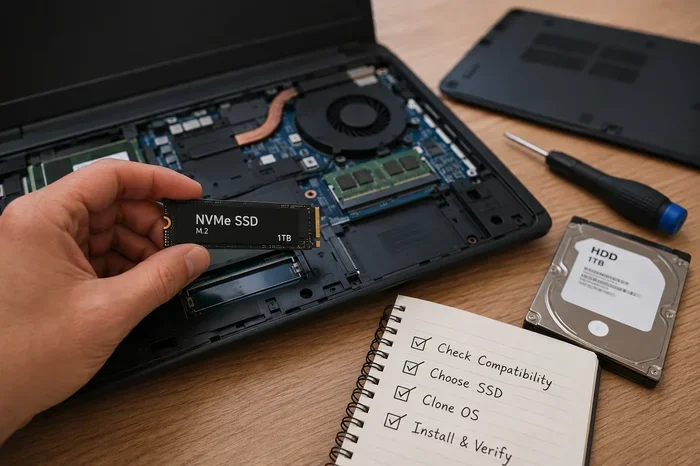
An SSD upgrade finder helps you match the right drive to your PC, laptop, or console quickly and easily. Whether you need a gaming SSD, a laptop storage upgrade, or a high-speed NVMe M.2 SSD, knowing your system requirements makes the choice simple. This guide walks you through every step of finding and installing the perfect SSD upgrade.
Your old hard drive or aging SATA SSD might be holding back your entire system. Games take forever to load, files copy at a crawl, and every boot feels like waiting for paint to dry. The good news? A simple SSD upgrade can transform your experience overnight.
But with so many drives on the market, how do you know which one fits your PC? That is where an SSD upgrade finder becomes your best friend. It asks a few quick questions about your system and then points you to the perfect match. No guesswork, no compatibility headaches, and no wasted money.
In this guide, we will walk you through everything you need to know. We will cover how SSD upgrade finders work, what specs matter most, and which drives deliver the best value right now. By the end, you will feel confident picking the right drive for your needs.
Key Takeaways
- Know your interface: PCIe Gen4 and PCIe Gen5 are the fastest options for modern systems.
- Check your form factor: M.2 2280 is the most common size, but 2242 and 2230 also exist.
- Match capacity to your needs: 500GB works for light use, while 2TB and 4TB suit gamers and creators.
- Speed matters: Look for high read and write speeds for better system performance.
- Thermal management counts: A heatsink or cooling fan keeps your drive running fast under heavy loads.
- Brand reliability helps: WD Black, Samsung, Crucial, and ADATA offer proven track records.
- Use an SSD upgrade finder tool: It saves time and prevents compatibility mistakes.
📑 Table of Contents
What Is an SSD Upgrade Finder?
An SSD upgrade finder is a tool or guide that helps you choose the right solid-state drive for your computer. It checks your system specifications and compares them against available drives on the market. Think of it as a shopping assistant that knows your PC inside and out.
These tools typically ask about your laptop or desktop model, your available slots, and your budget. Some advanced finders even scan your current storage and suggest upgrades based on usage patterns. The goal is simple: remove the guesswork from the buying process.
Why does this matter so much? Because not every NVMe SSD fits every system. A drive that works perfectly in a desktop might not fit in a thin laptop. The connector type, the form factor, and the interface all play a role. An upgrade finder catches these issues before you spend a single dollar.
Why You Should Use One
Buying an SSD upgrade without checking compatibility is risky. You might order a drive that is too large for your slot, or one that uses an older interface your motherboard does not support. That means returns, delays, and frustration.
Using a storage upgrade finder solves all of this. It gives you a shortlist of compatible SSDs tailored to your exact setup. You save time, avoid mistakes, and often discover options you never considered. For anyone who is not a hardware expert, this is an absolute game-changer.
How SSD Upgrade Finders Work
Most SSD upgrade finders follow a simple process. First, they gather information about your current system. Then they compare your specs against a database of available drives. Finally, they rank the options by performance, price, and compatibility.
The process usually starts with your system model or motherboard. The tool checks what slots you have available. For example, it might tell you that your laptop has one M.2 NVMe slot but no 2.5-inch SATA bay. This immediately narrows your choices.
Next, the finder looks at your interface support. Does your system handle PCIe Gen4 NVMe M.2 SSD drives? Or is it limited to PCIe Gen3? This distinction matters a lot for speed. A Gen4 drive can be twice as fast as a Gen3 drive, so matching correctly is essential.
Key Specs the Finder Checks
Here are the most important specifications an SSD upgrade finder evaluates:
- Form factor: M.2 2280, M.2 2242, or 2.5-inch SATA
- Interface: PCIe Gen3, PCIe Gen4, or PCIe Gen5
- Capacity: 500GB, 1TB, 2TB, or 4TB
- Read speed: Typically ranges from 3,500 MB/s to 14,000 MB/s
- Write speed: Usually a bit lower than read speeds
- DRAM cache: Helps with sustained performance under heavy workloads
- Thermal design: Heatsink or cooling fan included or not
- Endurance rating: Measured in TBW (terabytes written)
Each of these specs affects how well the drive works in your system. A DRAM cache, for example, makes a big difference when you are editing large video files. Meanwhile, a good thermal design prevents slowdowns during long gaming sessions.
Types of SSDs You Will Encounter
Not all SSD upgrades are the same. Understanding the different types helps you make a smarter choice. Here is a quick look at the main categories.
NVMe M.2 SSDs
NVMe M.2 SSDs are the most popular choice for modern PCs. They plug directly into your motherboard using a small M.2 slot. They offer blazing speeds thanks to the NVMe protocol, which is much faster than older SATA connections.
For most users, a PCIe Gen4 NVMe M.2 SSD hits the sweet spot between speed and price. If you have a newer system, a PCIe Gen5 NVMe SSD pushes performance even further. These drives are ideal for gaming SSD setups and professional workloads alike.
SATA SSDs
SATA SSDs use the older SATA III interface. They are slower than NVMe drives but still much faster than traditional hard drives. If your system only has a 2.5-inch bay, a SATA SSD is your best option for a storage upgrade.
These drives are also more affordable. They work well as a boot drive for everyday tasks like browsing, office work, and light media consumption.
M.2 2242 and Compact Form Factors
Thin laptops and mini PCs often need a smaller drive. The M.2 2242 form factor is half the width of a standard M.2 drive. Some ultrabooks also use M.2 2230 drives. Always check your system manual before ordering one of these compact options.
How to Choose the Right SSD for Your System
Picking the right SSD upgrade goes beyond just picking the fastest drive. You need to match the drive to your actual use case, budget, and system capabilities.
Step 1: Check Your Motherboard Manual
Start by looking up your motherboard or laptop model online. Find the specifications section. It will tell you which M.2 slots you have and what interfaces they support. Look for terms like “PCIe Gen4 x4” or “SATA and PCIe mode.”
If you are upgrading a laptop, check whether the M.2 slot is user-accessible. Some thin laptops have soldered storage that cannot be replaced. In those cases, you may need to use an external enclosure or upgrade through cloud storage instead.
Step 2: Decide on Capacity
Your storage needs depend on what you do. Here is a simple breakdown:
- 500GB: Good for a boot drive with a few games and apps
- 1TB: The sweet spot for most users and moderate gaming
- 2TB: Great for large game libraries and content creators
- 4TB: Ideal for heavy workloads, video editing, and massive storage needs
If you are unsure, going with a larger capacity gives you more room to grow. Prices for NVMe SSDs have dropped significantly, so a 1TB or 2TB drive now costs very reasonable amounts.
Step 3: Consider Speed Requirements
Not everyone needs the fastest NVMe SSD on the market. If you only browse the web and use office apps, a mid-range drive is perfectly fine. But if you play modern AAA games or edit 4K video, faster read and write speeds make a noticeable difference.
Look for drives with at least 5,000 MB/s read speeds for a smooth experience. For the absolute best performance, PCIe Gen5 SSDs can push past 10,000 MB/s. Just keep in mind that Gen5 drives tend to run warmer, so good thermal management is important.
Step 4: Factor in Brand Reputation and Warranty
Not all SSD brands are created equal. Established brands like WD Black, Samsung, Crucial, and ADATA offer reliable drives backed by solid warranties. The WD Black SN850P NVMe SSD, for example, is a popular choice for gamers who want consistent performance and a durable build.
Before buying, check the warranty length and the endurance rating measured in TBW. A higher TBW number means the drive is built to last longer under heavy use. This matters especially if you write large amounts of data regularly.
Top SSD Upgrade Picks for Different Needs
Here are some strong recommendations based on common upgrade scenarios. These picks balance performance, price, and reliability.
Best Overall Gaming SSD
The WD Black 4TB SN850X NVMe Internal Gaming SSD delivers top-tier performance for serious gamers. It offers massive capacity and blazing speeds that reduce load times in even the most demanding titles. If you want a drive that handles everything you throw at it, this is an excellent choice.
Best Budget NVMe Option
For users on a tighter budget, the Crucial P3 2TB NVMe SSD provides solid performance at an affordable price. It uses a PCIe Gen3 interface, which is still plenty fast for everyday tasks and casual gaming. It is a reliable storage upgrade that does not break the bank.
Best for Laptops
If you are upgrading a laptop, the M.2 NVMe SSD for laptop category includes many slim, compatible options. Always double-check the form factor and slot type before ordering. A 512GB NVMe M.2 PCIe SSD often provides the right balance of speed and size for portable systems.
Best High-Capacity Drive
For users who need lots of space, a 4TB M.2 NVMe SSD or even an 8TB M.2 NVMe SSD offers massive storage without sacrificing speed. These drives are perfect for content creators and professionals who work with large files daily.
Common SSD Upgrade Mistakes to Avoid
Even with a good SSD upgrade finder, mistakes can happen. Here are the most common ones and how to avoid them.
- Ignoring form factor compatibility: Always verify the M.2 size your system supports before ordering.
- Overlooking thermal needs: Fast drives generate heat. Without proper cooling, they may throttle and slow down.
- Choosing the wrong interface: A Gen5 drive in a Gen3 slot will work but will not reach its full speed potential.
- Skipping the backup: Before any upgrade, back up your important data. Even a simple drive swap can sometimes cause unexpected issues.
- Forgetting to update BIOS: Some older motherboards need a BIOS update to fully support newer NVMe SSDs.
Avoiding these mistakes ensures your SSD upgrade goes smoothly and your new drive performs at its best from day one.
Final Thoughts
An SSD upgrade finder takes all the confusion out of choosing a new drive. It matches your system, your needs, and your budget to the perfect NVMe SSD. Whether you are a casual user, a hardcore gamer, or a professional creator, the right drive can breathe new life into your computer.
Start by checking your system specs. Use a reliable finder tool to narrow your options. Then pick a drive that fits your performance goals and wallet. With the right SSD upgrade, you will enjoy faster boot times, quicker game loads, and a much more responsive system overall.
Do not let your old drive hold you back any longer. Use our SSD upgrade finder today and discover the perfect match for your setup. Your future self will thank you every time you start your PC or launch a game instantly.
Frequently Asked Questions
What is the best SSD upgrade finder tool?
The best tool depends on your specific needs. Most motherboard manufacturers offer a compatibility checker on their websites. You can also use third-party tools that scan your system and recommend NVMe M.2 SSDs based on your hardware. Our guide above acts as a simple manual finder to help you choose the right drive.
Do I need a PCIe Gen4 SSD for my system?
Not necessarily. If your motherboard supports PCIe Gen4 NVMe M.2 SSD drives, you will get the best performance from them. However, a Gen3 drive still works well and offers significant speed improvements over traditional hard drives. Check your motherboard manual to confirm which generation your slots support.
Can I upgrade my laptop with an M.2 NVMe SSD?
Yes, many laptops support M.2 NVMe SSD for laptop upgrades. Check your laptop’s manual or the manufacturer’s website to confirm the slot type and form factor. Some ultrabooks use smaller M.2 2242 drives, while standard laptops typically use the M.2 2280 size.
How much does an SSD upgrade cost?
Prices vary based on capacity and speed. A 500GB NVMe M.2 SSD can cost under $50, while a 2TB or 4TB drive ranges from $80 to $200 or more. PCIe Gen5 SSDs tend to be pricier but offer the fastest speeds available today. Overall, SSD upgrades are one of the most cost-effective ways to boost system performance.
What is the difference between NVMe and SATA SSDs?
NVMe SSDs use the PCIe interface and are much faster than SATA SSDs. A typical NVMe drive reads at 5,000 to 14,000 MB/s, while SATA SSDs max out around 550 MB/s. If your system has an M.2 slot that supports NVMe, always choose an NVMe drive for the best system performance.
Do I need a heatsink for my M.2 SSD?
It depends on your workload and system airflow. High-speed gaming SSDs and PCIe Gen5 drives can get warm under sustained loads. Many motherboards include M.2 heatsinks built in. If your system has limited airflow, choosing a drive with a heatsink or adding a separate one helps maintain consistent read speed and write speed over time.