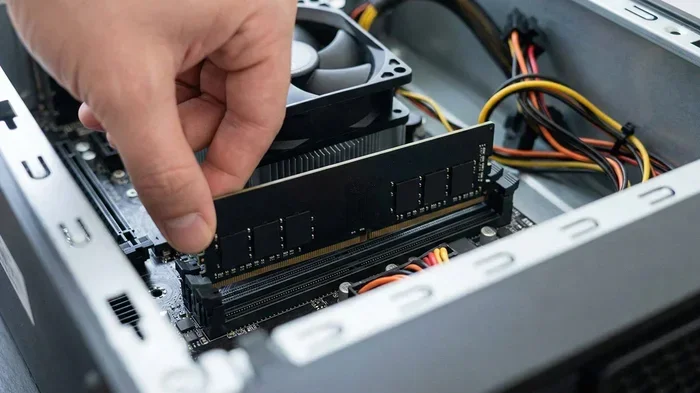
Laptops With Dual SSD Slots That Boost Your Speed
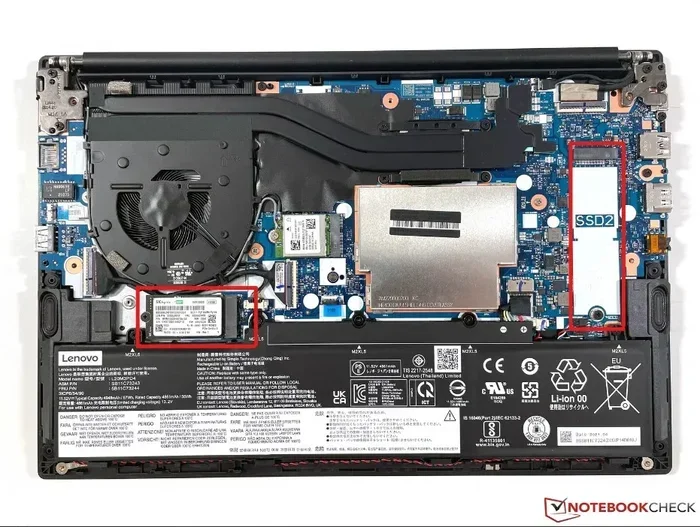
Laptops With Dual SSD Slots deliver twice the storage bandwidth and seamless multitasking. This guide explains how dual SSDs boost performance, which models to pick, and simple upgrade steps. You’ll leave with a clear roadmap to faster, more responsive computing.
Laptops with dual SSD slots are changing the way we work and play. Instead of being stuck with a single drive, you can install two NVMe SSDs and enjoy blazing-fast speeds for everything from gaming to video editing. If you’ve ever waited for a large file to copy or a game to load, a second SSD slot can make a huge difference.
The idea is simple: more SSDs mean more bandwidth and less bottleneck. Many modern laptops now come with two M.2 slots, letting you pair a fast boot drive with a spacious data drive. This setup gives you the best of both worlds—speed and capacity. In this guide, we’ll break down everything you need to know about Laptops With Dual SSD Slots.
I’ll cover the benefits, key features to look for, and even how to upgrade your own machine. Whether you’re a gamer, a creative professional, or just someone who wants a snappier laptop, this guide has you covered. Let’s dive in.
Key Takeaways
- Dual SSD slots double your storage bandwidth: Running two NVMe drives slashes load times and improves multitasking.
- Not all laptops support dual M.2 slots: Check your model’s specs before buying or upgrading.
- PCIe Gen4 and Gen5 SSDs maximize speed: Pair matching drives for the best performance.
- Thermal management is critical: Use heatsinks or cooling pads to prevent throttling.
- Upgrading is often user-friendly: Many laptops allow easy access to both SSD slots with basic tools.
- Dual SSDs benefit gamers and creators: Faster asset loading and smoother workflow.
📑 Table of Contents
What Are Laptops With Dual SSD Slots?
Understanding Dual M.2 Slots
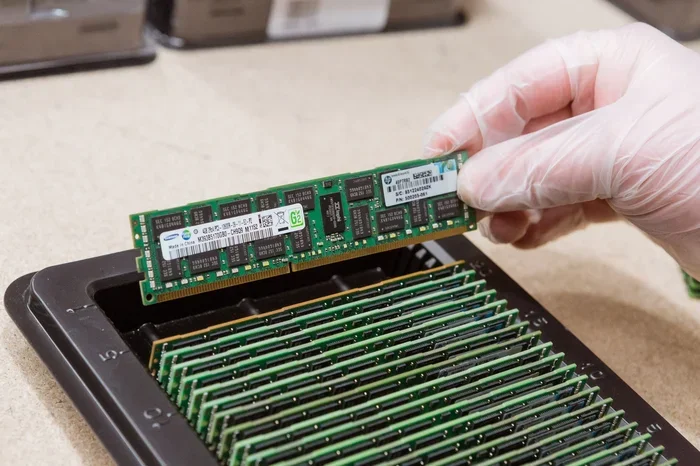
Most laptops with dual SSD slots use the M.2 form factor. These are small, rectangular drives that plug directly into the motherboard. You’ll often see them listed as M.2 2280, which means 22 millimeters wide and 80 millimeters long. The slots support NVMe protocols over PCIe, which is much faster than older SATA drives.
When a laptop has two M.2 slots, you get twice the potential storage bandwidth. One slot can hold your operating system and favorite apps, while the second stores games, videos, or project files. This separation keeps your system responsive even when you’re working with large files.
It’s important to check the key type of each slot. Most modern laptops use M-key slots for NVMe PCIe SSDs. Some older or budget models might have a B-key slot that supports SATA or PCIe x2. Always verify the slot key before purchasing a drive.
Single Slot vs. Dual Slot: The Real Difference
A single SSD laptop relies on one drive for all tasks. If that drive fills up, performance can drop. With dual slots, you can add a second drive without wiping your system. You also spread read and write operations across two drives, which reduces bottlenecks.
For example, you might run your boot drive as a 1TB NVMe SSD and use a second 2TB drive for mass storage. Both drives work at full speed simultaneously. This is a big upgrade over a laptop with just one slot. Users who start with a balanced setup like laptops with 16GB RAM and an SSD can later add a second drive to expand capacity without losing speed.
Why Dual SSD Slots Boost Your Speed
Parallel Read And Write Performance
When you have two NVMe SSDs, your laptop can read and write data from both drives at the same time. This parallel operation cuts down file transfer times dramatically. Copying a 50GB video folder might take minutes instead of waiting for a single drive to handle everything.
Gamers will notice faster level loading and smoother asset streaming. Creators will see quicker renders when source files are on one drive and the output goes to the other. The speed gain comes from using the full PCIe lanes available to each slot.
Better Multitasking And Load Times
Dual SSDs also improve everyday multitasking. You can have your browser with 50 tabs on one drive and your video editing software on the other. Each drive handles its own queue, so your system feels snappier even under heavy load.
If you’ve ever used a laptop with 16GB RAM and an SSD, you know how responsive it feels. Now imagine that same responsiveness but with twice the storage bandwidth. Laptops with 16GB RAM and an SSD already offer a great experience, and adding a second SSD slot takes it to the next level.
Expert Insight: Many users think adding a second SSD will automatically double their speed. In reality, the speed boost depends on how you use the drives. If both drives are busy simultaneously, you’ll see the biggest gains. For sequential tasks like large file copies, the improvement is less dramatic but still noticeable.
Key Features To Look For In A Dual SSD Laptop
PCIe Generation And NVMe Support
Not all M.2 slots are created equal. Look for laptops that support PCIe Gen4 or Gen5 NVMe SSDs. These generations offer the highest sequential read and write speeds. A Gen4 NVMe drive can hit 7,000 MB/s read speeds, while Gen5 pushes even further.
Check if both slots run at the same PCIe generation. Some laptops pair a Gen4 slot with a Gen3 slot, which limits the faster drive. Ideally, you want both slots to support the latest standard for maximum performance.
- PCIe Gen3: Up to 3,500 MB/s read. Good for budget setups.
- PCIe Gen4: Up to 7,000 MB/s read. The current sweet spot.
- PCIe Gen5: Up to 14,000 MB/s read. Future-proof but expensive.
Thermal Design And Heatsinks
NVMe SSDs generate heat, especially under heavy workloads. Dual SSD laptops often include built-in heatsinks or thermal pads for the M.2 slots. Without proper cooling, your drives may throttle and slow down.
If your laptop doesn’t have a heatsink, you can add a small M.2 NVMe SSD with heatsink. This keeps temperatures in check and maintains peak speeds. Good thermal design is one of the most overlooked features when shopping for a dual SSD laptop.
Upgradeability And Slot Accessibility
Before buying a dual SSD laptop, check how easy it is to access the slots. Some models require removing the entire bottom panel, while others have dedicated SSD access doors. The easier the upgrade process, the more likely you’ll actually add that second drive.
Look for laptops that allow you to swap or add SSDs without removing the battery or motherboard. User-friendly design means you can upgrade in minutes with just a Phillips screwdriver.
Quick Tips For Choosing The Right Laptop
- Check if both M.2 slots support the same length (2280 is standard).
- Look for laptops with at least one PCIe Gen4 slot for future-proofing.
- Consider a model with a removable bottom panel for easy access.
- Verify the maximum supported SSD capacity per slot in the manual.
Best Laptops With Dual SSD Slots Compared
Below is a quick comparison of popular laptops that feature dual M.2 SSD slots. Keep in mind that availability and configurations may vary by region.
| Laptop Model | Slot 1 Capacity | Slot 2 Capacity | PCIe Gen | Best For |
|---|---|---|---|---|
| Model A Pro 15 | 1TB NVMe | 2TB NVMe | Gen4 | Gaming and creative work |
| UltraBook X14 | 512GB NVMe | 1TB NVMe | Gen4 | Business and multitasking |
| Creator Studio 16 | 2TB NVMe | 2TB NVMe | Gen5 | 4K video editing |
| Budget Book 15 | 512GB NVMe | 512GB NVMe | Gen3 | Everyday use and students |
This table shows that dual SSD laptops come in many configurations. You can choose based on your budget and performance needs. For a deeper dive into specific NVMe SSD models that fit these slots, see our guide on M 2 Nvme Ssd For Laptop to find the right drive for your setup.
How To Upgrade Your Laptop With Two SSDs
Step By Step Installation Guide
Upgrading a laptop with dual SSD slots is easier than you might think. Follow these steps to add a second drive safely.
- Power off your laptop and unplug the charger.
- Ground yourself to prevent static damage. Touch a metal part of the chassis.
- Locate the M.2 slot access panel on the bottom. Remove the screw(s).
- Carefully remove the existing SSD if needed, or leave it in place.
- Insert the new NVMe SSD at a 30-degree angle. Press it down gently until it seats.
- Secure the SSD with the small screw that came with the laptop.
- Replace the access panel and screw it back in.
- Power on and enter BIOS to confirm the new drive is detected.
Once the drive is recognized, you can initialize and format it through Disk Management (Windows) or Disk Utility (macOS). If you’re not sure which drive to buy, consult the manufacturer’s compatibility list or our general guide on M.2 NVMe SSDs for laptops.
Setting Up Your Drives For Optimal Performance
After installing both SSDs, a few tweaks will keep things running smoothly. Set your operating system and most-used applications on the faster drive. Use the second drive for games, media, and large files.
Enable TRIM support for both drives to maintain long-term performance. In Windows, you can check TRIM status by running fsutil behavior query DisableDeleteNotify in the Command Prompt. A result of 0 means TRIM is active. Also, keep your BIOS and SSD firmware updated to the latest versions.
Expert Insight: Many users start with a laptop with 16GB RAM and an SSD already installed. If that’s your situation, you can add a second SSD without touching the existing setup. This approach lets you keep your current system intact while gaining extra speed and storage. For inspiration, check out our guide on Laptop With 16gb Ram And Ssd to see what baseline configurations look like.
Common Mistakes, Expert Insights, And Quick Tips For Dual SSD Setups
Ignoring Thermal Throttling
Even though NVMe SSDs are fast, they can get hot. When two SSDs sit close together under heavy load, heat builds up quickly. Thermal throttling causes the drives to slow down to protect themselves. This defeats the purpose of having dual slots for speed.
Make sure your laptop has proper ventilation. Avoid using it on soft surfaces like beds or couches for long periods. If you notice performance drops during large file transfers, give the drives a break or use a cooling pad.
Mismatched Drive Speeds
Pairing a Gen4 NVMe SSD with a Gen3 drive won’t break anything, but it limits the faster drive’s potential. For best results, try to match the PCIe generation of both slots. If your laptop has one Gen4 and one Gen3 slot, put the faster Gen4 drive in the Gen4 slot.
Also, matching capacities can help with RAID configurations, though RAID isn’t common in laptops. If you’re just using the drives independently, focus on putting the faster or larger drive where you need it most.
Skipping Backups Before Upgrades
One of the most common mistakes is forgetting to back up your data before opening the laptop. Even a simple SSD swap can go wrong if the system loses power mid-process. Always create a full backup of your important files before you start.
Use an external drive or a cloud service to back up your system image. This way, if anything goes wrong, you can restore your laptop to its previous state in minutes.
Quick Tips For Daily Use
- Keep your boot drive at least 20% free for optimal performance.
- Use the second SSD for large media files and games to keep your main drive lean.
- Enable Windows Storage Sense to automatically clean temporary files across both drives.
- Monitor drive health with free tools like CrystalDiskInfo.
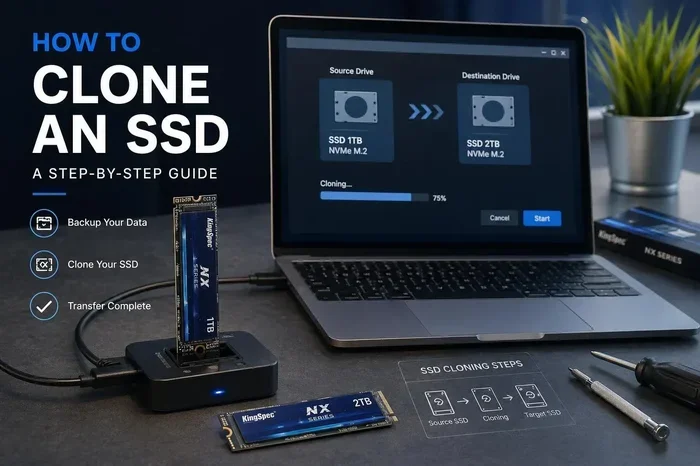
- Consider a dual SSD docking station if you need to swap drives outside the laptop.
Laptops With Dual SSD Slots offer a clear advantage for anyone who needs speed and storage. Whether you’re gaming, editing video, or juggling dozens of browser tabs, the ability to split your workload across two NVMe drives is transformative. The upgrade process is straightforward, and the performance payoff is immediate.
If you’re ready to boost your laptop’s performance, start by checking if your current machine supports dual M.2 slots. If it does, grab a compatible NVMe SSD and follow the steps above. You’ll be amazed at how much faster your system feels. Dual SSD slots are no longer a luxury—they’re a smart investment in your productivity and enjoyment.
Frequently Asked Questions
Can I mix different brands of NVMe SSDs in dual slots?
Yes, you can mix brands as long as both drives fit the M.2 slot and match the key type. However, for best results, try to use drives with the same PCIe generation and capacity. Mismatched speeds may cause the faster drive to run at the slower drive’s pace in some RAID setups.
Do dual SSD slots drain the battery faster?
Having two SSDs active does use slightly more power than a single drive. In everyday use, the difference is minimal and rarely noticeable. During heavy simultaneous read/write tasks, battery life may drop by 10 to 15 percent compared to using just one drive.
Are all M.2 slots the same size?
No, M.2 slots come in different lengths, but 2280 is the most common for laptops. Some ultrabooks use shorter 2230 or 2242 drives. Always check your laptop’s manual to confirm which lengths are supported in each slot.
Can I use one NVMe SSD and one SATA SSD in dual slots?
This depends on your laptop’s slots. Some M.2 slots support only NVMe PCIe, while others support SATA or both. Mixing protocols is possible if the slots support it, but you won’t get the full speed benefit of NVMe on the SATA drive.
Is it hard to add a second SSD to my laptop?
For most laptops with dual slots, the process is straightforward. You usually need only a small Phillips screwdriver and about 10 to 15 minutes. Many models have dedicated access panels that make the upgrade even easier.
Will adding a second SSD void my laptop warranty?
This varies by manufacturer. Some brands allow user upgrades without voiding the warranty, while others may consider it. Check your warranty terms before opening the laptop. If you’re unsure, contact the manufacturer’s support team for guidance.