What Is SSD Solid State Drive Guide and Why It Matters
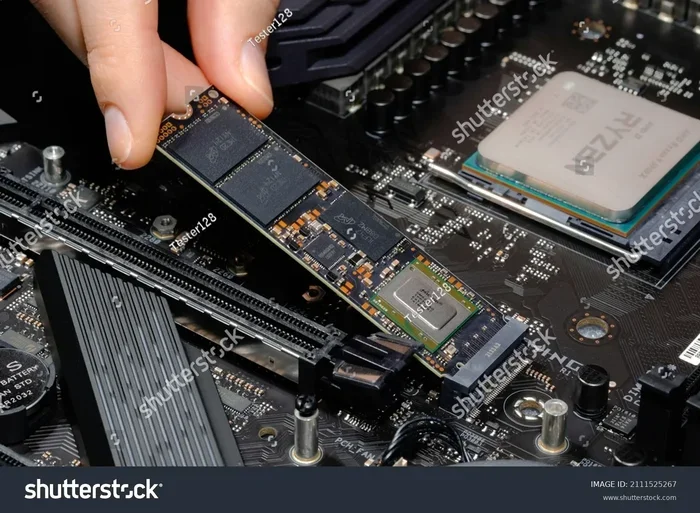
An SSD solid state drive is a modern storage device that uses flash memory instead of moving parts to store your data. It loads games, boots your PC, and transfers files much faster than old hard drives. This guide explains everything you need to know about SSDs, from types to real-world benefits.
A solid state drive, commonly called an SSD, is one of the best upgrades you can make to any computer. Whether you are building a new PC or upgrading an older one, understanding what is SSD solid state drive helps you make smarter choices. This guide breaks down everything you need to know in plain, simple language.
Old-school hard disk drives, or HDDs, rely on spinning metal disks to read and write data. Think of it like a record player. An SSD, on the other hand, stores data on flash memory chips. There are no moving parts at all. This simple difference makes a huge impact on speed, durability, and overall performance.
If you have ever waited minutes for your PC to start up or watched a loading bar crawl across your screen, an SSD can change your life. Let us dive deep into how these drives work and why they matter so much in today’s computing world.
Key Takeaways
- SSD stands for Solid State Drive: It stores data on flash memory with no moving parts, making it faster and more durable than traditional hard drives.
- SSD speeds change everything: Boot times, game loads, and file transfers are dramatically quicker with an SSD upgrade.
- NVMe and SATA are the two main types: NVMe SSDs use the PCIe lane for top speeds, while SATA SSDs are more affordable and widely compatible.
- Capacity matters for your needs: 1TB is the sweet spot for most gamers, but 2TB and larger options exist for heavy workloads.
- SSDs last longer and run cooler: No spinning disks means less wear, less heat, and better reliability over time.
- Upgrading is simple: Most modern PCs and laptops support SSD upgrades with minimal technical skill required.
📑 Table of Contents
What Exactly Is an SSD?
An SSD is a storage device that saves your files, programs, and operating system using NAND flash memory. Unlike a traditional hard drive, it has no spinning parts or moving mechanical components. Instead, it uses electronic circuits to access data almost instantly.
The term “solid state” means the device uses solid electronic components rather than mechanical ones. This design makes SSDs incredibly fast and reliable. You will find SSDs in everything from budget laptops to high-end gaming desktops.
How Does an SSD Store Data?
Inside every SSD, there are tiny memory cells that hold electrical charges. These cells represent ones and zeros, which is how all digital data is stored. A controller chip manages these cells and handles reading and writing operations.
When you save a file, the controller places the data into specific memory cells. When you open that file later, the controller retrieves it almost instantly. This process is vastly different from how a mechanical hard drive works, where a physical arm must move to a specific spot on a spinning disk.
SSD vs HDD: What Is the Difference?
Understanding the difference between an SSD and an HDD is key to appreciating why solid state drives have become the standard. Both serve the same purpose, but they go about it in very different ways.
Speed Comparison
SSDs are dramatically faster than HDDs. A typical SATA SSD can read data at around 550 MB per second. A modern NVMe SSD can reach speeds of 7,000 MB per second or more. In contrast, a standard HDD usually tops out at around 150 MB per second.
This speed difference affects everything. Booting your operating system takes seconds instead of minutes. Games load almost instantly. Large files transfer in a fraction of the time. If you want to know more about the speed gap, check out this guide on how much faster NVMe is than SSD.
Durability and Reliability
Because SSDs have no moving parts, they are far more durable than HDDs. Dropping a laptop with an HDD can cause the read/write head to scratch the disk, destroying data. An SSD has no such vulnerability. This makes SSDs a better choice for portable computers and devices that experience movement or vibration.
SSDs also produce less heat and consume less power. They run silently, which is a nice bonus for anyone who values a quiet workspace.
Price and Capacity
HDDs still win on raw storage capacity per dollar. You can buy a 4TB HDD for less than a 1TB SSD. However, SSD prices have dropped significantly over the past few years. For most users, the speed benefits of an SSD far outweigh the cost difference.
| Feature | SSD | HDD |
|---|---|---|
| Speed | Very Fast | Slow |
| Durability | High (no moving parts) | Low (moving parts) |
| Price per GB | Higher | Lower |
| Noise | Silent | Audible clicking |
| Power Use | Low | Higher |
| Max Capacity | Up to 8TB | Up to 20TB+ |
Types of SSDs You Should Know
Not all SSDs are the same. There are different form factors and connection types that affect performance and compatibility. Understanding these types helps you pick the right drive for your needs.
SATA SSDs
SATA SSDs are the most common type. They connect to your motherboard using the same SATA interface that older hard drives used. These SSDs are affordable and work in almost any desktop or laptop that supports a 2.5-inch drive.
A SATA SSD is a great upgrade from an HDD. You will notice a massive improvement in boot times and application loading. They are the perfect entry point for anyone new to solid state storage.
NVMe SSDs
NVMe (Non-Volatile Memory Express) SSDs are the speed kings. They connect directly to the PCIe lanes on your motherboard, bypassing the older SATA bottleneck. This means NVMe drives can deliver speeds that are over ten times faster than SATA SSDs.
Most NVMe SSDs use the M.2 form factor, which looks like a small stick of gum. They slot directly into the motherboard without any cables. For gamers, an NVMe drive like the WD Black 8TB SN850X NVMe SSD delivers blazing fast load times and massive storage capacity.
M.2 vs U.2 vs Add-in Card SSDs
The M.2 form factor is the most popular today. It is small, efficient, and easy to install. U.2 SSDs are larger and typically found in enterprise servers. Add-in card SSDs plug into PCIe slots and offer high performance for workstations.
For most home users and gamers, an M.2 NVMe SSD is the best choice. It offers top speeds in a compact size that fits almost any modern PC case.
Why SSDs Matter for Gaming
If you are a gamer, an SSD is not just nice to have, it is essential. Modern games are packed with huge files, high-resolution textures, and complex worlds that need to load quickly. A slow hard drive will bottleneck your entire gaming experience.
Faster Load Times
Games installed on an SSD load significantly faster than those on an HDD. Open-world games with large environments benefit the most. Instead of staring at a loading screen for minutes, you are in the game in seconds.
For example, the WD Black SN850X 1TB NVMe SSD is a popular choice among gamers because it offers both speed and enough capacity for several large titles.
Smoother Gameplay
Beyond load times, SSDs help reduce texture pop-in and stuttering during gameplay. When your drive can feed data to your GPU and CPU quickly, the game runs more smoothly. This is especially noticeable in open-world games where the environment changes constantly around you.
Fast File Transfers
Copying game files, updating installations, and transferring save data all happen much faster on an SSD. What might take 30 minutes on an HDD takes just a few minutes on a solid state drive. This saves you valuable time, especially when managing a large game library.
How to Choose the Right SSD for Your PC
Choosing the right SSD depends on your needs, budget, and PC compatibility. Here are the key factors to consider before making a purchase.
Check Your Motherboard Compatibility
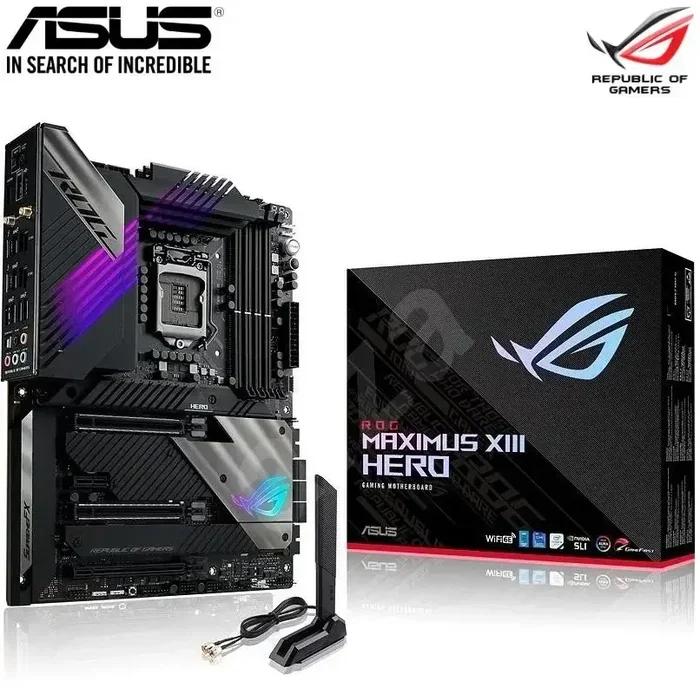
Before buying an SSD, check what your motherboard supports. Does it have M.2 slots? Does it support NVMe or only SATA? Most modern motherboards from 2018 onward support NVMe M.2 SSDs, but older boards may only have SATA connections.
Look up your motherboard model online to see which slots are available. This simple step prevents buying a drive that will not work in your system.
Consider Your Storage Needs
Think about what you will store on the drive. For an operating system and a few games, 500GB might be enough. For a serious gaming setup with multiple large titles, 1TB or 2TB is more realistic.
Here is a quick guide to help you decide:
- 500GB: Budget option for OS and a few small games.
- 1TB: Sweet spot for most users and moderate gamers.
- 2TB: Great for large game libraries and creative workloads.
- 4TB+: Best for professionals and hardcore enthusiasts.
Read and Write Speeds
Pay attention to the sequential read and write speeds listed by the manufacturer. Higher numbers mean faster performance. However, real-world speeds can vary based on your system configuration and the type of work you are doing.
For gaming, a read speed of 5,000 MB per second or higher is excellent. For creative work like video editing, write speeds matter just as much as read speeds.
Common SSD Mistakes to Avoid
Even though SSDs are user-friendly, there are a few common mistakes people make when buying or using them. Avoiding these pitfalls helps you get the most from your investment.
Buying the Wrong Form Factor
One of the most common mistakes is buying a 2.5-inch SATA SSD when your PC only has an M.2 slot. Always double-check the available slots and connectors on your motherboard before purchasing.
Ignoring DRAM Cache
Some budget SSDs skip the DRAM cache to cut costs. While these drives still work fine for basic tasks, they can slow down during heavy workloads. If you plan on doing intensive tasks, look for an SSD with a dedicated DRAM buffer.
Not Leaving Enough Free Space
SSDs perform best when they have free space available. Filling an SSD to maximum capacity can slow it down significantly. Try to keep at least 10 to 20 percent of the drive free for optimal performance.
Quick Tips for Getting the Most from Your SSD
Follow these simple tips to keep your solid state drive running at peak performance for years to come.
- Enable TRIM: TRIM tells your SSD which data blocks are no longer in use, helping maintain speed over time.
- Keep firmware updated: Check the manufacturer’s website occasionally for firmware updates that can improve performance and fix bugs.
- Avoid defragmentation: Unlike HDDs, SSDs do not need defragmentation. In fact, it can shorten their lifespan.
- Use the correct connection: Always plug your SSD into the fastest available port on your motherboard for the best speeds.
- Monitor drive health: Use free tools like CrystalDiskInfo to check your SSD’s health and catch potential issues early.
Conclusion
An SSD is one of the most impactful upgrades you can make to any computer. Whether you are a casual user, a gamer, or a professional, a solid state drive transforms your experience. Boot times shrink, games load instantly, and files transfer in the blink of an eye.
Understanding what an SSD is and how it works empowers you to make confident buying decisions. From SATA to NVMe, from 500GB to 8TB, there is an SSD for every need and budget. The days of waiting on slow hard drives are over. Embrace the speed and reliability of modern flash storage, and your PC will thank you every single day.
If you are ready to upgrade, start by checking your PC’s compatibility and choosing the right capacity for your workload. A small investment in an SSD pays off massively in performance and peace of mind.
Frequently Asked Questions
What does SSD stand for?
SSD stands for Solid State Drive. It is a storage device that uses flash memory to store data without any moving mechanical parts, making it faster and more reliable than traditional hard disk drives.
Is an SSD better than an HDD?
Yes, an SSD is significantly faster, more durable, and quieter than an HDD. While HDDs offer more storage for less money, the speed benefits of an SSD make it the better choice for most users, especially gamers and professionals.
What is the difference between SATA and NVMe SSDs?
SATA SSDs connect through the older SATA interface and max out around 550 MB per second. NVMe SSDs connect through PCIe lanes and can reach speeds of 7,000 MB per second or more, making them much faster for demanding tasks.
How much SSD storage do I need for gaming?
1TB is the recommended minimum for most gamers. Modern games can range from 50GB to 150GB each, so 1TB gives you room for several titles. If you have a large library, consider a 2TB drive like the WD Black 8TB SN850X.
Can I use an SSD in an older PC?
Yes, most older PCs can use an SSD. If your motherboard has a SATA port, you can install a 2.5-inch SATA SSD. If it has an M.2 slot, you can use an NVMe SSD. Check your PC’s specifications to confirm compatibility.
Do SSDs wear out?
SSDs have a limited number of write cycles, but modern drives are built to last many years under normal use. Most manufacturers rate their SSDs for hundreds of terabytes written, which is far more than typical home or gaming use will ever require.