Ssd Vs Hdd Comparison Guide To Make The Right Choice
Choosing between an SSD and HDD can be confusing, but this guide breaks it all down. You will learn how each drive works, which one is faster, and where each excels. By the end, you will know exactly which storage option makes sense for your setup and budget.
If you are building or upgrading a PC, one of the biggest decisions you will face is choosing between an SSD and an HDD. These two types of storage drives are very different, even though they serve the same basic purpose: keeping your files, games, and operating system safe.
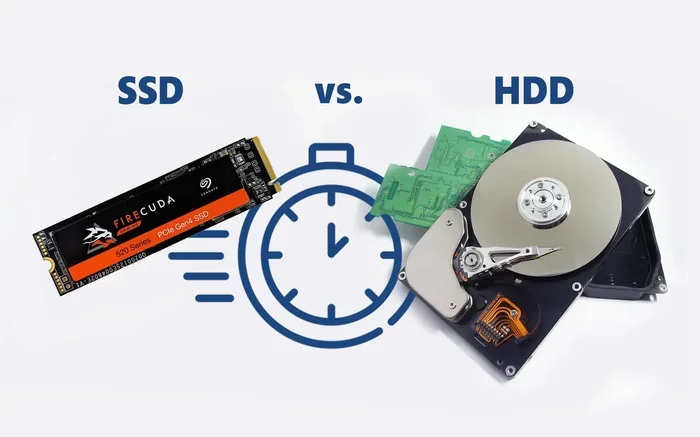
A solid state drive uses flash memory to store data with no moving parts. A hard disk drive relies on spinning metal platters and a mechanical arm to read and write information. That simple difference changes everything about how your computer feels, how fast it runs, and how much you will pay.
This SSD vs HDD comparison guide walks you through every important factor. You will understand speed, price, durability, and more. By the time you finish reading, you will feel confident picking the right drive for your needs.
Key Takeaways
- Speed: SSDs are dramatically faster than HDDs for booting, loading, and file transfers.
- Price: HDDs still win on cost per gigabyte, making them ideal for mass storage.
- Durability: SSDs have no moving parts, making them more resistant to drops and shocks.
- Noise: SSDs run silently, while HDDs produce noticeable spinning and clicking sounds.
- Best for gaming: NVMe SSDs like the WD Black SN850P deliver the fastest load times.
- Best for bulk storage: HDDs remain the go-to choice for storing large media libraries and backups.
📑 Table of Contents
What Is an SSD?
How Solid State Drives Work
An SSD stores data on NAND flash memory chips. There are no spinning disks or moving parts inside. Instead, electrical signals read and write data directly to the memory cells. This design is what gives SSDs their incredible speed.
Most modern SSDs use the M.2 form factor, which looks like a small stick of gum. You plug it directly into the motherboard. Some SSDs also come in the 2.5-inch size, which fits into the same bays as older laptop hard drives.
The SATA interface was the first way SSDs connected to computers. Now, most people prefer NVMe SSDs that use the PCIe lane for much higher speeds. If you want the fastest storage available, look for a PCIe Gen4 or Gen5 NVMe drive.
Why SSDs Are So Popular
SSDs have become the standard for new PCs. Here is why so many people choose them:
- Blazing fast boot times: Windows loads in seconds instead of minutes.
- Quick file transfers: Copying large files takes a fraction of the time.
- No noise: There are no moving parts, so your PC stays completely silent.
- Lower power use: SSDs draw less electricity, which helps laptop battery life.
- Compact size: M.2 SSDs are tiny and save space inside your case.
One thing to keep in mind is that SSDs do cost more per gigabyte than HDDs. However, prices have dropped a lot over the years. A 1TB SSD now costs only slightly more than a 1TB HDD in many cases.
What Is an HDD?
How Hard Disk Drives Work
An HDD uses spinning magnetic platters to store data. A small arm with a read/write head moves across the platter surface to access information. Think of it like a record player, but much more advanced.
HDDs have been around for decades. They are mature technology that is tried and tested. You can find them in capacities ranging from 500GB all the way up to 20TB or more. For storing huge amounts of data, HDDs are hard to beat.
The RPM (rotations per minute) of the platter affects how fast the drive can access data. Most consumer HDDs spin at 5400 RPM or 7200 RPM. Higher RPM means faster access, but it also means more noise and heat.
Where HDDs Still Shine
Despite being older technology, HDDs still have a place in modern computing:
- Mass storage at low cost: You can buy a 4TB HDD for less than a 1TB SSD.
- Great for backups: HDDs are perfect for storing archived files you do not access often.
- Media libraries: Store thousands of movies, photos, and music tracks without breaking the bank.
- Availability: HDDs are easy to find and come in many sizes.
- Proven reliability: Decades of use have proven HDDs can last a long time.
The biggest drawback of HDDs is speed. They are much slower than SSDs for everything from booting your PC to opening applications. If your operating system is on an HDD, you will notice the lag every day.
SSD vs HDD Speed Comparison
Read and Write Speeds
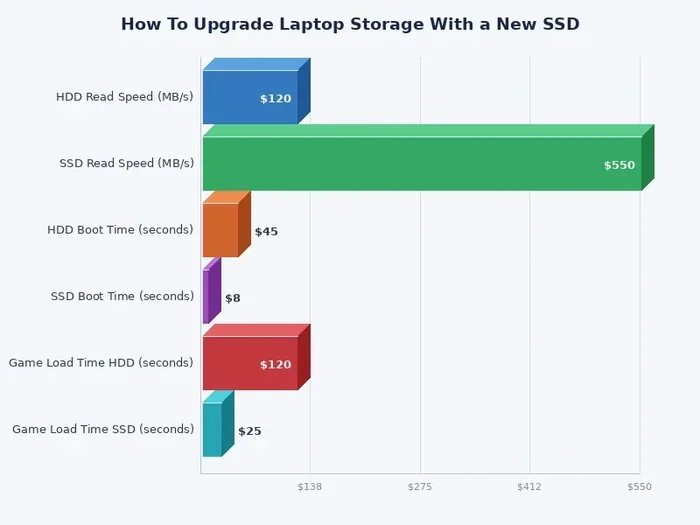
Speed is the area where SSDs and HDDs differ the most. A typical SATA SSD reads data at around 500 to 550 MB/s. A modern NVMe SSD can reach speeds of 5000 MB/s or even 7000 MB/s on PCIe Gen4. In comparison, a standard HDD manages only about 100 to 150 MB/s.
That means the fastest SSDs are roughly 50 times faster than the average HDD. Even a basic SATA SSD is 3 to 5 times quicker. For everyday tasks like opening apps, loading games, or copying files, this speed difference is very noticeable.
Real-World Performance Differences
Let us look at some practical examples to understand the speed gap better:
- Booting Windows: An SSD boots in 10 to 15 seconds. An HDD can take 45 to 90 seconds or more.
- Opening a game: SSDs load games in seconds. HDDs can take much longer, especially for large titles.
- File transfers: Moving a 50GB folder takes about 2 minutes on an SSD but 5 to 6 minutes on an HDD.
- Video editing: Scrubbing through footage is smooth on an SSD but often choppy on an HDD.
If you want the absolute fastest storage, check out the best NVMe M.2 SSDs available today. These drives offer the top-tier performance for demanding tasks like gaming, video editing, and 3D rendering.
Price and Value Comparison
Cost Per Gigabyte
Price is where HDDs still hold a strong advantage. As of 2024, HDDs cost roughly $0.02 to $0.03 per gigabyte. SSDs cost about $0.06 to $0.10 per gigabyte for standard SATA models, and NVMe SSDs can be even more expensive at the high end.
Here is a simple comparison of common capacities:
- 500GB: HDD costs around $15 to $20. SSD costs around $30 to $40.
- 1TB: HDD costs around $30 to $40. SSD costs around $50 to $70.
- 2TB: HDD costs around $50 to $60. SSD costs around $80 to $120.
- 4TB: HDD costs around $80 to $100. SSD costs around $150 to $200.
The price gap is narrowing every year. SSD prices continue to drop, and they are becoming more affordable for everyday users. For most people, the speed benefits of an SSD are worth the extra cost.
Which Offers Better Value?
The answer depends on how you use your computer:
- For everyday use: An SSD offers the best value because it makes your entire system feel faster.
- For mass storage: An HDD is the better value if you need to store large amounts of data cheaply.
- For gaming: An SSD is a must-have for fast load times and smooth performance.
- For professional work: NVMe SSDs provide the speed needed for video editing and large file workflows.
Many smart users combine both drives. They install the operating system and frequently used programs on an SSD, and use an HDD for storing games, media, and backups. This approach gives you the best of both worlds.
Durability and Reliability
Moving Parts vs No Moving Parts
This is one of the most important differences between SSDs and HDDs. HDDs contain spinning platters and a mechanical arm that moves back and forth. These moving parts can wear out over time, and they are vulnerable to physical shock.
If you drop a laptop while the HDD is spinning, the read/write head can scratch the platter surface. This can cause data loss or even kill the drive entirely. SSDs have no moving parts, so they are much more resistant to drops and bumps.
For laptops and portable devices, SSDs are clearly the safer choice. They handle movement and shocks much better, which is why almost all modern laptops come with SSDs as the primary drive.
Lifespan and Wear
SSDs have a limited number of write cycles, known as TBW (terabytes written). This means each cell in the flash memory can only be written to a certain number of times before it wears out. However, modern SSDs are rated for hundreds of terabytes of writes, which is more than enough for most users.
HDDs can fail from mechanical wear too. The motor that spins the platter can burn out, or the read/write head can crash into the disk surface. Both types of drives can last many years with normal use, but SSDs generally require less maintenance and are less prone to sudden failure.
If you ever need to recover data from an NVMe SSD or an HDD, the process can be complicated and expensive. This is another reason why regular backups are essential, no matter which drive type you use.
Which Drive Should You Choose?
Choose an SSD If…
- You want your PC to boot and load apps quickly.
- You are a gamer who needs fast load times.
- You work with large files like videos or raw photos.
- You are building a new PC or upgrading an old one.
- You use a laptop and need a durable, quiet drive.
- You want a compact M.2 SSD that saves space inside your case.
For most people today, an SSD is the clear winner as a primary drive. The speed improvement over an HDD is enormous and immediately noticeable. Whether you pick a SATA SSD or a faster NVMe drive depends on your budget and motherboard support.
Choose an HDD If…
- You need to store large amounts of data on a budget.
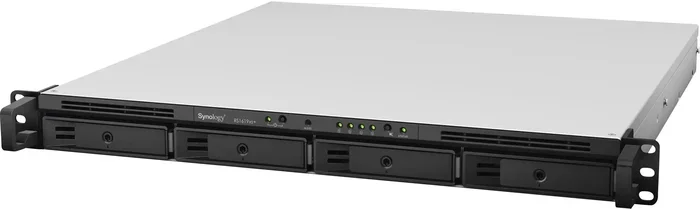
- You are building a media server or NAS for your home.
- You want to archive old files you rarely access.
- You need backup storage that does not cost a fortune.
- You are upgrading an older PC that does not support NVMe drives.
HDDs are not dead. They still serve a very important role in storage setups, especially when you need terabytes of space without spending a fortune. They work great as secondary drives alongside an SSD.
The Best Combination Setup
If your budget allows, the smartest approach is to use both drive types. Install your operating system and key applications on a fast SSD. Use an HDD as a secondary drive for games, media, and file storage. This setup gives you speed where you need it and capacity where you need it.
For laptop users, you can often replace a secondary drive or use external enclosures. Some laptops even have room for both an M.2 SSD and a 2.5-inch HDD. Check your laptop specifications to see what options are available to you.
Common Mistakes When Choosing Storage
Avoid these common pitfalls when deciding between an SSD and HDD:
- Buying an HDD as your primary drive: You will suffer from slow boot times and sluggish app loading every single day.
- Choosing capacity over speed: A 4TB HDD might seem tempting, but a 1TB SSD will make your PC feel so much faster.
- Ignoring interface compatibility: Make sure your motherboard supports the type of SSD you want to buy. Not all boards support NVMe drives.
- Skipping backups: No matter which drive you choose, always back up your important files. Drives can fail at any time.
- Overlooking used or refurbished options: You can sometimes find great deals on high-quality SSDs and HDDs that are gently used or refurbished.
Take your time and think about how you actually use your computer. The right storage choice depends on your specific needs, not just on what is trending or what is cheapest.
Expert Insight: The Future of Storage
The storage world is evolving quickly. PCIe Gen5 NVMe SSDs are already available and offer even faster speeds than Gen4 drives. As these drives become more affordable, they will likely replace SATA SSDs as the new standard for fast storage.
HDDs will probably continue to exist for mass storage and archival purposes. But for everyday computing, the SSD has already won. Even large tech companies are moving away from HDDs in their consumer products.
If you are shopping for a new drive right now, prioritize an SSD for your main system drive. Consider adding an HDD later if you need extra storage space. This approach keeps your PC fast today while leaving room to grow your storage as your needs change.
Conclusion
The SSD vs HDD comparison shows that each drive type has its strengths. SSDs deliver unmatched speed, durability, and silence. HDDs offer massive storage at a lower price per gigabyte. For most PC users in 2024, an SSD is the better choice for the primary drive.
If you need help choosing a specific model, check out options like the WD Black SN850P NVMe SSD for gaming, or the Samsung 980 Pro NVMe SSD for all-around performance. Both are excellent drives that will transform your computing experience.
Think about how you use your computer, set a budget, and pick the drive that fits your lifestyle. The right storage choice will make your PC faster, more reliable, and more enjoyable to use every single day.
Frequently Asked Questions
Is an SSD better than an HDD for gaming?
Yes, absolutely. SSDs load games much faster than HDDs, and they reduce in-game stuttering when streaming assets from the drive. For the best gaming experience, always install your games on an SSD.
Can I use both an SSD and an HDD in the same PC?
Yes, many people use both drives together. Install your operating system and frequently used programs on the SSD, and use the HDD for mass storage, games, and backups. This gives you the best balance of speed and capacity.
How long does an SSD last compared to an HDD?
Both drives can last many years with normal use. SSDs do not have moving parts, which makes them more durable against physical damage. HDDs have mechanical components that can wear out over time, but they are still very reliable for most users.
Why are SSDs more expensive than HDDs?
SSD technology uses more advanced flash memory chips, which cost more to manufacture than the magnetic platters used in HDDs. However, SSD prices have been dropping steadily, and the price gap continues to narrow every year.
Will an SSD make my old PC faster?
Yes, upgrading from an HDD to an SSD is one of the best ways to speed up an older PC. You will notice faster boot times, quicker app launches, and a much more responsive overall experience.
What size SSD do I need for everyday use?
A 500GB SSD is the minimum for comfortable everyday use with Windows and a few applications. For a better experience with multiple games or large files, a 1TB SSD is the sweet spot for most users.