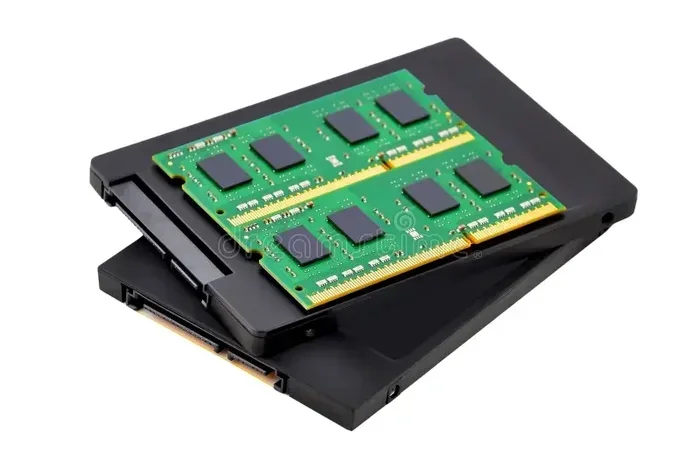
SSD Form Factors Explained 2 for Beginners and Buyers

SSD form factors determine how a solid state drive fits into your PC or laptop. Understanding sizes like 2280, interfaces like PCIe NVMe, and connector types helps you choose the right storage for your needs. This guide breaks it all down in simple terms for every buyer.
When you shop for a new solid state drive, the biggest decision is not just about storage capacity. It is also about the physical shape and size of the drive. SSD form factors refer to the different sizes, shapes, and connectors that storage drives use to fit into computers. If you have ever opened up a PC or looked at laptop specs, you may have seen terms like M.2, 2280, or NVMe and felt confused.
This guide is here to clear all that up. Whether you are building a new PC, upgrading a laptop, or just curious about storage, understanding SSD form factors will save you time, money, and frustration. We will walk through every major type in simple language with practical tips you can use right away.
Key Takeaways
- M.2 is the most popular form factor: It fits in nearly all modern laptops and desktops.
- 2280 is the standard M.2 size: This length works for most NVMe and SATA M.2 drives.
- PCIe NVMe is faster than SATA: It offers much higher read and write speeds for demanding tasks.
- Form factor matters for compatibility: Always check your motherboard or laptop specs before buying.
- Gen 4 and Gen 5 SSDs are the latest: They offer the fastest speeds available today.
- 2242 is a smaller option: Great for ultrabooks and compact devices.
📑 Table of Contents
What Are SSD Form Factors?
A form factor is simply the physical size and shape of a storage device. Think of it like shoes. You need the right size and style to fit properly. The same goes for solid state drives. Different computers accept different drive sizes and connector types. If you buy the wrong one, it simply will not fit or work.
The SSD form factors you will encounter most often include M.2, 2.5-inch SATA, mSATA, U.2, and add-in cards. Each one serves a specific purpose. M.2 drives are the most common today. They are small, flat sticks that plug directly into the motherboard. 2.5-inch SATA SSDs look like small rectangular boxes and are often used in older desktops and laptops.
Choosing the right form factor starts with knowing what your computer supports. Check your motherboard manual or laptop specs. Look for the connector type and available slots. This one step prevents a lot of headaches later.
Common SSD Form Factors You Will Encounter
M.2 SSDs
The M.2 form factor is the king of modern storage. These tiny drives look like sticks of gum. They connect directly to the motherboard through a single slot. M.2 SSDs come in two main types: SATA and NVMe. The SATA type uses the older SATA interface and is slower. The NVMe type uses the PCIe bus and is much faster.
M.2 drives are popular because they save space and offer great performance. They work well in both desktops and laptops. If you are upgrading a laptop for better storage, an M.2 NVMe SSD is often the best choice. Just make sure your laptop has an M.2 slot first.
2.5-Inch SATA SSDs
The 2.5-inch SATA SSD is the older but still widely used form factor. These drives look like small metal boxes. They connect using a SATA data cable and a power cable. They are common in older desktop PCs and some laptops.
These drives are slower than M.2 NVMe options, but they are still very reliable. They are a good budget choice for extra storage. Many people use a 2.5-inch drive for games and media while keeping their operating system on a faster M.2 drive.
mSATA SSDs
mSATA stands for mini-SATA. These are very small drives that were popular before M.2 came along. They use a mini PCIe connector. You will find them in some older ultrabooks and compact PCs. They are mostly outdated now, but you may still encounter them in older systems.
If your computer only has an mSATA slot, you can still find compatible drives. However, M.2 has almost completely replaced mSATA in modern devices.
U.2 and Add-In Card SSDs
U.2 connectors look like a small port on the motherboard. They are used mainly in enterprise and workstation environments. These drives are 2.5-inch drives that plug into a U.2 connector instead of using a SATA cable.
Add-in card SSDs plug into a PCIe slot on the motherboard. They are less common for regular users. You will mostly see them in high-end workstations and servers that need massive storage performance.
M.2 SSD Sizes and Key Types
M.2 drives come in different lengths and key types. The size is written as four digits, like 2280. The first two digits are the width in millimeters. The last two digits are the length. The most common size is 2280, which means 22mm wide and 80mm long.
Here are the most common M.2 sizes you will see:
- 2280: The standard size for most desktops and laptops.
- 2242: A shorter drive used in ultrabooks and compact devices.
- 2230: An even shorter drive found in some tablets and thin laptops.
- 2260: A middle-length option used in some mini PCs.
Always check what length your device supports. A 2280 drive will not fit in a slot designed for 2242. The 2280 M.2 NVMe SSD is the most popular size and offers the widest compatibility for most modern PCs.
M-Key vs B-Key Connectors
M.2 drives have different key notches on the bottom connector. These notches determine which slots the drive can fit into. The two main types are B-key and M-key.
- B-key: Has a notch on the left side. It supports SATA and PCIe x2 connections.
- M-key: Has a notch on the right side. It supports PCIe x4 connections and is faster.
- B+M-key: Has notches on both sides. It fits in both B and M slots but may be limited to PCIe x2 speeds.
Most modern NVMe drives use the M-key connector. If you are buying a PCIe Gen4 NVMe M.2 SSD, make sure your motherboard slot supports it. The M.2 NVMe PCIe 4.0 SSD offers excellent speeds for gaming and content creation.
How to Choose the Right SSD Form Factor
Choosing the right SSD form factor depends on a few simple factors. Let us walk through them one by one.
Step 1: Check Your Computer’s Slots
Open your PC case or check your laptop manual. Look for available M.2 slots, 2.5-inch drive bays, or other connectors. Count how many slots you have free. This tells you what type of drive you can install.
If your laptop only has one M.2 slot, you need to choose carefully. Pick a drive that matches the size and key type already in use. A M.2 NVMe SSD for laptop upgrade is usually the best path for better performance.
Step 2: Decide on the Interface
The interface determines how fast the drive can transfer data. Here is a quick comparison:
- SATA III: Max speed of about 550 MB/s. Good for everyday tasks.
- PCIe 3.0 NVMe: Max speed around 3,500 MB/s. Much faster for large file work.
- PCIe 4.0 NVMe: Max speed around 7,000 MB/s. Great for gaming and video editing.
- PCIe 5.0 NVMe: Max speed over 10,000 MB/s. The fastest option available now.
For most users, a PCIe 3.0 or 4.0 NVMe drive is more than enough. If you want top-tier speed, look at a Gen 4 M.2 NVMe SSD for excellent performance at a fair price.
Step 3: Consider Storage Capacity
SSDs come in many sizes. Common capacities include 256GB, 512GB, 1TB, 2TB, and 4TB. The right size depends on what you plan to store.
- 256GB to 512GB: Good for an operating system and a few apps.
- 1TB: A sweet spot for most users. Handles games, documents, and media well.
- 2TB and above: Best for heavy users, gamers with large libraries, and video editors.
Keep in mind that advertised capacity is slightly less than what the drive shows. A 1TB drive typically has around 930GB of usable space.
SSD Form Factors and Your PC Build
When building a PC, the SSD form factor you choose affects both performance and ease of installation. M.2 drives are the easiest to install. You simply insert them into the slot at a 30-degree angle and press down. No cables needed.
For a balanced PC build, many experts recommend using both an M.2 NVMe drive and a 2.5-inch SATA drive. Use the M.2 drive as your boot drive for the operating system and favorite apps. Use the SATA drive for mass storage like games, photos, and videos.
Make sure your motherboard has enough M.2 slots for your needs. Some high-end boards have three or four M.2 slots. Budget boards may only have one. Check the specs carefully before you buy parts.
Heat is another consideration. NVMe SSDs can get warm under heavy load. Many M.2 NVMe SSDs come with heatsinks included. If yours does not, you can buy a separate M.2 heatsink. This keeps the drive cool and maintains top speeds during long workloads.
Quick Tips for SSD Buyers
- Always verify the M.2 key type your motherboard supports before purchasing.
- Check if your laptop uses a 2280 or 2242 drive before ordering an upgrade.
- Buy from trusted brands like Samsung, Crucial, and Kingston for reliability.
- Consider a drive with a five-year warranty for peace of mind.
- Keep your BIOS updated for the best compatibility with newer SSDs.
Future Trends in SSD Form Factors
The world of storage is always evolving. New form factors and interfaces are being developed regularly. One trend is the push toward even smaller and faster drives. The M.2 2230 form factor is becoming more popular in thin laptops and tablets.
Another trend is the rise of PCIe Gen 5 SSDs. These drives offer incredible speeds but are still expensive. As prices drop, more users will adopt them for gaming and professional workloads. The M.2 NVMe SSD Gen 5 category is one to watch closely in the coming years.
We may also see new connector types designed for even faster data transfer. The industry is always looking for ways to make storage smaller, faster, and more efficient. For now, M.2 NVMe remains the best all-around choice for most users.
Common Mistakes to Avoid
- Buying the wrong size: A 2280 drive will not fit in a 2242 slot. Always double-check the length.
- Ignoring the key type: An M-key drive will not work in a B-key-only slot.
- Choosing SATA over NVMe unnecessarily: If your system supports NVMe, go with NVMe for much better speed.
- Overlooking heatsinks: A hot NVMe drive can slow down. A simple heatsink solves this.
- Not checking BIOS support: Older motherboards may not support newer PCIe Gen 4 or Gen 5 drives.
Avoiding these mistakes saves you from buying the wrong drive or dealing with compatibility issues. Take five minutes to check your system specs before you shop.
Expert Insights on SSD Form Factors
From years of testing and reviewing storage drives, the one piece of advice that stands out is this: match the form factor to your use case. If you are a gamer, a fast NVMe M.2 drive gives you the best experience. If you need lots of storage for media files, a larger SATA SSD or a combination setup works well.
For professionals who work with large video files or 3D models, speed is everything. A PCIe 4.0 or Gen 5 NVMe M.2 SSD can cut render and transfer times dramatically. The right form factor is not just about fitting a slot. It is about matching the drive to your workflow.
Also, keep an eye on enterprise-grade drives if you run a business or a home server. These drives use U.2 connectors and are built for 24/7 operation. They offer higher endurance and better data protection than consumer drives.
Key Takeaways
- M.2 is the most popular form factor: It fits in nearly all modern laptops and desktops.
- 2280 is the standard M.2 size: This length works for most NVMe and SATA M.2 drives.
- PCIe NVMe is faster than SATA: It offers much higher read and write speeds for demanding tasks.
- Form factor matters for compatibility: Always check your motherboard or laptop specs before buying.
- Gen 4 and Gen 5 SSDs are the latest: They offer the fastest speeds available today.
- 2242 is a smaller option: Great for ultrabooks and compact devices.
Conclusion
Understanding SSD form factors does not have to be complicated. The key is knowing what your computer supports and what you need from the drive. M.2 NVMe drives are the go-to choice for most users today. They offer great speed, a compact size, and easy installation.
Whether you are a beginner building your first PC or a buyer upgrading an existing system, the right SSD form factor makes all the difference. Take the time to check your slots, choose the right interface, and pick a capacity that fits your needs. With the right drive in place, your computer will feel faster and more responsive than ever before.
Start with the basics. Check your motherboard specs. Pick an M.2 NVMe drive if your system supports it. And always buy from a reputable brand. Your storage upgrade will be smooth and satisfying when you have the right information in hand.
Frequently Asked Questions
What is the most common SSD form factor today?
The M.2 form factor is the most common today. It is small, fast, and fits in nearly all modern desktops and laptops. Most new motherboards come with at least one M.2 slot built in.
What does 2280 mean in SSD form factors?
2280 is the size of an M.2 SSD. The first two digits (22) mean the width is 22mm. The last two digits (80) mean the length is 80mm. This is the standard size used in most PCs and laptops.
Is M.2 the same as NVMe?
No. M.2 refers to the physical shape and size of the drive. NVMe refers to the communication protocol. An M.2 drive can use either SATA or NVMe. NVMe is much faster than SATA.
Can I use a 2242 SSD in a 2280 slot?
No. A 2242 drive is shorter than a 2280 slot. It will not fit properly. Always match the drive length to the slot length on your motherboard or laptop.
Do I need a heatsink for my M.2 NVMe SSD?
It depends. Many modern NVMe SSDs come with a heatsink included. If yours does not, and you do heavy workloads like video editing or gaming for long periods, a heatsink helps keep speeds stable.
What is the difference between PCIe 3.0 and PCIe 4.0 SSDs?
PCIe 4.0 is about twice as fast as PCIe 3.0. PCIe 3.0 NVMe drives reach around 3,500 MB/s. PCIe 4.0 NVMe drives can reach around 7,000 MB/s. For most users, PCIe 4.0 is a great balance of speed and value.