Best Ram For Dell Xps 15 The Complete Upgrade Guide

Finding the best RAM for Dell XPS 15 is essential if you want faster performance, smoother multitasking, and better overall speed. This guide covers everything you need to know, from RAM types and capacities to step-by-step upgrade tips. Whether you use your Dell XPS 15 for work, creative projects, or gaming, choosing the right memory makes a huge difference. Read on to learn which RAM options deliver the best results for your specific needs.
If you own a Dell XPS 15, you already know it is a powerful machine. But even the best laptop can feel slow if it does not have enough memory. That is exactly why picking the best RAM for Dell XPS 15 matters so much. Whether you are a student, a professional, or a casual user, the right memory upgrade can transform how your laptop feels every single day.
In this guide, I will walk you through everything you need to know. We will cover which RAM types work, how much memory you actually need, and how to install it yourself. By the end, you will feel confident making the right choice for your Dell XPS 15.
Key Takeaways
- DDR4 and DDR5 RAM are the two main types compatible with the Dell XPS 15, and choosing the right one depends on your model year and performance goals.
- 16GB is the sweet spot for most users, while 32GB is ideal for heavy workloads like video editing, coding, and architecture software.
- Upgrading your RAM is one of the easiest and most affordable ways to breathe new life into an older Dell XPS 15.
- Always check your specific model before purchasing RAM, as different Dell XPS 15 generations have different slot configurations and maximum capacities.
- RAM speed and dual-channel configuration matter for maximizing performance gains after an upgrade.
📑 Table of Contents
Why RAM Matters for Your Dell XPS 15
RAM stands for Random Access Memory. Think of it as your laptop’s short-term workspace. When you open apps, browse tabs, or edit files, your processor uses RAM to keep everything running smoothly. The more RAM you have, the more tasks your laptop can handle at once without slowing down.
Here is a simple way to think about it. Imagine your desk is RAM. A small desk can only hold a few papers at a time. A bigger desk lets you spread out and work on many things simultaneously. That is exactly what more RAM does for your Dell XPS 15.
If your laptop constantly freezes, takes forever to switch between apps, or crashes when you open heavy software, low RAM is often the culprit. Upgrading your memory can fix all of these problems and more.
Signs You Need More RAM
Not sure if your Dell XPS 15 needs a memory boost? Watch for these common signs:
- Your laptop takes a long time to wake from sleep mode.
- You experience lag when switching between browser tabs.
- Apps like Photoshop or Premiere Pro crash frequently.
- Your task manager shows memory usage consistently above 80 percent.
- Multitasking with multiple apps feels sluggish and unresponsive.
If you notice any of these issues, it is probably time to consider a Dell XPS 15 RAM upgrade. It is one of the most cost-effective ways to improve performance without buying a new laptop.
Understanding RAM Types for Dell XPS 15
Not all RAM is the same. Different Dell XPS 15 models support different types of memory, and choosing the wrong one means wasted money. Let me break down the two main types you will encounter.
DDR4 RAM
DDR4 RAM has been the standard for several years now. It offers solid performance and is widely available at affordable prices. Most Dell XPS 15 models from 2018 through 2022 use DDR4 memory. This type of RAM is reliable, efficient, and more than enough for everyday tasks.
If you are a typical user who browses the web, streams videos, and works with office applications, DDR4 RAM will serve you well. It is also a great choice if you are on a budget and want a straightforward upgrade.
DDR5 RAM
DDR5 RAM is the newer generation, and it is starting to appear in the latest Dell XPS 15 models. It offers faster speeds and better power efficiency compared to DDR4. If you have a 2023 or newer Dell XPS 15, DDR5 might be the right choice for you.
However, DDR5 RAM tends to cost more than DDR4. For most users, the performance jump may not justify the extra expense unless you are doing very demanding work. That said, if you plan to keep your laptop for several years, DDR5 is a smart investment for future-proofing.
DDR3 RAM (Older Models)
Some older Dell XPS 15 models from before 2018 may use DDR3 RAM. If you have one of these, you will need to find DDR3-specific modules. Keep in mind that DDR3 is now considered outdated, and upgrade options are more limited. For these older machines, a Dell XPS 15 RAM upgrade to DDR3 may only offer modest improvements.
How Much RAM Do You Actually Need?
This is one of the most common questions people ask. The answer depends entirely on what you use your laptop for. Let me walk you through different scenarios so you can pick the right amount of memory.
8GB RAM: Basic Use
8GB of RAM is enough for light tasks like web browsing, email, and document editing. However, 8GB is becoming the bare minimum in 2024. If you open many browser tabs or use multiple apps at once, you will likely feel the strain. For most users today, 8GB is simply not enough for a smooth experience.
16GB RAM: The Sweet Spot
16GB is widely considered the ideal amount of RAM for most Dell XPS 15 users. It handles multitasking with ease, runs creative software smoothly, and is more than capable for light to moderate gaming. If you are unsure how much memory to buy, 16GB is almost always the right choice.
For professionals who use tools like AutoCAD or video editing software, 16GB of RAM for architecture and similar demanding tasks is often the minimum recommended. It gives you enough headroom to work comfortably without constant slowdowns.
32GB RAM: Heavy Workloads
If you are a video editor, 3D renderer, software developer, or data scientist, 32GB of RAM can be a game-changer. It allows you to work with large files, run virtual machines, and handle multiple intensive applications without breaking a sweat.
The Dell XPS 15 32GB RAM configuration is perfect for power users who demand the absolute best performance. It is also great for gaming enthusiasts who want to run modern titles at high settings while streaming simultaneously.
Quick Comparison Table
| RAM Amount | Best For | Performance Level |
|---|---|---|
| 8GB | Basic browsing and office tasks | Entry level |
| 16GB | Multitasking, creative work, moderate gaming | Balanced and versatile |
| 32GB | Professional workloads, heavy gaming, video editing | High performance |
Best RAM Brands and Models for Dell XPS 15
Once you know what type and amount of RAM you need, the next step is choosing the right brand. Not all RAM modules are created equal, and some brands offer better reliability and performance than others.
Top Brands to Consider
- Crucial – One of the most trusted names in RAM. Crucial offers DDR4 and DDR5 modules that are fully compatible with Dell XPS 15 models. Their easy-to-use compatibility tool on their website makes finding the right module simple.
- Kingston – Kingston is another excellent choice with a wide range of DDR4 and DDR5 options. Their ValueRAM line offers solid performance at budget-friendly prices.
- Corsair – Known for high-quality memory, Corsair Vengeance modules are popular among users who want both performance and reliability.
- Samsung – Samsung produces some of the raw memory chips used by other brands. Their OEM modules are often found pre-installed in Dell laptops.
What to Look for When Buying
Before you click “Add to Cart,” make sure you check these three things:
- Compatibility: Verify that the RAM is compatible with your specific Dell XPS 15 model number. Check Dell’s support page or use a tool like Crucial’s scanner.
- Speed: Look for RAM speed that matches or exceeds your current configuration. For DDR4, speeds between 3200MHz and 4800MHz are common. For DDR5, aim for 4800MHz or higher.
- Form Factor: Most Dell XPS 15 laptops use SO-DIMM (small outline dual in-line memory module) RAM. Make sure you are buying the laptop-specific size, not desktop RAM.
My Top Pick
If I had to recommend one option for most Dell XPS 15 users, it would be a 16GB DDR4 SO-DIMM kit from Crucial or Kingston. It offers the best balance of price, performance, and reliability. For users who need more power, a 32GB DDR4 or DDR5 kit from the same brands is an excellent choice.
How to Upgrade RAM in Your Dell XPS 15
Upgrading your Dell XPS 15 RAM is easier than you might think. You do not need to be a tech expert to do it. With the right tools and a little patience, you can have your new memory installed in under 30 minutes.
What You Will Need
- A Phillips #0 screwdriver
- An anti-static wrist strap (optional but recommended)
- Your new RAM module(s)
- A clean, flat workspace
Step-by-Step Installation Guide
- Power off your laptop and unplug it from the charger. Remove the battery if your model allows it.
- Flip the laptop over and locate the RAM access panel on the bottom. It is usually marked with a small memory icon.
- Remove the screws securing the access panel and carefully lift it off.
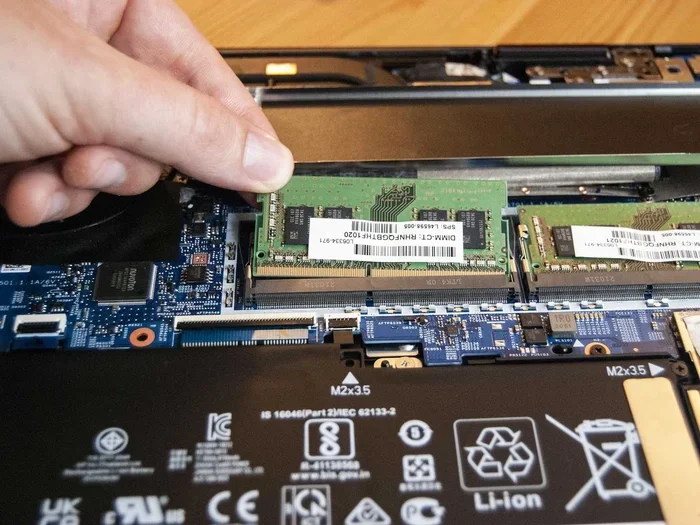
- Remove the old RAM by gently pulling the metal clips on either side of the module outward. The module will pop up at an angle, and you can then slide it out.
- Align the new RAM module with the slot at a 30-degree angle. Press it down firmly until the metal clips click into place.
- Replace the access panel and screw it back in securely.
- Power on your laptop and check that the new RAM is recognized. You can verify this in your system settings or by using a tool like CPU-Z.
If your Dell XPS 15 has two RAM slots, you can install one new module and keep your existing one to create a dual-channel setup. Dual-channel RAM can improve performance by up to 15 percent compared to single-channel configurations. Just make sure both modules are the same brand, speed, and capacity for the best results.
For more detailed guidance on the upgrade process, check out our Dell XPS Laptop RAM Upgrade guide, which covers model-specific tips and troubleshooting advice.
Common Mistakes to Avoid When Upgrading RAM
Upgrading RAM is straightforward, but there are a few mistakes that can cause problems. Here is what to watch out for:
- Buying the wrong RAM type: Always double-check whether your Dell XPS 15 uses DDR4 or DDR5. Mixing them will not work.
- Ignoring maximum capacity: Every Dell XPS 15 model has a maximum RAM limit. Check your user manual or Dell’s website before purchasing. Exceeding this limit will not work even if the module physically fits.
- Skipping the anti-static precaution: Static electricity can damage your RAM and other components. Always ground yourself before handling internal components.
- Forcing the module into the slot: RAM should slide in smoothly with gentle pressure. If it does not fit, check the alignment and try again.
- Not testing before closing up: Always power on your laptop with the access panel open to confirm the RAM is recognized before reassembling everything.
Avoiding these simple mistakes will save you time, money, and frustration. A smooth upgrade experience starts with careful preparation.
Final Thoughts on the Best RAM for Dell XPS 15
Choosing the best RAM for Dell XPS 15 does not have to be complicated. Start by identifying your Dell XPS 15 model year, then determine whether you need DDR4 or DDR5 memory. Decide how much RAM fits your usage needs, and pick a reputable brand like Crucial, Kingston, or Corsair.
For most users, a 16GB DDR4 upgrade is the best value and delivers a noticeable performance boost. Power users who run demanding applications should consider 32GB for the smoothest experience possible. And if you have an older model, even a modest RAM increase can make your Dell XPS 15 feel like new again.
Remember, upgrading your RAM is one of the simplest and most impactful improvements you can make to your laptop. It costs a fraction of what a new laptop would, and the results are immediate and satisfying. Whether you are browsing the web, editing videos, or running complex software, the right memory will make everything faster and more enjoyable.
If you are ready to upgrade, take a moment to verify your exact Dell XPS 15 model specifications, pick the right module from a trusted brand, and follow the installation steps above. Your laptop will thank you for it.
For additional tips on laptop memory upgrades and compatibility, you can also explore our guide on how to upgrade RAM for your laptop to get the most out of your investment.
Frequently Asked Questions
Can I upgrade the RAM on my Dell XPS 15 myself?
Yes, upgrading the RAM on a Dell XPS 15 is one of the easiest laptop upgrades you can do yourself. Most models have an accessible RAM panel on the bottom, and the process takes less than 30 minutes with basic tools like a Phillips screwdriver.
What is the maximum RAM supported by the Dell XPS 15?
The maximum RAM capacity varies by model year. Most Dell XPS 15 laptops from 2018 onward support up to 32GB or 64GB depending on the generation. Always check your specific model on Dell’s support website before purchasing RAM.
Is 16GB RAM enough for the Dell XPS 15?
For the vast majority of users, 16GB is the perfect amount of RAM for a Dell XPS 15. It handles multitasking, creative work, and moderate gaming with ease. Only users with very heavy workloads like 3D rendering or large-scale data processing should consider 32GB.
Does RAM speed matter for Dell XPS 15 performance?
Yes, RAM speed does matter to some extent. Faster RAM can improve performance in tasks that are memory-intensive, such as video editing and gaming. However, the difference is more noticeable in benchmarks than in everyday use. Prioritize capacity and compatibility first.
Can I mix different RAM brands or speeds?
You can mix RAM brands, but it is best to use identical modules in terms of speed, capacity, and timings. Mixing different speeds will cause all modules to run at the slowest speed. For optimal performance, always use matching RAM kits.
How much does it cost to upgrade RAM for a Dell XPS 15?
A 16GB DDR4 SO-DIMM kit typically costs between $40 and $80, while a 32GB kit ranges from $80 to $150. Prices vary by brand and speed. Compared to buying a new laptop, RAM upgrades offer incredible value for the performance boost you receive.