How to Disable Blocking of Downloading Files in Windows 10
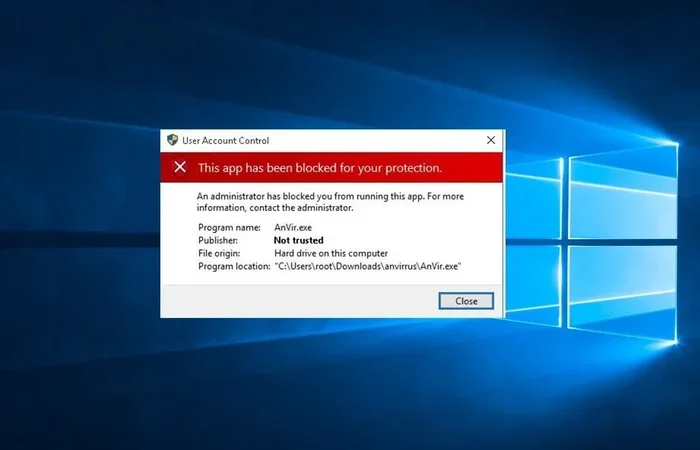
Windows 10 can block file downloads for safety reasons, but this feature sometimes gets in the way of legitimate files. This guide shows you exactly how to disable blocking of downloading files in Windows 10 across browsers and system settings. You will learn simple steps to unblock downloads in Edge, Chrome, and through Windows Defender SmartScreen.
This is a comprehensive guide about Disable Blocking Of Downloading Files In Windows 10.
Key Takeaways
- Windows 10 blocks downloads: The SmartScreen filter and browser settings can prevent files from downloading, even when they are safe.
- Multiple methods exist: You can disable download blocking in Edge, Chrome, and through Windows system settings.
- SmartScreen is the main culprit: Windows Defender SmartScreen often triggers the “blocked download” warning you see.
- Browser settings matter: Each browser has its own download protection settings you can adjust independently.
- Security balance is key: Disabling blocking does not mean you should ignore all warnings, as some downloads may genuinely be unsafe.
- File types can be whitelisted: You can allow specific file types while keeping general protection enabled.
[FEATURED_IMAGE_PLACEHOLDER]
How to Disable Blocking of Downloading Files in Windows 10
Have you ever tried to download a file on your Windows 10 computer, only to get a scary warning message saying the download was blocked? It can be incredibly frustrating, especially when you know the file is safe. Disabling blocking of downloading files in Windows 10 is a simple process once you know where to look.
Windows 10 comes with built-in security features designed to protect you from malicious files. These features include SmartScreen, browser-level download protection, and file type restrictions. While these tools are helpful, they sometimes block perfectly safe files. This guide walks you through every method to stop Windows 10 from blocking your downloads. You will learn how to adjust settings in Microsoft Edge, Google Chrome, and the Windows system itself. Whether you are downloading work documents, software installers, or media files, you will find the solution here.
We have also included practical tips to help you stay safe while allowing downloads through. You do not need to be a tech expert to follow these steps. Each method is explained in plain language with clear instructions. Let us get your downloads working again.
Why Does Windows 10 Block Downloads?
Before you learn how to fix the problem, it helps to understand why Windows 10 blocks downloads in the first place. Microsoft built several layers of protection into the operating system to keep users safe from malware and viruses.
The Role of SmartScreen Filter
Windows Defender SmartScreen is the primary reason downloads get blocked. It checks files against a Microsoft database of known malicious software. When you try to download a file, SmartScreen evaluates it in real time. If the file is not recognized or matches a known threat, SmartScreen blocks the download. This is a great feature for security, but it can be overly aggressive.
Browser-Level Protection
Both Microsoft Edge and Google Chrome have their own download protection systems. Edge uses SmartScreen integration, while Chrome relies on its own safe browsing technology. These browsers can block downloads based on file type, source reputation, and user reports. Sometimes, legitimate files from smaller websites get flagged incorrectly.
File Type Restrictions
Windows 10 also blocks certain file types by default. Executable files like .exe, .bat, and .cmd are commonly blocked because they can run programs on your computer. This is a smart security measure, but it can be annoying when you need to download legitimate software.
How to Disable Download Blocking in Microsoft Edge
Microsoft Edge is the default browser in Windows 10, and it has its own set of download protection features. If Edge is blocking your downloads, you can adjust the settings to allow them through.
Step 1: Open Edge Settings
Launch Microsoft Edge and click the three-dot menu in the top-right corner. Select Settings from the drop-down menu. This opens the main settings page where you can adjust various browser options.
Step 2: Navigate to Privacy and Security
In the left sidebar, click on Privacy, search, and services. Scroll down until you find the Security section. Here, you will see options for Microsoft Defender SmartScreen.
Step 3: Adjust SmartScreen Settings
You will see three options for SmartScreen:
- Strict: Blocks potentially harmful downloads and sites
- Balanced: Warns you about suspicious downloads (this is the default)
- Off: Disables SmartScreen entirely
To stop download blocking, switch SmartScreen to Off. Keep in mind that this removes a layer of protection from your browsing experience. If you want a middle ground, choose Balanced mode and only turn it off for trusted websites.
After making your changes, restart Edge and try downloading your file again. You should now be able to download files without interruption.
How to Disable Download Blocking in Google Chrome
If you prefer using Google Chrome on your Windows 10 machine, you can also adjust its download settings. Chrome has its own security features that can block downloads from certain sources.
Step 1: Access Chrome Settings
Open Chrome and click the three-dot menu in the top-right corner. Select Settings from the menu. This takes you to the main Chrome settings page.
Step 2: Go to Privacy and Security
In the left sidebar, click Privacy and security. Then select Security from the expanded menu.
Step 3: Adjust Download Protection
Under the Safe Browsing section, you will see several options:
- Enhanced protection: Offers the highest level of security but may block more downloads
- Standard protection: Warns you about dangerous downloads and sites
- No protection: Disables all download and site warnings
Switching to Standard protection or No protection will reduce download blocking. If you choose No protection, Chrome will no longer warn you about potentially dangerous files. Use this option carefully and only if you trust the sources you download from.
Once you make your selection, Chrome will apply the changes immediately. Try downloading your file again to see if the block has been removed.
How to Disable SmartScreen Download Blocking in Windows 10
SmartScreen is not just a browser feature. It is also built into Windows 10 itself. When you download a file outside of a browser, SmartScreen can still block it. Here is how to disable this system-level blocking.
Step 1: Open Windows Security
Click the Start menu and type Windows Security. Open the app from the search results. This gives you access to all of Windows 10’s built-in security tools.
Step 2: Go to App and Browser Control
In the Windows Security window, click on App and browser control. This section manages SmartScreen and other reputation-based protection features.
Step 3: Adjust Check Apps and Files Setting
You will see a section called Check apps and files. By default, this is set to Warn me. To disable download blocking, switch this to Off. You will see a confirmation warning. Click Yes to confirm.
This change affects how Windows handles downloaded files across all applications. Files will no longer be blocked by SmartScreen before you can save them to your computer.
Step 4: Adjust Microsoft Defender SmartScreen for Microsoft Edge
Still in the App and browser control section, look for Microsoft Defender SmartScreen for Microsoft Edge. You can set this to Off as well. This specifically targets download blocking within the Edge browser.
These changes apply immediately. You do not need to restart your computer. Try downloading a file now to confirm that the blocking has been removed.
If you are running a windows 10 laptop with 8gb ram, your system should handle these setting changes smoothly without any performance impact. The security adjustments are lightweight and do not consume additional resources.
How to Allow Downloads for Specific File Types
Sometimes you do not want to disable all download blocking. You may only want to allow certain file types while keeping protection active for others. Windows 10 lets you customize this behavior.
Using Windows Defender Exceptions
You can add specific file types or folders to the Windows Defender exclusion list. This tells Windows to skip scanning those files during downloads.
Open Windows Security, go to Virus and threat protection, and click on Manage settings under Virus and threat protection settings. Scroll down to Exclusions and click Add or remove exclusions. You can add specific file extensions like .exe or .msi to this list.
Using Group Policy Editor
For advanced users, the Group Policy Editor offers more granular control over download blocking. Press Win + R, type gpedit.msc, and press Enter. Navigate to User Configuration > Administrative Templates > Windows Components > Attachment Manager. Here, you can configure which file types are allowed or blocked.
If you regularly work with large files, you might also want to check how much power does a laptop use when plugged in, as heavy downloads can increase power consumption and affect battery life.
How to Re-enable Download Blocking When Needed
Disabling download blocking is useful when you trust the files you are downloading. However, you should re-enable these protections when you return to unfamiliar websites or download files from unknown sources.
When to Turn Protection Back On
Re-enabling download blocking is important in these situations:
- You are downloading files from websites you have never visited before
- You are receiving files from email addresses you do not recognize
- You are downloading software from unofficial or unverified sources
- You are using a public or shared computer
Quick Steps to Restore Default Settings
To restore default security settings, simply reverse the steps above. Turn SmartScreen back to Balanced mode in both Windows and your browser. This restores a good level of protection without being overly aggressive.
If you ever find your mouse disappeared on my Lenovo laptop Windows 10 after changing settings, that is a separate issue unrelated to download blocking. You can check our guide on that topic for troubleshooting steps.
For general PC maintenance after adjusting these settings, consider learning how to remove junk files from PC to keep your system running clean and fast.
Common Mistakes to Avoid When Disabling Download Blocking
While disabling download blocking is straightforward, there are common mistakes that can cause problems. Avoid these pitfalls to keep your system secure and functioning properly.
Mistake 1: Disabling All Security Features at Once
Some users turn off every security feature simultaneously. This leaves your computer vulnerable to malware and viruses. Always keep at least one layer of protection active. For example, you can turn off browser-level blocking while keeping Windows Defender active.
Mistake 2: Ignoring Warnings from Trusted Sources
Even after disabling blocking, pay attention to warnings from trusted sources. If a well-known website flags a download as potentially dangerous, take it seriously. Smart warnings are there to protect you, even when you have adjusted your settings.
Mistake 3: Forgetting to Re-Enable Protection
It is easy to disable download blocking for a specific task and forget to turn it back on. Make it a habit to restore your security settings after completing your downloads. Set a reminder if needed to ensure your protection is back in place.
Mistake 4: Downloading from Untrusted Sources
Disabling blocking does not make unsafe files safe. Always download files from reputable websites and verified sources. No setting change can replace common sense when it comes to internet safety.
Expert Tips for Smooth Downloading in Windows 10
Beyond disabling blocking, there are several expert tips that can improve your overall downloading experience in Windows 10. These practices help you stay safe while getting the files you need.
Use a Dedicated Download Manager
A download manager can handle large files more reliably than your browser. It also gives you more control over paused and resumed downloads. Popular options include IDM, Free Download Manager, and JDownloader.
Keep Your Browser Updated
Browser updates often include fixes for download-related bugs. Make sure your Edge and Chrome browsers are always running the latest versions. This reduces unexpected download blocking issues.
Clear Your Browser Cache Regularly
A cluttered browser cache can interfere with downloads. Clear your cache regularly to keep downloads running smoothly. This simple step can resolve many download errors without changing any security settings.
Check Your Antivirus Software
Third-party antivirus programs can also block downloads independently of Windows Defender. Check your antivirus settings to see if it has a download protection feature that needs adjusting.
If you want to learn more about maintaining your system, check out how to become proficient in Microsoft Office for tips on handling downloaded documents efficiently.
Conclusion
Disabling blocking of downloading files in Windows 10 is a straightforward process that can save you a lot of frustration. Whether you use Microsoft Edge, Google Chrome, or download files directly to your computer, there is a setting you can adjust to stop unnecessary blocks. Start by modifying SmartScreen settings in Windows Security, then adjust your browser-specific download protections. Remember to re-enable these features when you are working with unfamiliar files or websites.
Staying safe while allowing downloads is all about balance. You do not need to choose between total protection and no protection at all. By following the steps in this guide, you can customize your Windows 10 experience to match your needs. Download files with confidence while keeping your system secure.
Now that you know how to manage download blocking, you can focus on what matters most: getting the files you need without unnecessary interruptions. Try these steps today and enjoy a smoother downloading experience on your Windows 10 PC.
Frequently Asked Questions
Why does Windows 10 keep blocking my downloads even after I changed settings?
Sometimes browser extensions or third-party antivirus software can override your Windows settings. Check your antivirus program’s download protection features and temporarily disable them if needed. Also make sure you restarted your browser after changing settings, as some changes only take effect after a restart.
Is it safe to disable SmartScreen download blocking in Windows 10?
Disabling SmartScreen removes an important security layer, but it is safe if you are careful about what you download. Only disable blocking when you trust the source of your downloads, and consider turning it back on when browsing unfamiliar websites. Using a reliable third-party antivirus as a backup is also a good idea.
Can I disable download blocking for just one browser without affecting others?
Yes, each browser has its own independent settings. You can disable download blocking in Edge while keeping it enabled in Chrome, or vice versa. Windows system-level SmartScreen settings affect all browsers, so adjust those separately if you want different protection levels for different browsers.
What file types are most commonly blocked by Windows 10?
The most commonly blocked file types include .exe, .bat, .cmd, .msi, and .scr. These are executable files that can run programs on your computer, which is why Windows blocks them by default. You can add exceptions for specific file types in Windows Defender exclusions if you need to download them regularly.
How do I know if a blocked download is actually dangerous?
If a download is blocked by SmartScreen, check the file source first. Downloads from official websites and trusted publishers are usually safe. You can also scan the file with Windows Defender or a third-party antivirus before opening it. If the file comes from an unknown source, it is best to err on the side of caution and not download it.
Will disabling download blocking affect my laptop’s performance?
No, disabling download blocking does not affect laptop performance. The security features that block downloads use minimal system resources. Whether you have a laptop with 8gb ram and windows 10 or a high-end machine, turning off download blocking will not change how fast or smoothly your computer runs.