Hp Pavilion 14 Ce1xxx Ram Ssd Upgrade Everything You Need
The Hp Pavilion 14 Ce1xxx Ram Ssd Upgrade is one of the best ways to breathe new life into your laptop. This guide covers everything from choosing the right RAM and SSD to a full step-by-step installation process. You will learn how a simple upgrade can dramatically improve speed, multitasking, and overall performance.
The Hp Pavilion 14 Ce1xxx Ram Ssd Upgrade is a topic that comes up often among users who want better performance without spending a fortune on a new machine. If your Pavilion 14 feels slow, freezes during multitasking, or takes forever to boot up, this upgrade can transform your experience. In this guide, we will walk you through every single step. You will learn what parts you need, how to install them, and how to avoid common pitfalls.
Many people underestimate how much a simple hardware upgrade can change their daily workflow. Whether you use your laptop for school, work, or entertainment, the difference after an upgrade is night and day. Let us dive into the details of the Hp Pavilion 14 Ce1xxx Ram Ssd Upgrade and get your laptop running like new again.
Key Takeaways
- Easy Process: Upgrading the Hp Pavilion 14 Ce1xxx Ram Ssd Upgrade is straightforward and requires only basic tools.
- Big Performance Boost: More RAM and a faster SSD make your laptop significantly quicker for everyday tasks.
- Affordable Upgrade: RAM and SSD upgrades cost far less than buying a new laptop.
- Compatible Parts Matter: Choosing the right RAM type and SSD form factor is essential for success.
- DIY Friendly: No professional help is needed if you follow the correct steps carefully.
- Longer Laptop Life: An upgrade extends the useful life of your Hp Pavilion 14 by several more years.
📑 Table of Contents
- What Is the Hp Pavilion 14 Ce1xxx Ram Ssd Upgrade?
- Why Upgrade the RAM and SSD on Your Hp Pavilion 14?
- Compatible RAM and SSD Options for the Hp Pavilion 14 Ce1xxx
- Step-by-Step Guide to the Hp Pavilion 14 Ce1xxx Ram Ssd Upgrade
- Common Mistakes to Avoid During the Hp Pavilion 14 Ce1xxx Ram Ssd Upgrade
- Expert Tips for Maximum Performance After the Upgrade
- How Much Does the Hp Pavilion 14 Ce1xxx Ram Ssd Upgrade Cost?
- Conclusion
What Is the Hp Pavilion 14 Ce1xxx Ram Ssd Upgrade?
The Hp Pavilion 14 Ce1xxx Ram Ssd Upgrade refers to replacing or adding memory (RAM) and swapping the storage drive with a solid-state drive (SSD) in the HP Pavilion 14 Ce1xxx series laptop. This series includes several models that originally shipped with limited RAM and slower hard drives. Over time, these limitations become more noticeable as software demands grow.
RAM, or random access memory, is the short-term memory your laptop uses to handle active tasks. More RAM means your laptop can run more programs at the same time without slowing down. An SSD, on the other hand, is a much faster storage drive compared to the traditional hard disk drive (HDD). It loads your operating system, applications, and files in a fraction of the time.
Together, a RAM and SSD upgrade tackle the two biggest bottlenecks in an older laptop. The result is a machine that feels faster, more responsive, and ready for modern use. This upgrade is especially popular among users of the Hp Pavilion 14 Ce1xxx series because the design makes internal access relatively easy.
Why This Series Is a Great Candidate for Upgrades
The HP Pavilion 14 Ce1xxx series was built with user accessibility in mind. The bottom panel uses standard screws, and the internal layout is straightforward. You do not need to be a technician to open the case and access the RAM and SSD slots. This makes the Hp Pavilion 14 Ce1xxx Ram Ssd Upgrade one of the most beginner-friendly upgrades you can attempt.
Why Upgrade the RAM and SSD on Your Hp Pavilion 14?
There are many reasons to consider the Hp Pavilion 14 Ce1xxx Ram Ssd Upgrade. Let us look at the biggest benefits that real users experience after completing this upgrade.
Faster Boot Times is usually the first thing people notice. An SSD can cut your boot time from minutes down to seconds. Your laptop goes from cold start to a ready-to-use desktop in under 15 seconds in many cases.
Better Multitasking is another major advantage. With more RAM, you can keep multiple browser tabs open, run a word processor, listen to music, and have a background app running without any lag. Users who upgraded their system memory reported a dramatic improvement in how smoothly everything runs.
Longer Laptop Lifespan is a benefit many people overlook. Instead of replacing your laptop every three or four years, a simple upgrade can push its useful life by another two to three years. This saves you money and reduces electronic waste, which is great for the environment.
Improved Application Loading is also a huge plus. Programs like Microsoft Office, web browsers, and creative software open much faster on an SSD. The overall user experience feels snappier and more enjoyable.
Compatible RAM and SSD Options for the Hp Pavilion 14 Ce1xxx
Choosing the right components is a critical part of the Hp Pavilion 14 Ce1xxx Ram Ssd Upgrade. Not all RAM or SSD modules will work with this series, so you need to check compatibility before purchasing anything.
RAM Compatibility
The HP Pavilion 14 Ce1xxx series typically supports DDR4 RAM. Most models come with one or two RAM slots. The maximum supported capacity varies by model, but many can handle up to 16GB or 32GB of total system memory. Here are some key points to keep in mind:
- RAM Type: DDR4 SO-DIMM (small form factor for laptops)
- Speed: Typically 2666MHz or 3200MHz, depending on the model
- Capacity: 8GB, 16GB, or 32GB modules are commonly used
- Slots: Check if your model has one or two open slots
If you want to learn more about RAM upgrades for HP laptops in general, you can check out our guide on Ram Upgrade For Hp Pavilion Laptop for additional details.
SSD Compatibility
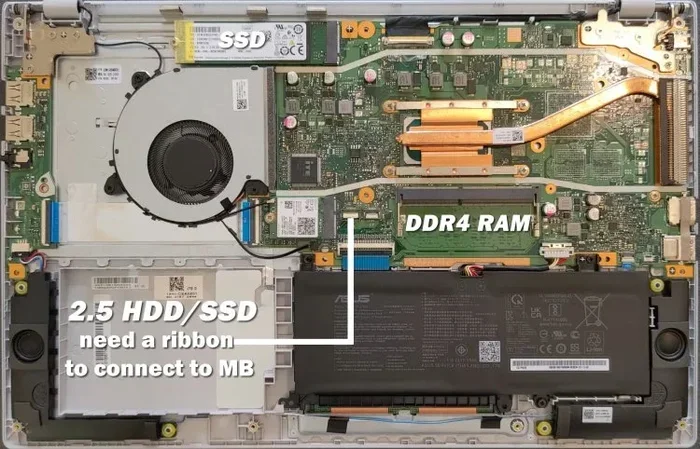
The Hp Pavilion 14 Ce1xxx series uses a 2.5-inch SATA SSD or an M.2 NVMe SSD slot, depending on the specific model. Here is what you need to know:
- Form Factor: 2.5-inch SATA SSD or M.2 2280 NVMe SSD
- Capacity: 256GB, 512GB, or 1TB options are widely available
- Interface: SATA III or NVMe PCIe, based on your slot type
- Brand Recommendations: Samsung, Kingston, Crucial, and Western Digital are reliable choices
For users looking for a ready-made configuration, you might want to explore options like Hp Laptop 8Gb Ram 512gb Ssd to get an idea of popular and well-matched setups.
Step-by-Step Guide to the Hp Pavilion 14 Ce1xxx Ram Ssd Upgrade
Now for the part you have been waiting for. This step-by-step walkthrough will guide you through the entire Hp Pavilion 14 Ce1xxx Ram Ssd Upgrade process safely and confidently.
Step 1: Gather Your Tools
Before you start, make sure you have the following items ready:
- A small Phillips-head screwdriver
- An anti-static wrist strap (optional but recommended)
- Your new RAM module(s) and SSD
- A clean, flat workspace with good lighting
Step 2: Back Up Your Data
This is the most important step that people often skip. Before you touch any internal components, back up all your important files to an external drive or cloud storage. While the upgrade process is safe, accidents can happen, and it is better to be prepared.
Once you have backed everything up, you should also check out our article on How To Upgrade Ram On Hp Laptop for a broader understanding of the process.
Step 3: Power Down and Disconnect
Shut down your laptop completely. Unplug the power adapter and remove any connected peripherals. If your laptop has a removable battery, take it out. If the battery is internal, simply holding the power button for 15 seconds will discharge any remaining electricity.
Step 4: Open the Bottom Panel
Flip your laptop over and locate the screws on the bottom panel. Use your screwdriver to remove them carefully. Keep the screws in a small bowl so you do not lose them. Gently pry off the bottom panel using a plastic spudger or your fingernail.
Step 5: Install the New RAM
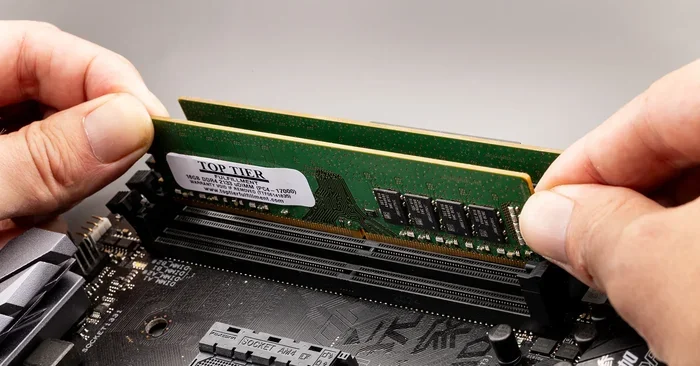
Locate the RAM slots on the motherboard. If there is existing RAM, gently pull the metal clips on either side outward. The module will pop up at an angle. Remove it carefully. To install the new module, align the notch on the RAM stick with the slot, press it down at an angle, and push it firmly until the clips snap into place.
Make sure the RAM is fully seated. A loose module will not work properly and can cause boot errors.
Step 6: Install the New SSD
If your laptop has a 2.5-inch SATA drive bay, slide the new SSD into the bay and secure it with a screw. If your model has an M.2 slot, insert the SSD at a 30-degree angle, press it down flat, and secure it with the small screw that holds the M.2 drive in place.
For users who want inspiration for a full upgraded setup, you can look at Hp Laptop 8Gb Ram 256gb Ssd to see what a well-balanced configuration looks like.
Step 7: Close Up and Power On
Replace the bottom panel and screw it back in. Reconnect the power adapter and turn on your laptop. Enter the BIOS by pressing F10 or the appropriate key during startup. Verify that the new RAM and SSD are detected. Save the settings and exit.
Your laptop should now boot into the operating system much faster than before. If you are installing a fresh operating system on the new SSD, follow the standard Windows installation prompts.
Common Mistakes to Avoid During the Hp Pavilion 14 Ce1xxx Ram Ssd Upgrade
Even though this upgrade is relatively simple, there are a few common mistakes that people make. Avoiding these will save you time, frustration, and potentially costly errors.
Skipping Compatibility Checks: Not all RAM or SSD modules work with every laptop model. Always double-check the specifications before purchasing. Buying the wrong type of RAM or SSD can lead to compatibility issues that are frustrating to troubleshoot.
Forcing Components Into Slots: RAM and SSD slots are designed to be gently seated. If something does not fit, do not force it. Realign the module and try again. Forcing components can damage the pins or the slot itself.
Forgetting to Update BIOS: After a hardware upgrade, it is a good idea to update your laptop BIOS to the latest version. This ensures that the motherboard recognizes new components properly and operates at full efficiency.
Not Grounding Yourself: Static electricity can damage sensitive electronic components. Touch a metal surface before handling internal parts, or wear an anti-static wrist strap. This is a small precaution that makes a big difference.
Skipping the Backup: We mentioned this earlier because it is so important. Always back up your data before opening your laptop. It takes a few minutes and can save you from a major headache.
Expert Tips for Maximum Performance After the Upgrade
Once your Hp Pavilion 14 Ce1xxx Ram Ssd Upgrade is complete, there are a few extra steps you can take to squeeze out every bit of performance.
Enable XMP in BIOS: If your new RAM supports XMP (Extreme Memory Profile), go into the BIOS and enable it. This allows your RAM to run at its advertised speed rather than the default lower speed.
Install the Operating System Fresh: While you can clone your old drive, a fresh installation of Windows on the new SSD often yields the best results. It removes any accumulated bloat and gives your system a clean start.
Keep Your Drivers Updated: Visit the HP support website and download the latest drivers for your Pavilion 14 model. Updated storage drivers, in particular, can improve SSD performance and reliability.
Use the SSD as Your Primary Drive: Make sure your operating system and frequently used programs are installed on the SSD. This is where you will see the biggest speed improvement in daily use.
Monitor Your System: After the upgrade, use built-in Windows tools or free third-party apps to monitor your RAM usage and SSD health. This helps you understand how your upgraded system is performing over time.
For more detailed advice on optimizing your upgraded HP laptop, explore our resources on Hp Pavilion Laptop Ram Memory to get the most out of your new configuration.
How Much Does the Hp Pavilion 14 Ce1xxx Ram Ssd Upgrade Cost?
One of the best things about this upgrade is how affordable it is. A quality 16GB DDR4 RAM stick typically costs between $30 and $60. A 512GB SATA SSD usually runs $35 to $50, while an NVMe M.2 SSD of the same capacity can be found for $40 to $65. In total, you are looking at roughly $65 to $125 for a meaningful upgrade that transforms your laptop experience.
Compare that to the cost of a new laptop, and the value becomes obvious. You get faster performance, better responsiveness, and a few more years of useful life for a fraction of the price.
Conclusion
The Hp Pavilion 14 Ce1xxx Ram Ssd Upgrade is a smart, affordable, and surprisingly simple way to bring new life to your laptop. Whether you are a student, a professional, or a casual user, the difference in speed and responsiveness will be immediately noticeable. You do not need advanced technical skills or expensive tools. With the right components, a little patience, and this guide, you can complete the upgrade yourself in under an hour.
Take the time to choose compatible parts, follow each step carefully, and enjoy the results. Your Pavilion 14 will thank you with faster boot times, smoother multitasking, and a renewed sense of speed. Do not wait until your old laptop becomes completely unusable. Upgrade today and get the most out of your investment.
Frequently Asked Questions
What RAM is compatible with the Hp Pavilion 14 Ce1xxx?
The Hp Pavilion 14 Ce1xxx series uses DDR4 SO-DIMM RAM modules. Most models support speeds of 2666MHz or 3200MHz. Check your specific model number to confirm the exact RAM type and maximum supported capacity before purchasing.
Can I upgrade the SSD on my Hp Pavilion 14 Ce1xxx?
Yes, most models in the Ce1xxx series support either a 2.5-inch SATA SSD or an M.2 NVMe SSD. Check which slot your specific model has, and choose a compatible drive with the right form factor and interface for the best results.
Do I need any special tools for the Hp Pavilion 14 Ce1xxx Ram Ssd Upgrade?
You only need a small Phillips-head screwdriver and a clean workspace. An anti-static wrist strap is optional but recommended. No specialized tools are required, making this a beginner-friendly upgrade.
How long does the Hp Pavilion 14 Ce1xxx Ram Ssd Upgrade take?
Most users complete the entire upgrade in 30 to 60 minutes. This includes opening the laptop, installing the new RAM and SSD, closing it back up, and setting up the operating system. The actual hardware installation takes about 15 to 20 minutes.
Will upgrading the RAM and SSD void my warranty?
This depends on your warranty terms and HP’s specific policies. In many cases, upgrading RAM and SSD does not void the warranty because these are user-replaceable components. However, it is always a good idea to check your warranty documentation or contact HP support before proceeding.
Can I use both a 2.5-inch SSD and an M.2 SSD at the same time?
Some models of the Hp Pavilion 14 Ce1xxx series have both a 2.5-inch drive bay and an M.2 slot. This allows you to use both drives simultaneously for extra storage. Check your specific model to confirm whether it supports dual drives.