15 Best Free File Rename Software For Windows 10 Users
Managing files on Windows 10 becomes effortless with the right free file rename software. Whether you need to batch rename hundreds of photos, change file extensions, or organize a messy folder, these tools save hours of manual work. We reviewed 15 top-rated options to help you pick the best fit for your needs.
Do you have a folder full of files with random names like “IMG_001.jpg” or “Document_Final_Final_v2.pdf”? If so, you are not alone. Thousands of Windows 10 users deal with messy file names every single day. The good news is that you do not need to rename each file by hand. A great free file rename software can handle the heavy lifting for you.
In this guide, we rounded up 15 of the best free file rename tools available for Windows 10. Whether you are a student organizing research papers, a photographer sorting thousands of images, or a developer managing code files, there is a tool here for you. We tested each one for ease of use, features, speed, and overall value.
By the end of this article, you will know exactly which file renaming software fits your workflow. You will also learn helpful tips for batch renaming, avoiding common mistakes, and keeping your files organized. Let us dive in and find the perfect tool for your PC.
Key Takeaways
- Bulk renaming saves time: The best free file rename software lets you rename hundreds of files in seconds using patterns and rules.
- Windows 10 users have plenty of options: From simple built-in tools to advanced third-party utilities, there is something for every skill level.
- Free does not mean limited: Many free rename tools offer powerful features like regex support, metadata-based renaming, and file organization.
- Ease of use matters: Some tools are beginner-friendly, while others cater to power users who want deep customization.
- Safety first: Always download file renaming software from trusted sources to avoid malware or unwanted bundled programs.
- Try before you commit: Most of the tools on our list offer free versions with enough features for everyday use.
📑 Table of Contents
Why You Need Free File Rename Software
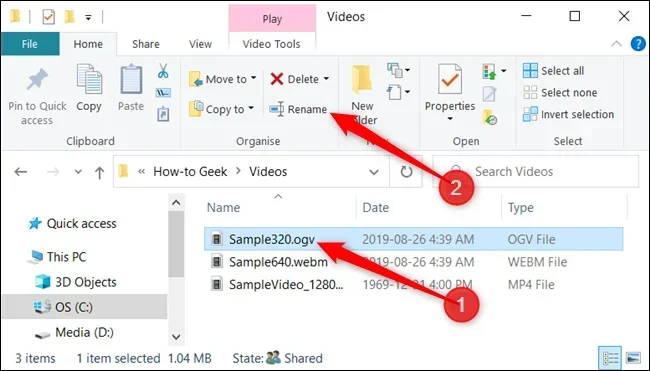
Windows 10 lets you rename files one at a time, right-click and choose “Rename.” But what happens when you have 500 photos from a vacation or 200 audio tracks from a project? Doing this manually is tedious and prone to errors. That is where bulk file renaming software comes in.
Here are some real reasons you need a dedicated rename tool:
- Speed: Rename hundreds of files in just a few clicks.
- Consistency: Apply the same naming pattern across all your files.
- Accuracy: Avoid typos and missed files that happen with manual renaming.
- Advanced features: Add numbers, dates, prefixes, suffixes, and even change file extensions.
- Undo capability: Most tools let you reverse a rename if something goes wrong.
Think of file rename software as a smart assistant for your PC. It follows your rules exactly, every time, without getting tired or making mistakes. This is especially helpful if you regularly work with large collections of files.
For everyday PC users, having the right apps makes a huge difference. You might also want to explore our guide on the best apps for a PC to see other useful free tools that boost productivity on Windows 10.
Top 15 Free File Rename Software for Windows 10
We tested each of these tools thoroughly. Our goal was to find options that are genuinely free, safe, and effective. Here are our top picks, ranked by overall value and user-friendliness.
1. Bulk Rename Utility
Bulk Rename Utility is one of the most powerful free tools available. It supports regex, date/time stamps, and EXIF data from photos. The interface looks a bit old-school, but it is packed with features. You can rename files using rules, replace text, and even number files in sequence.
Best for: Power users who want deep control over file naming.
2. Advanced Renamer
Advanced Renamer combines power with a clean, modern interface. It supports batch renaming with multiple methods, including text replacement, pattern-based naming, and moving files to new folders. It also lets you preview changes before applying them.
Best for: Users who want advanced features without a steep learning curve.
3. Rename Expert
Rename Expert offers a structured approach to renaming with tabs for different tasks. You can change case, replace strings, add numbering, and use regular expressions. It also includes a built-in music tag editor for renaming audio files based on ID3 tags.
Best for: Users who organize music collections and need tag-based renaming.
4. PowerRename (Built into PowerToys)
PowerRename is a free plugin from Microsoft that comes with PowerToys. It integrates directly into Windows File Explorer, so you can right-click and rename multiple files instantly. It supports search and replace with regular expressions.
Best for: Users who want a lightweight, built-in solution without installing extra software.
5. ReNamer
ReNamer is a straightforward tool that lets you chain multiple renaming rules together. You can add prefixes, suffixes, change case, replace text, and number files. It supports regular expressions and has a simple, no-nonsense design.
Best for: Users who prefer a lightweight, no-frills renaming experience.
6. NameChanger
NameChanger is a Mac-inspired rename tool for Windows. It features drag-and-drop functionality and a clean visual interface. You can apply multiple renaming rules and preview the results before committing. It also supports undoing changes easily.
Best for: Users who value a beautiful, intuitive interface.
7. Rename My Files
Rename My Files is a simple, no-install tool that works directly from your browser or as a portable app. It offers basic text replacement, numbering, and case changing. It is perfect for quick, everyday renaming tasks without installing anything.
Best for: Users who want a portable, lightweight option they can carry on a USB drive.
8. Ant Renamer
Ant Renamer is a free, open-source tool that has been around for years. It supports regular expressions, numbering, case changing, and text replacement. The interface is simple but effective, and it handles large batches of files well.
Best for: Users who prefer open-source software and want a reliable, free tool.
9. File Renamer Basic
File Renamer Basic lives up to its name with a straightforward approach. You can replace text, add prefixes and suffixes, and number files. It does not overwhelm you with options, which makes it great for beginners.
Best for: Beginners who need a simple, effective renaming tool.
10. A Better Finder Rename
A Better Finder Rename is a polished tool with a drag-and-drop interface. It supports pattern-based renaming, date insertion, and sequential numbering. It also works well with photos, music, and other media files.
Best for: Users who work with media files and want a polished experience.
11. Rename Pro
Rename Pro offers a professional-grade set of renaming features. It supports regular expressions, EXIF data, and music tags. The tool includes a rule-based system that lets you save and reuse renaming presets.
Best for: Users who frequently rename files and want to save time with reusable rules.
12. RenameIt
RenameIt is a compact, fast tool for batch renaming files on Windows 10. It supports regular expressions, text replacement, and sequential numbering. The interface is clean and easy to navigate, making it a solid choice for everyday use.
Best for: Users who want a fast, no-nonsense renaming utility.
13. Fast File Renamer
Fast File Renamer focuses on speed and simplicity. You can drag files in, apply a renaming rule, and get results in seconds. It supports search and replace, numbering, and case changes. It is ideal for quick tasks.
Best for: Users who need to rename files quickly without learning complex features.
14. Rename Manager
Rename Manager is a free tool that provides a detailed preview of all renaming changes before you apply them. It supports regular expressions, text replacement, and numbering. The preview feature helps you avoid mistakes and ensures your files are renamed exactly as intended.
Best for: Users who want confidence and control before committing to changes.
15. Easy File Renamer
Easy File Renamer is designed for simplicity. It offers basic renaming features like text replacement, numbering, and case changing. The interface is clean and beginner-friendly, making it a great starting point for users new to batch renaming.
Best for: Complete beginners who have never used renaming software before.
How to Choose the Right File Rename Software
With so many options, picking the right tool can feel overwhelming. Here are the key factors to consider when choosing your free file rename software:
Ease of Use
If you are new to batch renaming, look for tools with a clean interface and preview features. NameChanger and Easy File Renamer are great starting points. You should be able to understand how the tool works within minutes.
Batch Processing Speed
When you are renaming hundreds or thousands of files, speed matters. Bulk Rename Utility and Advanced Renamer handle large batches efficiently. Test the tool with a small folder first to see how fast it works.
Feature Set
Do you need regex support? EXIF data renaming? Music tag editing? Make a list of features you actually need. Tools like Rename Expert and Bulk Rename Utility offer the most comprehensive feature sets.
Compatibility
Make sure the software works with Windows 10. Most tools on our list are fully compatible, but always check the system requirements before downloading. Some older tools may not work properly on newer versions of Windows.
Safety and Trustworthiness
Always download file renaming software from official websites or trusted sources. Avoid third-party download sites that bundle unwanted programs. Open-source tools like Ant Renamer are a safe choice because the code is publicly reviewed.
Tips for Effective File Renaming on Windows 10
Using file rename software is only half the battle. Here are practical tips to get the best results:
- Always preview first. Most tools let you see the new names before applying them. Use this feature to avoid mistakes.
- Use consistent naming conventions. Pick a format and stick with it. For example, “YYYY-MM-DD_ProjectName_FileNumber” works well for organized projects.
- Work in small batches. If you are renaming a very large collection, do it in smaller groups. This makes it easier to spot errors.
- Use the undo feature. If a rename goes wrong, most tools let you undo the changes. Do not panic, just hit undo.
- Rename file extensions carefully. Changing a file extension can make a file unreadable. Only change extensions if you know what you are doing.
For music producers and audio enthusiasts, keeping your audio files properly named is essential. If you also need to record and edit audio, check out our review of the best audio recording software for PC to build a complete production setup.
Common Mistakes to Avoid When Renaming Files
Even with the best file renaming utility, mistakes can happen. Here are common errors to watch out for:
- Skipping the preview step. Always review your changes before clicking “Rename All.”
- Using special characters in file names. Characters like /, :, *, ?, and < > can cause errors on Windows 10.
- Renaming system files. Never rename files in your Windows system folders. This can break your operating system.
- Forgetting to back up important files. Before running a large batch rename, copy your files to a backup folder.
- Overcomplicating your naming pattern. Keep your file names simple and descriptive. A long, complex pattern can make files harder to find later.
Organizing your files well also helps with overall PC performance. If you are also looking to upgrade your setup, our guide on the best Windows laptop for music production covers the hardware side of creating an efficient workflow.
Expert Insights on File Organization
Professional file organizers recommend treating file renaming as part of a larger digital organization strategy. Simply renaming files is not enough. You should also consider folder structure, file formats, and backup routines.
For developers and programmers, consistent file naming is especially important. Many use bulk rename tools to standardize file names across projects. If you are a developer, you might also benefit from our guide on the best laptop for software development, which covers hardware optimized for coding workflows.
The key takeaway is that file renaming is not just about changing names. It is about creating a system that makes your digital life easier. The right free file rename software combined with good habits can transform how you manage your PC.
Final Thoughts
Finding the best free file rename software for Windows 10 does not have to be difficult. We have covered 15 excellent options, from powerful tools like Bulk Rename Utility to simple choices like Easy File Renamer. No matter your skill level or needs, there is a tool on this list that will work for you.
Start by identifying what you need most. If you want speed and simplicity, try PowerRename or Easy File Renamer. If you need advanced features, go with Bulk Rename Utility or Advanced Renamer. The beauty of these tools is that they are all free, so you can try several and keep the ones that fit your workflow best.
Remember to always preview your changes, back up your files, and follow safe downloading practices. With the right file renaming software and good habits, you can keep your Windows 10 PC organized and efficient. Start renaming smarter today!
Frequently Asked Questions
Is free file rename software safe to use?
Yes, most free file rename tools are safe, especially when downloaded from official websites or open-source platforms. Always check reviews and avoid download sites that bundle extra software. Stick to trusted sources to keep your PC secure.
Can I undo a batch rename if I make a mistake?
Most of the tools on our list include an undo feature. This lets you reverse a batch rename and restore your original file names. However, it is always smart to back up your files before running any large batch operation.
Do I need technical skills to use file rename software?
Not at all. Many tools like Easy File Renamer and NameChanger are designed for beginners. They offer simple interfaces with drag-and-drop functionality. More advanced tools like Bulk Rename Utility have a steeper learning curve but come with tutorials.
Can I rename file extensions with these tools?
Yes, many of the tools on our list allow you to change file extensions. However, be careful when doing this. Changing an extension can make a file unreadable if the new extension does not match the actual file format.
What is the best file rename software for beginners?
Easy File Renamer and NameChanger are excellent choices for beginners. They have simple interfaces, preview features, and do not overwhelm you with advanced options. You can start renaming files within minutes of installing them.
Can I use these tools on Windows 11?
Most of the tools on our list work on Windows 11 as well. Windows 11 maintains backward compatibility with most Windows 10 software. Always check the developer’s website for the latest system requirements before downloading.
=== CONCLUSION ===
Organizing your files does not have to be a chore. With the right free file rename software for Windows 10, you can transform a messy folder into a well-structured collection in minutes. We have shared 15 top-rated tools, each with unique strengths for different user needs.
From the power-user favorite Bulk Rename Utility to the beginner-friendly Easy File Renamer, there is something for everyone. The key is to pick a tool that matches your skill level and workflow. Try a few options, develop a consistent naming habit, and enjoy the benefits of a well-organized PC.
Start today. Pick one tool from our list, gather a messy folder of files, and experience how fast and easy batch renaming can be. Your future self will thank you every time you search for a file instantly instead of scrolling through hundreds of vaguely named documents.