11 Best Free Android Emulator For Windows PC Guide
Looking for the best free Android emulator for Windows PC? This guide covers 11 top-rated options that let you run Android apps and games on your computer without spending a dime. You will learn about features, system requirements, setup steps, and which emulator fits your needs best.
Running Android apps and games on your Windows PC opens up a whole new world of possibilities. Whether you want to play mobile games on a bigger screen, test apps, or use Android tools for work, a free Android emulator for Windows PC makes it all possible. You do not need expensive hardware or technical skills to get started.
In this guide, we have rounded up 11 of the best free Android emulators available right now. Each one is tested, reviewed, and ranked based on performance, ease of use, features, and compatibility. By the end of this article, you will know exactly which emulator fits your needs.
Before diving in, let us quickly understand what an emulator does and why it matters for your PC experience.
Key Takeaways
- Multiple options available: There are 11 excellent free Android emulators that work on Windows PCs, each with unique strengths.
- No cost required: All listed emulators are completely free to download and use, with no hidden fees.
- Performance varies: Some emulators run better on low-end PCs, while others shine on high-end systems.
- Gaming and productivity: These emulators support both Android games and useful apps for work or study.
- Easy setup: Most emulators offer simple installation processes that take just minutes.
- Regular updates: The top emulators receive frequent updates for better compatibility and security.
📑 Table of Contents
What Is a Free Android Emulator for Windows PC?
An android emulator windows is a software program that mimics the Android operating system on your computer. It creates a virtual Android environment inside Windows. This means you can run Android apps, games, and tools directly on your desktop or laptop.
The concept of emulate Android on Windows has been around for years. Developers and testers use it to check how apps behave on different devices. Gamers use it to play mobile titles with keyboard and mouse controls. Students and professionals use it to access Android-only tools on their computers.
A free emulator for PC gives you all of this without spending a single penny. You simply download the software, install it, and start exploring the Android environment right away.
Top 11 Free Android Emulators for Windows PC
1. BlueStacks
BlueStacks is the most popular android emulator for Windows PC in the world. Millions of users trust it for gaming and app testing. It offers a clean interface that feels like using a real Android phone on your bigger screen.
Key features include:
- Multi-instance support for running multiple apps at once
- Keymapping tools for gaming controls
- High-performance graphics rendering
- Regular updates for Windows compatibility
BlueStacks works well on both mid-range and high-end systems. It is one of the top choices when you want a reliable android virtual device experience.
2. LDPlayer
LDPlayer is a strong bluestacks alternative that focuses on gaming performance. It runs smoothly on Windows 10 and 11 and offers excellent frame rates for demanding games.
Why users love LDPlayer:
- Optimized for popular mobile games
- Low resource usage compared to other emulators
- Built-in game controls and macros
- Free to use with no time limits
If you want to run Android on PC mainly for gaming, LDPlayer deserves a spot on your shortlist.
3. MEmu Play
MEmu Play has been around for a long time and remains a solid choice. It supports a wide range of Android versions and offers good customization options.
Notable features:
- Support for multiple Android versions
- Root access for advanced users
- Easy file transfer between PC and Android
- Compatibility with most Android apps
MEmu Play is a great option if you want flexibility and control over your android emulator windows setup.
4. Nox Player
Nox Player brings a feature-rich experience to the table. It is designed for both casual users and power users who need advanced tools.
Standout features include:
- Root engine for deeper customization
- Macro recording for automated tasks
- Multi-instance management
- Smooth performance on various hardware
Nox Player is one of the best free android emulator for Windows PC options for users who want more control over their virtual environment.
5. Android Studio Emulator
The Android Studio Emulator comes from Google itself. It is primarily designed for developers who need to test apps across different Android versions and screen sizes.
Why developers choose it:
- Official Google tool with regular updates
- Support for various device profiles
- Advanced debugging features
- Accurate Android version simulation
While it is more technical, the Android Studio Emulator offers one of the most authentic android simulation software experiences available.
6. Genymotion
Genymotion started as a developer tool but now offers a free personal edition. It is known for its speed and compatibility with a wide range of devices.
Key benefits:
- Fast performance even on modest hardware
- Cloud-based testing options
- Wide device compatibility
- Easy setup process
Genymotion is a great choice if you want a lightweight emulator software download that still delivers strong results.
7. Bliss OS
Bliss OS is unique because it replaces your entire Windows Android experience with a full Android operating system. Instead of running Android in a window, Bliss OS turns your PC into an Android device.
What makes Bliss OS special:
- Full Android OS replacement option
- Support for x86 architecture PCs
- Access to Google Play Store
- Regular updates and active community
If you want to go beyond a simple emulator and truly run Android OS on PC, Bliss OS is worth exploring.
8. PrimeOS
PrimeOS is another Android-based operating system designed for PCs. It boots directly into Android and gives you a native feel without running inside Windows.
Why consider PrimeOS:
- Native Android experience on PC hardware
- Support for keyboard and mouse input
- Access to Android games and apps
- No need to run Windows simultaneously
PrimeOS is perfect for users who want a dedicated Android environment on their computer.
9. Windroy
Windroy is a lightweight emulator that runs Android apps directly in a Windows window. It is simple, fast, and easy to set up.
Key advantages:
- Very lightweight and fast
- Simple installation process
- Good compatibility with basic apps
- Low system requirements
Windroy is ideal for users with older or lower-spec PCs who still want to run mobile apps on PC.
10. Android x86
Android x86 is an open-source project that ports Android to x86-based hardware. It can be installed as a dual-boot option alongside Windows.
Why Android x86 stands out:
- Open-source and completely free
- Dual-boot capability with Windows
- Strong community support
- Customizable installation options
Android x86 is a powerful option for tech-savvy users who want full control over their Android experience on PC.
11. Ko Player
Ko Player is a gaming-focused emulator that offers smooth performance and easy customization. It has been a favorite among mobile gamers for years.
What Ko Player offers:
- Optimized game performance
- Custom key mapping for each game
- Multi-instance support
- Regular compatibility updates
Ko Player rounds out our list as a solid free option for anyone looking to play Android games on a bigger screen.
Comparison Table
Here is a quick comparison of the top free Android emulators for Windows PC to help you decide:
- BlueStacks: Best overall for general use and gaming
- LDPlayer: Best for low-resource gaming
- MEmu Play: Best for customization and flexibility
- Nox Player: Best for power users and automation
- Android Studio Emulator: Best for developers
- Genymotion: Best for speed and lightweight performance
- Bliss OS: Best for full Android OS replacement
- PrimeOS: Best for native Android boot experience
- Windroy: Best for low-end PCs
- Android x86: Best for open-source enthusiasts
- Ko Player: Best for casual mobile gaming
How to Choose the Right Emulator
Choosing the right free android emulator for Windows PC depends on what you plan to do. Here are some factors to consider:
Your PC Specs: If you have a powerful computer with lots of RAM, you can run any emulator smoothly. If you have a low-end PC, look for lightweight options like LDPlayer or Windroy. Check your system requirements before downloading anything.
Your Purpose: Are you gaming, testing apps, or just exploring? For gaming, BlueStacks, LDPlayer, and Ko Player shine. For development, Android Studio Emulator and Genymotion are the go-to choices. For general app use, MEmu Play and Nox Player offer great flexibility.
Ease of Use: Some emulators are plug-and-play, while others require technical knowledge. BlueStacks and LDPlayer are the easiest to set up. Android x86 and Bliss OS require more technical steps.
Update Frequency: A good emulator gets regular updates. This ensures compatibility with the latest Android apps and Windows versions. Always check how often the developer releases updates before committing to an emulator.
Quick Tips for Better Emulator Performance
Want to get the most out of your android emulator windows setup? Try these quick tips:
- Enable virtualization: Go to your BIOS settings and turn on Intel VT-x or AMD-V. This dramatically improves performance.
- Allocate more RAM: Give your emulator at least 4GB of RAM for smooth operation.
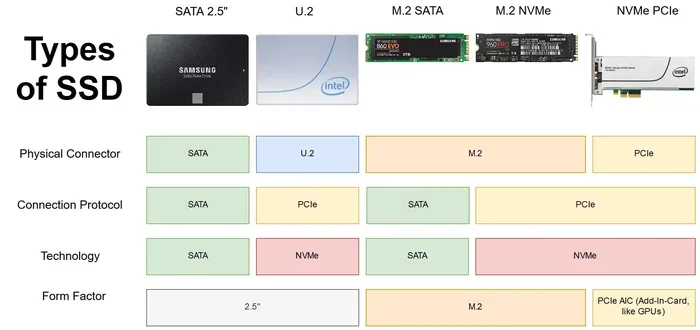
- Use SSD storage: Running the emulator from an SSD is much faster than a traditional hard drive.
- Update your GPU drivers: Outdated graphics drivers can cause lag and display issues.
- Close background apps: Free up system resources by closing unnecessary programs while using the emulator.
- Adjust emulator settings: Lower the resolution and frame rate if you experience slowdowns.
Common Mistakes to Avoid
Many users run into problems with their emulator for PC setup. Here are common mistakes and how to avoid them:
- Skipping system requirements: Always check if your PC meets the minimum requirements before installing.
- Downloading from unofficial sources: Only download emulators from official websites to avoid malware and security risks.
- Ignoring updates: Outdated emulators may not support the latest Android apps or Windows updates.
- Allocating too many resources: Giving your emulator too much RAM or CPU power can slow down your entire PC.
- Not enabling virtualization: This is one of the most common reasons for poor emulator performance.
Expert Insights
According to industry experts, the best android emulator for Windows PC depends heavily on your hardware and use case. Developers often prefer Android Studio Emulator for its accuracy, while gamers lean toward BlueStacks and LDPlayer for their optimized performance.
One expert tip is to always test multiple emulators before settling on one. What works perfectly on one system may not perform as well on another. The beauty of free emulators is that you can try them all without any financial risk.
For users interested in running Android apps alongside Windows apps, emulators like BlueStacks and MEmu Play offer excellent multi-window support. This lets you work and play seamlessly without switching between environments.
Final Thoughts
Finding the right free Android emulator for Windows PC does not have to be overwhelming. With 11 excellent options available, there is something for every user, whether you are a gamer, developer, or casual app user. Start with the emulator that matches your needs, follow the setup tips, and you will be running Android apps on your PC in no time.
Remember, performance depends on your hardware, so choose wisely and do not be afraid to try a different emulator if the first one does not meet your expectations. The world of android emulation on Windows is vast and full of possibilities. Explore, experiment, and enjoy the experience.
For more information on the best emulators available, check out this guide on the best emulator for PC 2026 to stay updated with the latest options.
Also, if you are interested in running Android apps and games on a low-end PC, this article on the best Android emulator for low-end PC offers valuable insights tailored for budget hardware.
Want to explore the full Android ecosystem on your computer? Learn more about the best Android OS for PC options that can transform your computing experience entirely.
Finally, if you want to access Android apps for productivity and entertainment, do not miss our guide on the best apps for a PC that work great with emulator setups.
Frequently Asked Questions
Is a free Android emulator for Windows PC safe to use?
Yes, most free Android emulators are safe when downloaded from official websites. Always verify the source before installing any software. Stick to well-known emulators like BlueStacks, LDPlayer, and Nox Player to avoid security risks and malware.
Can I play Android games on a free emulator for PC?
Absolutely. Many of the emulators listed support popular Android games with excellent performance. BlueStacks, LDPlayer, and Ko Player are especially optimized for gaming and offer features like keymapping and macro recording for a better experience.
Do I need a powerful PC to run a free Android emulator?
It depends on the emulator and what you plan to do. Lightweight options like Windroy and LDPlayer work well on modest hardware. For demanding games and apps, a PC with at least 8GB of RAM and a dedicated GPU will deliver the best results.
Can I use a free Android emulator for app development?
Yes. The Android Studio Emulator and Genymotion are excellent choices for developers. They offer advanced testing tools, device profile support, and accurate Android environment simulation that is essential for app development and debugging.
How do I install a free Android emulator on Windows?
The process is simple. Visit the official website of your chosen emulator, download the installer, and follow the on-screen prompts. Most emulators take just a few minutes to install. Make sure to enable virtualization in your BIOS for the best performance.
Which free Android emulator uses the least RAM?
Windroy and LDPlayer are among the lightest options available. They consume minimal system resources while still delivering solid performance. If you have limited RAM, these two emulators are excellent starting points for running Android apps on your PC.
=== CONCLUSION ===
Choosing the right free Android emulator for Windows PC can transform how you use your computer. Whether you want to game, develop apps, or simply explore the Android ecosystem, there is a perfect emulator waiting for you. The 11 options in this guide cover every need and skill level.
Start with the emulator that matches your goals, follow the performance tips, and do not hesitate to experiment with different options. The best emulator is the one that works smoothly on your specific setup and meets your daily needs. Happy exploring!