Ram Not Recognised After Upgrade Try These Fixes Now

Ram not recognised after upgrade is a common frustration, but most fixes are simple and free. Whether your laptop fails to detect new memory or shows less RAM than installed, this guide walks you through every solution step by step. You will learn how to fix RAM detection issues, check compatibility, reseat modules, and update BIOS settings to get your system running smoothly again.
You just finished upgrading your laptop RAM. You feel great. You power it on. And then — nothing. Your system still shows the old memory amount. Or worse, it does not recognise the RAM at all. This is a frustrating experience, but you are not alone. Thousands of users face this problem every month. The good news? Most of the time, the fix is quick and easy.
In this guide, we will walk you through every reason why ram not recognised after upgrade happens. We will also give you clear, step-by-step fixes you can try right now. Whether you are a beginner or a tech-savvy user, this article has you covered. Let us get your memory working again.
Key Takeaways
- Reseating the RAM module often solves detection issues caused by loose connections.
- Check RAM compatibility with your laptop model before purchasing new memory.
- Updating your BIOS can resolve many RAM recognition problems after an upgrade.
- Clean RAM contacts with a soft cloth or eraser to remove dust and oxidation.
- Match RAM types (DDR3, DDR4, DDR5) to avoid detection failures.
- Test each module individually to isolate a faulty RAM stick.
- Reset BIOS to defaults if custom settings prevent RAM from being recognised.
📑 Table of Contents
Why Is My RAM Not Recognised After Upgrade?
Before jumping into fixes, it helps to understand what is going wrong. Several common causes can stop your laptop from detecting new RAM. Knowing the root cause saves you time and effort.
Loose RAM Module
The most common reason is a loose connection. When you insert a RAM stick, it must click firmly into place. If it is even slightly misaligned, your laptop will not detect it. This happens often, especially if you are new to hardware upgrades.
Incompatible RAM Type
Not all RAM works with every laptop. Your system needs a specific type, such as DDR3 or DDR4. If you buy the wrong type, your laptop simply will not recognise it. Always check your laptop’s manual or the manufacturer’s website before buying new memory.
Wrong RAM Speed or Capacity
Even if the RAM type matches, the speed and capacity matter. Some laptops only support certain speeds. Others have a maximum capacity limit. For example, an older laptop might only handle 8GB per slot. If you install 16GB, it may ignore the excess memory.
Dust or Oxidation on Contacts
Over time, the gold contacts on your RAM stick can collect dust or develop a thin layer of oxidation. This prevents proper electrical contact. Your laptop then fails to read the module. This is more common in older laptops or those used in dusty environments.
BIOS or Firmware Issues
Your laptop’s BIOS controls hardware detection. If the BIOS is outdated, it may not recognise newer RAM modules. A simple BIOS update often fixes this. Sometimes, incorrect BIOS settings also cause detection problems.
Faulty RAM Stick
Sometimes the problem is the RAM itself. A defective module will not be detected no matter what you do. This is rare but does happen, especially with cheaper or counterfeit RAM.
How to Fix RAM Not Recognised After Upgrade
Now that you know the common causes, let us fix them. Try each solution in order. Most users find that one of the first few steps resolves the issue.
Step 1: Power Off and Reseat the RAM
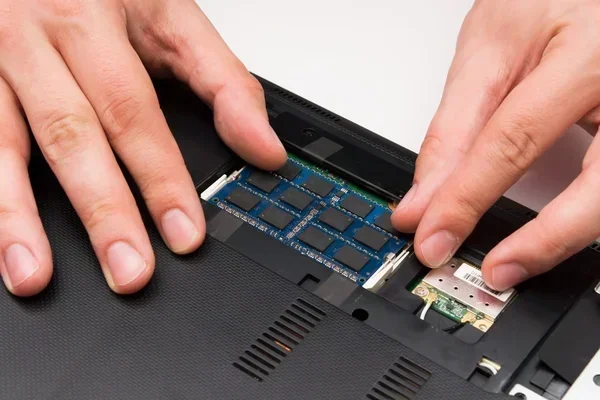
Start with the simplest fix. Turn off your laptop completely. Unplug the power cable. Remove the battery if possible. Open the back panel to access the RAM slots. Carefully remove the RAM module. Then reinsert it firmly until you hear a click. This ensures a proper connection.
If you are new to this process, you may want to review how to upgrade ram in laptop for a detailed walkthrough. This guide covers the entire disassembly and reassembly process for most common laptop models.
Step 2: Try a Different RAM Slot
Sometimes the problem is not the RAM but the slot. Move the module to a different slot and test it. If the laptop recognises the RAM in the new slot, the original slot may be damaged. Most laptops have two RAM slots. Use both to test and find the working one.
Step 3: Clean the RAM Contacts
Take the RAM module out again. Look at the gold contacts on the bottom. If they look dirty or tarnished, gently clean them. Use a soft, lint-free cloth. You can also use a pencil eraser to lightly rub the contacts. This removes oxidation and restores good electrical connection. Wipe away any residue with a dry cloth before reinserting.
Step 4: Check RAM Compatibility
Not all RAM is created equal. Your laptop needs a specific type of memory. Check your laptop model number and look up the supported RAM specifications. Pay attention to these details:
- RAM type: DDR3, DDR4, or DDR5
- Speed: 2400MHz, 3200MHz, 4800MHz, and so on
- Capacity per slot: 4GB, 8GB, 16GB, or 32GB
- Maximum total capacity: 16GB, 32GB, or 64GB
- Form factor: SO-DIMM for laptops
If you are unsure whether your laptop supports RAM upgrades at all, check out can you upgrade ram in a laptop to learn about upgradeable models and limitations.
Step 5: Update Your BIOS
An outdated BIOS can cause RAM detection issues. Visit your laptop manufacturer’s website and search for your model. Download the latest BIOS update. Follow the instructions carefully to install it. After the update, restart your laptop and check if the new RAM is recognised.
Warning: Never interrupt a BIOS update. Doing so can permanently damage your laptop. Make sure your battery is charged and the power is stable during the update process.
Step 6: Reset BIOS to Default Settings
Sometimes custom BIOS settings interfere with RAM detection. To fix this, reset the BIOS to factory defaults. You can usually do this by pressing a specific key during startup, such as F2 or Del. Look for an option called “Load Default Settings” or “Restore Defaults.” Save the changes and exit. Your laptop should now detect the RAM correctly.
Step 7: Test Each RAM Stick Individually
If you installed two RAM sticks, test them one at a time. Remove all modules. Insert only one stick and power on. Check if the laptop detects it. Then remove that stick and test the other one individually. This helps you identify a faulty module. If one stick works and the other does not, the bad stick needs to be replaced.
Step 8: Check Windows Settings
Sometimes the RAM is detected by the hardware but not shown correctly in Windows. Open Task Manager by pressing Ctrl + Shift + Esc. Go to the Performance tab and click on Memory. Here you can see how much RAM Windows is using and detecting. If the amount seems wrong, try running the Windows Memory Diagnostic tool. Search for “Windows Memory Diagnostic” in the Start menu and run it. Your laptop will restart and check for memory errors.
Common Mistakes During RAM Upgrades
Many users run into problems because of simple mistakes. Avoid these common errors to save yourself frustration.
- Buying the wrong RAM type: DDR3 will not work in a DDR4 slot. Always double-check your laptop’s specifications before purchasing.
- Forcing the RAM into the slot: RAM should slide in smoothly with gentle pressure. If it resists, do not force it. You may be misaligning the notch.
- Not fully seating the module: The RAM must click firmly into place. If it is not fully inserted, your laptop will not detect it.
- Mixing different RAM brands: While mixing brands is sometimes fine, it can cause compatibility issues. Try to use the same brand, speed, and size for best results.
- Skipping the BIOS update: Older laptops especially benefit from updated BIOS firmware. Skipping this step can lead to detection problems.
- Not grounding yourself: Static electricity can damage RAM modules. Always touch a metal surface before handling components.
If you want to learn more about the upgrade process from start to finish, visit how to upgrade my laptop ram for a comprehensive guide that covers preparation, installation, and troubleshooting.
How to Prevent RAM Recognition Issues in the Future
Prevention is always better than cure. Follow these simple tips to avoid RAM detection problems in the future.
- Buy RAM from reputable brands. Stick with trusted manufacturers like Corsair, Kingston, Crucial, or Samsung. Cheap, no-name RAM often causes problems.
- Check compatibility before buying. Use your laptop manufacturer’s website or a RAM compatibility tool. This ensures you get the right module.
- Handle RAM with care. Hold RAM by the edges. Never touch the gold contacts. This prevents oil transfer and physical damage.
- Keep your laptop clean. Dust buildup can affect RAM contacts over time. Clean your laptop’s interior every few months.
- Update your BIOS regularly. BIOS updates often include improved hardware compatibility. Keep yours up to date.
When to Seek Professional Help
Most RAM issues are easy to fix at home. But sometimes, the problem is beyond a simple fix. Here are signs you should seek professional help:
- Your laptop does not turn on after the RAM upgrade.
- The system beeps repeatedly on startup with no display.
- None of the RAM sticks work in any slot.
- You suspect the RAM slot itself is damaged.
- Your laptop still shows the same memory amount after trying all fixes.
A qualified technician can diagnose hardware-level issues safely. They have specialised tools and diagnostic equipment that most users do not have. If you are uncomfortable opening your laptop, it is perfectly fine to take it to a professional.
The cost of professional RAM diagnosis is usually low. Many repair shops charge a small fee or even diagnose for free. Compare this to the cost of replacing a damaged motherboard, which can be much more expensive. When in doubt, get expert help.
Frequently Asked Questions About RAM Not Being Recognised
Why does my laptop not show the new RAM after upgrade?
The most common reason is a loose connection. The RAM module may not be fully seated in the slot. Try removing it and reinserting it firmly until it clicks into place. Also check that you have the correct RAM type for your laptop model. Compatibility issues often cause the system to ignore new memory entirely.
Can wrong RAM damage my laptop?
Using incompatible RAM will not usually damage your laptop physically. However, it can cause system instability, random crashes, and failure to boot. Your laptop simply will not run the wrong RAM type. It is always best to match the specifications exactly to avoid any problems.
How do I know if my RAM stick is faulty?
Test each RAM stick individually in different slots. If one stick fails to be detected in every slot, it is likely faulty. You can also run the Windows Memory Diagnostic tool or use third-party software like MemTest86. These tools check for errors and confirm whether a module is working correctly.
Do I need to update BIOS after a RAM upgrade?
Not always, but it is a good idea. BIOS updates often improve memory compatibility and fix detection bugs. If your laptop does not recognise new RAM, updating the BIOS is one of the first steps you should try. Always follow the manufacturer’s instructions carefully when updating BIOS.
How long does it take to fix RAM not recognised?
Most fixes take less than 15 minutes. Reseating the RAM module is the quickest solution. Cleaning contacts and checking BIOS settings take a little longer but are still simple. If the issue is a faulty RAM stick, you will need a replacement, which may take a day or two to arrive.
Is it better to install RAM in one slot or two?
It depends on your needs. Using two slots enables dual-channel mode, which improves memory performance. However, if you are troubleshooting a detection issue, start with one stick in one slot. This helps isolate whether the problem is with the module or the slot. Once you confirm everything works, you can add the second stick.
Final Thoughts
Dealing with ram not recognised after upgrade can be frustrating. But as you have seen, most issues have simple solutions. Start with the basics — reseat the module, clean the contacts, and check compatibility. Move on to BIOS updates and individual stick testing if needed. The vast majority of users resolve the problem within minutes using these steps.
Remember to always buy compatible RAM from trusted brands. Take your time during installation. And do not be afraid to seek professional help if something feels wrong. Your laptop’s memory is a critical component, and treating it with care pays off in long-term performance and reliability.
Now that you have the knowledge to fix this issue, go ahead and give your laptop the memory boost it deserves. A successful RAM upgrade means faster multitasking, smoother performance, and a better overall user experience. Enjoy your upgraded system!