How To Boost Windows 10 Performance By Disabling Animations

Disabling animations in Windows 10 is one of the easiest and most effective ways to boost your PC’s speed and responsiveness. Visual effects may look nice, but they consume valuable system resources that slow down your computer. This guide walks you through every method to turn off animations and get your Windows 10 machine running smoother and faster.
Windows 10 looks beautiful with all its smooth transitions and fancy animations. But here is the truth: those eye-catching effects come at a cost. Every time a window minimizes, every time a menu opens with a fade, your computer is working hard behind the scenes. For many users, especially those with older machines, these animations create noticeable lag. If your PC feels slow and you want a quick fix, disabling animations is a fantastic starting point.
In this guide, we will show you exactly how to boost Windows 10 performance by disabling animations. You do not need to be a tech expert. We will cover every method step by step. By the end, you will have a faster, more responsive computer. Let us dive in.
## Why Animations Slow Down Your Windows 10 PC
Before we get into the how-to, let us understand why animations cause problems. Windows 10 uses visual effects to make the user experience feel polished. Things like fading menus, sliding windows, and smooth transitions all look great. But they require your system to render graphics constantly.
### How Animations Use System Resources
Every animation on your screen needs processing power. Your CPU handles the calculations, and your GPU renders the visuals. On a modern PC with a strong processor, this barely matters. But on an older machine or a budget laptop, it adds up fast.
Here is what happens when animations run in the background:
- CPU usage increases: Your processor works harder to render each transition.
- RAM gets consumed: Visual effects take up memory that other apps need.
- GPU resources are wasted: Your graphics card handles effects that do not matter for productivity.
- System responsiveness drops: Menus and windows feel sluggish instead of snappy.
If you have ever noticed your computer stuttering when you open multiple windows, animations are likely a big part of the problem. Many people also deal with this kind of slowdown when their system is already under pressure. If that sounds familiar, you might want to check out how to fix a computer running slow and freezing for additional solutions.
## How To Disable Animations In Windows 10
Now for the good part. There are several ways to turn off animations in Windows 10. We will cover the easiest methods first and then move to more advanced options. Each method works well, so pick the one that feels most comfortable.
### Method 1: Use the Performance Options Menu
This is the most straightforward approach. It lets you control all visual effects in one place.
- Press the Windows key + R on your keyboard.
- Type
sysdm.cpland press Enter. - Click on the Advanced tab.
- Under Performance, click the Settings button.
- A new window will open with a list of visual effects.
- Select the radio button for Adjust for best performance.
- Click Apply, then OK.
This disables all animations and visual effects at once. Your desktop will look simpler, but it will feel much faster.
### Method 2: Customize Specific Animations
You do not have to turn off everything. If you want to keep some visual polish, you can pick and choose which effects to disable.
In the same Performance Options window mentioned above, you will see a list of individual effects. Here are the ones we recommend turning off for maximum speed:
- Animate windows when minimizing and maximizing: This removes the smooth slide effect when windows open and close.
- Animate controls and elements inside windows: This stops menus from fading in and out.
- Animate windows when minimizing: Specifically targets the minimize animation.
- Show shadows under windows: Shadows look nice but use extra GPU power.
- Enable Peek: This effect previews your desktop when you hover over the corner. It uses resources for no real benefit.
By selectively disabling these, you keep your desktop looking decent while still getting a noticeable speed boost.
### Method 3: Use Windows Settings
You can also adjust some animation settings directly from the Settings app.
- Press Windows key + I to open Settings.
- Go to Accessibility.
- Click on Visual effects on the left panel.
- Toggle off Animation effects.
This method is simpler but does not give you as much control as the Performance Options menu. It is still a great quick fix.
## Additional Windows 10 Performance Settings To Tweak
Disabling animations alone will make a big difference. But to truly maximize your PC speed, you should look at a few other settings too.
### Clear Junk Files Regularly
Over time, your PC accumulates temporary files, cache data, and other digital clutter. These files take up disk space and slow things down. Making a habit of clearing them out keeps your system running lean. If you are not sure where to start, learn how to remove junk files from PC in our detailed guide.
### Keep Your Drivers Updated
Outdated drivers can cause all sorts of performance issues. Graphics drivers in particular affect how smoothly your system handles visual elements. Check for updates through Device Manager or visit your manufacturer’s website regularly.
### Consider a RAM Upgrade
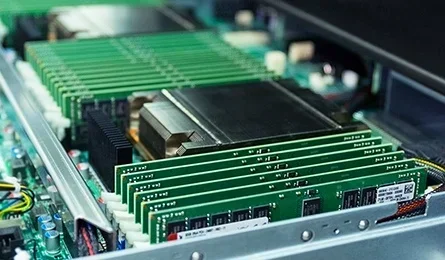
If you have been struggling with slow performance, your RAM might be the bottleneck. Upgrading your memory can transform how your PC handles multitasking. You can find detailed instructions on how to boost laptop RAM or upgrade your system’s memory with our step-by-step guides.
### Disable Unnecessary Startup Programs
Many programs launch automatically when you boot your PC. Some of these run in the background without you even knowing. To manage startup apps:
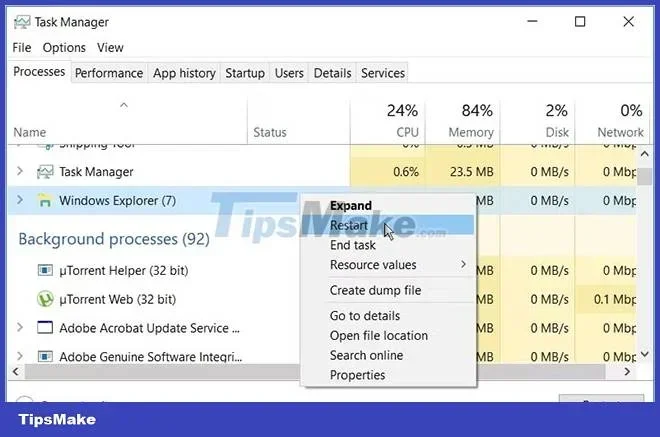
- Open Task Manager (Ctrl + Shift + Esc).
- Click the Startup tab.
- Right-click any program you do not need at startup.
- Select Disable.
This frees up both CPU and RAM from the moment you turn on your computer.
## Before And After: What To Expect
After disabling animations, here is what you should notice:
- Faster window transitions: Menus and windows open and close instantly instead of with a smooth fade.
- Better responsiveness: Your cursor and clicks feel more immediate and direct.
- Lower CPU usage: Check Task Manager and you will see reduced processing demand.
- Improved battery life: Less rendering means your laptop battery lasts longer.
- More screen real estate: Without animations, you can focus on your work without distractions.
The difference is most noticeable on older hardware or machines with 4GB of RAM or less. On newer, powerful PCs, the improvement might be subtle but still worth it.
## Common Mistakes To Avoid When Tweaking Windows Performance
While disabling animations is safe, there are a few mistakes people make when optimizing their PC.
### Disabling Too Many Things at Once
It can be tempting to turn off every visual effect available. But some settings actually help with usability. For example, disabling all text smoothing can make fonts hard to read. Stick to the animations and visual effects we recommended above.
### Forgetting to Create a Restore Point
Before making any system changes, create a restore point. This lets you undo everything if something goes wrong. It takes just a minute and saves you from potential headaches.
### Ignoring Other Performance Issues
Disabling animations helps, but it is not a magic fix. If your PC is still slow after removing animations, there might be other issues at play. Consider checking for malware, upgrading hardware, or running disk cleanup tools.
## Expert Tips for Maximum Windows 10 Speed
Here are some bonus tips from our team to squeeze every bit of performance out of your Windows 10 machine:
- Use a solid-state drive (SSD): If you still use a hard drive, upgrading to an SSD is the single biggest performance boost you can make.
- Keep Windows updated: Microsoft regularly releases performance improvements through Windows Update.
- Restart your PC regularly: A fresh restart clears temporary files and resets memory usage.
- Use a lightweight browser: Browsers like Chrome can eat up RAM. Consider switching to a lighter alternative for better overall speed.
- Monitor your temperatures: Overheating causes throttling, which slows everything down. Keep your vents clean and consider a cooling pad for laptops.
## Final Thoughts
Boosting your Windows 10 performance does not have to be complicated. Disabling animations is a simple, free, and effective way to make your PC feel faster and more responsive. Whether you have a brand new laptop or an older machine, this tweak delivers real results.
Start with the Performance Options menu for the most control. Then explore the other settings we covered to squeeze out even more speed. Remember, small changes add up over time. Your PC will thank you.
If you found this guide helpful, share it with a friend who is still dealing with a slow computer. And be sure to check out our other performance guides for more tips on keeping your system running at its best.
Key Takeaways
- Animations eat up CPU and RAM: Turning them off frees resources for important tasks.
- Multiple methods exist: You can disable animations through Settings, Performance Options, or Registry tweaks.
- Immediate results: Most users notice faster window transitions and snappier menus right away.
- Combine with other tweaks: Pairing animation removal with other optimizations delivers even better results.
- Easy to reverse: You can always re-enable animations if you change your mind.
- Great for older PCs: This trick is especially helpful for machines with limited hardware.
Frequently Asked Questions
Will disabling animations affect my desktop wallpaper or themes?
No, your wallpaper and themes will stay exactly the same. Disabling animations only removes the moving effects like fading, sliding, and transitions. The visual appearance of your desktop remains unchanged.
Can I re-enable animations after turning them off?
Absolutely. You can always go back to the Performance Options menu and select the custom option to re-enable specific effects. Nothing you do is permanent, so feel free to experiment.
Will disabling animations damage my computer?
No, this is completely safe. Disabling animations simply tells Windows to use fewer resources on visual effects. It does not change any system files or harm your hardware in any way.
How much faster will my PC feel after disabling animations?
The improvement varies by hardware. Users with older PCs or limited RAM often notice the biggest difference. On newer machines, the boost may be subtle but still worthwhile for a smoother experience.
Should I disable animations on a gaming PC too?
Yes, even gaming PCs benefit from disabling unnecessary animations. While the performance gain may be small during gaming, it improves overall system responsiveness for everyday tasks like browsing and multitasking.
Are there other Windows 10 settings I should adjust for better performance?
Yes, disabling animations is just one piece of the puzzle. You should also clear junk files, update your drivers, manage startup programs, and consider upgrading your RAM for the best results.
=== CONCLUSION ===
Boosting your Windows 10 performance by disabling animations is one of the simplest and most rewarding tweaks you can make. It takes just a few minutes, requires no special tools, and delivers immediate results. Your system will feel snappier, your menus will respond faster, and you will reclaim valuable processing power for the tasks that matter most.
Start today by following the steps in this guide. Combine animation removal with other optimizations like clearing junk files and managing startup programs, and you will notice a dramatic improvement. A faster PC is just a few clicks away.