Nvme Ssd M 2 Pcie
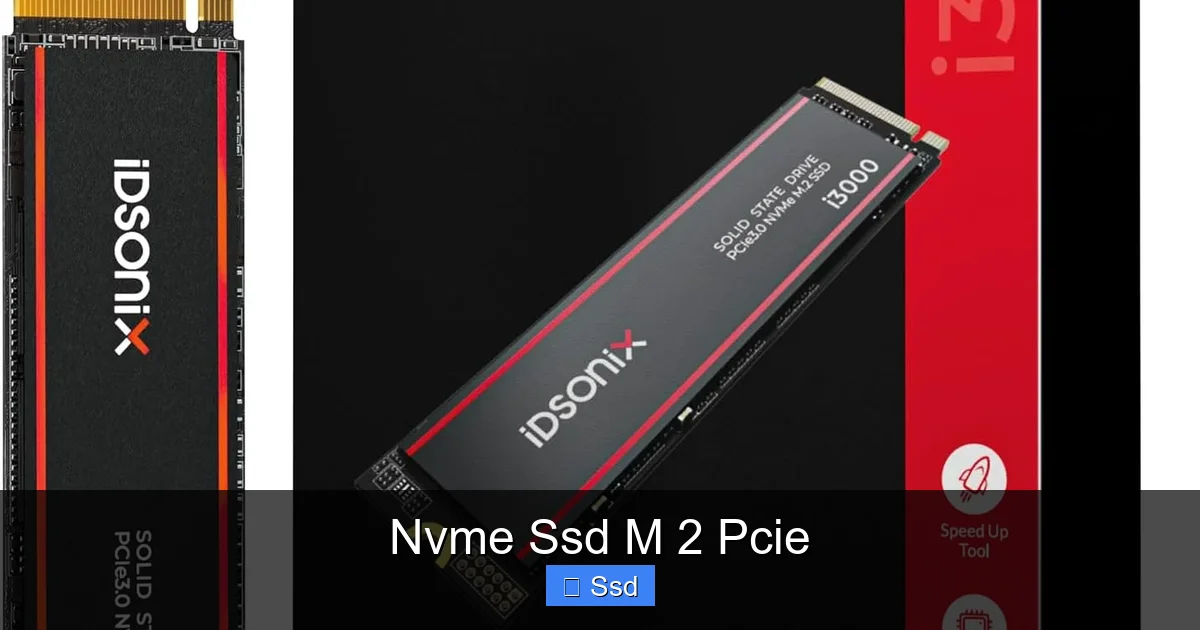
An NVMe SSD in the M.2 PCIe form factor is the fastest consumer storage upgrade available today. It plugs directly into your motherboard via a high-speed PCI Express lane, skipping the slower SATA interface entirely. This results in massive gains in boot times, game loading, and file transfers. It’s the essential upgrade for modern PCs and laptops seeking top-tier performance in a tiny, efficient package.
Key Takeaways
- NVMe is the Protocol: It’s a high-speed communication standard designed for flash memory, running over the PCIe bus, not the older SATA bus.
- M.2 is the Form Factor: It’s a small, stick-like physical shape (like a piece of gum) that connects directly to the motherboard, saving space and cables.
- PCIe is the Highway: The data travels over PCI Express lanes (typically 3 or 4 lanes, x4), with PCIe 4.0 and 5.0 offering double and quadruple the speed of PCIe 3.0.
- Heat is a Real Factor: These drives can get hot under sustained workloads. A motherboard heatsink or a third-party heatsink is often recommended for optimal performance.
- Check Compatibility First: Your motherboard must have an M.2 slot that supports PCIe (not just SATA) and the correct key (usually M-key). Laptops often have only one slot.
- Future-Proof Your Build: For new desktops and laptops, an NVMe SSD should be your primary drive choice for the OS and applications; use a larger SATA SSD/HDD for bulk storage.
- Not All M.2 Drives Are Equal: An M.2 slot can support either SATA or NVMe (PCIe) SSDs. You must buy an NVMe (PCIe) model to get the speed benefits. Look for “NVMe” or “PCIe” in the product name.
📑 Table of Contents
- What Exactly Is an NVMe SSD M.2 PCIe?
- The Anatomy of Speed: PCIe Generations & Lanes
- Real-World Performance: What Does All This Speed Mean For You?
- Installation & Compatibility: Don’t Skip This Step!
- The Heat Issue: Why Your NVMe SSD Might Need a Cooler
- Buying Guide & Future Outlook: Making the Right Choice
- Conclusion: The Clear Choice for Modern Computing
What Exactly Is an NVMe SSD M.2 PCIe?
Let’s break down that technical mouthful. You’re looking at three distinct but interconnected technologies that together define the modern high-performance storage standard. Think of it like a delivery system. The M.2 is the physical shape—a slim, rectangular card that slides into a slot on your motherboard. The PCIe (Peripheral Component Interconnect Express) is the superhighway the data travels on. And NVMe (Non-Volatile Memory Express) is the set of incredibly efficient traffic rules and delivery trucks designed specifically for that superhighway, ensuring data moves at breakneck speed.
Before this combo, we mostly used 2.5” SATA SSDs. SATA is an older, slower interface, like a narrow country road. PCIe is a multi-lane autobahn. NVMe is the Formula 1 car built to exploit every inch of that autobahn. The result? Speeds that were unimaginable just a decade ago. A typical SATA III SSD maxes out around 550 MB/s. A first-generation NVMe PCIe 3.0 drive already doubles that, and the latest PCIe 4.0 and 5.0 drives can be 10-15 times faster in sequential reads.
The Evolution from SATA to PCIe
The story starts with the limitations of SATA. Developed for hard drives, SATA became the bottleneck for flash memory. The industry needed a new interface. PCIe was already there, used for graphics cards and high-speed add-in cards. It offered vastly more bandwidth. But PCIe needed a protocol optimized for the unique way SSDs handle thousands of tiny, random read/write operations simultaneously. That’s what NVMe provided—a lean, mean, parallel-processing machine for storage. The M.2 form factor emerged as the perfect physical partner: compact, screw-less (or tool-less), and capable of feeding that PCIe connection directly to the drive’s controller.
The Anatomy of Speed: PCIe Generations & Lanes
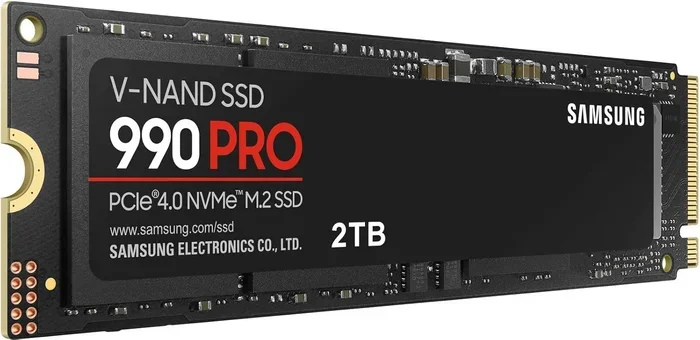
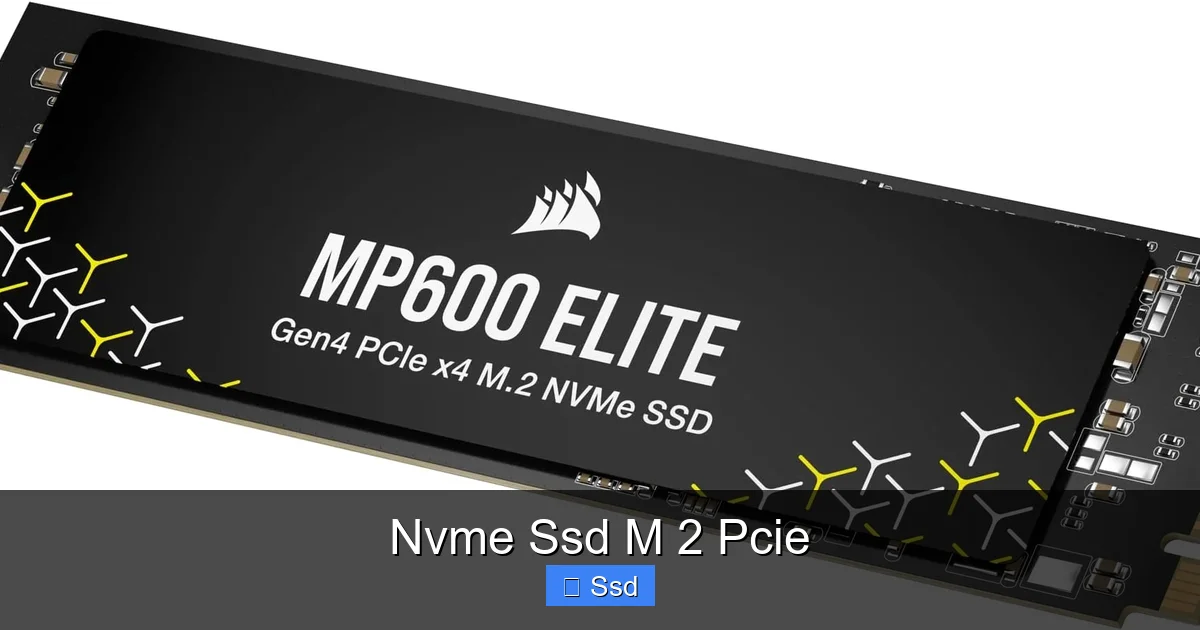
When shopping, you’ll see drives labeled PCIe 3.0, PCIe 4.0, and now PCIe 5.0. This refers to the version of the PCI Express standard. Each generation roughly doubles the bandwidth per lane compared to the previous one. For an M.2 SSD, it almost always uses 4 PCIe lanes, denoted as “x4”.
Visual guide about Nvme Ssd M 2 Pcie
Image source: m.media-amazon.com
- PCIe 3.0 x4: Theoretical maximum of ~4 GB/s (gigabytes per second). Real-world top-end drives hit ~3,500 MB/s read.
- PCIe 4.0 x4: Theoretical maximum of ~8 GB/s. Top drives push ~7,000 MB/s read.
- PCIe 5.0 x4: Theoretical maximum of ~16 GB/s. Early adopters are hitting ~12,000-14,000 MB/s, but require compatible, newer platforms (Intel 13th/14th Gen, AMD Ryzen 7000 series+) and often active cooling.
What About NVMe vs. SATA M.2?
This is a crucial point of confusion. An M.2 slot on your motherboard can be wired for either SATA or PCIe (NVMe). Some slots are “combo” slots that can accept either type, but they share bandwidth with other ports. A SATA M.2 SSD performs identically to a 2.5” SATA SSD. You must look for the keying notch on the drive (an ‘M’ key usually indicates PCIe NVMe, a ‘B+M’ key can be SATA or PCIe, but specs will tell) and, more importantly, read the product description. It will explicitly say “NVMe PCIe” or just “PCIe”. If it just says “M.2 SSD” without NVMe, it’s likely SATA-speed. Always verify your motherboard manual to see what your M.2 slots support.
Real-World Performance: What Does All This Speed Mean For You?
Sequential speeds (large file transfers) are the big marketing numbers, but the true magic of NVMe is in its insane random read/write performance (4K QD1). This is what makes your system feel instant.
Visual guide about Nvme Ssd M 2 Pcie
Image source: integralmemory.com
- Boot & Load Times: Windows can boot to the login screen in 5-10 seconds. Games load into new areas or start up dramatically faster. Professional applications like Adobe Premiere (scrubbing through 4K footage) and Visual Studio (project loading) feel snappier.
- File Transfers: Moving a 100GB game or a massive video project file? You’ll see the transfer bar fly across the screen in seconds instead of minutes.
- System Responsiveness: Even mundane tasks—opening dozens of browser tabs, launching multiple apps, extracting ZIP files—feel smoother because the drive can handle countless small operations simultaneously without slowing down.
Practical Examples: Who Benefits Most?
Gamers: Reduced load times mean less waiting and more playing. Games with vast open worlds (like *Red Dead Redemption 2* or *Cyberpunk 2077*) see the most dramatic improvements when Fast Traveling or entering new zones.
Content Creators & Professionals: Video editors working with 4K/8K footage, photographers with large RAW files, and engineers with CAD models will see the biggest workflow boosts. Scrolling through timelines, applying effects, and exporting all leverage the drive’s random performance.
Power Users & Developers: Running virtual machines, compiling code, managing large databases, or simply having 100+ Chrome tabs open—all these scenarios thrive on fast storage access.
General Users: Even for web browsing, office apps, and media consumption, the difference from a SATA SSD or, worse, a hard drive is night and day. Everything just feels quicker.
Installation & Compatibility: Don’t Skip This Step!
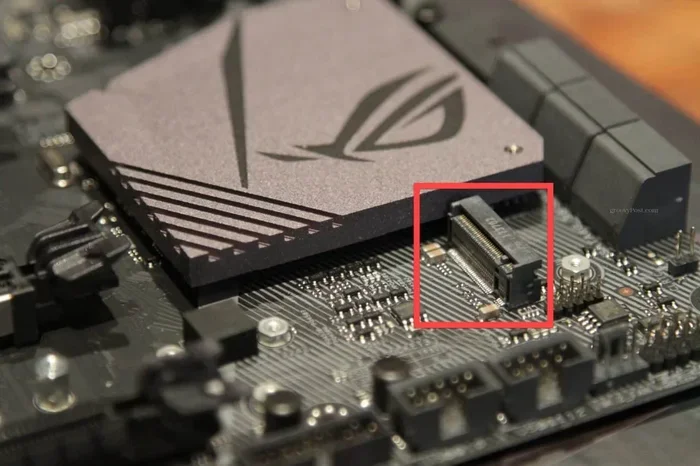
Physically installing an M.2 NVMe SSD is one of the simplest PC upgrades. It’s often a one-screw, one-slide process. But compatibility is where people trip up.
Visual guide about Nvme Ssd M 2 Pcie
Image source: m.media-amazon.com
Step 1: Identify Your Motherboard’s M.2 Slots
Open your motherboard’s manual. Find the section on M.2 connectors. You need to know:
- Supported Protocols: Does the slot support PCIe NVMe? (It should say “PCIe” or “NVMe”). Does it also support SATA? (Good to know).
- PCIe Generation: Is it PCIe 3.0, 4.0, or 5.0? A PCIe 4.0 drive will work in a PCIe 3.0 slot, but it will be limited to the slot’s speed.
- Keying: Almost all consumer NVMe drives use the M-key. Ensure your slot is M-key or compatible.
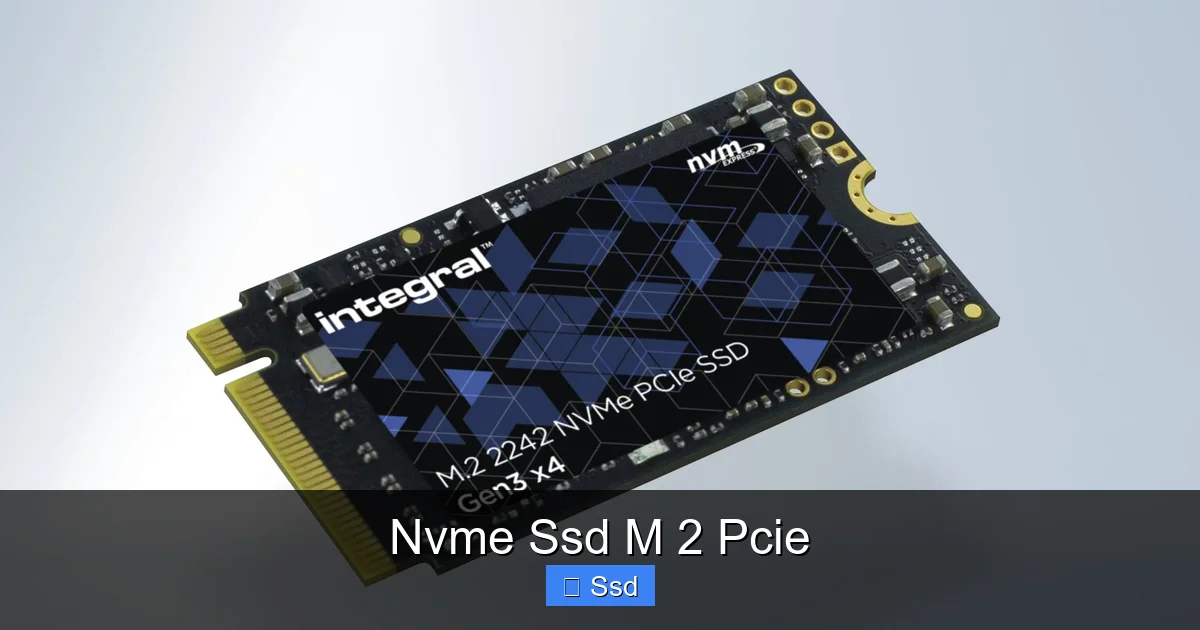
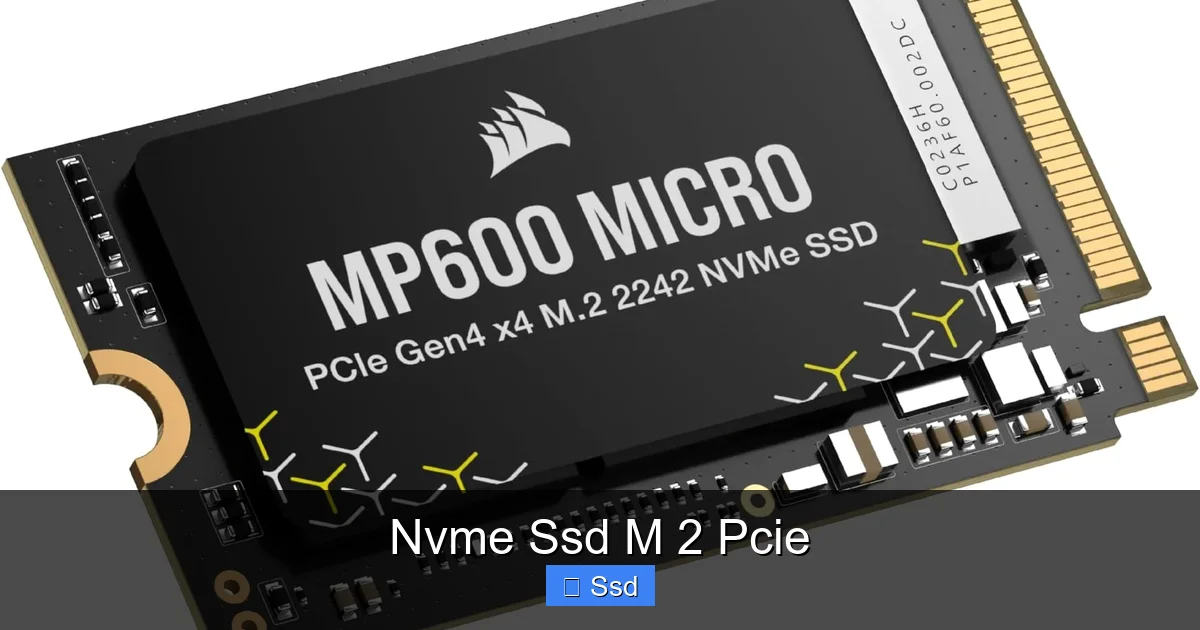
- Length (Form Factor): Common lengths are 2280 (22mm wide, 80mm long). Some slots support 22110 or 2230. Your drive must match the supported length.
- Shared Bandwidth: Some M.2 slots share bandwidth with SATA ports or other PCIe lanes. Using the M.2 slot might disable certain SATA ports or a PCIe slot. The manual will detail this.
Step 2: The Physical Installation
1. Power down and unplug your PC. Ground yourself.
2. Locate the M.2 slot (usually between the PCIe slots or near the CPU).
3. Remove the small mounting screw.
4. Insert the drive at a ~30-degree angle into the slot, pressing it in firmly until it clicks.
5. Press the drive down flat and secure it with the screw. Don’t overtighten!
6. That’s it! There are no cables.
Step 3: BIOS & OS Setup
Enter your BIOS/UEFI (usually Del or F2 on boot). The new drive should appear under storage devices. You may need to enable the slot if it’s disabled by default. Ensure the drive is set as a boot drive if it’s your primary OS drive. Save and exit. In Windows, go to Disk Management to initialize and format the new drive.
The Heat Issue: Why Your NVMe SSD Might Need a Cooler
This is a critical, often overlooked aspect. High-performance NVMe SSDs, especially PCIe 4.0 and 5.0 models, can generate significant heat. When the drive’s controller chip gets too hot (often above 70-80°C), it will thermal throttle. This means it deliberately slows down to protect itself, nullifying the performance benefits you paid for.
Do You Need a Heatsink?
For PCIe 3.0 drives: Usually not. They run cool enough on their own for most use cases.
For PCIe 4.0 drives: It’s highly recommended, especially for sustained workloads (video editing, large file transfers). Many motherboards now include M.2 heatsinks (a metal plate with thermal pad). These are often sufficient.
For PCIe 5.0 drives: Almost mandatory. They produce so much heat that most come with an active heatsink (with a small fan) or require your motherboard’s robust M.2 cooler.
Heatsink Options
- Motherboard Integrated: The easiest. The metal shield on the M.2 slot often has a thermal pad that contacts the drive’s controller and memory chips.
- Third-Party Heatsinks: Aftermarket aluminum or copper heatsinks you buy and install yourself. They often come with thermal pads. This is a great option if your motherboard lacks one.
- Drive-Bundled Heatsinks: Some high-end drives (like certain Samsung 990 Pro or Sabrent models) include a heatsink in the box, sometimes even with a fan.
Pro Tip: Use monitoring software like CrystalDiskInfo, HWiNFO, or the manufacturer’s own dashboard to watch your drive’s temperature during heavy use. If you see it consistently hitting 80°C+, you need better cooling.
Buying Guide & Future Outlook: Making the Right Choice
With the market saturated, how do you pick the best NVMe SSD M.2 PCIe for your needs and budget?
Capacity vs. Performance
For most users, a 1TB drive is the sweet spot for a primary OS/gaming drive. It offers enough space for the OS, key applications, and a healthy game library. 2TB and 4TB models are becoming more affordable and are excellent for professionals and enthusiasts with large media libraries. Avoid 256GB for a primary drive—it fills up too quickly and often has slower write speeds due to fewer NAND chips.
DRAM vs. DRAMless
Traditionally, high-end drives had a dedicated DRAM cache chip for storing the mapping table (the map of where your data is). Modern DRAMless designs (using Host Memory Buffer, or HMB) borrow a small amount of system RAM for this task. For general use and gaming, the difference is often negligible. For heavy professional workloads involving massive, sustained file transfers, a DRAM-equipped drive can still offer a slight edge in consistency. Most modern DRAMless drives (like the Crucial P3/P5 Plus, WD Blue SN580) are fantastic value.
NAND Type: TLC vs. QLC
This refers to the memory cell technology. TLC (3-bit per cell) is the standard for performance and endurance. QLC (4-bit per cell) is cheaper and offers higher capacities per wafer, but has lower endurance and slower write speeds, especially when the drive’s cache is full. For a primary drive, TLC is still the recommended choice for longevity and consistent performance. QLC is best for secondary, read-heavy storage.
The PCIe 5.0 Question
PCIe 5.0 SSDs are here, offering over 10,000 MB/s speeds. But do you need one? Probably not, yet. For gaming and general use, there is zero perceptible difference between a top-tier PCIe 4.0 drive (7,000 MB/s) and a PCIe 5.0 drive (12,000 MB/s). Game loading screens won’t get 2x faster. The bottleneck shifts to the CPU and game engine. PCIe 5.0 makes sense for extreme professional workloads with absolutely massive, sequential file streams (think 8K+ raw video). They require a newer platform (Intel 13th/14th Gen, AMD Ryzen 7000+) and cost more, often with a significant heat requirement. For 99% of people, a great PCIe 4.0 drive is the perfect, future-proof choice.
Conclusion: The Clear Choice for Modern Computing
The NVMe SSD in the M.2 PCIe form factor isn’t just an incremental upgrade; it’s a fundamental leap in how your computer accesses its most important data. By combining a compact, cable-free design with the blistering bandwidth of PCIe and the efficiency of the NVMe protocol, it eliminates one of the last major bottlenecks in a PC: storage speed. The result is a system that boots instantly, loads applications in a blink, and makes large file handling feel effortless.
While the technical specs can seem daunting, the practical takeaway is simple: for any new desktop or laptop purchase, prioritize a PCIe NVMe SSD as your primary drive. For an existing system, a quick compatibility check followed by a simple screwdriver install will breathe new life into your machine. Just remember to consider the heat, choose the right capacity (1TB+), and don’t overspend on PCIe 5.0 unless your specific workflow demands it. In the world of computing, few upgrades deliver such a dramatic and immediate improvement to the user experience as moving to an NVMe SSD M.2 PCIe. It’s the one component that makes everything else feel faster.
Frequently Asked Questions
Is an NVMe SSD M.2 PCIe compatible with my old desktop/laptop?
You need a free M.2 slot on your motherboard that specifically supports PCIe (not just SATA). Check your motherboard’s manual or spec sheet. Many desktops from the last 5-6 years have them. Laptops are trickier; many older ones only have a 2.5” SATA bay. If your laptop has an M.2 slot, it’s likely PCIe, but verification is key.
What’s the main difference between a SATA SSD and an NVMe PCIe SSD?
The interface. SATA SSDs use the older, slower SATA bus (max ~550 MB/s). NVMe PCIe SSDs use the much faster PCIe bus (3,500+ MB/s on PCIe 3.0, 7,000+ on PCIe 4.0). Both are SSDs with no moving parts, but the NVMe drive can move data to/from the CPU up to 10x faster.
Do I need to install drivers for an NVMe SSD?
Modern operating systems like Windows 10 and 11 have NVMe drivers built-in. In most cases, you plug it in, initialize, and format it in Disk Management, and it works. For best performance and features (like Samsung Magician or WD Dashboard), you should install the manufacturer’s utility software, which includes any necessary drivers.
My NVMe SSD is getting hot. Is that normal, and is it dangerous?
Yes, it’s normal, especially under heavy loads like gaming or video editing. However, sustained temperatures above 80-85°C can cause thermal throttling, where the drive slows down to cool off. It’s not immediately dangerous but harms performance. Use your motherboard’s M.2 heatsink if available, or consider an aftermarket heatsink for PCIe 4.0/5.0 drives.
How long does an NVMe SSD last? Is it less durable than a SATA SSD?
Modern NVMe SSDs have excellent endurance, measured in Terabytes Written (TBW). For a 1TB drive, a TBW of 600-1,200 is common, meaning you’d have to write 200-400 GB per day for 3-5 years to reach the limit. For typical consumer use (gaming, OS, apps), you will likely never wear it out. Durability is similar to SATA SSDs; the NAND type (TLC/QLC) matters more than the interface.
Should I buy the fastest PCIe 5.0 SSD available?
For the vast majority of users, no. PCIe 4.0 drives (like the Samsung 980 Pro, WD Black SN850X, Crucial P5 Plus) offer more than enough speed for games and applications. PCIe 5.0 drives are much more expensive, require a newer motherboard/CPU, and generate significant heat. The real-world performance difference in games or daily tasks is imperceptible. Invest in a larger capacity or a better GPU/CPU instead.