1tb Nvme Pcie M 2 Ssd

A 1tb nvme pcie m 2 ssd delivers blazing-fast storage in a tiny form factor. It offers read speeds up to 7000 MB/s, making it perfect for gaming, creative work, and everyday computing. This guide covers everything you need to know before buying.
A 1tb nvme pcie m 2 ssd is one of the best upgrades you can make to any computer. Whether you are a gamer, a content creator, or someone who just wants a faster laptop, this type of drive changes everything. Traditional hard drives feel slow by comparison. But an NVMe M.2 SSD makes your system feel instant.
The beauty of this storage format lies in its size and speed combined. A 1TB NVMe PCIe M.2 SSD fits on your motherboard like a small stick of gum. Yet it delivers read speeds that can reach 7000 MB/s or more. That means your operating system boots in seconds. Your games load almost instantly. And large files transfer in a flash.
In this guide, we break down everything you need to know. We cover how these drives work, why they matter, and how to pick the right one for your needs. By the end, you will feel confident choosing the best 1TB NVMe M.2 SSD for your setup.
Key Takeaways
- Speed: NVMe PCIe M.2 SSDs are up to 7x faster than traditional SATA drives.
- Form Factor: The M.2 stick design saves space and fits most modern motherboards.
- Capacity: 1TB strikes the perfect balance between speed, affordability, and storage room.
- Gen4 vs Gen3: PCIe Gen4 offers double the bandwidth of Gen3 for demanding tasks.
- Compatibility: Check your motherboard for M.2 slots and NVMe support before purchasing.
- Value: Prices have dropped significantly, making 1TB NVMe SSDs very affordable today.
📑 Table of Contents
What Is a 1TB NVMe PCIe M.2 SSD?
Let us start with the basics. NVMe stands for Non-Volatile Memory Express. It is a communication protocol designed specifically for flash storage. Unlike older SATA connections, NVMe uses the PCIe bus to transfer data. This means much higher speeds and lower latency.
The M.2 part refers to the physical shape of the drive. M.2 is a small form factor that plugs directly into your motherboard. There is no cable needed. No bulky drive bay required. It is a clean, compact solution that fits inside laptops and desktops alike.
When you combine NVMe with PCIe and the M.2 form factor, you get a drive that is both tiny and incredibly fast. A 1TB NVMe PCIe M.2 SSD gives you one terabyte of storage in this ultra-compact package. That is enough room for your operating system, dozens of games, creative projects, and still have space left over.
How NVMe Differs from SATA SSDs
Most people have heard of SATA SSDs. They replaced old hard drives and made computers much faster. But NVMe takes things several steps further. A SATA SSD maxes out around 550 MB/s. A 1TB NVMe PCIe M.2 SSD can hit speeds of 5000 to 7000 MB/s or even higher on Gen4 and Gen5 interfaces.
Here is a simple comparison:
- SATA SSD: Max speed around 550 MB/s. Uses a 2.5-inch form factor with cables.
- NVMe M.2 SSD: Max speed up to 7000 MB/s or more. Plugs directly into the motherboard.
- Traditional HDD: Max speed around 150 MB/s. Moving parts make it slow and fragile.
The difference is night and day. If you have ever waited for a game to load or watched your computer struggle during a file transfer, an NVMe drive will feel like magic.
Why Choose a 1TB NVMe M.2 SSD?
You might wonder why 1TB is the sweet spot. Smaller capacities like 500GB fill up fast. Larger options like 2TB or 4TB cost more. But 1TB gives you plenty of breathing room without breaking the bank.
Storage Capacity
One terabyte holds roughly 250,000 photos, 250 hours of 4K video, or around 50 large games. For most users, this is the perfect amount. You can install Windows, your favorite applications, and several games without constantly worrying about running out of space.
Speed for Everyday Tasks
Even simple tasks benefit from NVMe speed. Opening apps feels instant. Copying files takes a fraction of the time. Your web browser with dozens of tabs loads quickly. A 1TB NVMe PCIe M.2 SSD makes everyday computing feel buttery smooth.
Gaming Performance
Gamers love NVMe drives for a reason. Modern games are huge, often exceeding 100GB each. Loading screens shrink dramatically. Open-world games stream assets faster, reducing stuttering and pop-in. If you are building a gaming PC, starting with a 1TB NVMe M.2 SSD is one of the smartest moves you can make.
Creative Work
Video editors, photographers, and designers work with large files constantly. An NVMe drive handles 4K video editing with ease. The fast sequential read and write speeds mean less time waiting and more time creating.
How to Choose the Right 1TB NVMe PCIe M.2 SSD
Not all NVMe drives are the same. Several factors determine which one is best for you. Let us walk through the key things to consider.
PCIe Generation: Gen3 vs Gen4 vs Gen5
The PCIe generation affects the maximum speed your drive can reach. Here is a quick breakdown:
- PCIe Gen3: Speeds up to 3500 MB/s. Still very fast and often more affordable.
- PCIe Gen4: Speeds up to 7000 MB/s. The current mainstream standard.
- PCIe Gen5: Speeds up to 14000 MB/s. The newest generation, still emerging.
For most users, a Gen4 drive offers the best balance of speed and price. If your motherboard supports Gen4, that is the way to go. But a Gen3 1TB NVMe M.2 SSD is still plenty fast for everyday use.
NAND Flash Type: TLC vs QLC
Inside every SSD are NAND flash memory chips. The type matters more than most people realize.
- TLC (Triple-Level Cell): Stores 3 bits per cell. Offers a great balance of speed, endurance, and price. Most quality 1TB NVMe PCIe M.2 SSDs use TLC NAND.
- QLC (Quad-Level Cell): Stores 4 bits per cell. Cheaper but slower and less durable over time. Best for light use.
For a reliable drive that lasts, look for TLC NAND. It handles heavy workloads better and maintains faster speeds over time.
DRAM Cache: Why It Matters
Some NVMe SSDs include a DRAM cache chip. This small amount of memory helps the drive manage data more efficiently. Drives with DRAM tend to stay fast even when handling lots of small files. If you run heavy multitasking or professional workloads, a DRAM-equipped 1TB NVMe M.2 SSD is worth the extra cost.
Thermal Management
Fast SSDs generate heat. Some come with built-in heatsinks. Others work fine without one. If you plan to run intensive tasks for long periods, look for a drive with good thermal design. A simple M.2 heatsink can make a big difference in sustained performance.
Installation and Setup Guide
Installing a 1TB NVMe PCIe M.2 SSD is simpler than you might think. Most modern motherboards have an M.2 slot ready to go.
Step-by-Step Installation
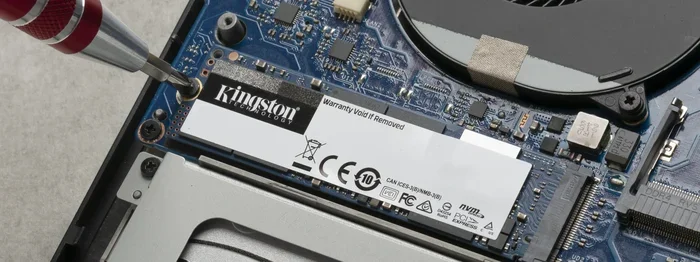
- Find your M.2 slot. Look for a thin slot on your motherboard, usually labeled M.2. It may have a small heatsink covering it.
- Remove the heatsink. If present, unscrew the tiny screw holding the heatsink in place. Set it aside.
- Insert the SSD. Hold the drive at a 30-degree angle and slide it into the slot. The notch on the drive aligns with the key on the slot.
- Secure the drive. Press the drive down gently and screw the small retention screw into place.
- Replace the heatsink. If you removed one, put it back on and tighten the screw.
- Boot into BIOS. Turn on your PC and enter the BIOS to confirm the drive is detected.
Once detected, you can format the drive and install your operating system. If you are adding it to an existing system, you can use it as a secondary storage drive or clone your current drive onto it.
Quick Tips for a Smooth Setup
- Always check your motherboard manual for compatible M.2 slots and PCIe generations.
- Do not force the drive into the slot. It should slide in smoothly with gentle pressure.
- Update your motherboard BIOS before installation for the best compatibility.
- If your system does not recognize the drive, try reseating it or updating your NVMe drivers.
Top Use Cases for a 1TB NVMe M.2 SSD
This type of drive fits a wide range of needs. Here are the most popular use cases.
Gaming PCs
Modern games demand fast storage. A 1TB NVMe PCIe M.2 SSD cuts load times dramatically. Games like Cyberpunk 2077, Hogwarts Legacy, and Starfield benefit hugely from NVMe speeds. You will spend less time staring at loading screens and more time playing.
Content Creation
Video editors working with 4K footage, 3D modelers, and photographers all benefit from fast storage. The high sequential read and write speeds of an NVMe M.2 drive make rendering and exporting faster. It also means your editing software runs smoother when scrubbing through timelines.
Laptop Upgrades
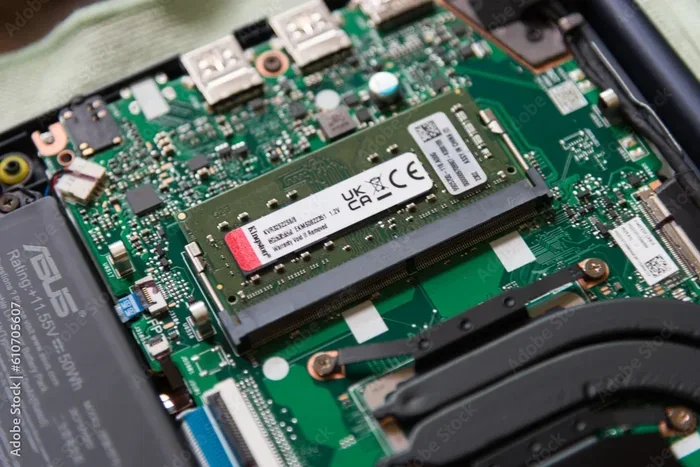
Many thin laptops come with slow storage or only 256GB of space. Swapping in a 1TB NVMe M.2 SSD can breathe new life into an older laptop. You get more storage, faster boot times, and better overall performance.
Workstations and Servers
Professional workstations handling large datasets, databases, or virtual machines need fast I/O performance. NVMe drives excel in these environments, delivering the high IOPS and low latency that demanding workloads require.
Common Mistakes to Avoid
Buying an NVMe drive is only half the battle. Here are some common mistakes people make.
- Ignoring motherboard compatibility. Not all motherboards support NVMe in every M.2 slot. Some only support SATA M.2 drives. Always check your motherboard specs.
- Skipping the heatsink. Without proper cooling, your drive may throttle under heavy load. A small heatsink costs very little and prevents performance drops.
- Choosing QLC for heavy workloads. QLC drives are budget-friendly but wear out faster under constant write operations. TLC is the better choice for most users.
- Not checking PCIe generation. If your motherboard only supports Gen3, buying a Gen5 drive will not give you Gen5 speeds. Match your drive to your motherboard capabilities.
- Forgetting to update drivers. Outdated NVMe drivers can cause slow performance or compatibility issues. Always keep your drivers up to date.
Price and Value Overview
The price of a 1TB NVMe PCIe M.2 SSD has dropped a lot in recent years. You can now find excellent options in the $60 to $100 range. This makes NVMe storage accessible to almost everyone.
When comparing prices, look at price per gigabyte. A 1TB drive usually offers the best value per GB compared to smaller capacities. And remember, the speed boost over a SATA SSD or HDD is enormous. The small premium you pay over a slower drive pays for itself in time saved every single day.
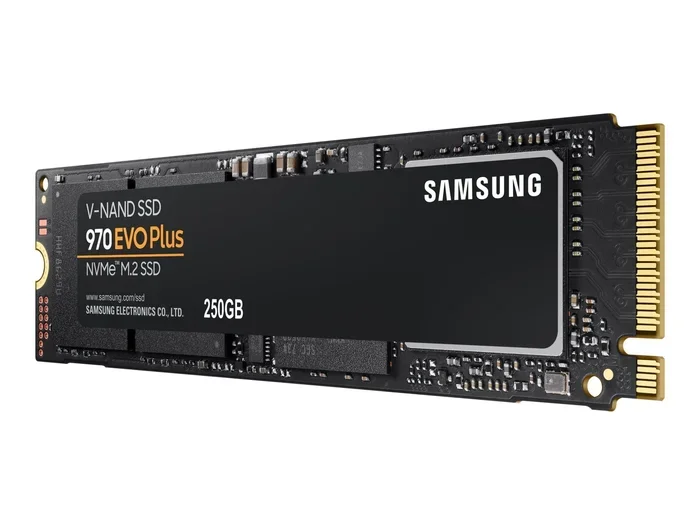
Some brands like the Crucial P310 1TB PCIe Gen4 NVMe M.2 SSD offer great value with reliable performance. Others like Samsung 970 EVO Plus and Kingston NV2 provide excellent options at various price points. The key is to find a drive that matches your budget without sacrificing too much on speed or endurance.
Final Thoughts
A 1TB NVMe PCIe M.2 SSD is one of the most impactful upgrades you can make to any computer. It is fast, compact, affordable, and incredibly versatile. Whether you are building a new PC, upgrading a laptop, or adding storage to a workstation, this type of drive delivers real results.
The speed difference compared to traditional storage is hard to ignore once you experience it. Boot times drop to seconds. Games load instantly. Files transfer in the blink of an eye. With prices at an all-time low, there has never been a better time to make the switch.
Take a moment to check your motherboard for an M.2 slot. Pick a drive that fits your needs and budget. And enjoy the transformation that fast NVMe storage brings to your computing experience. A 1TB NVMe M.2 SSD is not just an upgrade. It is a refresh that makes everything feel faster and more responsive.
Frequently Asked Questions
What is the difference between NVMe and M.2?
NVMe is a protocol that determines how data moves between the drive and your system. M.2 is the physical shape and connector of the drive. A drive can be M.2 but use SATA instead of NVMe. The fastest option is an NVMe drive in an M.2 form factor, like a 1TB NVMe PCIe M.2 SSD.
Can I use a 1TB NVMe M.2 SSD as my main drive?
Absolutely. In fact, that is what most people do. Installing your operating system and frequently used applications on an NVMe M.2 drive gives you the fastest possible experience. It is the ideal primary or boot drive for any modern system.
Do I need a special motherboard for NVMe M.2 SSDs?
Your motherboard needs an M.2 slot that supports NVMe over PCIe. Most modern motherboards from the last five years include at least one M.2 slot with NVMe support. Check your motherboard manual or specs to confirm before purchasing.
Is a 1TB NVMe SSD enough storage?
For most users, yes. 1TB holds your operating system, several games, productivity software, and plenty of files. If you store large video libraries or work with massive datasets, you might consider pairing a 1TB NVMe drive with a larger SATA SSD or hard drive for extra capacity.
How long does a 1TB NVMe M.2 SSD last?
Most quality NVMe drives have a lifespan measured in terabytes written (TBW). A typical 1TB TLC NVMe SSD can handle several hundred terabytes of writes, which translates to many years of normal use. Keeping the drive at reasonable temperatures helps extend its lifespan.
Can I install a 1TB NVMe M.2 SSD in a laptop?
Yes, if your laptop has an M.2 slot. Many modern laptops support NVMe M.2 SSDs. Check your laptop’s specifications to confirm the slot type and whether it supports NVMe. Upgrading a laptop with a 1TB NVMe PCIe M.2 SSD is one of the easiest and most effective ways to boost performance.