What Is the Ram of a Laptop
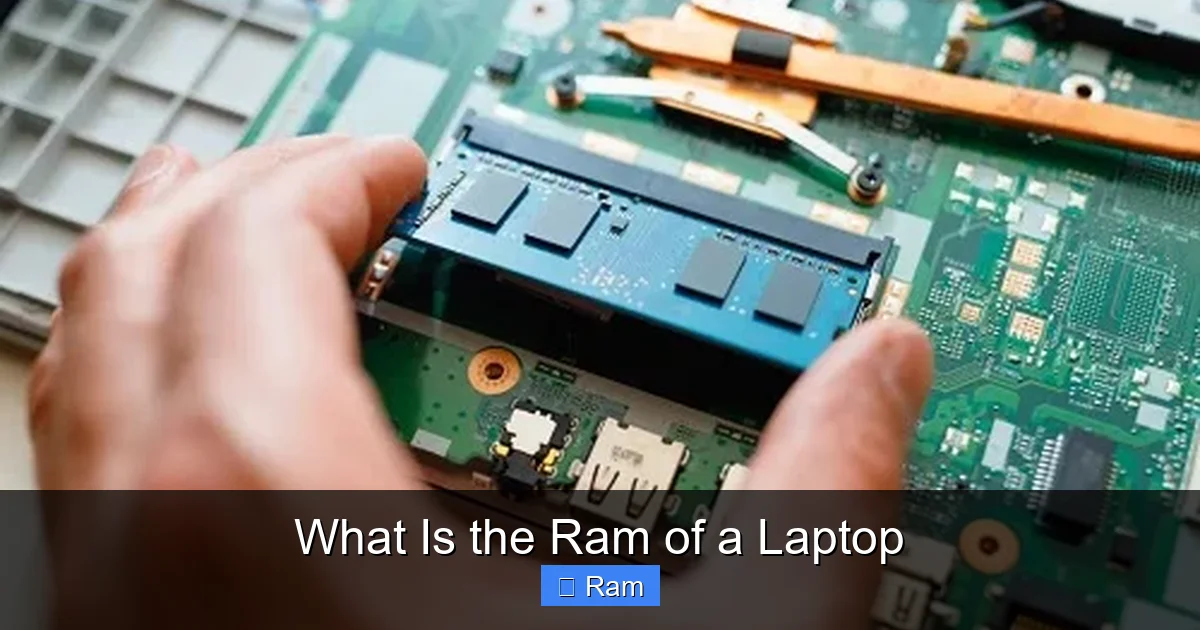
RAM (Random Access Memory) is your laptop’s short-term, high-speed memory. It temporarily holds data and instructions that the processor needs right now, acting as a crucial workspace for all your active tasks. More RAM allows for smoother multitasking and better performance with demanding applications, while its type (DDR4, DDR5) and speed (MHz) determine how quickly data moves. Unlike storage, RAM is volatile and clears when the laptop powers off. Understanding its role helps you make informed decisions when buying or upgrading a laptop for work, gaming, or creative projects.
Have you ever wondered what makes your laptop feel snappy when you’re juggling a dozen browser tabs, a spreadsheet, and a music player? Or why it suddenly crawls to a halt when you open a large photo editor? The answer often lies in a small but mighty component called RAM. But what is the RAM of a laptop, really? It’s not just a spec sheet number; it’s the active workspace where your digital life happens in real-time. Let’s break it down in plain language.
Think of your laptop’s processor (CPU) as a brilliant but incredibly fast worker. This worker needs tools and reference materials right at their fingertips to be efficient. The permanent storage (your SSD or hard drive) is like a vast warehouse or a library—it holds everything, but getting a book from the shelves takes time. RAM is the worker’s desk. It’s a clear, open space where the most important documents, tools, and currently used applications are spread out for instant access. The bigger and better-organized the desk (more and faster RAM), the quicker and more smoothly the worker (your CPU) can operate. When the desk gets cluttered (RAM fills up), the worker has to constantly run back to the warehouse (storage), slowing everything down dramatically.
Understanding RAM is one of the most practical ways to become an informed laptop buyer or user. It demystifies performance issues, guides smart upgrades, and ensures you get a machine that truly fits your needs without overpaying for specs you won’t use. In this guide, we’ll explore every facet of laptop RAM, from its fundamental function to the cutting-edge standards shaping tomorrow’s portable computers.
Key Takeaways
- RAM is volatile, temporary memory: It stores data only while the laptop is on, unlike permanent storage (SSD/HDD).
- Capacity (GB) determines multitasking ability: More RAM lets you run more apps and heavier programs simultaneously without slowdowns.
- Speed (MHz) and generation (DDR) affect performance: Faster RAM processes data quicker, benefiting CPU-intensive tasks like gaming and video editing.
- RAM is often upgradeable: Many laptops allow adding or replacing RAM sticks, but some have it soldered to the motherboard—check before buying.
- Integrated graphics share system RAM: For laptops without a dedicated GPU, having sufficient fast RAM is even more critical for visual performance.
- More isn’t always better if other components lag: A powerful CPU/GPU with insufficient RAM will bottleneck; balance is key for your specific use case.
📑 Table of Contents
- The Core Function: What RAM Actually Does
- Decoding RAM Specs: Capacity, Speed, and Generation
- Types of RAM in Laptops: SODIMM and Soldered
- How Much RAM Do You Actually Need? A Use-Case Guide
- RAM and Other Components: The System Balance
- Upgrading and Optimizing Your Laptop’s RAM
- Future Trends: DDR5, LPDDR, and Beyond
- Conclusion: RAM as the Key to a Responsive Experience
The Core Function: What RAM Actually Does
At its heart, RAM is all about immediate access. When you launch an application like a web browser or a word processor, the necessary code and data are copied from your slow-but-capacious SSD into the lightning-fast RAM. The CPU then reads from and writes to this RAM constantly as you interact with the program—typing text, loading images, playing a video. This cycle happens millions of times per second.
Volatile vs. Non-Volatile Memory
The key characteristic of RAM is that it’s volatile. This means it requires constant electrical power to maintain the data it holds. The moment you shut down or restart your laptop, that data vanishes. This is by design. It allows RAM to be incredibly fast and simple in its architecture. Non-volatile memory, like your SSD or a USB flash drive, retains data without power but is much slower because it has to physically move electrons or change the state of cells. RAM’s volatility is why you must save your document to the SSD; the live version only exists in RAM until you do so.
The Mediator Between CPU and Storage
You can think of the system flow as a relay race. The storage (SSD) is the starting point, holding the baton (data). The RAM is the crucial handoff zone where the runner (CPU) receives the baton in perfect position to sprint. Without this efficient handoff zone, the CPU—which is capable of processing data at phenomenal speeds—would spend most of its time waiting idly for data to trickle in from the storage, a phenomenon known as a “bottleneck.” RAM exists to prevent that wait, feeding the CPU a steady, high-speed stream of information.
Decoding RAM Specs: Capacity, Speed, and Generation
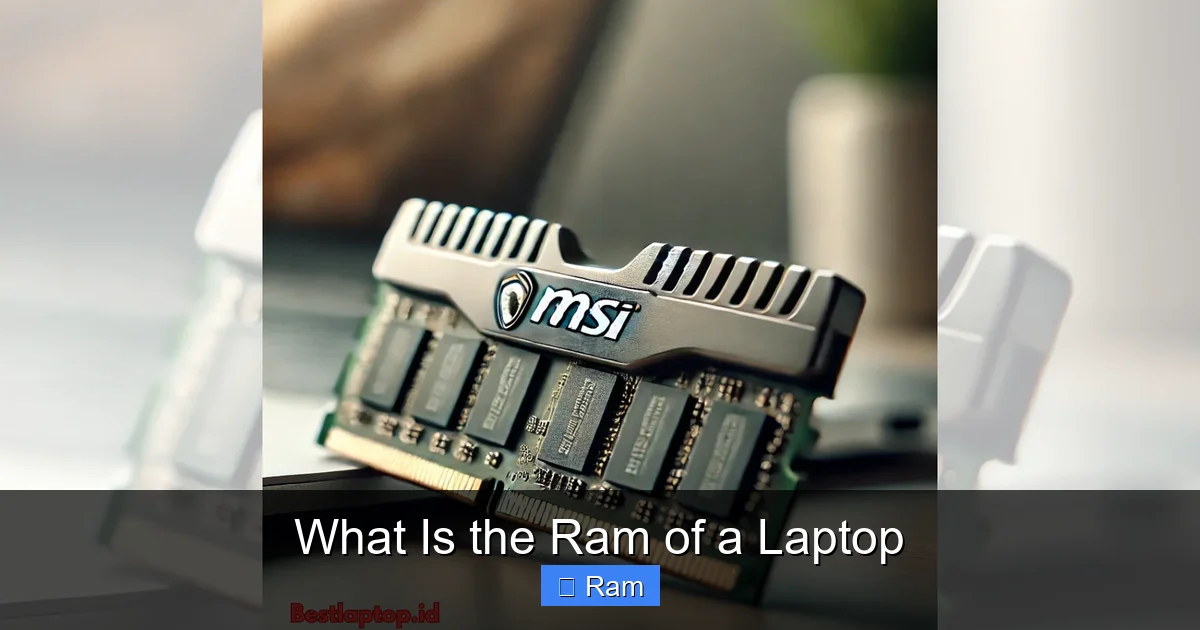
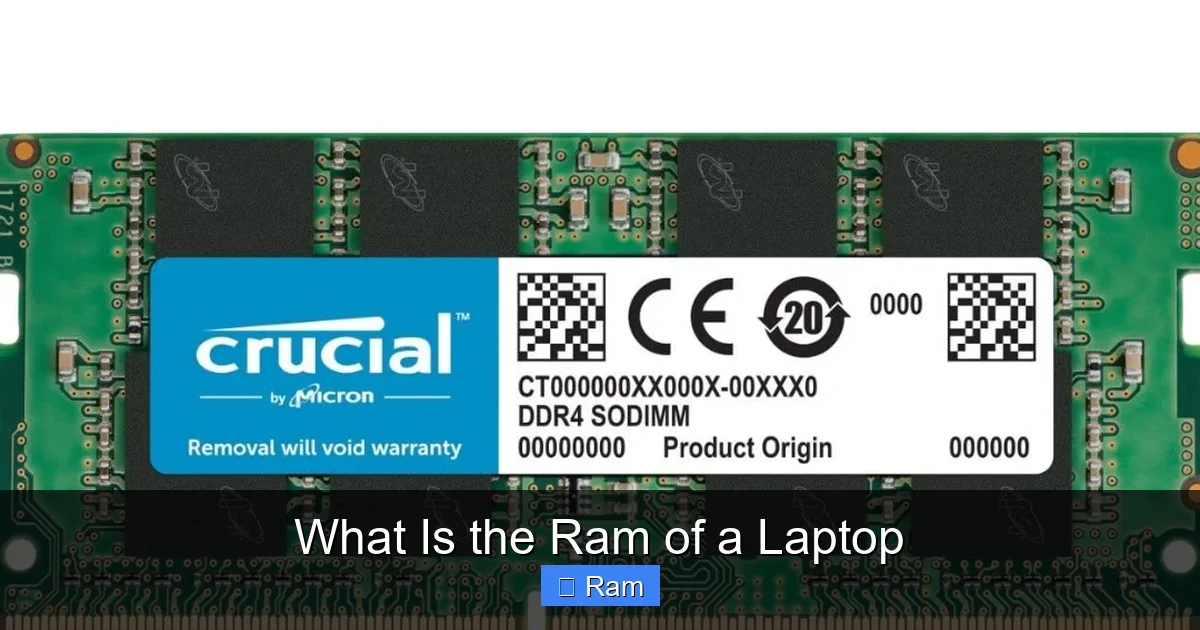
When you look at a laptop’s specs, RAM is typically listed as something like “16GB DDR4 3200MHz.” Each part of that label tells a critical story about its capability. Understanding these three pillars—capacity, speed, and generation—is essential for evaluating performance.
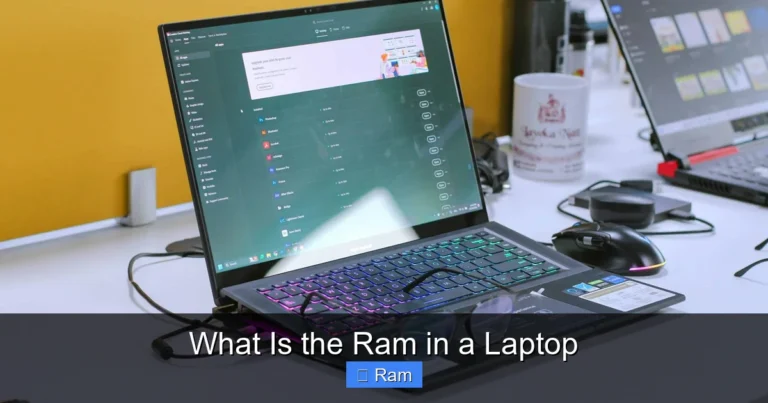
Visual guide about What Is the Ram of a Laptop
Image source: bestlaptop.id
Capacity: How Much Workspace You Have
Measured in gigabytes (GB), capacity is the most discussed and often most misunderstood spec. It’s simply the total volume of data the RAM can hold at any one moment.
- 4GB: The absolute bare minimum for modern operating systems like Windows 11 or macOS. It can handle very light web browsing and document editing but will struggle with multiple apps. Not recommended for any primary laptop today.
- 8GB: The new standard baseline for general use. Comfortable for office work, web browsing with many tabs, and casual media consumption. For most students and professionals, this is a solid starting point.
- 16GB: The sweet spot for power users and future-proofing. Ideal for moderate photo editing, running virtual machines, heavy multitasking with many applications, and most gaming (when paired with a good GPU).
- 32GB and above: The realm of professionals. Essential for 4K video editing, 3D rendering, large dataset analysis, and running multiple heavy applications simultaneously. For the average user, this is overkill, but for a creative professional, it’s a productivity necessity.
Practical Tip: Check your current RAM usage in Task Manager (Windows) or Activity Monitor (macOS). If you’re consistently above 80% usage during your normal workflow, an upgrade to a higher capacity would provide a noticeable improvement.
Speed: How Fast Your Desk Works
Speed is measured in megahertz (MHz), indicating how many millions of data transfers the RAM can handle per second. A “3200MHz” module is faster than a “2666MHz” module. However, the real-world impact of speed varies by task.
- General Use & Office Apps: Minimal perceptible difference. Capacity is far more important.
- Integrated Graphics: Huge difference. Laptops with AMD Ryzen APUs or Intel Iris Xe graphics rely entirely on system RAM for video memory. Faster RAM dramatically improves gaming performance and video playback smoothness on these systems.
- Gaming & Creative Work: Moderate to significant difference, especially in CPU-bound games or applications like simulation software. Faster RAM can improve frame rates and reduce render times.
Speed is tied to the RAM’s generation (DDR4, DDR5). A DDR5-4800 module is fundamentally faster than a top-tier DDR4-3200 module due to architectural improvements beyond just clock speed.
Generation (DDR): The Architectural Leap
Double Data Rate (DDR) is the technology standard. Each generation (DDR3, DDR4, DDR5) brings improvements in speed, voltage efficiency, and capacity per stick. They are not physically compatible. A DDR4 slot will not accept a DDR5 module, and vice-versa. DDR4 has been the dominant standard for nearly a decade, but DDR5 is now the latest in modern laptops, offering higher starting speeds and better power management. When buying or upgrading, you must match the generation your laptop’s motherboard supports.
Types of RAM in Laptops: SODIMM and Soldered
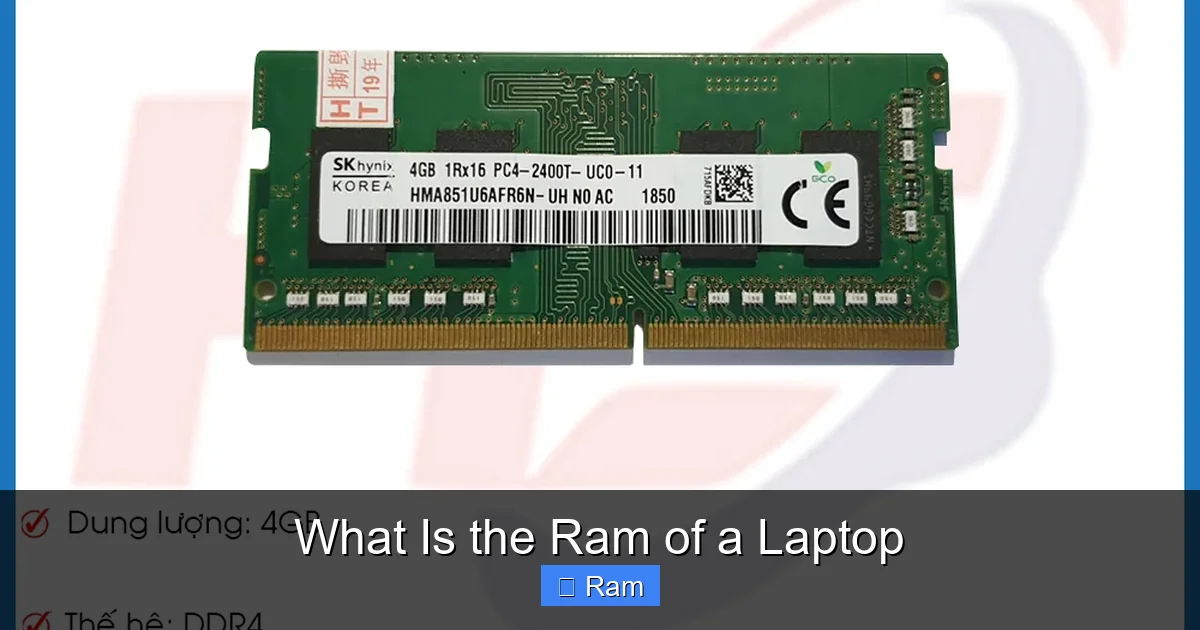
Unlike desktop PCs that use long DIMM sticks, laptops use a smaller form factor called SODIMM (Small Outline DIMM). But the physical form is only part of the story. How the RAM is connected to the motherboard determines your upgrade potential.
Visual guide about What Is the Ram of a Laptop
Image source: vitinhhoangson.com
SODIMM: The Upgradable Standard
Most traditional laptops, especially business-class and gaming models from brands like Dell, Lenovo, and HP, have one or two accessible SODIMM slots under a bottom panel. This is great news for users. You can often add more RAM by purchasing compatible SODIMM sticks and installing them yourself, a cheap and effective way to breathe new life into an older machine. The process usually just requires a screwdriver.
Soldered RAM: The Modern Compact Reality
To achieve thinner, lighter designs, many modern ultrabooks, 2-in-1s, and even some premium laptops now have the RAM chips soldered directly onto the motherboard. This is non-upgradable. The RAM configuration (e.g., 8GB or 16GB) is fixed at the time of manufacture. This saves space and can improve power efficiency, but it locks you into your initial choice. This is why choosing the right RAM capacity at purchase is more critical than ever for these models.
Hybrid Approaches: Soldered + Slot
Some manufacturers use a clever hybrid approach: they solder one RAM chip to the board (e.g., 8GB) and provide one empty SODIMM slot. This gives a base level of memory while allowing a single, user-upgradable slot for expansion (e.g., adding another 8GB stick for a total of 16GB). Always check the specific model’s specifications or service manual to understand its upgrade path.
How Much RAM Do You Actually Need? A Use-Case Guide
The “right” amount of RAM is entirely dependent on what you plan to do with your laptop. Here’s a practical breakdown to move beyond the generic advice.
Visual guide about What Is the Ram of a Laptop
Image source: onsidetechsolutions.co.ke
Basic Computing & Student Use
For web browsing (dozens of tabs), Microsoft Office or Google Workspace, video streaming, and video calls, 8GB is the comfortable minimum. With Windows 11/macOS and background apps, 8GB keeps things smooth. If your budget allows, stepping up to 16GB provides a noticeable cushion for the future and eliminates any potential stuttering.
Content Consumption & Casual Creativity
If you edit personal photos in apps like Adobe Lightroom, dabble in simple video editing with iMovie or CapCut, or enjoy light gaming (eSports titles, indie games), 16GB is the recommended target. These tasks start to consume significant memory, and 8GB can lead to slowdowns when handling high-resolution media files.
Professional Work & Gaming
For serious gaming (especially with modern AAA titles), 3D modeling, professional video editing (1080p/4K), music production, and software development, 16GB is the absolute baseline, and 32GB is the professional standard. Games today can easily use 10-12GB on their own. When you add Discord, a browser, and streaming software, 16GB fills up fast. 32GB ensures a seamless, lag-free experience even under heavy load.
Extreme Workloads & Future-Proofing
Working with massive 8K video projects, complex scientific simulations, running multiple virtual machines, or handling gigantic datasets may require 64GB or more. For a high-end laptop you plan to keep for 5+ years for demanding professional work, investing in 32GB or 64GB now is a wise future-proofing move, as software demands only increase over time.
RAM and Other Components: The System Balance
RAM doesn’t work in a vacuum. Its effectiveness is tied to the rest of your laptop’s hardware. A common mistake is to max out RAM while ignoring other potential bottlenecks.
The CPU-RAM Relationship
A fast, modern CPU with slow or insufficient RAM is like putting a Formula 1 engine in a car with cheap, slow-responding tires. The CPU will spend cycles waiting for data. Conversely, a slow CPU with tons of fast RAM is like having great tires on a commuter car—it helps, but the engine (CPU) is the ultimate limiter. For optimal performance, you need a balanced system. An Intel Core i5 or AMD Ryzen 5 processor pairs well with 16GB of RAM for most power users.
Integrated vs. Discrete Graphics
This is a critical distinction for RAM performance. Laptops with only integrated graphics (most thin-and-lights, many business laptops) share system RAM. The GPU has no dedicated memory, so it borrows from your main RAM pool. This makes RAM speed and capacity even more crucial. Faster, higher-capacity RAM directly translates to better gaming and graphical performance.
Laptops with a discrete GPU (most gaming and creative workstations) have their own dedicated, high-speed video memory (VRAM, e.g., 6GB GDDR6). In these systems, the GPU is less dependent on system RAM speed for its core tasks. However, system RAM is still vital for feeding the CPU and holding game assets, so capacity remains key.
Storage Speed as a Supporting Actor
While RAM handles active data, a fast NVMe SSD ensures that data moves from long-term storage into RAM as quickly as possible. A slow hard drive (HDD) can cause long loading times even if you have ample fast RAM, as the initial data transfer from the HDD to RAM is the bottleneck. For a responsive system, pair sufficient/fast RAM with a fast SSD.
Upgrading and Optimizing Your Laptop’s RAM
If your laptop feels sluggish, a RAM upgrade is one of the most cost-effective performance boosts you can get—if your laptop supports it. Here’s how to navigate the process.
Step 1: Check Your Current RAM and Upgradeability
On Windows, press Ctrl+Shift+Esc to open Task Manager, go to the “Performance” tab, and click “Memory.” Here you’ll see your current capacity, speed, and form factor (likely “SODIMM”). More importantly, you need to determine if the RAM is upgradeable. Search for your exact laptop model number followed by “service manual” or “upgrade guide.” Reputable sources like the manufacturer’s support site or iFixit will show you the internal layout and whether there’s an accessible slot.
Step 2: Choose Compatible RAM
If you have an upgradeable slot, you must buy compatible RAM. The key factors are:
- Generation: Must match (DDR4 or DDR5).
- Speed: The new stick should be at least as fast as your existing one, ideally matching. The system will run all sticks at the speed of the slowest one.
- Capacity: Know your laptop’s maximum supported RAM (e.g., 64GB).
- Configuration: For best performance (dual-channel mode), if you have one stick, add an identical second stick. If replacing, use matched pairs (e.g., two 8GB sticks instead of one 16GB stick if your laptop has two slots).
Use tools like the Crucial System Scanner or Kingston Memory Search to get guaranteed compatible recommendations for your specific model.
Step 3: Installation and Verification
The physical installation is straightforward: power off, unplug, remove the bottom panel, release the old SODIMM clips, swap in the new module at a 45-degree angle, and press it down until the clips lock. Reassemble, power on, and return to Task Manager’s Memory tab to verify the new total capacity is recognized.
Software Optimization: Making the Most of What You Have
Before considering an upgrade, optimize:
- Check Startup Programs: Disable unnecessary apps that launch with Windows. They consume RAM from the get-go.
- Close Unused Browser Tabs: Web browsers, especially Chrome, are notorious RAM hogs. Each tab is a separate process.
- Identify Memory-Hogging Processes: Use Task Manager’s “Processes” tab, sorted by “Memory,” to find and close resource-intensive applications you’re not actively using.
- Adjust Visual Effects: In Windows, search for “Adjust the appearance and performance of Windows” and select “Adjust for best performance” to disable fancy animations that use system resources.
Future Trends: DDR5, LPDDR, and Beyond
The world of laptop RAM is evolving. Two key trends are shaping the future.
The Advent of DDR5
DDR5 is the new standard, starting around 4800MHz and climbing. It offers not just higher base speeds but also improved power efficiency (lower voltage), higher density per chip (allowing for more RAM in the same physical space), and an on-die ECC (Error Correction Code) feature for better data integrity. While initially more expensive, DDR5 is the path forward for high-performance laptops. For the average user, the jump from DDR4 to DDR5 feels incremental today but will become more significant as software is optimized for it.
LPDDR: The Power-Efficient Powerhouse
You’ll often see specs like “16GB LPDDR4X” or “LPDDR5.” This stands for Low Power DDR. It’s a specialized, soldered-only type of RAM designed for ultra-low power consumption, making it perfect for thin-and-light ultrabooks and mobile tablets. It’s not user-upgradable. LPDDR is slightly slower in raw bandwidth compared to standard DDR SODIMMs but offers vastly better battery life. It’s a key reason modern ultrabooks can last 10+ hours on a charge. The trade-off is no user upgrade path.
Conclusion: RAM as the Key to a Responsive Experience
So, what is the RAM of a laptop? It is the vital, high-speed workspace that bridges the gap between your blazing-fast processor and your capacious, slower storage. It’s the difference between a laptop that feels like a tool that anticipates your needs and one that constantly makes you wait. While specs like CPU and GPU grab headlines, RAM is the unsung hero of everyday smoothness.
When shopping, resist the temptation to simply choose the lowest RAM option to save money. For a Windows 11 or modern macOS laptop, 8GB is the responsible minimum in 2024, but 16GB is the wise investment for longevity and hassle-free multitasking. If you’re buying a laptop with soldered RAM—which is increasingly common—this decision is final. Pay for the RAM you need now. For upgradeable models, remember that a $50-$100 RAM upgrade in a year or two can extend your laptop’s useful life dramatically, making it one of the smartest tech investments you can make.
Ultimately, understanding RAM empowers you. It transforms you from a passive spec-reader into an active participant in your technology choices. You’ll no longer wonder why your laptop is slow; you’ll know whether adding more workspace (capacity) or getting a faster desk (speed) is the solution, or if the issue lies elsewhere. In the quest for a smooth, efficient computing experience, your laptop’s RAM isn’t just a component—it’s the very stage where your digital performance is played out. Make sure it’s spacious enough and fast enough for your act.
Frequently Asked Questions
Can I add more RAM to my laptop?
It depends on your specific model. Many traditional laptops have accessible SODIMM slots for easy upgrades. However, most modern ultrabooks and some premium laptops have RAM soldered to the motherboard, making it impossible to upgrade. Always check your laptop’s service manual or specifications before purchasing RAM for an upgrade.
Is 8GB of RAM enough in 2024?
For basic web browsing, office work, and media streaming, 8GB is a functional minimum but increasingly tight. For a smooth experience with modern operating systems and multiple applications, 16GB is the strongly recommended standard for most new laptop purchases to ensure good performance for the next few years.
What’s the difference between DDR4 and DDR5 RAM?
DDR5 is the newer generation, offering higher starting speeds (4800MHz+ vs. 3200MHz typical for DDR4), better power efficiency, and higher potential density. The performance gain for general tasks is modest, but it’s more significant for integrated graphics and professional workloads. They are physically incompatible, so your laptop’s motherboard dictates which type you can use.
Do I need more RAM for gaming?
Yes, modern games are memory-intensive. While 8GB was once the standard, 16GB is now the recommended minimum for gaming, especially when also running background apps like Discord or a web browser. For streaming or playing the latest AAA titles at high settings, 32GB provides a comfortable buffer and is becoming the new target for enthusiast gamers.
What is dual-channel RAM and does it matter?
Dual-channel mode uses two identical RAM sticks (e.g., two 8GB modules) to communicate with the CPU simultaneously, effectively doubling the data bandwidth compared to a single stick. This provides a noticeable performance boost, particularly for integrated graphics and some CPU-intensive applications. For optimal performance in a two-slot laptop, it’s best to install RAM in matched pairs.
Will clearing my browser cache free up RAM?
No. Browser cache is stored on your SSD/HDD, not in RAM. To free up active RAM, you need to close unused applications and browser tabs. You can manage this easily using your operating system’s Task Manager (Windows) or Activity Monitor (macOS), which shows real-time RAM usage per application.