Yes, you can often upgrade your laptop RAM, but it depends entirely on your specific model. The key is determining whether your laptop has accessible RAM slots or if the memory is soldered to the motherboard. This guide walks you through the simple checks to find out, how to buy compatible RAM, and the step-by-step process to install it, potentially giving your aging laptop a new lease on life. However, some modern ultrabooks make upgrades impossible, so verifying first is crucial to avoid wasted time and money.
Have you ever found yourself staring at your laptop, waiting for a simple web browser with a dozen tabs open to respond? Or does your video editing software grind to a halt the moment you add a second track? That frustrating lag is often a sign of a memory bottleneck. Before you start saving for a brand-new machine, there’s a powerful and often-overlooked solution: upgrading your laptop’s RAM. But the big, burning question is: can I upgrade my laptop RAM? The answer is a definitive maybe. Unlike the relatively standardized world of desktop PCs, laptop design varies wildly. Some are built for easy tinkering, while others are sealed shut in the pursuit of thinness. Let’s break down everything you need to know, from a simple yes/no check to the final screw-tightening, so you can confidently determine if a RAM upgrade is in your laptop’s future.
Key Takeaways
- Not All Laptops Are Upgradable: Many modern ultrabooks and thin-and-light laptops have RAM soldered directly to the motherboard, making upgrades impossible. Your first task is to confirm your laptop uses removable SO-DIMM sticks.
- Check Manufacturer Specs First: The most reliable source is your laptop manufacturer’s official specifications page or user manual. This will list the maximum supported RAM, type (DDR3, DDR4, DDR5), speed, and number of slots.
- Physical Inspection is Often Required: Even if specs are unclear, a quick look under the bottom panel (after powering off and unplugging) will instantly show you if there are accessible RAM slots or if the memory is hidden under the keyboard or soldered.
- Compatibility is More Than Just Size: You must match the RAM type (DDR generation), form factor (SO-DIMM for laptops), speed (MHz), and voltage. Mixing mismatched RAM can cause boot failures or instability.
- Upgrading is a High-Impact, Low-Cost Fix: Adding RAM is one of the most effective ways to improve multitasking, application loading times, and overall system responsiveness, often for under $50.
- You Need Basic Tools and Care: A small Phillips-head screwdriver and a plastic pry tool are usually enough. The most important tool is patience and care to avoid static discharge and damaging delicate clips.
- Warranty and Professional Help: Opening your laptop may void its warranty. If you’re uncomfortable, a local computer shop can often perform the upgrade for a small fee, which is still cheaper than a new laptop.
📑 Table of Contents
- Why Would You Even Want to Upgrade Your Laptop RAM?
- Step 1: How to Check If Your Laptop RAM is Upgradable
- Understanding RAM: Types, Speeds, and Compatibility
- Tools, Preparation, and Safety: Don’t Skip This
- The Step-by-Step RAM Upgrade Guide
- Testing, Verification, and Troubleshooting
- When Upgrading RAM Is NOT a Viable Option
- Conclusion: Your Laptop’s Second Act
Why Would You Even Want to Upgrade Your Laptop RAM?
Before we dive into the how, let’s quickly establish the why. RAM, or Random Access Memory, is your laptop’s short-term workspace. Think of it like the physical desk you work on. A bigger desk (more RAM) means you can spread out all your current projects—your open documents, browser tabs, and applications—without having to constantly shuffle things to and from a filing cabinet (your much slower hard drive or SSD). When your RAM fills up, your system starts using the storage drive as “virtual memory,” which causes the noticeable slowdowns and spinning beach balls of death.
The Tangible Benefits of More Memory
Adding more RAM won’t make your laptop’s processor (CPU) faster at crunching numbers, but it removes a major bottleneck. You’ll see the most dramatic improvements in specific scenarios:
- Multitasking: Jumping between a word processor, a spreadsheet, a video call, and a web browser becomes seamless.
- Web Browsing: Modern browsers are memory hogs, especially with multiple tabs, extensions, and rich web apps. More RAM keeps them snappy.
- Creative Work: Photo editing in Photoshop, working with large datasets in Excel, or basic video editing in DaVinci Resolve all demand more memory to handle large files smoothly.
- Gaming: While the graphics card (GPU) is most critical, many modern games also require 8GB, 16GB, or even 32GB of system RAM to run without stutters, especially in open-world titles.
For a typical user moving from 4GB to 8GB or from 8GB to 16GB, the difference can feel like getting a new laptop. It’s often the single most cost-effective performance upgrade you can make.
Step 1: How to Check If Your Laptop RAM is Upgradable
This is the million-dollar question. You need to play detective. The process has three main layers of investigation, starting with the easiest and moving to the more hands-on.
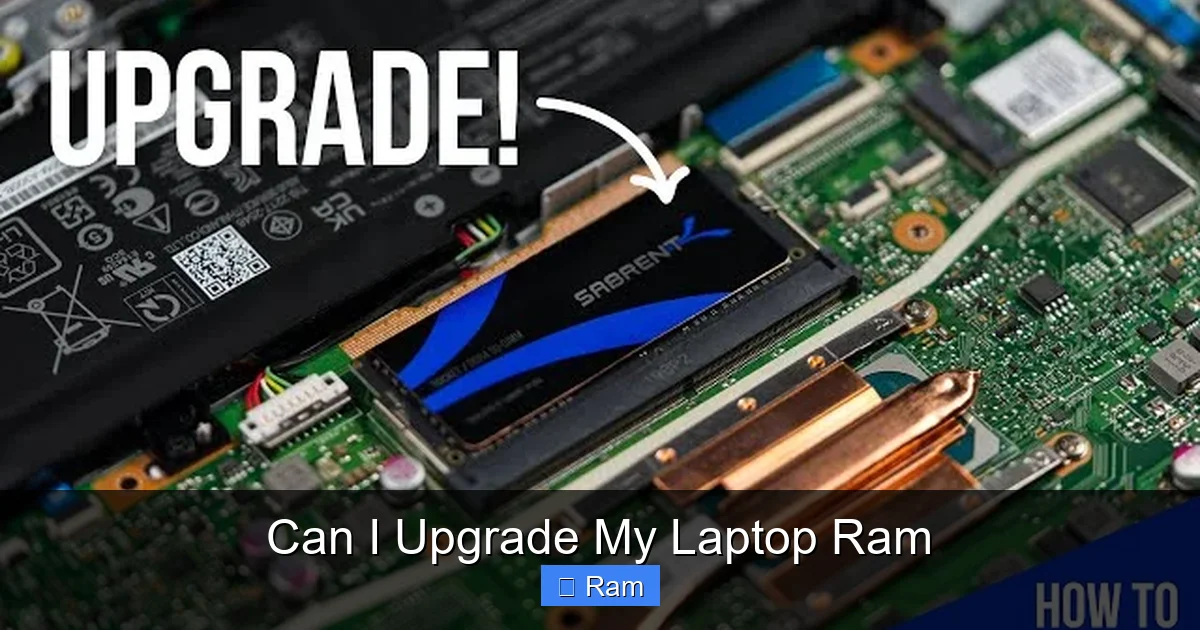
Visual guide about Can I Upgrade My Laptop Ram
Image source: i.ytimg.com
Investigation Layer 1: The Manufacturer’s Documentation
Your first and best stop is the source: your laptop’s maker. Go to the official support page for your exact model number (you can find this on a sticker on the bottom or in your system settings). Look for:
- Specification Sheets: These will list “Memory” or “RAM” details. Look for phrases like “2 x SO-DIMM slots” (good!) or “8GB soldered memory” (bad news for upgrading).
- Hardware Maintenance Manual: Many business laptops (Dell, Lenovo, HP) have detailed service manuals online. These PDFs include exploded diagrams and step-by-step guides for replacing components, including RAM. If there’s a chapter on “Memory Module Replacement,” you’re golden.
- Upgrade Guides: Some manufacturers, like Apple, explicitly state which models have non-upgradable, soldered memory. Apple’s website is very clear about this for MacBooks.
Investigation Layer 2: Use System Information Tools
If the website is vague, your laptop itself knows its secrets. You don’t need special software; Windows and macOS have built-in tools.
- On Windows: Press Ctrl + Shift + Esc to open Task Manager. Go to the “Performance” tab and click on “Memory.” At the bottom right, it will show “Slots used: X of Y.” If it says “Slots used: 1 of 2,” you have a free slot! This is a fantastic, quick initial check.
- Using System Information: Type “System Information” in the Windows search bar and open it. Navigate to “Components” > “Memory.” This will list each installed RAM module, its size, type (e.g., DDR4), and speed. It won’t tell you about empty slots, but it confirms the current type.
- Third-Party Tools (Advanced): Free utilities like CPU-Z (go to the “Memory” and “SPD” tabs) provide incredibly detailed information about each RAM slot, including the manufacturer, part number, and timings. The “SPD” tab will list each physical slot; if a slot shows “None,” it’s empty and available for an upgrade.
Investigation Layer 3: The Physical Inspection (The Final Arbiter)
If the digital checks are inconclusive or you want 100% certainty, you must open your laptop. This is your last chance to back out if you’re uncomfortable. Here is the safe, proper procedure:
- Power Down Completely: Shut down the laptop. Do not just sleep or hibernate it.
- Unplug Everything: Remove the charger, any USB drives, dongles, or peripherals.
- Disconnect the Battery (CRITICAL): For safety, you must disconnect the internal battery if possible. On many laptops, this means removing the bottom panel first. On some, the battery is under the keyboard or has a separate disconnect cable. If you cannot easily disconnect the battery, ensure the laptop is completely powered off and unplugged, and proceed with extreme caution, touching a grounded metal object (like a plugged-in, turned-off desktop PC case) to discharge static before touching any internal components.
- Remove the Bottom Panel: Usually held by 6-10 Phillips-head screws. Often, there are a few longer screws in specific corners. Keep screws organized. Use a plastic pry tool (or a guitar pick) to gently pry the panel off, starting at a seam. Clips may pop; this is normal.
- Look for the RAM: You are looking for one or two small, green circuit boards (the RAM sticks) held down by small metal clips on either side. They are usually easy to spot.
- Scenario A (Good): You see one or two SO-DIMM sticks in accessible slots. You may have an empty slot. You can upgrade.
- Scenario B (Maybe): You see no sticks on the main board. They might be under a metal shield or, more commonly, under the keyboard. This is a more complex disassembly.
- Scenario C (Bad): You see no slots at all. The area around the CPU is covered, or you see no empty sockets. The RAM is almost certainly soldered. You cannot upgrade.
Practical Example: A 2018 Dell XPS 13 has its RAM soldered. A 2017 Lenovo ThinkPad T470 has two accessible SO-DIMM slots under a simple bottom panel. A 2020 Apple MacBook Pro 13″ has its RAM soldered. A 2019 Acer Aspire 5 has one slot occupied and one slot free. Your specific model is the only one that matters.
Understanding RAM: Types, Speeds, and Compatibility
Assuming you’ve confirmed your laptop has an empty slot, you now face the most technical part: buying the right RAM. It’s not just about size (GB). Compatibility is a four-part puzzle.
Visual guide about Can I Upgrade My Laptop Ram
Image source: img.genuinemodules.com
1. Generation (DDR3, DDR4, DDR5)
This is the most fundamental compatibility rule. DDR generations are physically and electrically incompatible. A DDR4 stick will not fit in a DDR3 slot and vice versa. The generation must match. Your system information tool (from Step 1) will tell you if it’s “DDR3,” “DDR4,” or the newer “DDR5.” Most laptops from 2015-2021 use DDR4. Very new high-end laptops (2022+) may use DDR5.
2. Form Factor: SO-DIMM
Laptops use a smaller, narrower module called a SO-DIMM (Small Outline DIMM). Desktop RAM (DIMM) is longer and will not fit. This is non-negotiable. All laptop RAM is SO-DIMM.
3. Speed (MHz)
RAM is rated in megahertz (e.g., 2666MHz, 3200MHz). Your laptop’s motherboard and CPU support a maximum speed. You can install RAM that is equal to or slower than the maximum supported speed. For example, if your laptop supports up to 3200MHz, you can install a 2666MHz stick and it will work at 2666MHz. You cannot install a 3600MHz stick and expect it to run at 3600MHz; it will downclock to the highest speed the system supports (e.g., 3200MHz). Using the same speed as your existing RAM (if adding a second stick) is ideal for dual-channel performance.
4. Capacity and Maximum Supported RAM
This is the “how much” question. Check your manual or use a tool like CPU-Z’s “SPD” tab to see the “Max Size” for each slot. A common configuration is 2 slots, each supporting up to 16GB, for a total of 32GB. Some older laptops max out at 8GB per slot (16GB total). Some new ones support 32GB per slot (64GB total). You cannot exceed the manufacturer’s stated maximum per slot or total system RAM. The system will simply not boot or will only recognize up to the maximum.
The Compatibility Rule of Thumb: The safest path is to buy a RAM kit from a reputable brand (Crucial, G.Skill, Kingston, Corsair) using their online system scanner or compatibility finder. You input your laptop’s exact make and model, and it returns guaranteed compatible RAM. This eliminates almost all guesswork and is highly recommended for first-timers.
Tools, Preparation, and Safety: Don’t Skip This
Rushing into the upgrade is how you damage components. A 10-minute preparation saves hours of frustration.
Visual guide about Can I Upgrade My Laptop Ram
Image source: pccores.com
The Essential Toolkit
- Small Phillips-Head Screwdriver (#0 or #1): The size depends on your laptop’s screws. A precision screwdriver set is a great investment.
- Plastic Pry Tools (2-3): For safely prying open plastic clips on the bottom case without scratching. Guitar picks work in a pinch.
- Anti-Static Wrist Strap (Optional but Recommended): Connects you to a grounded object, preventing static electricity from frying sensitive chips.
- Small Container or Magnetic Mat: To keep screws sorted by location. A piece of masking tape with sections works too.
- Good Lighting: A desk lamp makes a world of difference.
The Golden Rules of Laptop Surgery
- Power is Everything: The laptop must be off and unplugged. If you disconnected the battery, keep it disconnected until the very end.
- Static is the Silent Killer: Always work on a non-carpeted surface. Before touching any internal component, touch the bare metal of the laptop’s chassis (with the battery disconnected) or a grounded metal object to discharge static.
- Gentleness is Key: Laptop parts, especially plastic clips and ribbon cables, are fragile. Use steady, even pressure with pry tools. Never force a component that doesn’t move easily.
- Document Your Journey: Take a photo with your phone after removing each screw or panel. It’s the ultimate reference for reassembly. Note which screws go where; they are often different lengths.
The Step-by-Step RAM Upgrade Guide
You have the right RAM, the right tools, and a safe workspace. Let’s get that new memory installed.
Step 1: Access the RAM Compartment
Follow the physical inspection steps from earlier. Remove the bottom panel screws, store them safely, and gently pry the panel off. Set it aside carefully.
Step 2: Identify and Remove Old RAM (If Replacing)
Locate the existing RAM stick(s). They are held in place by two small, sideways metal or plastic clips on each end.
- Eject the Clips: Gently pry the two clips outward (away from the RAM stick) with your fingers or a plastic tool. They should pop up and away from the module.
- Release the Stick: The RAM stick will now tilt up at about a 45-degree angle. Gently pull it straight out by the edges. Avoid touching the gold contacts or the black chips on top.
- Store the Old RAM: Keep it in its anti-static bag. It’s good to have as a spare or for troubleshooting.
Step 3: Install the New RAM
- Align the Notch: Look at your new SO-DIMM stick. It has a single off-center notch. This notch must align with a tiny plastic bump in the slot. Do not force it. If it doesn’t line up easily, you have the wrong RAM or it’s backwards.
- Insert at an Angle: Hold the RAM stick by the edges. Insert it into the slot at the same 45-degree angle the old one came out at. Push firmly and evenly on both ends until the gold contacts are fully seated in the slot. You should feel it click into place.
- Press Down and Lock: Gently but firmly press the top edge of the RAM stick down towards the motherboard until the side clips snap back into place, holding it securely. You should hear/feel a small click on each side.
Step 4: Reassemble and Power On
- Double-Check: Ensure the RAM is seated evenly and the clips are fully engaged. No part of the gold contacts should be visible.
- Reconnect Battery (if disconnected): If you unplugged a battery cable, reconnect it now.
- Replace the Bottom Panel: Align the panel and press it down gently all around until all plastic clips snap back. Reinsert all screws, using your reference photos to ensure the correct screws go in the correct holes. Do not overtighten.
- First Boot: Plug in the charger and power on your laptop. It may reboot once or twice as it recognizes the new memory—this is normal. If it boots to your login screen or desktop, success! If it beeps repeatedly or shows a black screen, power it off, reopen it, and re-seat the RAM stick(s).
Testing, Verification, and Troubleshooting
Your laptop turned on. Great! But is it seeing all the new RAM? Let’s verify.
How to Confirm the Upgrade Worked
- Windows: Go back to Task Manager > Performance > Memory. The top right will now show the new total capacity (e.g., “16.0 GB”). It will also show the speed (e.g., “3200 MHz”). You can also check Settings > System > About under “Installed RAM.”
- macOS: Click the Apple menu > About This Mac. The memory line will show the new total.
- Use CPU-Z Again: Open CPU-Z and check the “Memory” and “SPD” tabs. You should see the new total size and details for each slot populated.
Common Troubleshooting Scenarios
- No Boot / Beep Codes: This is the most common issue. Power off, unplug, reopen. Reseat the RAM. Try installing the new stick in the other slot (if you have two). If you kept the old stick, try booting with only the old stick, then only the new stick, to isolate a faulty module.
- Windows Boots but Shows Less RAM Than Installed: This can happen on 32-bit Windows (rare now) or if one stick isn’t fully seated. Reseat all sticks. Ensure you haven’t accidentally mixed incompatible RAM types (e.g., DDR3 and DDR4 in different slots—impossible but worth checking).
- System is Unstable or Crashes: This often points to a speed/voltage mismatch. Use CPU-Z to see what speed the RAM is running at. If it’s running at a lower speed than specified (e.g., 2133MHz instead of 3200MHz), the system may be downclocking due to an incompatibility. Try updating your laptop’s BIOS/UEFI to the latest version, as this can improve memory compatibility.
When Upgrading RAM Is NOT a Viable Option
As we’ve stressed, not every laptop can be upgraded. Here are the definitive scenarios where you should stop and consider other options.
The Soldered Memory Scenario
If your physical inspection revealed no slots, or the manufacturer’s specs say “soldered” or “onboard,” you are done. The memory chips are tiny, flat components directly attached to the motherboard. Replacing them requires microscopic soldering tools and expertise—it’s not a DIY project and is often more expensive than the laptop’s value. Accept this limitation.
The Single Slot, Already Maxed Out Scenario
Your laptop has one slot, and it’s filled with, say, a 16GB stick. The manufacturer’s max is 16GB. You cannot add more RAM. Your only (expensive) option is to replace the 16GB stick with a larger one (e.g., 32GB), but only if the manufacturer’s specs state the slot supports 32GB. If the max is 16GB, you’re stuck.
The Age and Performance Ceiling Scenario
Sometimes, even a successful RAM upgrade won’t deliver the experience you hope for. If your laptop has a very old, slow dual-core or early quad-core Intel/AMD processor (more than 8-10 years old), the CPU itself is the primary bottleneck. Adding RAM will help with multitasking, but it won’t make web browsing, video playback, or modern applications feel fast. In this case, the money might be better saved towards a new, budget-friendly laptop that will offer a generational leap in performance, battery life, and display quality.
What To Do If You Can’t Upgrade RAM
- Maximize Your SSD: Ensure you are using an SSD, not a hard drive. If you have an old HDD, replacing it with an SSD is the single biggest upgrade you can make to an old system’s responsiveness.
- Clean Install of Windows: A fresh operating system install, free of years of accumulated bloatware, can work wonders.
- Manage Expectations: Use your laptop for what it’s now good at: web browsing, document work, media playback. Consider it a secondary or travel machine.
- Recycle Responsibly: If you decide to retire it, use an electronics recycler. Many manufacturers and retailers have take-back programs.
Conclusion: Your Laptop’s Second Act
The journey to answer “Can I upgrade my laptop RAM?” is a journey of discovery. It starts with a simple check—a glance at a spec sheet or a peek under the bottom panel—and can end with a dramatically more capable machine. The process, while requiring care and attention, is a masterclass in understanding your own technology. It breaks the cycle of planned obsolescence and puts power back in your hands. You’ve learned to diagnose your laptop’s limitations, decode the cryptic language of memory specs, and perform a delicate surgical procedure with a screwdriver and a steady hand. If your laptop passed the upgradability test, you now hold the key to its revival. That sluggish feeling doesn’t have to be a death sentence. For the cost of a nice dinner out, you can grant your trusted companion a significant performance boost, extending its useful life for another year or two. So, power it down, unscrew the panel, and take a look inside. The answer to your question is waiting for you there.
Frequently Asked Questions
Can I upgrade the RAM in any laptop?
No. Many modern ultrabooks and thin-and-light laptops have their RAM soldered directly to the motherboard to save space and improve performance. This makes upgrades impossible. You must check your specific model’s design.
How much RAM do I actually need in 2024?
For general web browsing and office work, 8GB is the bare minimum. For comfortable multitasking and light creative work, 16GB is the sweet spot. For professional video editing, 3D rendering, or heavy virtual machines, 32GB or more is recommended.
Will upgrading my laptop RAM void the warranty?
It depends on the manufacturer and warranty terms. Opening the laptop’s case typically voids the warranty on some consumer models. Business laptops (like Dell Latitude, Lenovo ThinkPad) often have user-upgradeable components that don’t void the warranty. Always check your warranty documentation first.
Can I mix RAM brands or sizes?
Technically, you can mix brands and sizes, but it’s not recommended for optimal stability and performance. The RAM will run at the speed of the slowest module, and mismatched capacities prevent dual-channel mode. For best results, use identical RAM sticks from the same kit.
What’s the difference between DDR4 and DDR5 RAM? Can I use DDR5 in my old laptop?
DDR5 is the newer, faster generation with higher bandwidth and improved power efficiency. However, it is not backward compatible. A laptop with a DDR4 motherboard will only accept DDR4 RAM. You must use the generation your laptop was designed for.
Is it better to upgrade RAM or the SSD for an old slow laptop?
If your laptop still has a traditional hard drive (HDD), upgrading to an SSD will provide a massive improvement in boot times, application launches, and overall system feel—often more noticeable than a RAM upgrade. If you already have an SSD but have less than 8GB of RAM and experience slowdowns when multitasking, then the RAM upgrade is the priority. Do both if your budget allows.