How to Install Ram into a Laptop
Upgrading your laptop’s memory is easier than you think. Follow this friendly, step‑by‑step guide on how to install RAM into a laptop, gather the right tools, and avoid common mistakes for a smoother, faster machine.
Key Takeaways
- Check compatibility first: Verify your laptop’s RAM type, speed, and maximum capacity before buying.
- Gather simple tools: A small Phillips screwdriver, anti‑static wrist strap, and a clean workspace are all you need.
- Power down completely: Shut down, unplug, and remove the battery to protect both you and the laptop.
- Ground yourself: Use an anti‑static strap or touch a metal part to prevent static discharge.
- Insert the module at a 45° angle: This ensures the contacts line up and the RAM clicks into place.
- Secure the clips: Press down firmly until the side clips lock the module.
- Test before reinstalling the battery: Boot the laptop to confirm the new memory is recognized.
📑 Table of Contents
Introduction: Why Upgrade Your Laptop’s RAM?
When your laptop feels sluggish, freezes during multitasking, or takes forever to load a web page, the first thing most experts recommend is a RAM upgrade. Random Access Memory (RAM) is the short‑term memory that lets your computer run programs quickly. Adding more RAM gives the CPU extra breathing room, which translates to smoother video playback, faster app launches, and better overall performance.
Unlike desktop PCs, laptops have limited space and often hide their memory slots behind a small panel. That’s why many people wonder, how to install RAM into a laptop without causing damage. The good news is that the process is straightforward once you understand the basics. In this guide we’ll walk you through every step—from checking compatibility to verifying the upgrade—using plain language and practical tips.
1. Preparing for the Upgrade
1.1 Identify Your Laptop Model
Start by locating the exact model number of your laptop. You can usually find it on a sticker on the bottom case or in the system’s BIOS/UEFI screen. Knowing the model helps you find the official specifications on the manufacturer’s website.
Visual guide about How to Install Ram into a Laptop
Image source: robots.net
1.2 Verify RAM Type and Maximum Capacity
Most modern laptops use one of three types of DDR memory:
- DDR3: Common in laptops from 2012‑2015, runs at 1333‑1600 MHz.
- DDR4: Standard for 2016‑2022 models, typically 2133‑3200 MHz.
- DDR5: Emerging in 2023‑2024 ultrabooks, starting at 4800 MHz.
Check the maximum amount of RAM your laptop can support. Some ultrabooks are soldered‑on and cannot be upgraded, while many business‑class and gaming laptops have one or two removable slots.
1.3 Purchase the Right Module
When buying, match the following specs:
- Form factor – most laptops use SO-DIMM (small outline dual in‑line memory module).
- DDR generation – DDR4 will not fit in a DDR3 slot.
- Speed – choose a speed equal to or higher than the existing module (the laptop will run at the lower speed if mixed).
- Capacity – add up to the max supported (e.g., 8 GB + 8 GB = 16 GB).
Reputable brands like Crucial, Kingston, and Corsair often list compatible models on their product pages, saving you a lot of guesswork.
1.4 Gather Your Tools
You don’t need a full toolbox—just a few items:
- Small Phillips #0 or #1 screwdriver (magnetic tip is a plus).
- Plastic prying tool or old credit card (to open panels without scratching).
- Anti‑static wrist strap (or a grounded metal object).
- Clean, static‑free workspace (a wooden table works well).
2. Safety First: Power Down and Ground Yourself
2.1 Shut Down Completely
Do not rely on “sleep” or “hibernate.” Click Start → Power → Shut down and wait until the power indicator is off. This ensures no voltage is present on the motherboard.
Visual guide about How to Install Ram into a Laptop
Image source: windowscentral.com
2.2 Unplug and Remove the Battery
If your laptop has a removable battery, slide the release latch and take it out. For built‑in batteries, simply unplug the AC adapter and any peripheral cables.
2.3 Ground Yourself
Static electricity can fry delicate components. Attach an anti‑static wrist strap to a grounded metal object, or repeatedly touch the metal chassis while you work. This small step can prevent costly damage.
3. Accessing the Memory Slots
3.1 Locate the Service Panel
Most laptops have a dedicated access hatch on the underside, often marked with a memory icon. If there isn’t one, you may need to remove the entire bottom cover. Consult the service manual for your exact model.
Visual guide about How to Install Ram into a Laptop
Image source: cdn.mos.cms.futurecdn.net
3.2 Remove Screws and Open the Panel
Using the screwdriver, carefully remove all screws holding the panel. Keep them in a small container so they don’t get lost. Gently pry the panel away with a plastic tool; avoid using metal tools that could scratch the chassis.
3.3 Identify Existing RAM Modules
Inside, you’ll see one or two rectangular slots with metal clips on either side. Existing modules are held at a 45° angle and may already be secured by the clips.
4. Installing the New RAM Module
4.1 Align the Notch
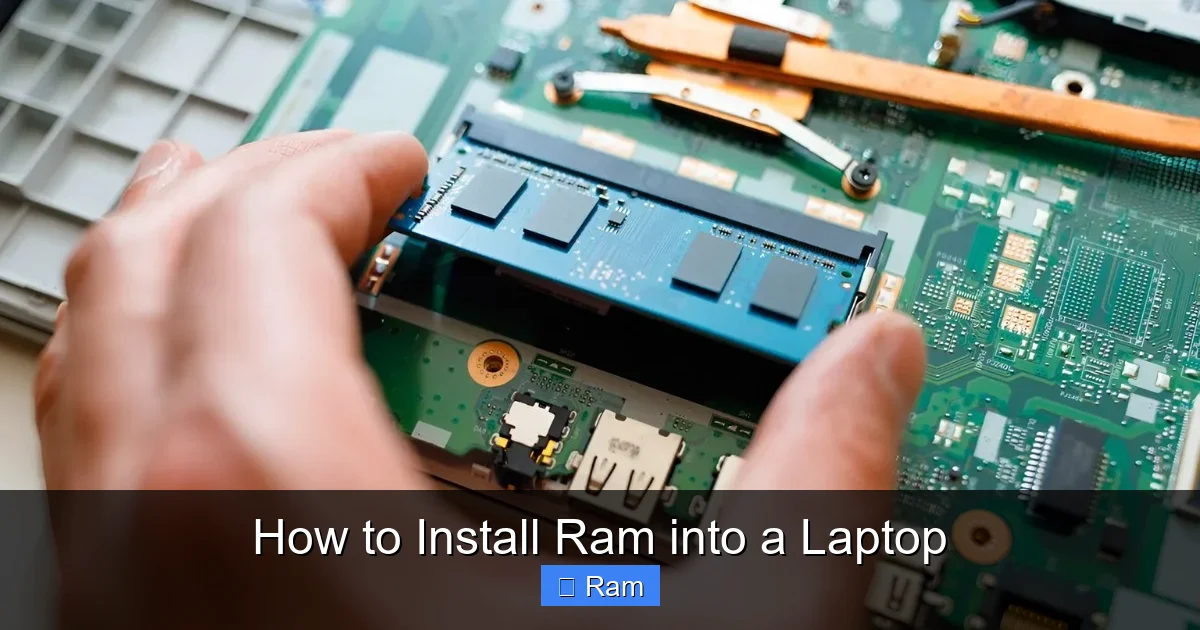
Each SO‑DIMM module has a single notch that must match a ridge in the slot. Rotate the module until the notch lines up; it will only fit one way.
4.2 Insert at a 45‑Degree Angle
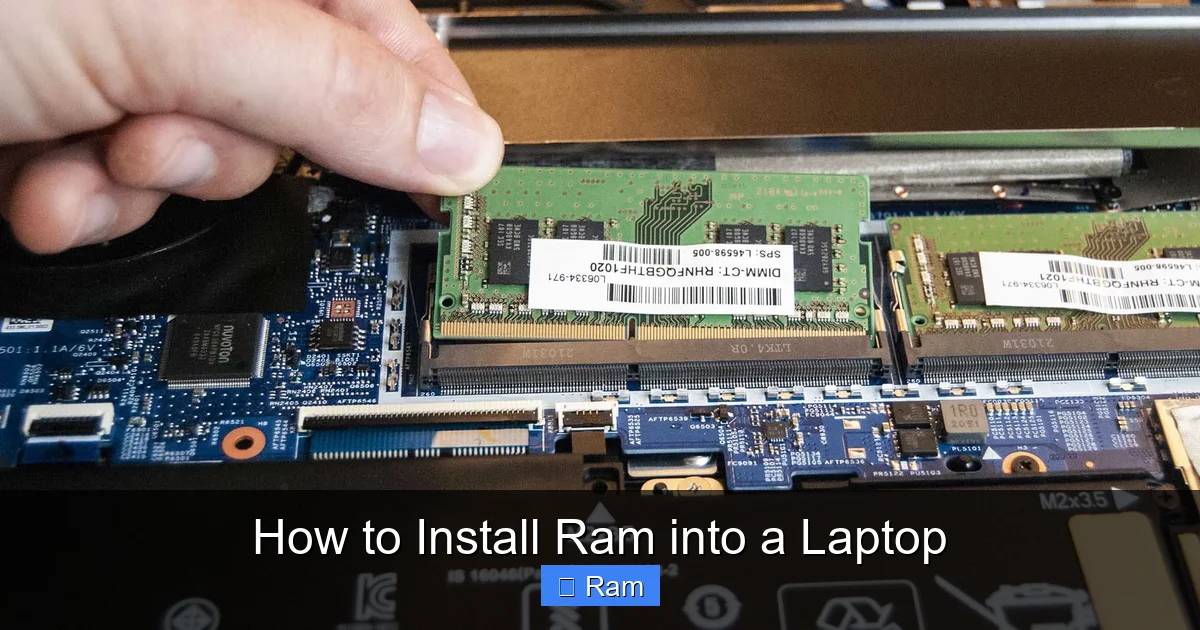
Hold the module by the edges and slide it into the slot at about a 45° angle. You should feel a slight resistance as the contacts engage.
4.3 Press Down to Lock
Once fully inserted, press the module down gently until the side clips snap into place. You’ll hear a faint click, indicating the module is secured.
4.4 Installing a Second Module (Optional)
If your laptop supports dual‑channel memory and you have a second slot, repeat the same steps with the second module. For best performance, use identical size and speed modules.
5. Reassembly and First Boot
5.1 Replace the Service Panel
Align the panel back onto the chassis, ensuring all clips line up. Re‑insert the screws and tighten them just enough to hold the panel firmly—do not overtighten, as this can crack the plastic.
5.2 Re‑insert Battery and Power On
Slide the battery back in (if removable) and plug the AC adapter. Press the power button.
5.3 Verify the Upgrade
Within the first few seconds, the BIOS/UEFI screen often shows total memory. You can also check in Windows:
- Press Ctrl + Shift + Esc → Performance tab → Memory.
- Or type msinfo32 in the Run dialog and look for “Installed Physical Memory.”
If the new amount appears, the installation succeeded. If not, power down, re‑check the seating, and try again.
6. Troubleshooting Common Issues
6.1 Laptop Doesn’t Power On
Often the RAM isn’t fully seated. Remove the module, check for dust in the slot, and re‑insert firmly.
6.2 System Shows “Memory Not Recognized”
This can happen when the module’s speed exceeds the laptop’s supported frequency. Verify the specifications and consider a lower‑speed module.
6.3 Random Crashes or Blue Screens
Incompatible or defective RAM can cause instability. Run a memory diagnostic tool (Windows Memory Diagnostic or MemTest86) to identify errors.
6.4 BIOS Doesn’t List New RAM
Some laptops require a BIOS update to support higher capacities. Check the manufacturer’s support site for any firmware updates.
Conclusion: A Simple Boost for Your Laptop
Learning how to install RAM into a laptop empowers you to extend the life of a device you already love. With just a screwdriver, a bit of patience, and the right memory module, you can turn a sluggish notebook into a responsive workhorse. Remember to always verify compatibility, ground yourself, and double‑check the seating before sealing the case. Once you’ve confirmed the upgrade works, you’ll notice faster app launches, smoother multitasking, and a noticeable lift in overall performance—all without spending a fortune on a new computer.
Now that you’ve mastered the process, feel free to share this guide with friends or family who might benefit. Upgrading RAM is one of the most cost‑effective ways to keep a laptop relevant for years to come.
Frequently Asked Questions
Can I mix different sizes of RAM modules?
Yes, you can mix sizes (e.g., 4 GB + 8 GB), but for optimal performance use identical modules to enable dual‑channel mode.
Do I need to reinstall my operating system after adding RAM?
No. RAM is a hardware upgrade; the OS will automatically detect the new memory on the next boot.
Is it safe to upgrade RAM on a laptop with a non‑removable battery?
Absolutely. Just make sure the laptop is powered off, unplugged, and you ground yourself before opening the case.
What if my laptop only has one RAM slot?
If the slot is already occupied, you must replace the existing module with a higher‑capacity one. Ensure the new module matches the required specifications.
How often should I update my laptop’s BIOS when upgrading RAM?
Only if the manufacturer releases a BIOS update that specifically adds support for higher memory capacities or newer RAM types.
Can I use laptop RAM in a desktop computer?
No. Laptop RAM uses the SO‑DIMM form factor, while desktops use the larger DIMM modules. They are not interchangeable.


3 Comments