How to Upgrade Ram Laptop

Want a speed boost without buying a new laptop? This guide walks you through selecting the right RAM, prepping tools, and installing the memory yourself—no tech wizardry required. Follow our simple steps and enjoy smoother multitasking, gaming, and productivity.
Key Takeaways
- Know your limits: Check the maximum RAM your laptop supports before buying.
- Match specs: Choose RAM with the same speed, voltage, and form factor as the original.
- Static safety: Use an anti‑static wrist strap or ground yourself to protect components.
- Installation is quick: Most laptops require only a few minutes and a small screwdriver.
- BIOS/OS check: Verify the upgrade in BIOS and Windows/Linux after installation.
- Performance boost: Expect faster app launches, smoother multitasking, and better gaming.
- Future‑proofing: Upgrading now can extend your laptop’s useful life by several years.
📑 Table of Contents
- Introduction: Why Upgrade Your Laptop RAM?
- 1. Checking Compatibility Before You Buy
- 2. Gathering Tools and Preparing Your Workspace
- 3. Opening the Laptop and Locating the RAM Slots
- 4. Installing the New RAM
- 5. Re‑assembling and Verifying the Upgrade
- 6. Tips for Maximizing Performance After Upgrade
- Conclusion: A Simple Upgrade That Pays Off
Introduction: Why Upgrade Your Laptop RAM?
Let’s face it—if you’ve ever watched a video buffer for ages or seen your laptop crawl when you have many tabs open, you’ve felt the pain of insufficient memory. RAM (Random Access Memory) is the short‑term workspace of your computer. It stores the data that programs need right now. When RAM runs out, the system starts swapping to the much slower hard drive or SSD, and everything feels sluggish.
Upgrading RAM is one of the most cost‑effective ways to breathe new life into an aging laptop. Unlike a new CPU or motherboard, RAM modules are inexpensive, easy to source, and often simple to install. In this guide we’ll demystify the whole process—from checking compatibility to the final performance test—so you can boost your laptop’s speed without breaking the bank.
1. Checking Compatibility Before You Buy
1.1 Find Your Laptop Model and Specs
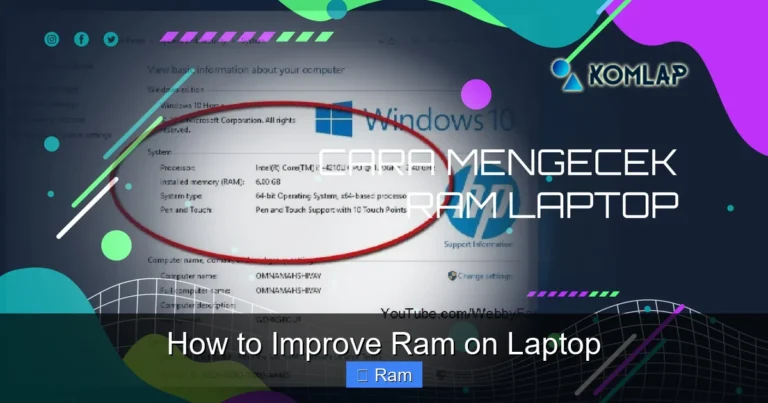
The first step is to know exactly what you have. Locate the model number on the bottom of the laptop or in the system information (Windows: Settings → System → About; macOS: Apple → About This Mac). Write it down.

Visual guide about How to Upgrade Ram Laptop
Image source: down-id.img.susercontent.com
1.2 Determine Maximum Supported RAM
Visit the manufacturer’s website or use a tool like Crucial System Scanner. Look for:
- Maximum capacity (e.g., 16 GB, 32 GB)
- Number of slots (1 or 2 are typical)
- Supported type (DDR4, DDR3, LPDDR4X, etc.)
- Speed rating (e.g., 2400 MHz, 3200 MHz)
1.3 Match Form Factor
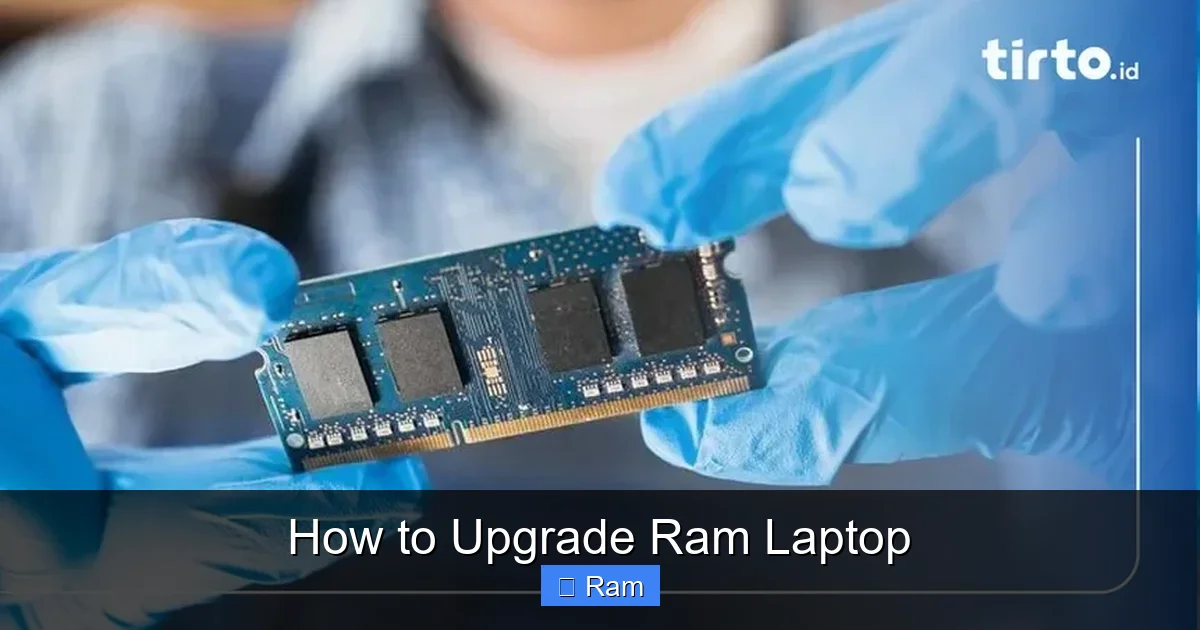
Most laptops use SO-DIMM (Small Outline Dual In-line Memory Module) sticks, which are half the size of desktop DIMMs. Some ultrabooks use soldered RAM that cannot be upgraded—if yours is soldered, you’ll need to consider a new laptop instead.
1.4 Choose the Right Capacity
If your laptop supports 32 GB and you currently have 8 GB, a 16 GB + 8 GB combo is a common upgrade path. For most users, 16 GB total is plenty for gaming, photo/video editing, and multitasking.
2. Gathering Tools and Preparing Your Workspace
2.1 Essential Tools
- Small Phillips #0 or #00 screwdriver (most laptops need a tiny screw)
- Plastic spudger or pry tool (to avoid damaging clips)
- Anti‑static wrist strap or grounding mat (optional but recommended)
- Soft, static‑free work surface (like a microfiber mat)
2.2 Safety First
Turn off the laptop, unplug the power adapter, and remove any external devices. If your laptop has a removable battery, take it out. Press and hold the power button for 10 seconds to discharge residual electricity.
Visual guide about How to Upgrade Ram Laptop
Image source: mmc.tirto.id
2.3 Organize Screws
Use a small container or a magnetic mat to keep screws sorted. Different screws may have different lengths; mixing them up can cause headaches later.
3. Opening the Laptop and Locating the RAM Slots
3.1 Remove the Bottom Panel
Most laptops have a single large panel secured with 4‑8 screws. Gently pry the panel up using the spudger, starting at a corner. Some models have a latch or sliding cover—refer to the service manual if you’re unsure.

Visual guide about How to Upgrade Ram Laptop
Image source: cdn.mos.cms.futurecdn.net
3.2 Identify the RAM Slots
Inside you’ll see one or two long, thin slots with a small retaining clip on each side. Existing RAM modules may be already installed; they will be held in place by the clips.
3.3 Take Photos for Reference
Before you touch anything, snap a quick picture of the interior. This will help you remember where cables and screws belong when you re‑assemble.
4. Installing the New RAM
4.1 Release the Existing Module (If Replacing)
Gently push the retaining clips outward. The module should pop up at an angle. Hold the edges and pull it straight out. Avoid touching the gold contacts.
4.2 Align the New Module
Notice the notch on the bottom of the RAM stick. It matches a key in the slot. Align the notch, then insert the module at the same angle (about 30°) and press down firmly until the clips snap back into place.
4.3 Double‑Check Seating
Give the module a gentle wiggle; it should feel secure. If it moves, remove it and reseat it.
4.4 Install a Second Stick (Optional)
If you’re adding a second module, repeat the same steps in the empty slot. Using identical sticks (same size, speed, and brand) maximizes dual‑channel performance.
5. Re‑assembling and Verifying the Upgrade
5.1 Close the Bottom Panel
Replace the panel, align any clips, and screw it back in. Re‑install the battery if you removed it.
5.2 Power On and Enter BIOS
Turn on the laptop and quickly press the BIOS key (often F2, Del, or Esc). In the BIOS memory section, you should see the new total RAM amount. If it’s not displayed, double‑check the seating.
5.3 Verify in the Operating System
In Windows, open Task Manager → Performance → Memory. In macOS, go to Apple → About This Mac → Memory. Linux users can run free -h in the terminal. The displayed amount should match the upgrade.
5.4 Run a Quick Benchmark
Use a free tool like UserBenchmark or CPU-Z to confirm that the RAM speed matches the advertised rating. A noticeable speed bump in everyday tasks is a good sign.
6. Tips for Maximizing Performance After Upgrade
6.1 Enable Dual‑Channel Mode
If you installed two identical sticks, the laptop should automatically run in dual‑channel mode, doubling memory bandwidth. Verify this in the BIOS or with CPU‑Z under the “Memory” tab.
6.2 Update the BIOS
Some older laptops need a BIOS update to recognize newer, higher‑capacity modules. Check the manufacturer’s support page for the latest firmware.
6.3 Adjust Virtual Memory (Windows)
With more RAM, you can lower the size of the paging file. Go to System → Advanced system settings → Performance → Settings → Advanced → Virtual memory and set a custom size (e.g., 1 GB minimum, 4 GB maximum).
6.4 Clean Up Background Apps
Even with extra RAM, too many start‑up programs can slow you down. Use Task Manager → Startup to disable unnecessary apps.
6.5 Keep the System Cool
More RAM can generate a bit more heat. Clean the cooling vents, replace thermal paste if you’re comfortable, and consider a laptop cooling pad for extended gaming sessions.
Conclusion: A Simple Upgrade That Pays Off
Upgrading your laptop’s RAM is a small investment of time and money that yields big rewards. By following the steps above—checking compatibility, safely installing the new modules, and verifying the upgrade—you’ll enjoy faster app launches, smoother multitasking, and a longer useful life for your device. No need to buy a brand‑new laptop when a quick memory boost can make your current one feel brand new again.
Remember, the key to a successful upgrade is preparation: know your laptop’s limits, gather the right tools, and work in a static‑free environment. Once you’ve mastered this process, you’ll have the confidence to tackle other upgrades, like swapping an SSD or cleaning the internals. Happy upgrading!
Frequently Asked Questions
Can I mix different brands of RAM when upgrading?
Yes, you can mix brands as long as the modules share the same speed, voltage, and form factor. However, using identical sticks maximizes dual‑channel performance.
Will upgrading RAM void my laptop warranty?
Most manufacturers allow RAM upgrades without voiding the warranty, but it’s best to check the warranty terms. Opening the chassis may be restricted on some ultra‑thin models.
How do I know if my laptop’s RAM is soldered?
If the memory chips are directly attached to the motherboard with no visible slots, they are soldered. Service manuals or a quick online search of your model will confirm this.
Do I need to reinstall my operating system after adding RAM?
No. RAM is a hardware component; the OS will automatically detect the new memory on the next boot. A simple restart is enough.
What if the laptop doesn’t recognize the new RAM?
Double‑check that the module is properly seated, matches the required specifications, and that the BIOS is up to date. If it still fails, the module may be defective.
Is there a performance difference between DDR4‑2400 and DDR4‑3200?
Yes, higher‑speed DDR4 (e.g., 3200 MHz) can provide faster data transfer rates, which benefits memory‑intensive tasks. However, the actual gain depends on whether the laptop’s CPU and chipset support the higher speed.