What Is Ram for a Laptop
What is ram for a laptop? It is the short‑term memory that stores data a computer needs right now, letting programs run fast and smoothly. More RAM means better multitasking, quicker app launches, and smoother gaming or video editing.
Key Takeaways
- RAM is temporary storage: It holds data only while the laptop is on.
- More RAM boosts multitasking: You can run many apps without lag.
- Speed matters too: Higher MHz and lower latency improve performance.
- Compatibility is key: Check form factor (SODIMM) and max supported size.
- Upgrade options vary: Some laptops have soldered RAM, others have slots.
- Match RAM to use‑case: Gaming, content creation, and basic browsing need different amounts.
- Future‑proofing: Buying a little extra now can extend a laptop’s useful life.
📑 Table of Contents
- Introduction: Why RAM Matters in a Laptop
- What Is RAM? The Simple Definition
- Types of RAM Used in Laptops
- How Much RAM Do You Need? Matching Memory to Use‑Case
- Understanding RAM Speed and Latency
- Upgrading Laptop RAM: What to Check Before You Buy
- Real‑World Examples: How RAM Impacts Everyday Tasks
- Conclusion: Choosing the Right RAM for Your Laptop
Introduction: Why RAM Matters in a Laptop
When you buy a laptop, the first thing you notice is the screen size, the weight, maybe the brand name. But the real engine that decides how quickly your laptop feels is hidden inside – the RAM. If you’ve ever waited for a video to load, or watched a program freeze while you switched tabs, you’ve felt the limits of your laptop’s memory.
In this guide we answer the question “what is ram for a laptop?” in plain language. We’ll break down the basics, explain how RAM works with the rest of the system, and give you practical tips for picking the right amount and type for your daily tasks. By the end, you’ll know exactly what to look for when you shop or upgrade.
What Is RAM? The Simple Definition
Random‑Access Memory Explained
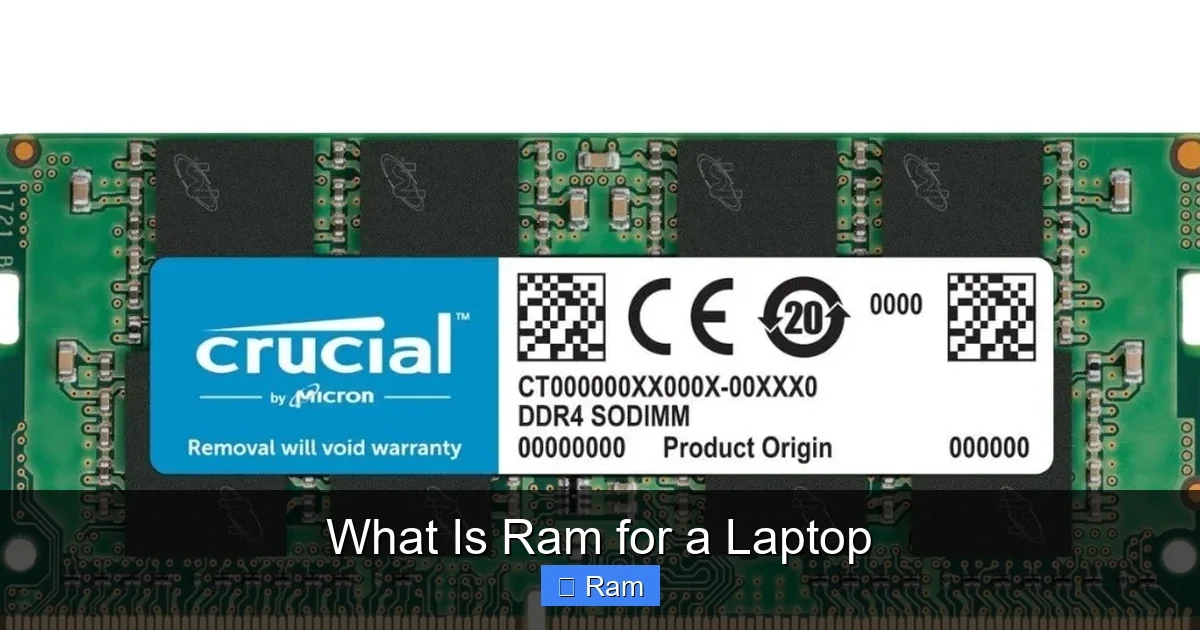
RAM stands for Random‑Access Memory. It is a chip‑based, high‑speed storage area that your laptop uses to keep data it needs right now. Unlike the hard drive or SSD, which store files permanently, RAM is volatile – it loses everything when power is cut.

Visual guide about What Is Ram for a Laptop
Image source: jakartastudio.com
How RAM Works With the CPU
The CPU (central processing unit) is the brain of the laptop. When you open a program, the CPU asks the storage drive for the program’s files. Those files are copied into RAM because reading from RAM is thousands of times faster than reading from a drive. While the program runs, the CPU repeatedly reads and writes data in RAM. The larger the RAM, the more data the CPU can keep close at hand, which means smoother performance.
Types of RAM Used in Laptops
SODIMM – The Small Form Factor
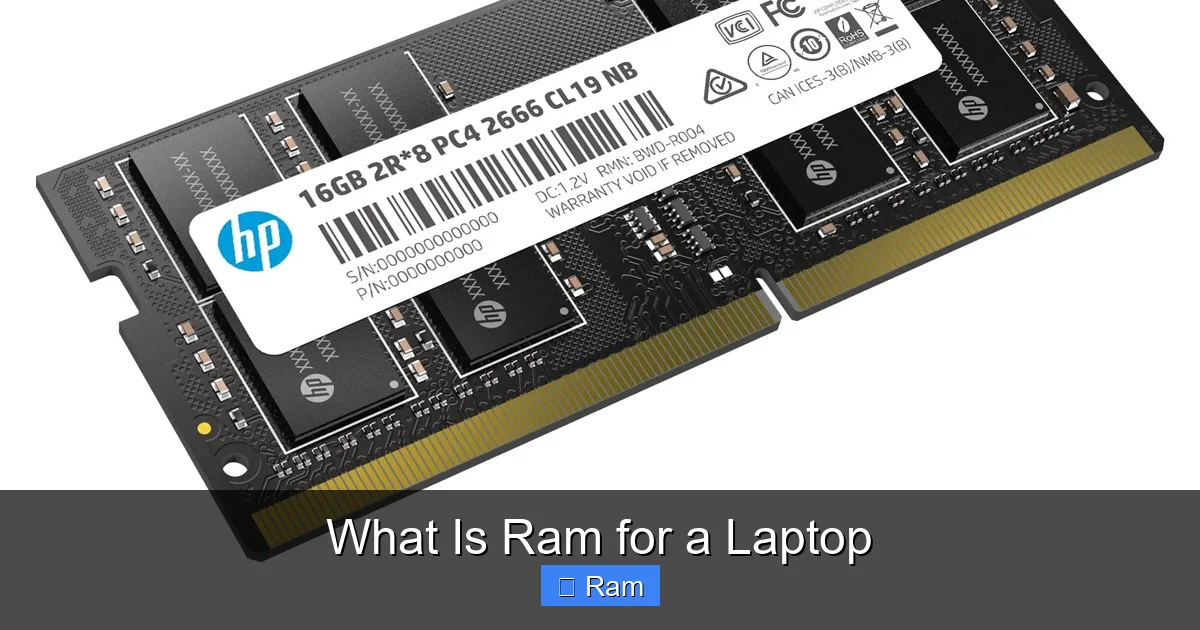
Most laptops use SODIMM (Small Outline Dual Inline Memory Module) sticks. They are half the size of desktop DIMMs, allowing them to fit in thin chassis. When you see a laptop spec that says “8 GB DDR4 SODIMM,” that’s what it’s referring to.
Visual guide about What Is Ram for a Laptop
Image source: m.media-amazon.com
DDR Generations: DDR3, DDR4, DDR5
DDR stands for Double Data Rate. Each new generation brings higher transfer rates and lower power consumption.
- DDR3: Older laptops, speeds up to 2133 MHz.
- DDR4: Most modern laptops, speeds from 2133 MHz to 3200 MHz.
- DDR5: Newest high‑end models, speeds start at 4800 MHz and climb.
The rule of thumb: higher DDR numbers mean faster data handling, but you must match the generation to what your laptop’s motherboard supports.
How Much RAM Do You Need? Matching Memory to Use‑Case
Basic Tasks – Browsing, Email, Office Apps
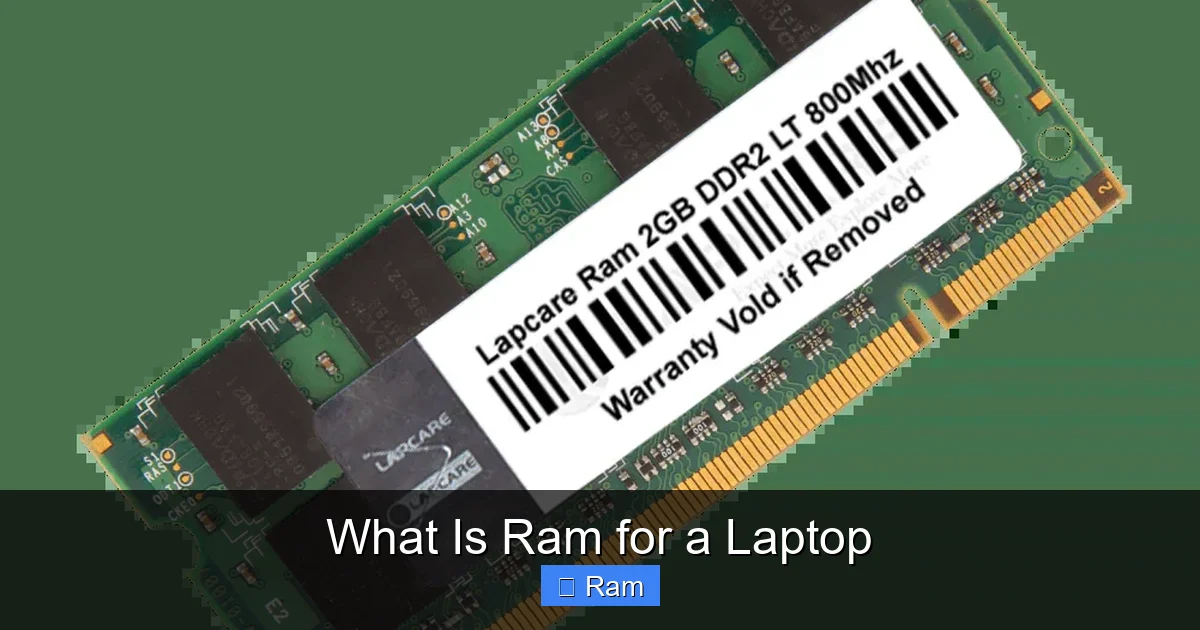
For everyday tasks like web browsing, writing documents, and streaming videos, 8 GB of RAM is usually plenty. It lets you keep several tabs open and run Office or Google Docs without hiccups.
Visual guide about What Is Ram for a Laptop
Image source: lapcare.com
Power Users – Photo Editing, Programming, Light Gaming
If you edit photos in Adobe Lightroom, compile code, or play casual games, aim for 16 GB. This amount gives you headroom for larger files and a few background apps.
Heavyweight Creators – Video Editing, 3D Rendering, Gaming
Professional video editors, 3D artists, and serious gamers benefit from 32 GB or more. Large video projects or high‑resolution textures can eat up memory quickly, and extra RAM prevents bottlenecks.
Future‑Proofing Tips
Even if you only need 8 GB today, consider buying a laptop that supports 16 GB or 32 GB later. Upgrading later is often cheaper than buying a new machine.
Understanding RAM Speed and Latency
Frequency (MHz) – The Data Highway
RAM speed is measured in megahertz (MHz). A 3200 MHz stick can move data faster than a 2400 MHz stick. In real life, the difference shows up in tasks that shuffle a lot of data, like gaming or large spreadsheet calculations.
CAS Latency – The Delay Factor
CAS (Column Address Strobe) latency is the number of clock cycles it takes for RAM to return requested data. Lower numbers are better. For example, DDR4‑3200 CL16 is generally faster than DDR4‑3200 CL18, even though both run at the same frequency.
Balancing Speed and Capacity
For most users, capacity matters more than a few MHz. A laptop with 8 GB DDR4‑2400 will feel slower than one with 16 GB DDR4‑2400, even though the speed is identical. Choose the right balance based on your workload.
Upgrading Laptop RAM: What to Check Before You Buy
Is the RAM Upgradeable?
Not all laptops let you add or replace RAM. Some ultrabooks have RAM soldered onto the motherboard, making upgrades impossible. Look for a “RAM slots” or “upgradable memory” note in the spec sheet.
Maximum Supported Memory
Every laptop’s motherboard has a limit – often 16 GB, 32 GB, or 64 GB. Check the manufacturer’s documentation or use tools like CPU‑Z to see the max supported size.
Matching Modules
If your laptop has two slots, it’s best to install matching sticks (same size, speed, and brand) for dual‑channel operation, which doubles the data path and improves performance.
Installation Steps (Quick Guide)
- Power off the laptop and unplug all cables.
- Remove the bottom panel – usually a few Phillips screws.
- Locate the RAM slots; they look like tiny slots with clips on each side.
- Push the clips outward, gently pull the old module out (if replacing).
- Align the notch on the new SODIMM with the slot and press down until the clips click.
- Re‑attach the panel, power on, and verify the new memory in the BIOS or OS.
Common Pitfalls
- Forcing a module in the wrong orientation – always match the notch.
- Static discharge – touch a metal part before handling RAM.
- Installing a module with a different voltage (e.g., DDR4‑1.2 V vs. DDR4‑1.35 V) – can cause instability.
Real‑World Examples: How RAM Impacts Everyday Tasks
Example 1: Streaming Multiple 4K Videos
Imagine you’re watching a 4K movie while a video call runs in the background. With 8 GB RAM, the system may swap data to the SSD, causing stutters. Upgrading to 16 GB gives each app its own space, eliminating the lag.
Example 2: Photo Editing in Lightroom
Lightroom creates previews and caches edits in RAM. A 12‑photo batch import can consume 4‑5 GB of memory. With only 8 GB total, the app slows down. Adding extra RAM lets Lightroom keep more previews in fast memory, speeding up the workflow.
Example 3: Gaming on a Mid‑Range Laptop
Modern games often recommend 16 GB for optimal performance. Running a game with 8 GB forces the system to offload textures to the SSD, causing frame drops. Upgrading to 16 GB lets the GPU access textures directly from RAM, delivering smoother gameplay.
Conclusion: Choosing the Right RAM for Your Laptop
Understanding what is ram for a laptop helps you make smarter buying decisions. RAM is the short‑term memory that lets your CPU work quickly. The right amount, speed, and type keep your laptop responsive, whether you’re checking email or rendering 4K video.
Start by assessing your daily tasks, then match those to the recommended RAM size. Check compatibility – form factor, DDR generation, and maximum supported capacity. If you can upgrade later, choose a model with free slots. Finally, remember that more RAM is only beneficial up to the point your workload needs it; buying double what you’ll ever use wastes money.
With these insights, you’re ready to pick the perfect memory configuration and keep your laptop humming for years to come.
Frequently Asked Questions
What is RAM and why is it important for a laptop?
RAM (Random‑Access Memory) is the short‑term storage that holds data a laptop needs right now. It lets the CPU access information quickly, making programs run faster and enabling smooth multitasking.
How much RAM do I need for everyday use?
For web browsing, office work, and video streaming, 8 GB of RAM is usually sufficient. It provides enough headroom for several apps and browser tabs without slowing down.
Can I upgrade the RAM in any laptop?
Not all laptops are upgradeable; many ultrabooks have soldered RAM. Check the manufacturer’s specs for RAM slots and maximum supported capacity before buying a new module.
What is the difference between DDR4 and DDR5 RAM?
DDR5 is the newer generation, offering higher speeds (starting around 4800 MHz) and better power efficiency than DDR4, which typically runs up to 3200 MHz. Your laptop must support DDR5 to use it.
Does RAM speed matter as much as capacity?
For most users, capacity matters more. Having enough RAM prevents swapping to the SSD. Speed (MHz) and latency (CAS) matter for high‑performance tasks like gaming or video editing, but the impact is smaller than simply having more RAM.
How can I tell if my laptop is using all installed RAM?
Open the Task Manager (Windows) or Activity Monitor (macOS) and look at the “Memory” tab. It shows total installed RAM and how much is currently in use, helping you see if you need an upgrade.