What Does Ram Do in a Laptop

RAM is the short‑term memory of your laptop that stores data your computer needs right now. It lets apps launch faster, lets you run many programs at once, and directly affects gaming and video‑editing performance. Upgrading or optimizing RAM can make an old laptop feel brand new.
Key Takeaways
- RAM holds active data: It stores the information programs need instantly, unlike long‑term storage.
- More RAM = smoother multitasking: Adding memory reduces lag when you have many apps open.
- Speed matters too: Frequency (MHz) and latency influence how quickly RAM can be read or written.
- Compatibility is key: Laptop motherboards support specific RAM types, sizes, and speeds.
- Upgrading is often easy: Most modern laptops have accessible slots or soldered modules you can replace.
- RAM affects battery life: Efficient memory can lower power draw, extending unplugged use.
- Know your workload: Gaming, video editing, and casual browsing need different RAM amounts.
📑 Table of Contents
Introduction: Why RAM Matters More Than You Think
When you buy a laptop, the flashy specs that catch your eye are usually the processor, the screen size, and the storage capacity. Yet, the humble acronym RAM—Random Access Memory—often lives in the shadows. In everyday language, we hear people say, “My laptop is slow,” without realizing that the root cause is often memory‑related.
Think of RAM as a desk you work on. Your hard drive or SSD is the filing cabinet where you store everything for the long term. When you need a document, you pull it out of the cabinet and lay it on the desk. The larger the desk, the more papers you can have open at once without shuffling. In a laptop, RAM is that desk. The more space you have, the more programs can sit side by side, ready for instant access.
What Does RAM Do in a Laptop?
Short‑Term Storage for Active Processes
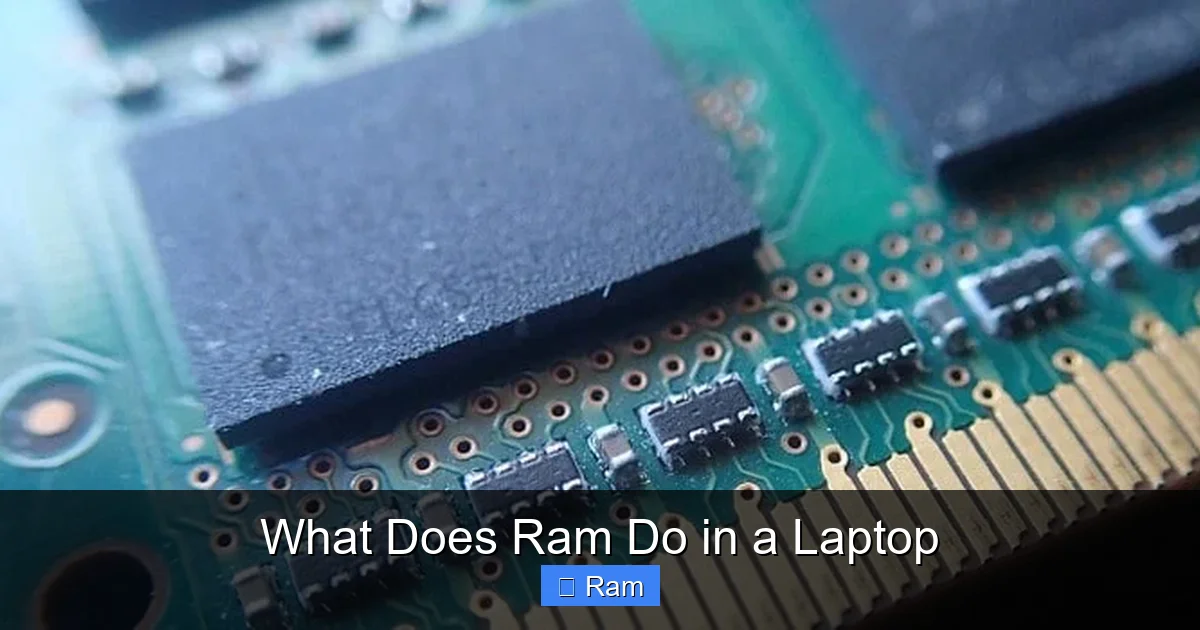
RAM temporarily holds the data that the CPU needs right now. When you open a web browser, the operating system loads the browser’s files from the SSD into RAM. While you’re typing, scrolling, or watching a video, those instructions live in RAM, allowing the CPU to fetch them in nanoseconds.
Visual guide about What Does Ram Do in a Laptop
Image source: techguided.com
Facilitates Multitasking
Each open application consumes a chunk of RAM. If you have 4 GB of RAM and you open Word, Chrome, and Spotify, the system divides that 4 GB among them. When the total demand exceeds the available memory, the laptop starts swapping data to the slower SSD, causing noticeable lag. Adding more RAM raises the ceiling, letting you run more apps simultaneously without hitting the swap file.
Boosts Gaming and Creative Performance
Modern games load textures, models, and AI scripts into RAM before sending them to the GPU. Video‑editing software stores frame buffers and preview renders in memory. Insufficient RAM forces these programs to constantly read from the slower storage drive, resulting in stutters, longer render times, and lower frame rates.
Influences Power Consumption
Efficient RAM modules consume less power. When the memory can keep data readily available, the CPU can finish tasks quicker and return to low‑power states, extending battery life. Conversely, a laptop that constantly thrashes because of low RAM will stay in high‑performance mode, draining the battery faster.
How Much RAM Do You Really Need?
Basic Tasks: 4 GB–8 GB
If you use your laptop for email, web browsing, document editing, and streaming videos, 8 GB is usually enough. Some ultra‑budget laptops still ship with 4 GB, but you’ll quickly notice slowdowns when multiple tabs are open.

Visual guide about What Does Ram Do in a Laptop
Image source: hone.gg
Power Users: 12 GB–16 GB
Power users run dozens of tabs, virtual machines, or light photo‑editing software. In this scenario, 12 GB to 16 GB gives a comfortable buffer, preventing the OS from resorting to the page file.
Content Creators & Gamers: 16 GB–32 GB+
High‑resolution video editing, 3D rendering, and modern AAA games benefit from 16 GB or more. Some professional workstations recommend 32 GB to handle massive raw footage or complex simulations without a hitch.
Future‑Proofing
RAM prices have stabilized, and most laptops now support at least 16 GB. If you plan to keep your device for 4–5 years, opting for the higher end of the range can save you an upgrade later.
Types of RAM Used in Laptops
DDR4 vs. DDR5
DDR4 has been the standard for several years, offering speeds between 2133 MHz and 3200 MHz. DDR5, introduced in 2021, starts at 4800 MHz and provides higher bandwidth with lower power draw. Not all laptops support DDR5 yet, so check your model’s specifications before buying.

Visual guide about What Does Ram Do in a Laptop
Image source: techshergole.com
SODIMM Form Factor
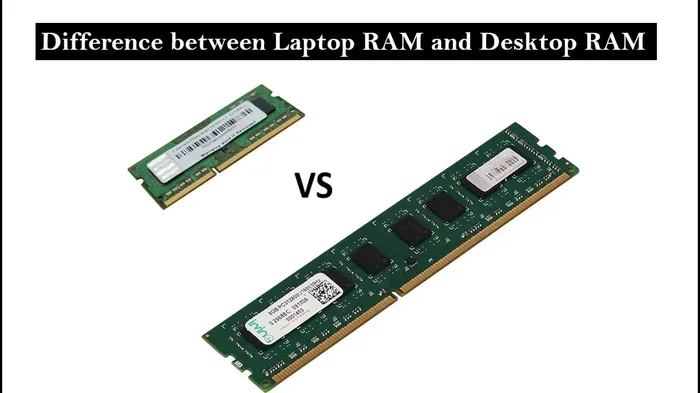
Laptops use Small Outline Dual Inline Memory Modules (SODIMMs) instead of the larger DIMMs found in desktops. SODIMMs are compact, typically 67.6 mm long, and come in various pin counts (e.g., 260‑pin for DDR4, 262‑pin for DDR5).
Single‑Channel vs. Dual‑Channel
Dual‑channel memory pairs two identical sticks to double the data path, effectively increasing bandwidth. For example, two 8 GB sticks in dual‑channel mode provide better performance than a single 16 GB stick, especially in memory‑intensive tasks.
How to Upgrade RAM in a Laptop
Check Compatibility
1. Locate the laptop’s service manual or visit the manufacturer’s website.
2. Identify the supported RAM type (DDR4/DDR5), maximum capacity, and speed.
3. Verify whether the memory is soldered or removable. Many ultrabooks have soldered RAM, making upgrades impossible.
Step‑by‑Step Upgrade Guide
Step 1 – Power Down and Unplug: Shut down the laptop, disconnect the charger, and remove the battery if it’s removable.
Step 2 – Open the Back Panel: Use a small Phillips screwdriver to remove the screws. Keep them organized.
Step 3 – Locate the RAM Slots: You’ll see one or two SODIMM slots, often protected by a metal latch.
Step 4 – Release the Existing Module: Gently push the latch outward; the module will pop up at an angle.
Step 5 – Insert the New Module: Align the notch on the RAM with the slot, insert at the same angle, and press down until the latch clicks.
Step 6 – Reassemble: Replace the back panel, screw it in, re‑attach the battery, and power on.
Testing After Upgrade
Enter the BIOS/UEFI screen (usually by pressing F2, Del, or Esc at startup) to verify that the system recognizes the new memory. In Windows, open Task Manager → Performance → Memory; on macOS, click the Apple menu → About This Mac.
Optimizing RAM Usage Without Upgrading
Manage Startup Programs
Too many apps launch at boot, eating precious RAM. Use Task Manager (Windows) or System Preferences → Users & Groups (macOS) to disable unnecessary startup items.
Use Lightweight Alternatives
Replace heavy browsers like Chrome with lighter ones such as Microsoft Edge or Brave when you need to conserve memory. For document editing, consider Google Docs (online) instead of running a full Office suite.
Adjust Virtual Memory Settings
Increasing the size of the page file can help when RAM is low, but it’s slower than physical memory. In Windows, go to System → Advanced → Performance Settings → Advanced → Virtual memory and let the system manage it automatically.
Regularly Restart
Some applications leak memory over time. A quick restart clears the RAM and restores performance without any hardware changes.
Conclusion: Making RAM Work for You
Understanding what RAM does in a laptop empowers you to make smarter buying decisions, troubleshoot sluggish performance, and extend the life of your device. Whether you’re a casual user, a gamer, or a video‑editing professional, matching the right amount and type of memory to your workload can be the difference between frustration and fluidity.
Remember: RAM is not a magic fix for every problem, but it is the most direct way to boost responsiveness. Check your laptop’s specifications, consider future needs, and don’t shy away from a simple upgrade—it could feel like you’ve bought a brand‑new machine.
Frequently Asked Questions
What does RAM do in a laptop?
RAM temporarily stores data that the CPU needs right now, allowing programs to run quickly and enabling smooth multitasking.
How much RAM do I need for everyday use?
For web browsing, email, and media streaming, 8 GB of RAM is typically sufficient.
Can I upgrade the RAM in any laptop?
Only laptops with removable SODIMM slots allow upgrades. Ultrabooks often have soldered RAM, which cannot be changed.
Is DDR5 better than DDR4 for laptops?
DDR5 offers higher speeds and lower power consumption, but it requires a laptop that specifically supports DDR5 modules.
Will adding more RAM improve battery life?
Efficient RAM can reduce the need for the CPU to work harder, which may modestly extend battery life, especially under heavy multitasking.
Do I need to match RAM speed with my processor?
While most modern CPUs can handle a range of RAM speeds, using the maximum supported speed (e.g., 3200 MHz for DDR4) ensures optimal performance.