Asus Mouse Not Working on Laptop

Having trouble with an Asus mouse that won’t work on your laptop? We walk you through the most common software and hardware reasons, plus easy fixes you can try right now. From driver updates to USB port checks, these simple steps will get your mouse moving again.
Key Takeaways
- Check the basics first: Power, battery, and USB connection are the most common culprits.
- Update or reinstall drivers: Out‑of‑date or corrupted drivers often cause the Asus mouse to stop responding.
- Test on another device: This quickly tells you if the problem is the mouse or the laptop.
- Adjust Windows settings: Mouse pointer, touchpad, and USB power‑management settings can unintentionally disable the device.
- Hardware issues matter: A faulty cable, port, or internal sensor may require repair or replacement.
- Use built‑in Windows tools: Device Manager, the Hardware Troubleshooter, and System Restore are free, effective resources.
- Don’t forget firmware: Some Asus models have firmware updates that resolve compatibility glitches.
📑 Table of Contents
- Introduction
- 1. Verify the Basics – Power, Battery, and Connection
- 2. Software Checks – Drivers and Windows Settings
- 3. Dealing with Bluetooth Asus Mice
- 4. Advanced Troubleshooting – Registry, Firmware, and System Restore
- 5. Hardware Issues – When the Mouse Itself Is Faulty
- 6. When All Else Fails – Alternative Solutions
- Conclusion
- Related Reading
Introduction
If you’ve ever tried to click, drag, or scroll with an Asus mouse on your laptop and nothing happens, you know how frustrating it can be. You might think the problem is the mouse itself, the laptop’s USB port, or even the operating system. The good news is that most issues are fixable with a few simple steps.
In this guide we’ll explore why an Asus mouse may stop working on a laptop, walk through practical troubleshooting methods, and give you tips to prevent future hiccups. Whether you’re using a wired USB mouse, a wireless 2.4 GHz dongle, or a Bluetooth model, the solutions below apply.
1. Verify the Basics – Power, Battery, and Connection
1.1. Is the mouse turned on?
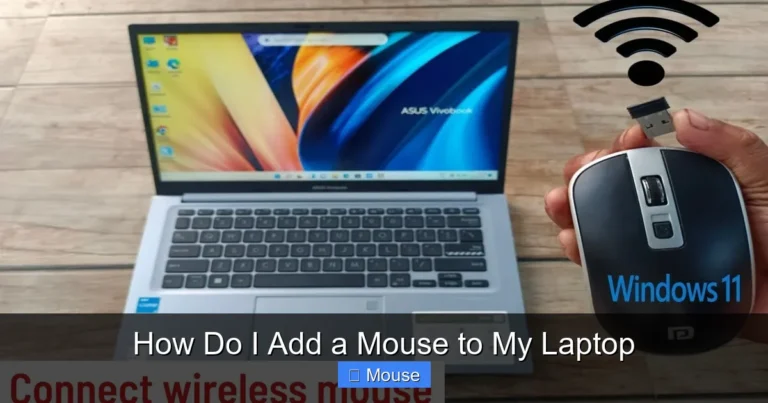
Many Asus mice have a physical power switch on the underside. Make sure it’s set to “On.” A tiny LED indicator should light up; if not, the mouse may be out of power.

Visual guide about Asus Mouse Not Working on Laptop
Image source: i.ytimg.com
1.2. Replace or recharge the batteries
Wireless models use AA or AAA batteries, or a built‑in rechargeable pack. Try fresh batteries or fully charge the mouse using the supplied cable. Low power can cause intermittent or complete loss of functionality.
1.3. Check the USB receiver or cable
For 2.4 GHz wireless mice, unplug the USB receiver and plug it into a different USB port. For wired mice, ensure the cable isn’t frayed and that it’s firmly seated. A loose connection is a frequent cause of “mouse not working on laptop” complaints.
1.4. Test the mouse on another computer
Plug the mouse into a friend’s laptop or a desktop. If it works there, the issue is likely on your laptop. If it doesn’t, the mouse itself may be defective.
2. Software Checks – Drivers and Windows Settings
2.1. Update or reinstall the mouse driver
Windows usually installs a generic driver, but Asus often provides a specific one for extra features. Open Device Manager → expand Mice and other pointing devices → right‑click your Asus mouse → Update driver. Choose “Search automatically for updated driver software.” If Windows can’t find anything, download the latest driver from the Asus support site and install it manually.

Visual guide about Asus Mouse Not Working on Laptop
Image source: thewindowsclub.com
2.2. Roll back a recent driver update
If the mouse stopped working after a Windows update, the new driver may be incompatible. In Device Manager, right‑click the mouse, select Properties**,** go to the **Driver** tab, and click **Roll Back Driver** (if the option is available).
2.3. Disable USB selective suspend
Power‑saving settings sometimes turn off USB ports to save energy, which can disable a mouse. Go to Control Panel → Power Options → Change plan settings → Change advanced power settings. Expand **USB settings → USB selective suspend setting** and set it to **Disabled**.
2.4. Check mouse settings in Windows
Open **Settings → Devices → Mouse**. Make sure the primary button is set correctly and that “Scroll inactive windows when I hover over them” is turned on if you need that feature. Also, verify that the pointer speed isn’t set to zero.
2.5. Run the built‑in troubleshooter
Windows 10/11 includes a hardware troubleshooter. Go to **Settings → Update & Security → Troubleshoot → Additional troubleshooters** and run **Hardware and Devices**. Follow the prompts; the tool often auto‑fixes driver registration problems.
3. Dealing with Bluetooth Asus Mice
3.1. Ensure Bluetooth is enabled
Some laptops have a physical switch or function key (often Fn + F5) to turn Bluetooth on or off. Verify it’s active in **Settings → Devices → Bluetooth & other devices**.

Visual guide about Asus Mouse Not Working on Laptop
Image source: static.beebom.com
3.2. Remove and re‑pair the device
In the Bluetooth settings, click the Asus mouse, select **Remove device**, then click **Add Bluetooth or other device** to pair it again. This clears any corrupted pairing data.
3.3. Update Bluetooth drivers
Just like the mouse driver, the Bluetooth adapter may need an update. In Device Manager locate **Bluetooth → Your adapter** and choose **Update driver**.
3.4. Check for interference
Bluetooth operates at 2.4 GHz, the same band as Wi‑Fi and many wireless peripherals. Move other devices away or switch your Wi‑Fi router to the 5 GHz band to reduce interference.
4. Advanced Troubleshooting – Registry, Firmware, and System Restore
4.1. Clean the mouse registry entry
Incorrect registry entries can prevent Windows from recognizing a mouse. Press Win + R**,** type **regedit**, and navigate to HKEY_LOCAL_MACHINE\SYSTEM\CurrentControlSet\Enum\HID. Look for a sub‑key that references your Asus mouse and delete it (be careful—back up the registry first). Restart the computer; Windows will recreate the entry.
Visual guide about Asus Mouse Not Working on Laptop
Image source: wingeek.org
4.2. Check for Asus firmware updates
Some Asus gaming mice have firmware that can be updated via the Asus Armoury Crate utility. Open the program, locate your mouse, and follow the on‑screen instructions to apply any available firmware.
4.3. Use System Restore
If the mouse worked yesterday but not today, a recent system change may be the cause. Open **Control Panel → Recovery → Open System Restore**, choose a restore point from before the issue began, and let Windows revert the system files.
4.4. Reinstall USB controllers
In Device Manager, expand **Universal Serial Bus controllers**, right‑click each entry, and select **Uninstall device**. After all are removed, restart the laptop; Windows will reinstall the controllers automatically.
5. Hardware Issues – When the Mouse Itself Is Faulty
5.1. Inspect the cable and connector
Look for kinks, frayed wires, or bent USB connectors. Even a tiny break inside the cable can cause an intermittent connection.
Visual guide about Asus Mouse Not Working on Laptop
Image source: i.ytimg.com
5.2. Test the USB port
Plug a known‑good device (like a flash drive) into the same port. If the device isn’t recognized, the port may be damaged. Try a different port or use a USB hub.
5.3. Open the mouse (if you’re comfortable)
For wired models, open the casing to check the internal PCB for loose solder joints or debris. Clean any dust with compressed air. Note: opening the mouse may void the warranty.
5.4. Consider warranty service
If your Asus mouse is still under warranty, contact Asus support for a replacement. Keep the proof of purchase handy.
6. When All Else Fails – Alternative Solutions
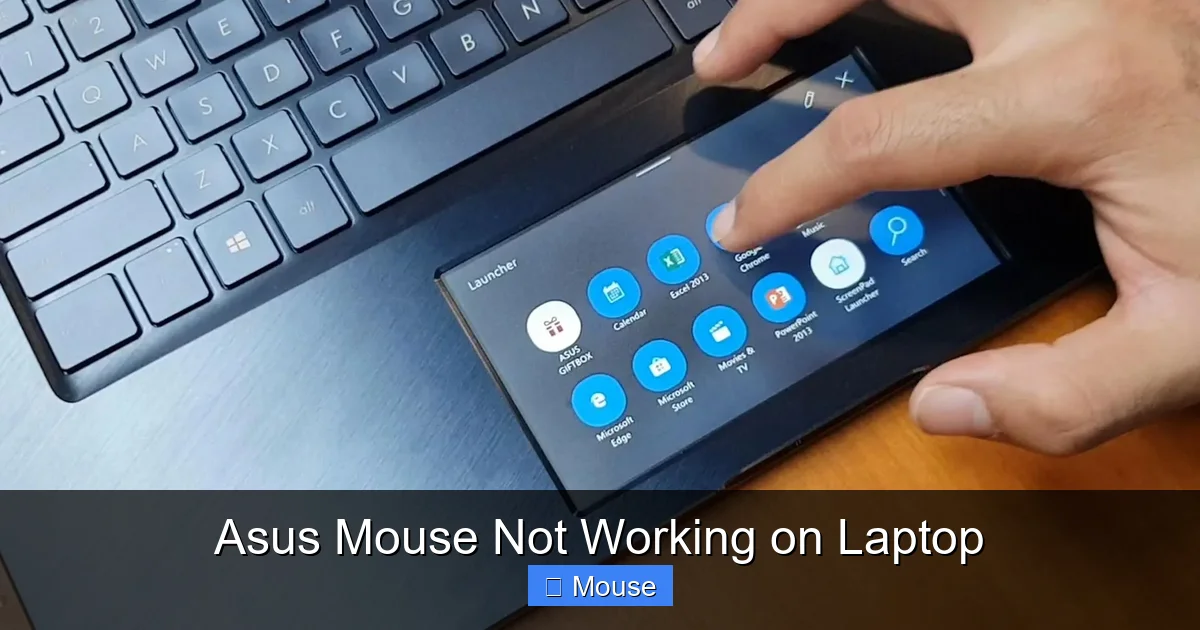
6.1. Use the built‑in touchpad temporarily
Most laptops have a functional touchpad even when an external mouse fails. Enable it via **Settings → Touchpad** or the function key.
Visual guide about Asus Mouse Not Working on Laptop
Image source: robots.net
6.2. Try a different brand mouse
If you need a quick fix, any USB or Bluetooth mouse will work as a temporary replacement while you resolve the Asus issue.
6.3. Reach out to community forums
Websites like Asus Community and Reddit’s r/techsupport often have users who faced the same problem. Posting your exact laptop model and mouse version can yield specific advice.
Conclusion
Having an Asus mouse not working on laptop doesn’t have to mean you need a new device. By systematically checking power, connections, drivers, and Windows settings, you can solve the majority of issues in under ten minutes. If software fixes fail, a hardware inspection or warranty claim is the next logical step. Remember to keep your drivers and firmware up to date, and you’ll enjoy a smooth, responsive mouse experience for years to come.
Related Reading
Frequently Asked Questions
Why does my Asus mouse disconnect randomly?
Random disconnects are often caused by low battery, a weak USB receiver signal, or interference from other 2.4 GHz devices. Replacing batteries and moving the receiver closer usually solves the issue.
Can a Windows update break my mouse?
Yes. Some updates install generic drivers that override the Asus‑specific driver, leading to loss of functionality. Rolling back the driver or reinstalling the Asus driver fixes it.
Is Bluetooth latency a problem for gaming mice?
Bluetooth can introduce a slight delay compared to wired or 2.4 GHz wireless mice. If you need ultra‑low latency for gaming, consider a wired Asus mouse or the Asus 2.4 GHz dongle.
My laptop’s USB ports are not recognizing any device. What now?
Try uninstalling the USB controllers in Device Manager and restarting the laptop. If the problem persists, the port hardware may be damaged and require professional repair.
Do I need to disable the touchpad when using an external mouse?
It’s optional. Disabling the touchpad can prevent accidental cursor jumps, but you can keep it enabled for occasional use. Adjust the setting in **Settings → Touchpad**.
How often should I update my mouse firmware?
Check the Asus support page whenever a new driver is released. Firmware updates are less frequent than driver updates—usually once or twice a year, and only when a specific issue is addressed.