How to Unlock a Mouse on a Dell Laptop

Is your Dell laptop mouse or touchpad suddenly frozen and unresponsive? Do not panic. Learning how to unlock a mouse on a Dell laptop is usually a quick fix involving a simple keyboard shortcut, a settings adjustment, or a quick restart. This comprehensive guide walks you through every possible method to get your cursor moving again, whether you are using the built-in touchpad or an external mouse.
There are few things more frustrating than sitting down to work on your Dell laptop only to find the mouse completely frozen. You swipe your fingers across the touchpad, but the cursor just sits there mocking you. Or perhaps you plugged in your favorite external mouse, and it refuses to respond. When you need to unlock a mouse on a Dell laptop, the solution is often much simpler than you might think. Most of the time, this issue happens because of an accidental keystroke or a minor software glitch rather than a serious hardware failure.
Dell laptops are packed with helpful features, but sometimes those features can cause confusion. One of the most common features is the ability to disable the touchpad automatically when an external mouse is connected. Another is the quick-access function key that lets you lock the touchpad to prevent accidental clicks while typing. If you accidentally triggered one of these features, your mouse will appear broken. Do not worry. We will show you exactly how to identify the problem and fix it step by step. By the end of this guide, you will know precisely how to unlock a mouse on a Dell laptop no matter what situation you are in.
Key Takeaways
- Check the Function Key: The most common way to unlock a Dell laptop mouse is by pressing the Fn key combined with the touchpad icon key (usually F3, F5, F7, or F9).
- Windows Settings Adjustments: You can easily enable or disable the touchpad directly through the Windows Settings menu under the “Touchpad” section.
- External Mouse Connections: If your physical mouse stops working, check the USB connection, replace batteries, or try a different port before assuming a laptop failure.
- Driver Updates: Outdated or corrupted touchpad drivers are a frequent cause of a locked or unresponsive mouse on a Dell laptop.
- Restart Your Device: A simple reboot can resolve temporary software glitches that cause the mouse or touchpad to freeze.
- Device Manager Checks: Use the Device Manager to ensure the mouse or touchpad device is enabled and functioning correctly.
- Touchpad Lock Features: Some Dell laptops have a dedicated button or a double-tap zone on the touchpad itself to lock and unlock the cursor.
📑 Table of Contents
Using the Keyboard Shortcut to Unlock the Mouse
The fastest and most common way to unlock a mouse on a Dell laptop is by using the keyboard shortcut. Dell designs its laptops with a quick toggle built right into the top row of the keyboard. This allows you to disable or enable the touchpad instantly without digging through menus.
Identifying the Correct Function Key
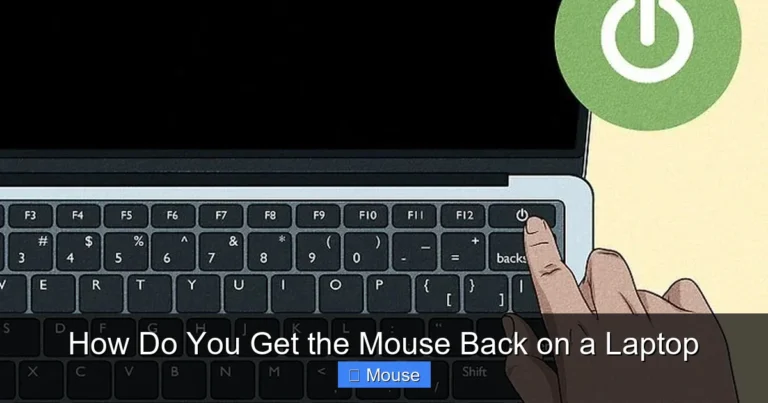
Look at the top row of your keyboard, specifically the keys labeled F1 through F12. You are looking for an icon that looks like a touchpad or a small rectangle with a line through it. On most modern Dell laptops, this function is assigned to the F3, F5, F7, or F9 key. Sometimes the icon looks like a small hand touching a pad. Once you locate the key with the touchpad icon, you have found your unlock button.
Executing the Fn Key Combination
To use this shortcut, you need to press and hold the Fn key, which is usually located in the bottom-left corner of your keyboard near the Ctrl key. While holding the Fn key, tap the function key with the touchpad icon. You should see a small notification pop up on your screen indicating that the touchpad has been enabled or disabled. If your mouse was locked, this simple combination should immediately bring it back to life. If nothing happens, try holding the Fn key and tapping the button again to toggle the setting back and forth.
What If the Shortcut Does Not Work?
If the keyboard shortcut does not unlock a mouse on a Dell laptop, the issue might be with your keyboard settings. Some Dell laptops require you to press the function key without holding the Fn key. Check your BIOS settings or the Windows Mobility Center to see if the function key behavior has been changed. You can also try restarting your laptop and attempting the shortcut again right after the screen lights up.
Unlocking the Mouse Through Windows Settings
If the physical keyboard shortcut fails or you prefer using the graphical interface, Windows provides a straightforward way to unlock your touchpad. This method gives you more control over when and how your touchpad stays active. It is a very reliable way to unlock a mouse on a Dell laptop.
Navigating to Touchpad Settings
First, click on the Start menu and select the gear icon to open Windows Settings. From the main settings window, click on Devices. On the left-hand side of the Devices menu, you will see an option labeled Touchpad. Click on it to open the touchpad configuration page. Here, you will see a toggle switch at the top of the screen that controls the entire touchpad.
Adjusting the Toggle Switch
If the toggle switch is turned off, your touchpad is disabled. Simply click the switch to turn it on. This will instantly unlock a mouse on a Dell laptop. While you are in this menu, you can also check a very useful setting that says “Leave touchpad on when a mouse is connected.” If you use an external mouse frequently, make sure this box is checked. This prevents the touchpad from locking every time you plug in a USB mouse, which can be confusing if you unplug the mouse later and wonder why the touchpad is dead.
Using the Control Panel for Older Systems
If you are running an older version of Windows or prefer the classic interface, you can use the Control Panel. Open the Control Panel and navigate to Hardware and Sound. Under the “Devices and Printers” section, click on Mouse. This will open the Mouse Properties window. Look for a tab labeled “Device Settings” or “Dell Touchpad.” Inside this tab, you will see an option to enable or disable the touchpad. Select the touchpad from the list and click “Enable” to unlock it.
Checking the Device Manager for Driver Issues
Sometimes the problem is not a simple lock but a software conflict or a corrupted driver. The Device Manager is your best tool for diagnosing these hidden issues. When standard settings fail, using the Device Manager is a highly effective way to unlock a mouse on a Dell laptop.
Opening the Device Manager
To access the Device Manager, right-click on the Windows Start button in the bottom-left corner of your screen. From the quick menu that appears, select Device Manager. Alternatively, you can press the Windows key and the X key at the same time to open this menu. The Device Manager lists all the hardware components connected to your computer.
Locating the Mouse or Touchpad
In the Device Manager window, look for the category labeled Mice and other pointing devices. Click the small arrow next to it to expand the list. You should see your touchpad or external mouse listed here. If you see a small yellow triangle with an exclamation mark next to the device, it means there is a driver problem. If you see a small black arrow pointing down on the icon, it means the device is disabled.
Enabling and Updating Drivers
If the device is disabled, right-click on it and select Enable device. This will instantly unlock a mouse on a Dell laptop. If the device has a yellow warning sign, right-click on it and select Update driver. Choose the option to search automatically for drivers. Windows will look for a newer, compatible driver and install it. If Windows cannot find a new driver, you can visit the official Dell support website, enter your laptop’s service tag, and download the latest touchpad drivers manually.
Restarting and Troubleshooting External Mice
If you are using an external mouse instead of the built-in touchpad, the troubleshooting steps are slightly different. External mice rely on USB ports, Bluetooth connections, or batteries. A locked external mouse usually points to a connection issue rather than a locked system setting.

Visual guide about How to Unlock a Mouse on a Dell Laptop
Image source: lets-study-no1.com
Checking Physical Connections
For a wired USB mouse, unplug it from the current port and plug it into a different USB port. Sometimes specific ports can fail or lose power. If the mouse works in a different port, the original port is likely damaged or dirty. For wireless mice, check the battery compartment. Replace the batteries with fresh ones, even if the old ones look fine. A low battery is a very common reason a wireless mouse stops responding.
Re-Pairing Bluetooth Mice
If you use a Bluetooth mouse, the connection might have dropped. Go to your Windows Bluetooth settings and look for your mouse in the list of paired devices. If it says “Paired” but not “Connected,” click on it and select “Remove device.” Then, put your mouse into pairing mode and add it as a new device. This fresh connection often resolves unresponsiveness.
Using the Windows Troubleshooter
Windows has a built-in tool that scans for and fixes common hardware problems. Go to Settings and click on Update & Security. Select Troubleshoot from the left menu, then click on Additional troubleshooters. Find and run the Hardware and Devices troubleshooter. This tool will automatically scan your system for issues and attempt to unlock a mouse on a Dell laptop by fixing broken drivers or disabled hardware.
Advanced Fixes for a Locked Dell Laptop Mouse
If you have tried all the basic steps and your mouse is still stuck, it is time to look at advanced fixes. These steps involve deeper system changes, but they are very effective at solving stubborn hardware glitches.
Restarting the Laptop
It sounds too simple, but a full restart clears out temporary memory and resets hardware configurations. When your mouse freezes, the system might just need a fresh start. Click the Start menu, select the power icon, and choose Restart. Do not just choose “Shut down” and turn it back on, as modern Windows systems use fast startup that does not fully clear the kernel memory. A restart ensures a complete system refresh.
Changing BIOS Settings
The BIOS controls your laptop’s hardware at the most basic level. Sometimes, the touchpad gets disabled in the BIOS. To enter the BIOS, restart your laptop and repeatedly press the F2 key as soon as the Dell logo appears. Once in the BIOS, navigate to the “System Configuration” or “Advanced” tab. Look for an option labeled “Internal Pointing Device” or “Touchpad.” Make sure it is set to Enabled. Save your changes and exit. This is a powerful way to unlock a mouse on a Dell laptop if the issue is happening at the firmware level.
Reinstalling the Touchpad Driver
If updating the driver did not work, a complete reinstall might be necessary. Go back to the Device Manager, right-click on your touchpad under “Mice and other pointing devices,” and select Uninstall device. Make sure to check the box that says “Delete the driver software for this device” if it appears. Once uninstalled, restart your laptop. Windows will automatically reinstall a fresh copy of the driver upon reboot. This clean install often fixes deep software conflicts that prevent the mouse from working.
Preventing Future Mouse Lock Issues
Now that you know how to unlock a mouse on a Dell laptop, you can take steps to stop it from happening again. A little prevention goes a long way in keeping your workflow smooth and frustration-free.
Adjusting Touchpad Sensitivity
High touchpad sensitivity can cause accidental brushes to register as clicks or locks. Go to the Windows Touchpad settings and adjust the sensitivity to “Medium sensitivity” or “Low sensitivity.” This makes the touchpad ignore light, accidental touches from your palms while typing.
Disabling Auto-Disable Features
Some Dell laptops come with software that automatically disables the touchpad when an external mouse is plugged in. While useful, this can lead to confusion if the external mouse fails. You can usually find this setting in the Dell Touchpad utility or the Windows Mouse settings. Turn off the feature that disables the touchpad when a mouse is connected to keep your options open.
Keeping Drivers Updated
Outdated drivers are a leading cause of hardware glitches. Make it a habit to check for Windows updates regularly. You can also install the Dell SupportAssist application, which automatically checks your system for outdated drivers and installs them for you. Keeping your system updated ensures you always have the latest bug fixes from Dell.
Conclusion
Dealing with a frozen cursor is incredibly annoying, but learning how to unlock a mouse on a Dell laptop is a skill every user should have. Whether you accidentally hit the function key, encountered a driver glitch, or faced a simple connection error, the solutions are usually quick and easy. Start with the Fn key shortcut, check your Windows settings, and move on to the Device Manager if needed. By following this guide, you can get back to work in no minutes flat. Remember to keep your drivers updated and your settings configured to avoid future lockouts. With these tips, you will never be stuck staring at a frozen screen again.

Visual guide about How to Unlock a Mouse on a Dell Laptop
Image source: img119.imagetwist.com
Frequently Asked Questions
How do I unlock my Dell touchpad if the Fn key does not work?
If the Fn key combination fails, go to Windows Settings, click on Devices, and select Touchpad. Toggle the touchpad switch to the “On” position to unlock it manually through the software interface.
Why does my Dell laptop mouse keep locking randomly?
Your mouse might be locking because of high touchpad sensitivity or a feature that disables the touchpad when an external mouse is connected. Adjust your sensitivity settings in the Windows Touchpad menu to prevent accidental locks.
Can a locked mouse be caused by a virus?
Yes, certain types of malware can interfere with your system drivers and cause input devices to malfunction. If you have tried all standard fixes and the mouse remains locked, run a full system security scan.
How do I unlock a mouse on a Dell laptop running Windows 11?
The process for Windows 11 is very similar to Windows 10. You can use the Fn key shortcut or navigate to Settings > Bluetooth & devices > Touchpad to toggle the touchpad on or off.
What does it mean if there is a light on my Dell touchpad?
Some Dell laptops have an LED indicator in the top-left corner of the touchpad. If the light is on, it usually means the touchpad is disabled. Double-tap that corner or use the Fn key to turn it off and unlock the mouse.
How do I unlock a mouse on a Dell laptop if an external mouse is not working?
First, try plugging the external mouse into a different USB port. If it is a wireless mouse, replace the batteries and check the Bluetooth connection. You can also run the Windows Hardware and Devices troubleshooter to find the issue.