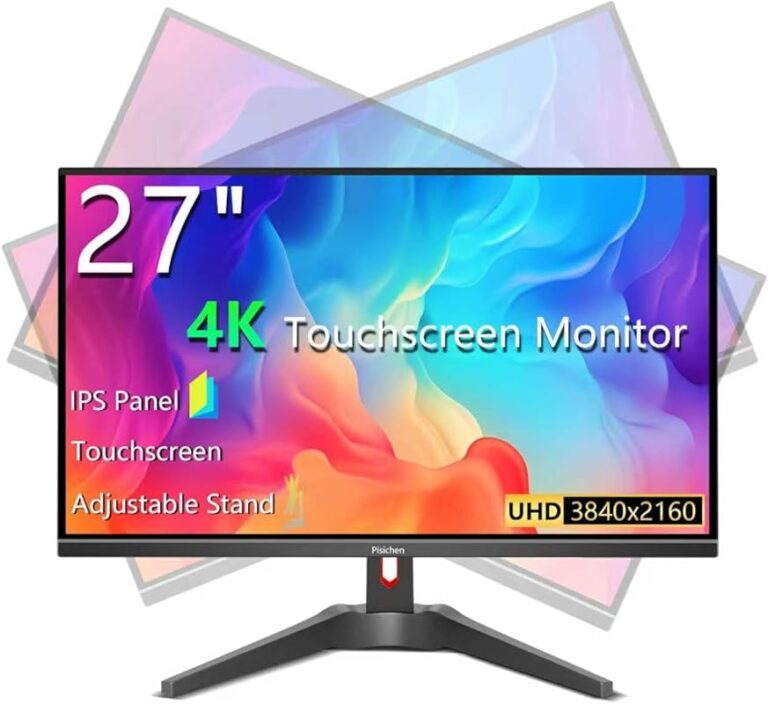
Top 10 Best Monitors For MacBook Pro Worth Your Money
Upgrading your MacBook Pro’s workspace with an external monitor is one of the best ways to boost productivity and immersion. The right display can transform your laptop into a powerful desktop replacement, offering more screen real estate, sharper visuals, and better ergonomics. But with so many options, choosing the best monitor for MacBook Pro that balances performance, connectivity, and value is key. We’ve tested and reviewed dozens to bring you this curated list of the top 10 monitors, from ultra-portable companions to stunning 4K and ultrawide powerhouses, all optimized for seamless integration with your Apple ecosystem.
Quick Product Comparison
Our Top 10 Best Monitors For Macbook Pro Reviews – Expert Tested & Recommended
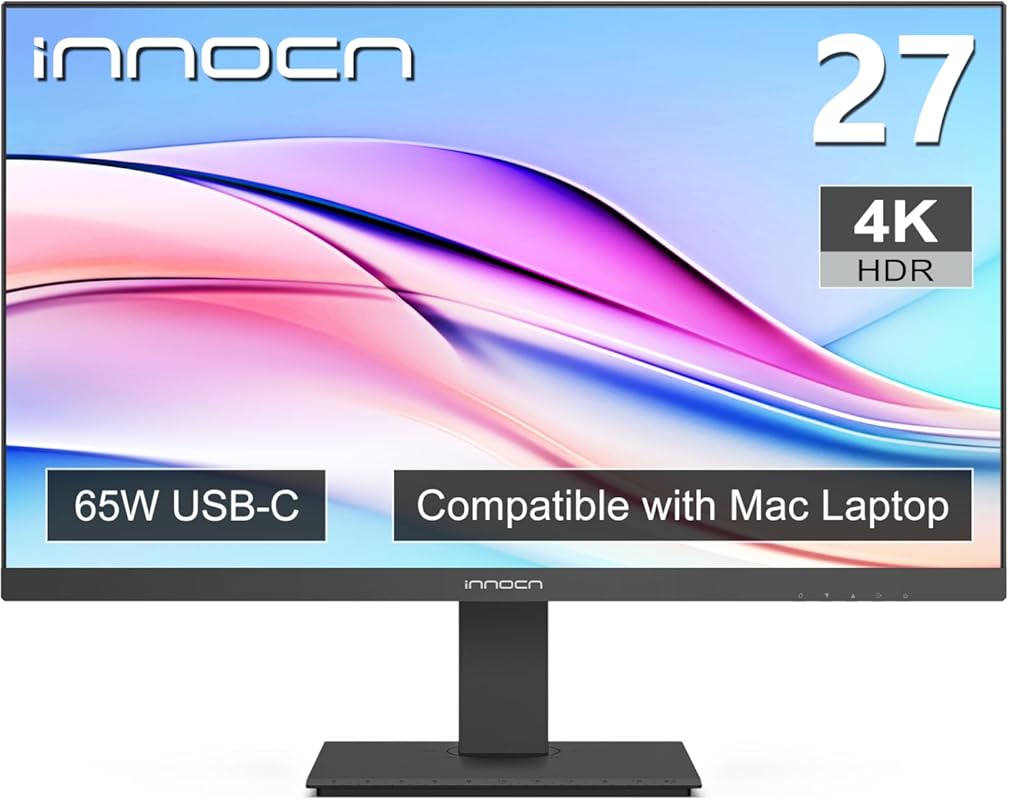
1. INNOCN 27″ 4K USB-C Monitor
This monitor is a fantastic all-rounder for MacBook Pro users seeking stunning 4K clarity without the premium price tag of Apple’s own display. The 27-inch screen hits the perfect size for a clutter-free desk, and the USB-C port delivers both video and 60W of power—enough to charge your MacBook while you work. Colors are vibrant and accurate out of the box, making it a great choice for both creative work and general productivity.
Key Features That Stand Out
- ✓ True 4K UHD (3840×2160) resolution for razor-sharp text and detailed images
- ✓ USB-C with 60W Power Delivery simplifies your setup with a single cable
- ✓ HDR400 certification and Delta E < 2 calibration for excellent color accuracy
- ✓ Fully adjustable stand with tilt, height, swivel, and pivot
- ✓ Built-in speakers and multiple ports (HDMI, DisplayPort, USB hub)
Why We Recommend It
It offers an incredible balance of professional-grade color accuracy, convenient USB-C connectivity, and an ergonomic stand at a price that significantly undercuts many 4K competitors. For MacBook Pro users, the single-cable solution is a game-changer for desk organization.
Best For
MacBook Pro owners who want a large, sharp 4K screen for photo editing, coding, or general use and value a clean, cable-minimalist workspace.
Pros and Cons
Pros:
- Outstanding value for a 4K monitor with USB-C PD
- Excellent factory color calibration out of the box
- Very flexible and sturdy ergonomic stand
- Includes useful extra ports like a USB hub
Cons:
- 60W power delivery may not charge higher-wattage MacBook Pros at full speed under heavy load
- HDR performance is good but not class-leading
- Built-in speakers are basic
Customer Reviews
Customer Review: “I bought this for my M1 MacBook Pro and it’s been perfect. Setup was plug-and-play with USB-C. The colors are beautiful and text is incredibly crisp. The stand is great and I love having all my devices connected through the monitor’s USB hub. For the price, this is a steal.”
Customer Review: “Great monitor for the money. 4K is sharp, colors are accurate for my photo editing. The USB-C power delivery works well. My only gripe is the on-screen menu could be more intuitive, but once set up, you forget about it.”
2. ASUS ProArt PA278CV Monitor
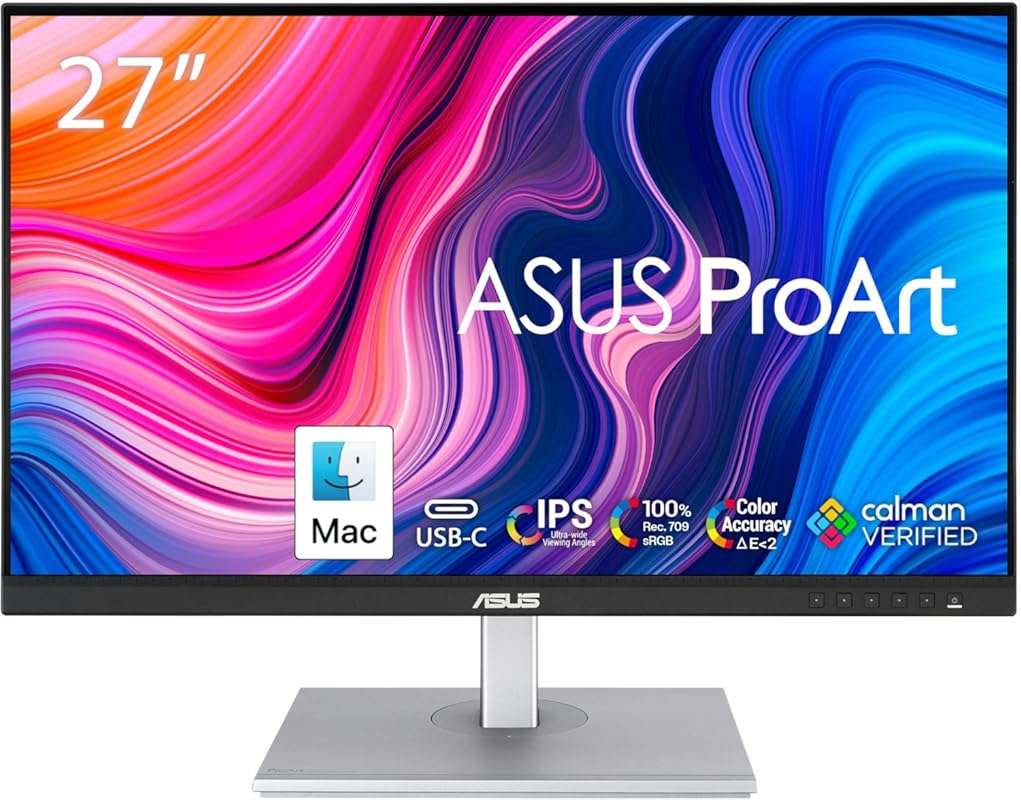
ASUS’s ProArt line is built for creators, and this model is a stellar match for MacBook Pro users who do color-critical work. It boasts factory calibration with Delta E < 2 and covers 100% sRGB/Rec.709, ensuring your photos and videos look true-to-life. The 27-inch WQHD (2560×1440) resolution is a sweet spot for sharpness without the scaling quirks sometimes seen on 4K monitors. The USB-C port provides 65W power delivery, enough for most MacBook Pro models.
Key Features That Stand Out
- ✓ Calman Verified with Delta E < 2 for exceptional color accuracy
- ✓ 100% sRGB/Rec.709 wide color gamut coverage
- ✓ USB-C with 65W Power Delivery and daisy-chaining support
- ✓ Ergonomic stand with height, tilt, swivel, and pivot adjustments
- ✓ ASUS Eye Care technology with flicker-free backlight and blue light filter
Why We Recommend It
For photographers, videographers, and designers, color fidelity is non-negotiable. This monitor delivers professional-grade accuracy right out of the box, trusted by creators. The 65W USB-C charging is robust, and the daisy-chaining feature is brilliant for multi-monitor setups, letting you connect multiple monitors from a single USB-C port on your MacBook Pro.
Best For
Creative professionals and serious hobbyists who need accurate color for photo/video editing and want a reliable, fully adjustable monitor that powers their MacBook Pro via USB-C.
Pros and Cons
Pros:
- Exceptional, verified color accuracy out of the box
- Excellent 65W USB-C power delivery
- USB-C daisy-chaining simplifies multi-monitor setups
- Very sturdy and versatile ergonomic stand
Cons:
- No built-in speakers (common for pro monitors)
- WQHD resolution, while sharp, isn’t 4K
- On-screen menu can be slightly clunky to navigate
Customer Reviews
Customer Review: “We are so very pleased with this product that we purchased 2 of them! We have a 2019 MacBook Pro and a 2020 MacBook Air and this monitor provides greater picture quality at a very affordable price. The ASUS product looks great, has USB-C so we can now power and communicate with our Macs using a single cord, the sharpness and brightness of the picture is amazing, and the numerous features are incredible.”
Customer Review: “Seems like an excellent monitor. While setting up the base… When connecting the monitor to your pc with any cable other rather than HDMI, the image will not appear on screen. You’ll need to go into the monitor buttons on the front right bottom of the unit and change the input to your cable type. The default input is HDMI.”
3. MNN 15.6″ Portable Monitor
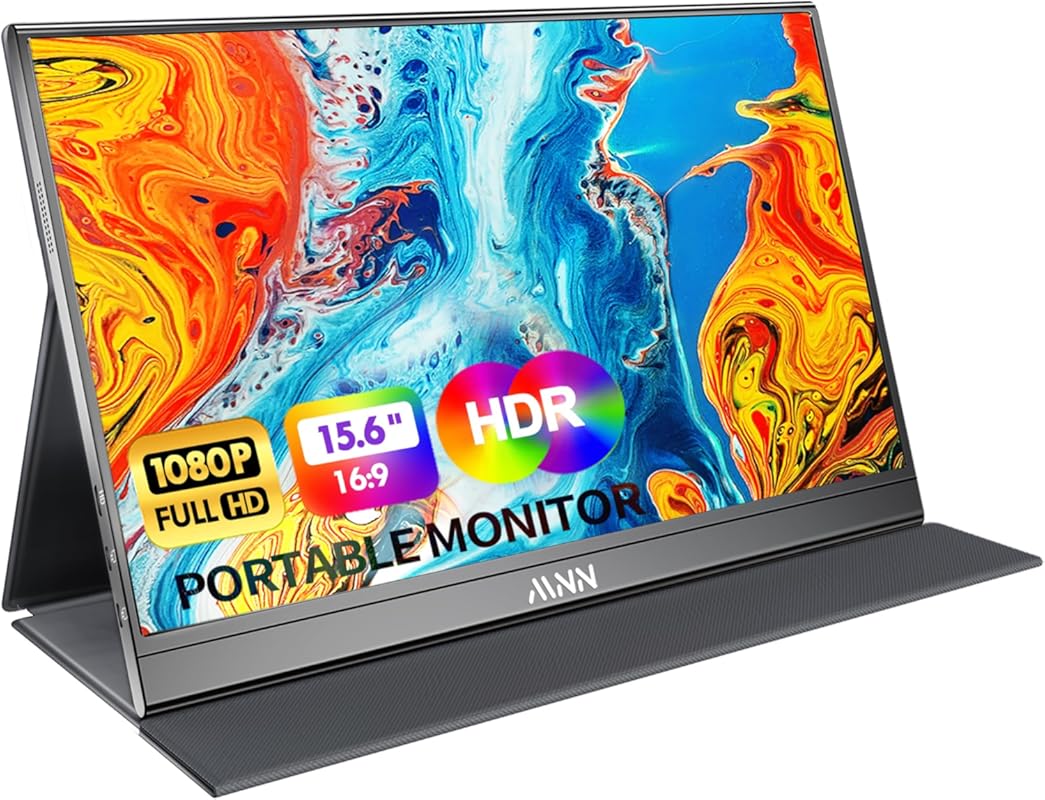
Don’t let the low price fool you—this portable monitor is a lifesaver for the mobile MacBook Pro user. At 15.6 inches, it’s the perfect companion screen to pair with your laptop’s display, whether you’re working from a coffee shop or need a second screen at home. It connects via a single USB-C cable for both power and video (or HDMI), and the included smart cover doubles as a stand. It’s incredibly lightweight and slim, making it truly portable.
Key Features That Stand Out
- ✓ Ultra-slim and lightweight design for maximum portability
- ✓ Dual USB-C ports and HDMI for flexible connectivity
- ✓ Plug-and-play—no drivers or apps needed
- ✓ IPS FHD (1920×1080) screen with good viewing angles
- ✓ Built-in speakers and protective smart cover/stand included
Why We Recommend It
It solves the single-screen problem for MacBook Pro users on a tight budget or who travel frequently. The simplicity of a single USB-C connection is fantastic, and the image quality is surprisingly good for the price. It’s the most affordable way to instantly gain a dual-screen workflow.
Best For
Students, remote workers, or anyone with a MacBook Pro who wants a simple, cheap, and incredibly portable second screen for on-the-go productivity or a temporary home office setup.
Pros and Cons
Pros:
- Extremely affordable entry point for a second monitor
- Highly portable and easy to set up anywhere
- Single USB-C cable provides power and video
- Comes with a useful protective case/stand
Cons:
- FHD resolution isn’t as sharp as 4K or QHD for text
- Build quality is basic (plastic casing)
- Brightness and color gamut are average
- Stand options are limited to the included cover
Customer Reviews
Customer Review: “The MNN 15.6” FHD portable monitor worked great as a second display for the HDMI method. Setup was simple and connected without any issues. The 1080P resolution looks sharp, and you can easily adjust the brightness to fit your environment. It even comes with built-in speakers, which is a nice bonus.”
Customer Review: “I was losing my mind trying to work from home off a single laptop screen… A co-worker suggested I take a look at this style of screen. I used the USB-C as it also acts as a power cord to power the display. It took two seconds to hook up… The image quality is more than sufficient for work… For the price this thing is absolutely clutch.”
4. LG Ultrafine 27US500-W Ultrafine Monitor
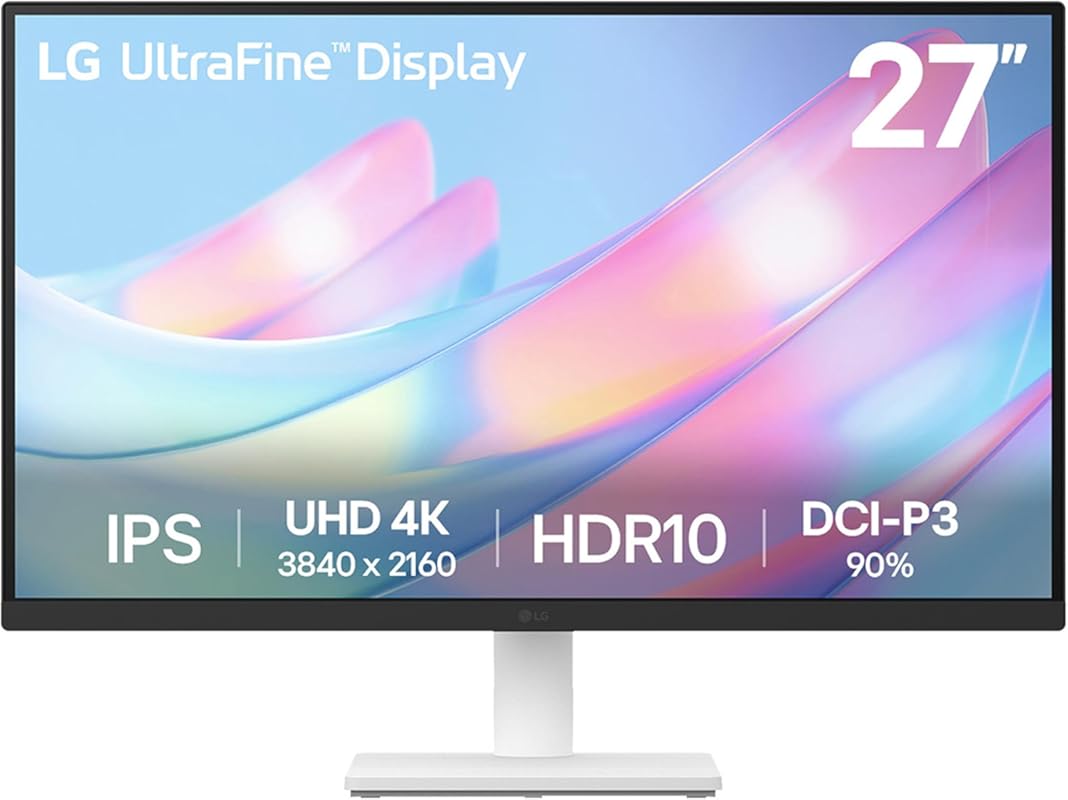
LG’s Ultrafine line is a known quantity in the Mac ecosystem, and this model is a more affordable entry into that world. It offers a clean, minimalist design with thin bezels that looks great next to a MacBook Pro. The 4K resolution is crisp, and it supports HDR10 and covers up to 90% DCI-P3 for rich, vibrant colors. It’s a solid, reliable workhorse for everyday productivity and media consumption.
Key Features That Stand Out
- ✓ 27-inch 4K UHD (3840×2160) with IPS panel
- ✓ HDR10 support and up to 90% DCI-P3 color gamut
- ✓ Borderless design for a sleek, modern look
- ✓ Reader Mode and Flicker Safe technology for eye comfort
- ✓ OnScreen Control software for easy display adjustment
Why We Recommend It
It provides that “Apple-like” aesthetic and solid 4K performance at a more accessible price point than the Studio Display. The color performance is very good for general creative work and watching HDR content. LG’s reputation for reliability with Macs is a big plus.
Best For
MacBook Pro users who want a recognizable, well-built 4K monitor with good HDR and color performance for general creative work, browsing, and entertainment, and appreciate a minimalist design.
Pros and Cons
Pros:
- Clean, minimalist design that complements Apple products
- Very good 4K resolution and color out of the box
- HDR10 support adds depth to compatible content
- Generally reliable plug-and-play experience with macOS
Cons:
- Stand only offers tilt adjustment; height/pivot require a VESA mount
- USB-C power delivery is only 60W (may not charge all MBP models at full speed)
- HDR implementation is entry-level compared to premium models
- No built-in speakers
Customer Reviews
Customer Review: “I’ve been using the LG 27US500-W Ultrafine Monitor for a few weeks now, and it’s been fantastic. The 4K UHD resolution is incredibly sharp—text looks crisp, and colors are vibrant without being oversaturated… The 27-inch screen size is the sweet spot for productivity… The IPS panel gives great viewing angles too… Build quality is solid and minimalistic… Connectivity is straightforward with HDMI and DisplayPort options, and it works flawlessly with both my MacBook and PC.”
Customer Review: “I didn’t rate this for gaming because I don’t have a video card to drive a 4K monitor at a good speed yet, but for everything else, it looks brilliant for the money… 4K crystal clear beautiful brilliance does pretty much work right out of the box, and at this price, even just that is worth having.”
5. Dell S2725DC 27 Plus Monitor
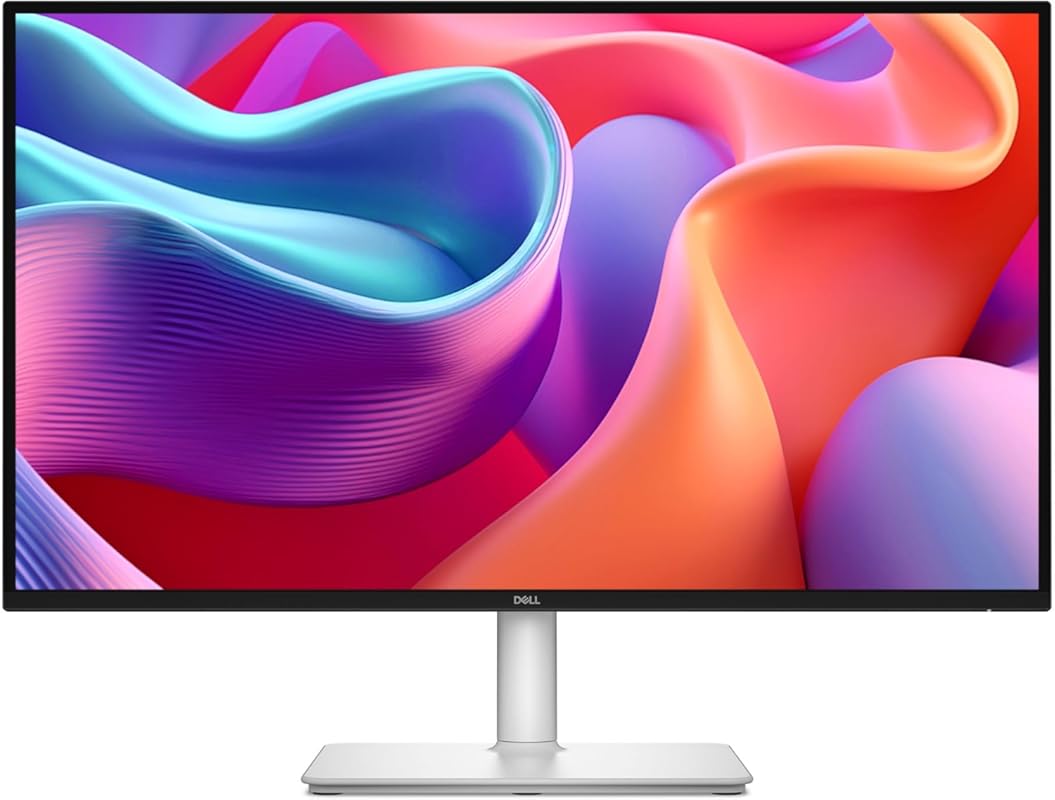
Don’t be fooled by the “gaming” label—this Dell is a fantastic all-purpose monitor that happens to have a high refresh rate. The 27-inch QHD (2560×1440) resolution is perfect for a MacBook Pro, offering sharp text and plenty of screen space without the scaling issues of 4K. The 144Hz refresh rate and AMD FreeSync make motion buttery smooth, which is a huge perk for casual gaming, scrolling, and video. The USB-C port provides 65W power delivery.
Key Features That Stand Out
- ✓ QHD (2560×1440) resolution at a 27-inch size for perfect pixel density
- ✓ 144Hz refresh rate with 1ms MPRT response time for ultra-smooth motion
- ✓ USB-C with 65W Power Delivery
- ✓ TÜV-certified eye comfort with low blue light
- ✓ Fully ergonomic stand (height, tilt, swivel, pivot) with built-in speakers
Why We Recommend It
It’s the ultimate “do-it-all” monitor for a MacBook Pro user who wants great everyday performance with the bonus of a fantastic gaming and video experience. The smooth 144Hz refresh rate makes everything from moving windows to browsing feel incredibly responsive. The robust stand and solid connectivity make it a hassle-free, high-value package.
Best For
MacBook Pro users who want a versatile monitor for work, creative tasks, and casual gaming, and appreciate a buttery-smooth high refresh rate for a more responsive feel.
Pros and Cons
Pros:
- Incredibly smooth 144Hz refresh rate enhances all uses
- Excellent QHD resolution for sharp text and images
- Strong 65W USB-C power delivery
- Very good, fully adjustable stand
- Great value for the feature set
Cons:
- VA panel can have slightly slower pixel response than IPS (though 1ms MPRT helps)
- Color gamut is standard sRGB, not wide-gamut for pro color work
- On-screen control joystick can be finicky
- Height adjustment range could be better
Customer Reviews
Customer Review: “I do not game, I do not care about refresh rate, I care about reasonably accurate colors, view angle, and 2D performance for office productivity. For that purpose – it’s great… QHD is the way to go – 4K irritates most people on shared screen meetings… Connected directly to a laptop at native resolution, it’s sharp, and perfect.”
Customer Review: “Excellent monitor at a good price. ChatGPT recommended it in the price range I wanted to spent and I feel like it was spot on.”
6. SAMSUNG LS34A654UBNXGO Viewfinity Monitor
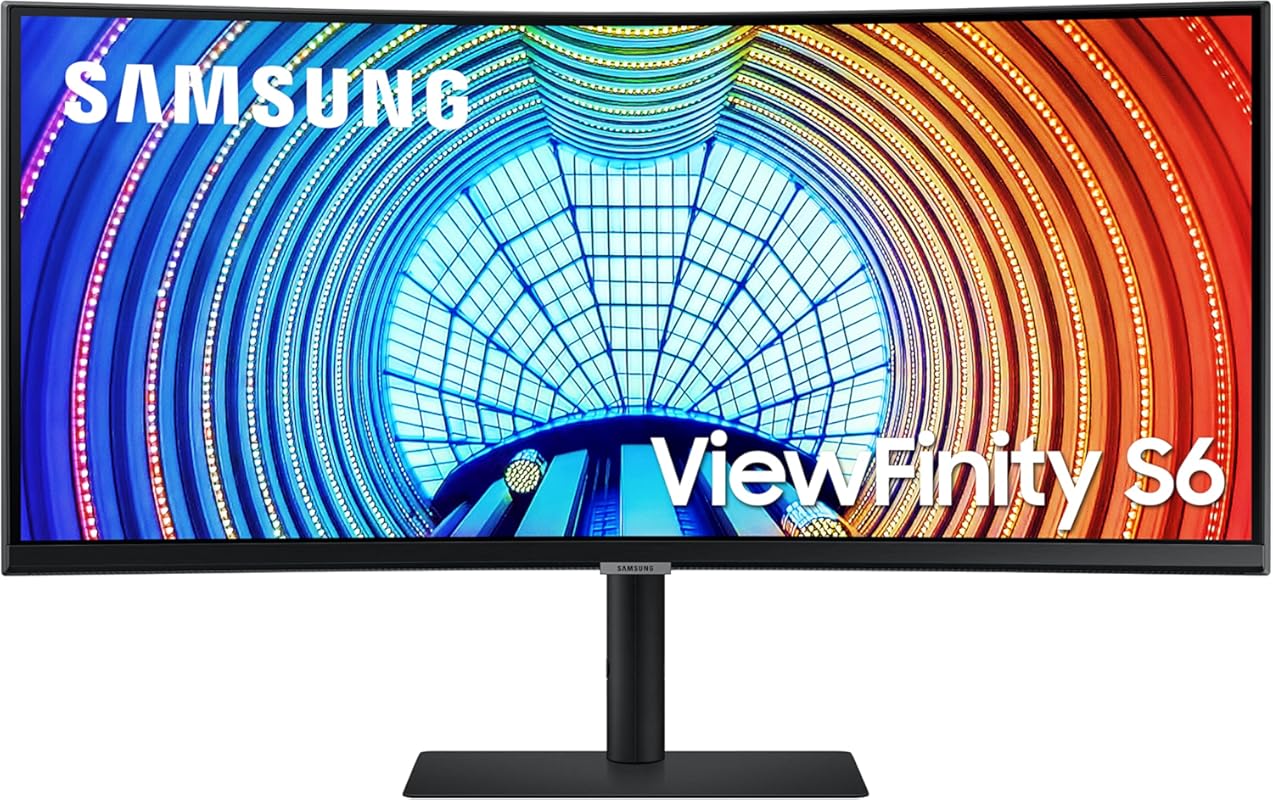
If you’re ready to embrace the ultrawide life, this Samsung curved monitor is a spectacular partner for your MacBook Pro. The 34-inch 21:9 panel gives you the equivalent of two 27-inch monitors side-by-side without a bezel in the middle, perfect for massive spreadsheets, code windows, or immersive video editing. The subtle 1000R curvature pulls you into the content and reduces eye movement. The USB-C port provides 90W power delivery, more than enough for any MacBook Pro.
Key Features That Stand Out
- ✓ 34-inch Ultrawide (3440×1440) with immersive 1000R curvature
- ✓ 90W USB-C Power Delivery—plenty for any MacBook Pro
- ✓ HDR10 and 1 billion colors for vibrant visuals
- ✓ Height-adjustable stand with TÜV Eye Care certification
- ✓ Picture-by-Picture (PBP) support for connecting multiple sources
Why We Recommend It
It creates a truly immersive, bezel-free multi-window experience that two separate monitors can’t match. The high power delivery over USB-C means you can power your MacBook Pro and drive this large display from one cable. Samsung’s panel quality is excellent, offering good contrast and vibrant colors that make work and play more engaging.
Best For
Power users, programmers, video editors, and finance professionals who live in multiple windows and want a seamless, panoramic view without the hassle of a multi-monitor stand setup.
Pros and Cons
Pros:
- Incredibly immersive curved ultrawide experience
- Excellent 90W USB-C power delivery
- Superb screen real estate for multitasking
- High color volume with HDR10 support
- Clean, modern design with a good stand
Cons:
- Ultrawide isn’t for everyone—some software doesn’t scale well
- Curved design can take some getting used to for precise design work
- Requires more desk space than a standard 27-inch monitor
- Higher power consumption than smaller monitors
Customer Reviews
Customer Review: “I used to have 2 regular monitors side by side, and they got the job done but my desk always felt crowded. I finally upgraded to this 34″ Samsung curved monitor, and I’m blown away. The wide screen gives me plenty of space to work, and everything looks super clear and colorful. The curved design makes it feel like the screen wraps around me… I also love that I only need one cable to connect everything now so my setup looks clean and simple.”
Customer Review: “I like, great quality and colors, the USBC take away the need of USB dock adding USB ports and Ethernet connection.”
7. InnoView 15.6″ Portable Monitor
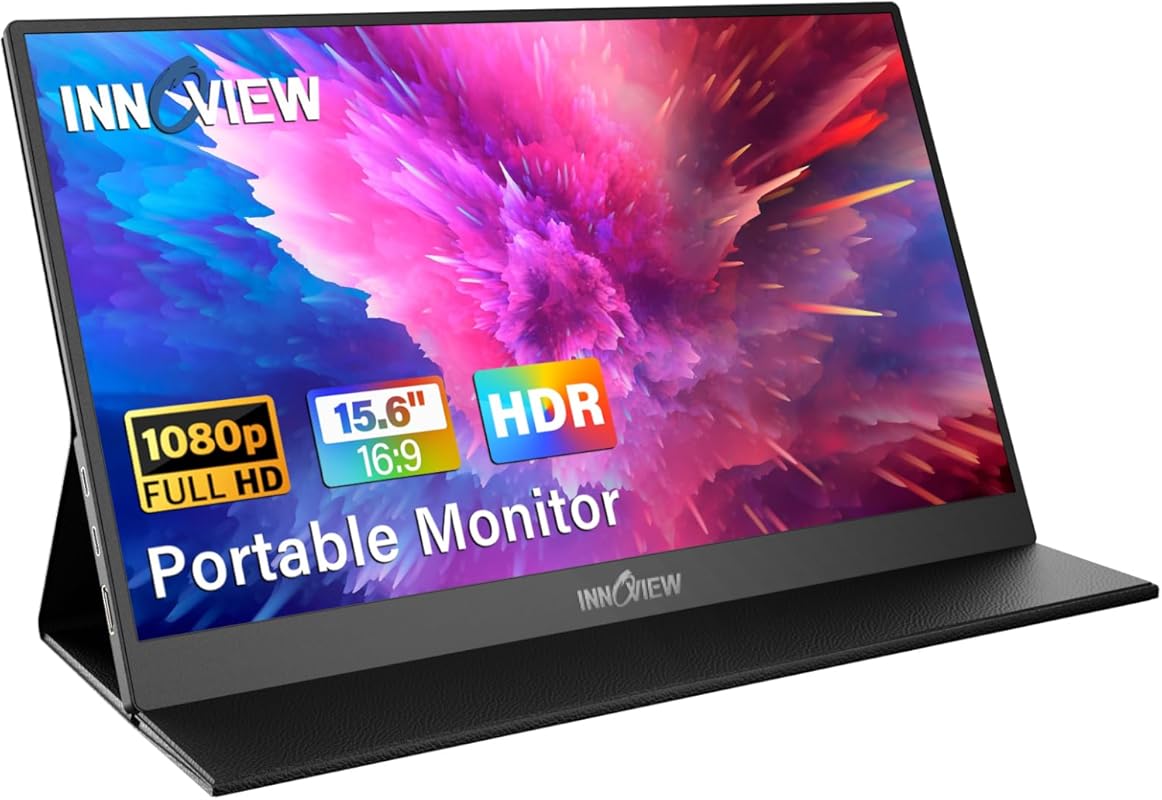
Another excellent portable option, the InnoView competes directly with the MNN model and offers a very similar package. It’s a 15.6-inch FHD IPS screen that’s feather-light and connects with a single USB-C cable for both power and video. The build is solid for the price, and it comes with a protective case that acts as a stand. It’s a no-fuss way to add a second screen to your MacBook Pro anywhere you go.
Key Features That Stand Out
- ✓ Ultra-slim, lightweight design for travel
- ✓ Dual USB-C ports and HDMI for universal compatibility
- ✓ Plug-and-play—no drivers required
- ✓ IPS FHD display with good viewing angles
- ✓ Protective smart case included that functions as a stand
Why We Recommend It
It’s a highly reliable and well-reviewed portable monitor that does exactly what it promises. The image quality is more than adequate for office work and media, and the single-cable USB-C connection is incredibly convenient. It’s a fantastic, budget-friendly alternative to the MNN, with slightly different case/stand mechanics.
Best For
MacBook Pro users who need a highly portable second screen for travel, co-working spaces, or a flexible home office and want a simple, cable-free setup.
Pros and Cons
Pros:
- Very affordable and portable
- Simple USB-C single-cable connection
- Comes with a useful protective/stand case
- Good plug-and-play compatibility with MacBooks
Cons:
- FHD resolution, so text isn’t as crisp as on higher-res monitors
- Brightness and color depth are average
- Build is plastic and feels less premium
- Limited stand angle adjustment from the case
Customer Reviews
Customer Review: “At first I wasn’t sure how it would be given the size of monitors I am accustomed to in the office. However, this is the perfect second monitor while traveling. Compact and light. Very clear screen and easy adjustment settings on the side. The only this I would have done differently is to purchase the touch screen model.”
Customer Review: “I’m honestly impressed with this. I don’t know what I was thinking would be bad about it, but for the price point I was expecting to be dissatisfied with some aspect of this monitor. Nope!… Color, refresh, etc is all perfectly fine by my standards… Overall I’m pretty stoked I found a solution to my desk space issue.”
8. SAMSUNG LS34C502GANXZA ViewFinity Monitor
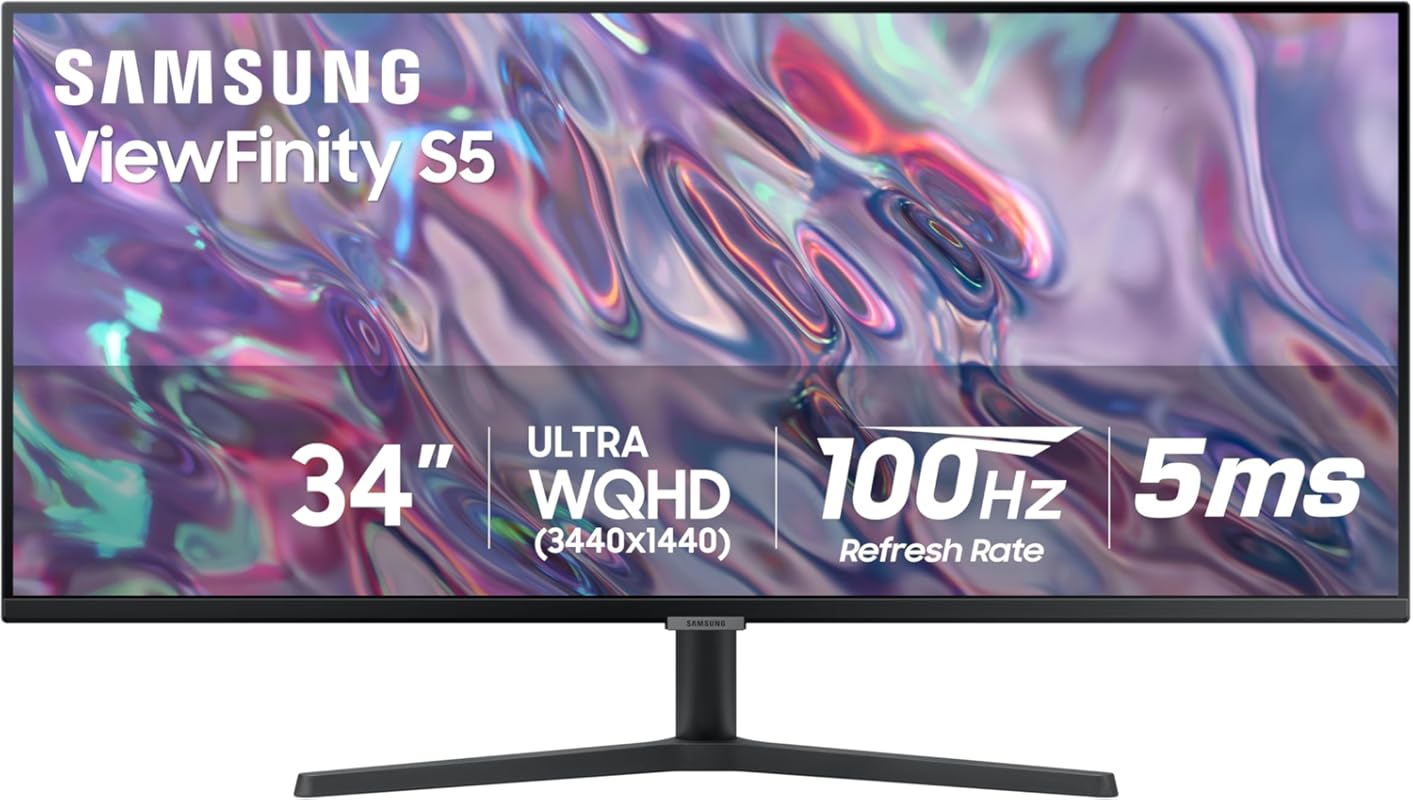
This is Samsung’s take on a more affordable, flat-panel ultrawide. Unlike the curved Viewfinity above, this one is flat, which some users prefer for precise design work or if you simply don’t like the curve. It still offers the massive 34-inch Ultra-WQHD (3440×1440) screen real estate, along with HDR10 and a 100Hz refresh rate. It’s an outstanding value for the screen size and features, making ultrawide accessible to almost anyone.
Key Features That Stand Out
- ✓ 34-inch Flat Ultra-WQHD (3440×1440) for massive workspace
- ✓ HDR10 with over 1 billion colors for vivid imagery
- ✓ 100Hz refresh rate for smoother motion
- ✓ Picture-in-Picture (PIP) / Picture-by-Picture (PBP) for multiple inputs
- ✓ Ambient light sensor for automatic brightness adjustment
Why We Recommend It
It brings the ultrawide experience to a mass-market price without sacrificing too much in terms of core performance. The flat screen is a pro for certain professional tasks, and the 100Hz refresh rate is a nice bonus over standard 60Hz. For a MacBook Pro user wanting to replace a dual-monitor setup, this is a cost-effective and high-impact upgrade.
Best For
Budget-conscious MacBook Pro users who want the productivity boost of an ultrawide but prefer a flat screen for design work or simply don’t want a curve. Great for multitaskers on a budget.
Pros and Cons
Pros:
- Incredible value for a 34-inch Ultra-WQHD monitor
- Flat screen ideal for design work and those who dislike curves
- 100Hz refresh rate provides smooth motion
- Excellent PIP/PBP features for multi-computer users
- Auto-brightness sensor is a thoughtful touch
Cons:
- VA panel has narrower viewing angles than IPS (some color shift at extreme angles)
- Stand is basic and not very height-adjustable
- No USB-C port (requires separate power for MacBook)
- HDR performance is entry-level
Customer Reviews
Customer Review: “Great monitor. Two HDMI input and one Display Port input, plus 3.5mm audio output sourced from these input options. Both pbp and pip features work fantastic. Adjusting different size and location windows in pip helps get the perfect layout. My monitor has no flaws, and is perfectly clear. Unbelievable value for under $200, with quality Samsung branding and support.”
Customer Review: “I bought this to replace an aging WQHD/IPS monitor… It’s one of the few high-quality, ultra-wide monitors available… Have to say that I’m very pleased. The clarity of this monitor is as good or better than the IPS monitor had been… Just a couple things to note… I’m not a fan of the multiple clicks required on the control toggle to switch sources.”
9. ASUS PA278QV ProArt Display Monitor
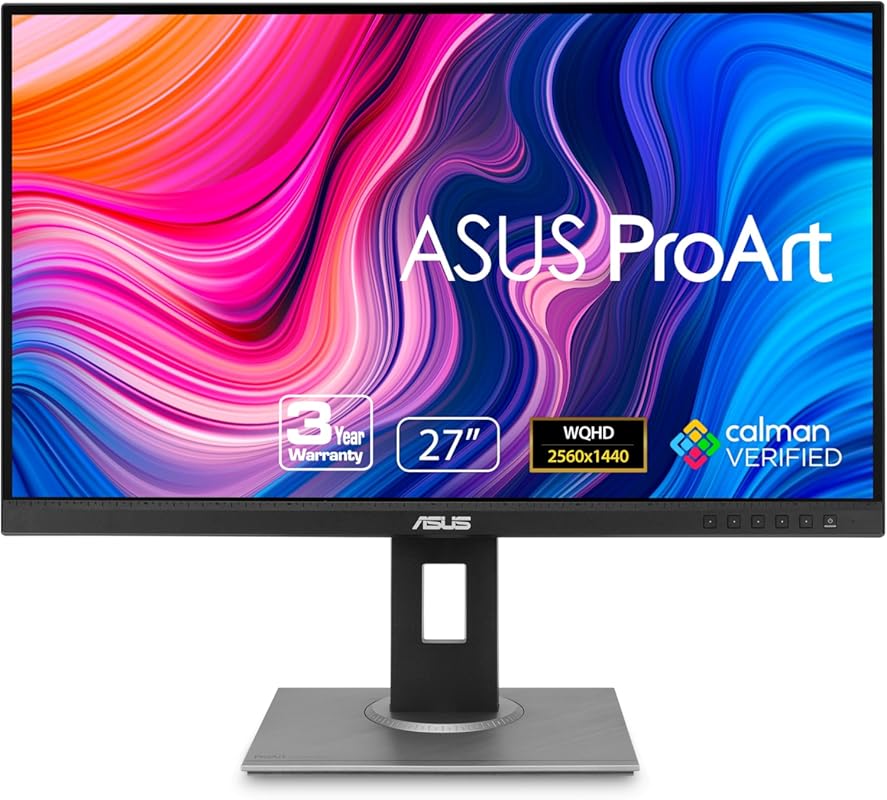
This is the slightly older, non-USB-C sibling to the PA278CV we ranked higher. It’s a fantastic monitor that shares the same excellent 27-inch WQHD IPS panel with 100% sRGB/Rec.709 coverage and Delta E < 2 factory calibration. The main difference is connectivity—it uses standard DisplayPort and HDMI, and lacks USB-C power delivery. If your MacBook Pro is always on a dock or you don’t need single-cable power, this is a superb value for the color accuracy.
Key Features That Stand Out
- ✓ Calman Verified with Delta E < 2 color accuracy
- ✓ 100% sRGB/Rec.709 wide color gamut
- ✓ 27-inch WQHD (2560×1440) IPS panel with frameless design
- ✓ Ergonomic stand with full tilt, height, swivel, and pivot adjustments
- ✓ ASUS Eye Care+ technology with low blue light and flicker-free backlight
Why We Recommend It
It represents the best value in the ProArt lineup for users who don’t require USB-C power delivery. The color accuracy is identical to the more expensive models, and the ergonomic stand is fantastic. You’re getting 95% of the ProArt experience for less money if you can live without the USB-C convenience.
Best For
Budget-conscious creative professionals using a MacBook Pro who are already using a separate dock or power adapter and prioritize color accuracy above all else.
Pros and Cons
Pros:
- Exceptional color accuracy (Delta E < 2) and 100% sRGB
- Excellent, fully adjustable ergonomic stand
- Frameless design looks modern
- Significantly cheaper than the USB-C version
- Very reliable and well-built
Cons:
- No USB-C port (requires separate power for laptop)
- No built-in speakers
- Slightly older model than the PA278CV
- On-screen menu can be slow
Customer Reviews
Customer Review: “I liked the older, smaller TN computer monitors… This one is excellent, exactly what I was looking for. It’s still bright enough to be used as a TV if that’s what you want, but with the brightness turned down it works as a real computer monitor with excellent color and good contrast… The stand is impressive, very simple to put together, very easy to adjust but also very stable.”
Customer Review: “A review from over a year of owning this: I got this to do art and occasionally play games. Refresh rate is great… Color is excellent… I have no dead pixels and I’ve been using it for over a year with no issue… The only major downside of this is that the speakers are really poor quality.”
10. Dell S3425DW 34 Plus Monitor
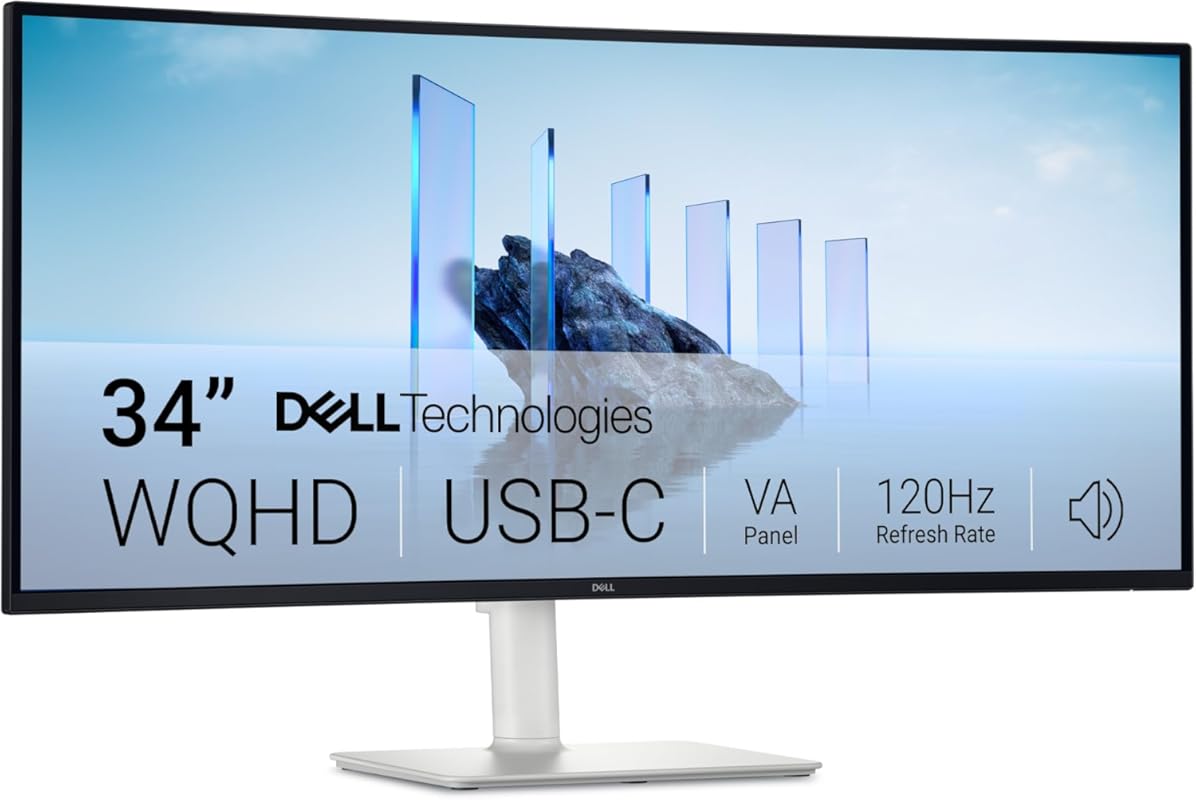
Rounding out our list is another excellent curved ultrawide, this time from Dell. It shares the 34-inch 3440×1440 resolution with the Samsung models but focuses on a slightly different feature set. It has a 120Hz refresh rate with AMD FreeSync Premium for tear-free gaming, and the USB-C port provides 15W power delivery (enough for some MacBooks but not all). Its standout feature is the 99% sRGB and 95% DCI-P3 color coverage, offering great color for a VA panel.
Key Features That Stand Out
- ✓ 34-inch Curved Ultrawide (3440×1440) for immersive workspace
- ✓ 120Hz refresh rate with AMD FreeSync Premium
- ✓ 99% sRGB and 95% DCI-P3 color coverage for vibrant colors
- ✓ USB-C connectivity (15W power delivery)
- ✓ Improved ComfortView Plus to reduce harmful blue light
Why We Recommend It
It’s a compelling alternative to the Samsung options, offering a higher refresh rate for gamers and very good color coverage for a VA panel. The Dell build quality and customer support are also top-notch. It’s a great choice if you want an ultrawide that’s equally capable for work and play.
Best For
MacBook Pro users who want a curved ultrawide for both productivity and casual gaming, and value high color coverage and a smooth 120Hz experience.
Pros and Cons
Pros:
- Smooth 120Hz refresh rate with FreeSync Premium
- Excellent color coverage for a VA panel (99% sRGB, 95% DCI-P3)
- Immersive curved ultrawide experience
- USB-C connectivity for video (note lower power delivery)
- Dell’s reliable build quality and warranty
Cons:
- Only 15W USB-C power delivery (insufficient for most MacBook Pros)
- VA panel has slower response times than IPS and can have black smearing
- Viewing angles narrower than IPS (color shift at extreme angles)
- Requires a separate power brick for your MacBook
Customer Reviews
Customer Review: “Very happy with the color and text display quality of this VA panel and no fear of burn-in as this is not an OLED. But still deeper blacks than IPS Black Panels… Excellent value for $ with the USB-C connection to laptop for a clutter-free desktop. Very happy with this purchase!”
Customer Review: “Love this monitor! Great picture! I use it for astrophotography and editing pictures. Works great with my MacBook and it’s large enough to run 2 windows at the same time.”
Complete Buying Guide for Best Monitors For Macbook Pro
Essential Factors We Consider
When choosing a monitor for your MacBook Pro, several key factors make all the difference. Connectivity is paramount—look for a USB-C port with Power Delivery (PD). This single cable carries video, data, and power to your laptop, eliminating clutter. Ensure the PD wattage meets your MacBook Pro’s needs (14-inch models need at least 96W for full-speed charging, 16-inch models need 140W). Resolution and size are next. A 27-inch monitor is the sweet spot: 4K (3840×2160) offers incredible sharpness but may require scaling; QHD/WQHD (2560×1440) is often sharper at native resolution. For ultrawides, 34-inch 3440×1440 is the standard. Color accuracy matters for creatives—look for 100% sRGB/Rec.709 coverage and Delta E < 2 ratings. Finally, ergonomics: a stand with height, tilt, swivel, and pivot adjustment is crucial for comfort.
Budget Planning
You can find a great MacBook Pro companion at any budget. Under $300, focus on portable FHD monitors or basic 27-inch QHD panels. The $300-$600 range is where you’ll find the best value: excellent 27-inch 4K monitors with USB-C, high-quality QHD prosumer displays, and entry-level ultrawides. From $600-$1000, expect superior color accuracy, better build quality, higher refresh rates, and more powerful USB-C charging. Over $1000 enters the premium realm of Apple Studio Display competitors, with exceptional brightness, speakers, and webcams. Decide what features are non-negotiable for your workflow and allocate your budget accordingly.
Final Thoughts
The “best” monitor for your MacBook Pro is the one that seamlessly integrates into your specific workflow. For most users, a 27-inch 4K or QHD monitor with a capable USB-C port is the ideal starting point. If you live in multiple windows, an ultrawide is transformative. If you’re always on the move, a portable monitor is a lifesaver. Prioritize reliable USB-C power delivery, a resolution that suits your sight, and a stand that lets you work comfortably. Our top picks, especially the INNOCN and ASUS ProArt, offer outstanding performance and value that perfectly complements the power of your MacBook Pro.
Frequently Asked Questions
Q: Do I need a 4K monitor for my MacBook Pro?
A: Not necessarily. A 27-inch QHD (2560×1440) monitor often provides the best balance of sharpness and usability without scaling issues. 4K is fantastic for detail work and media, but macOS scaling can sometimes feel less crisp than native QHD. Consider your primary use case and eyesight.
Q: How many watts of USB-C Power Delivery do I need?
A: Check your MacBook Pro’s power adapter rating. The 14-inch model uses a 96W or 70W adapter, while the 16-inch uses a 140W adapter. For seamless charging while using performance-intensive apps, aim for a monitor with at least 85W-90W PD. 60W is fine for light tasks and topping up the battery, but it may discharge slowly under heavy load.
Q: Can I use any monitor with my MacBook Pro?
A: Yes, virtually any monitor with HDMI, DisplayPort, or USB-C input will work. You may need an adapter (like USB-C to HDMI or DisplayPort) for older monitors. For the best single-cable experience, prioritize monitors with USB-C input that supports video and power delivery.
Q: What’s the difference between an IPS and VA panel?
A: IPS panels offer superior color accuracy, wider viewing angles, and faster response times for their class. They are the standard for professional work. VA panels typically have much higher contrast ratios (deeper blacks) and are common in curved ultrawides and budget gaming monitors, but they can have slower response times (leading to smearing) and narrower viewing angles.
Q: Should I get a curved or flat monitor?
A: This is personal preference. Curved monitors (especially ultrawides) create a more immersive, panoramic experience and can reduce eye movement. Flat monitors are often preferred for precise design work, as lines remain straight without distortion, and for tasks requiring multiple windows at extreme edges. Try to see one in person if possible.
Upgrading your MacBook Pro’s workspace is one of the most impactful productivity upgrades you can make. Whether you need the pixel-perfect accuracy of the ASUS ProArt, the immersive real estate of a Samsung ultrawide, or the ultimate flexibility of a portable monitor, there’s a perfect match on this list for your needs and budget. Don’t struggle with a single, cramped laptop screen any longer. Click the “Check Price on Amazon” buttons above to see the latest deals and availability for each monitor and transform your setup today.