Best Ram Ssd Home Office Setup Guide For Remote Work
Building the best RAM SSD home office setup means choosing the right memory and storage combo for your daily work tasks. A solid configuration with fast SSD storage and enough RAM keeps your computer running smoothly while you work from home. Whether you are on a tight budget or building a premium workstation, this guide covers everything you need to pick the perfect components for your remote work setup.
Setting up a home office has become a top priority for millions of workers around the world. The right computer setup can make or break your productivity. At the heart of any great home office computer are two components: RAM and SSD storage. Together, they determine how fast your system responds, how many tasks you can handle at once, and how smoothly your day flows. This guide walks you through everything you need to know about building the best RAM SSD home office setup for remote work.
Whether you are a freelancer managing multiple projects, a remote employee attending video calls all day, or a student juggling coursework, your computer needs to keep up. A slow machine causes frustration and wasted time. But with the right RAM and SSD combination, you get a fast, reliable workstation that handles everyday tasks with ease. Let us dive into what makes a great home office computer setup.
Key Takeaways
- 16GB RAM is the sweet spot for most home office tasks, offering smooth multitasking without overspending.
- An SSD is essential for fast boot times, quick file access, and a responsive work experience.
- 512GB to 1TB storage covers the needs of most remote workers handling documents, photos, and light media.
- Pairing RAM and SSD wisely saves money and boosts overall system performance for daily productivity.
- Budget options exist that deliver excellent performance without breaking the bank.
- Upgrading existing setups is often cheaper than buying a whole new computer.
📑 Table of Contents
- Why RAM and SSD Matter for Your Home Office
- Best RAM and SSD Configurations for Home Office Work
- How to Choose the Right RAM and SSD for Your Budget
- Matching Your Monitor to Your RAM and SSD Setup
- Common Mistakes to Avoid When Building Your Home Office PC
- Quick Tips for Optimizing Your Home Office Computer
- Expert Insights on Home Office Performance
- Conclusion
Why RAM and SSD Matter for Your Home Office
Many people overlook the importance of RAM and SSD when building a work computer. They focus on the processor or the screen size instead. But memory and storage directly affect how your computer feels during daily use. Here is why both components are so important for your home office productivity.
Understanding RAM for Work Tasks
RAM, or random access memory, is your computer’s short-term memory. It holds the data your computer needs right now. When you open a web browser with 20 tabs, run a video call, and edit a document at the same time, RAM handles all of that. More RAM means your computer can juggle more tasks without slowing down.
For most home office workers, 16GB of RAM is the ideal amount. It handles multitasking with ease. You can run your email client, a video conferencing app, a word processor, and several browser tabs without any lag. If you work with heavy spreadsheets, photo editing, or light video work, consider stepping up to 32GB.
8GB of RAM is the minimum for basic tasks like email and web browsing. But it will feel limiting if you multitask often. On the other hand, 64GB is overkill for most office work unless you run specialized software. The goal is to match your RAM to your actual work habits.
The Role of SSD Storage in Speed
An SSD, or solid state drive, replaces the old spinning hard drives. It uses flash memory to store data, which makes it much faster. When you boot your computer, open apps, or search for files, an SSD dramatically reduces wait times.
For a home office setup, an SSD is not optional. It is a must-have. Even the best processor feels slow if it is paired with an old hard drive. An SSD makes your entire system feel snappy and responsive. You will notice the difference the moment you turn on your computer.
SSDs also improve file transfer speeds. If you work with large documents, presentations, or media files, a fast SSD saves you valuable time throughout the day. It also makes your system more reliable because there are no moving parts to break.
Best RAM and SSD Configurations for Home Office Work
Not every setup needs the same amount of RAM or storage. Your ideal configuration depends on the type of work you do. Here is a breakdown of the best setups for different work styles.
Entry-Level Home Office Setup
If your work involves basic tasks like email, web research, and document editing, a modest configuration works well. Look for a system with 8GB of RAM and a 256GB SSD. This setup is affordable and handles light workloads efficiently. It is a great starting point for someone who is just getting started with remote work.
However, if your budget allows, stepping up to 16GB of RAM is a smart move. It future-proofs your system and gives you room to grow. Many laptop with 16GB RAM and 1TB SSD options are available at reasonable prices now. These machines offer excellent value for home office use.
Mid-Range Productivity Setup
For most remote workers, the mid-range configuration hits the sweet spot. This means 16GB of RAM paired with a 512GB or 1TB SSD. It handles multitasking, video calls, and moderate file storage with ease.
This is the configuration you will find in many laptop with 1TB SSD and 16GB RAM models. It strikes the perfect balance between performance and price. You get enough memory for heavy multitasking and enough storage for your work files, documents, and some media.
If you run a small business from home or manage a team, this setup will serve you well. It handles video conferencing, cloud apps, project management tools, and large spreadsheets without breaking a sweat.
Power User and Creative Professional Setup
Workers who handle intensive tasks like video editing, graphic design, or data analysis need more muscle. A configuration with 32GB of RAM and a 1TB or 2TB SSD is ideal. This setup ensures smooth performance even with demanding applications.
Creative professionals also benefit from fast storage for handling large project files. A laptop with i7 16GB RAM 512GB SSD can serve as a solid base, but adding external storage or upgrading to a larger SSD is recommended for heavy workloads.
For those running virtual machines or compiling code, 32GB becomes essential. The extra memory prevents bottlenecks and keeps your system responsive even under heavy load.
How to Choose the Right RAM and SSD for Your Budget
Budget plays a big role in choosing your home office components. The good news is that you do not need to spend a fortune to get a great setup. Here are some tips for making smart choices at different price points.
Setting a Realistic Budget
Before you shop, decide how much you are willing to spend. A solid home office laptop with 16GB RAM and a 512GB SSD typically costs between $600 and $1,000. If you need more storage or faster performance, expect to pay a bit more.
Remember that investing in RAM and SSD pays off in productivity. A faster computer means less time waiting and more time working. Think of it as an investment in your work efficiency, not just a tech purchase.
Where to Save Money Without Sacrificing Performance
One of the best ways to save is by choosing a configuration that matches your actual needs. You do not need 1TB of storage if you store most files in the cloud. Similarly, you do not need 32GB of RAM if you only run a few apps at a time.
Look for deals on refurbished or open-box units. Many laptop deals 16GB RAM 512GB SSD options offer excellent savings without compromising quality. Shopping during sales events like Black Friday or back-to-school season can also help you score better prices.
Upgrading Your Existing Setup
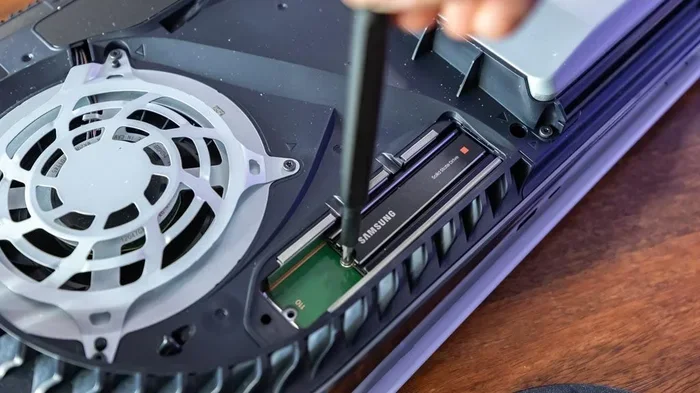
If you already have a computer, you might not need to buy a new one. Many laptops allow you to upgrade RAM or replace the hard drive with an SSD. This is often the most cost-effective way to breathe new life into an older machine.
Check your computer’s specifications before purchasing upgrades. Not all laptops allow RAM or SSD upgrades. Some have soldered memory that cannot be changed. But for models that do support upgrades, adding an SSD or extra RAM stick can transform your performance at a fraction of the cost of a new computer.
Matching Your Monitor to Your RAM and SSD Setup
Your RAM and SSD are critical, but the monitor you use matters too. A great computer setup pairs fast components with a quality display. After all, you will be staring at that screen for hours every day.
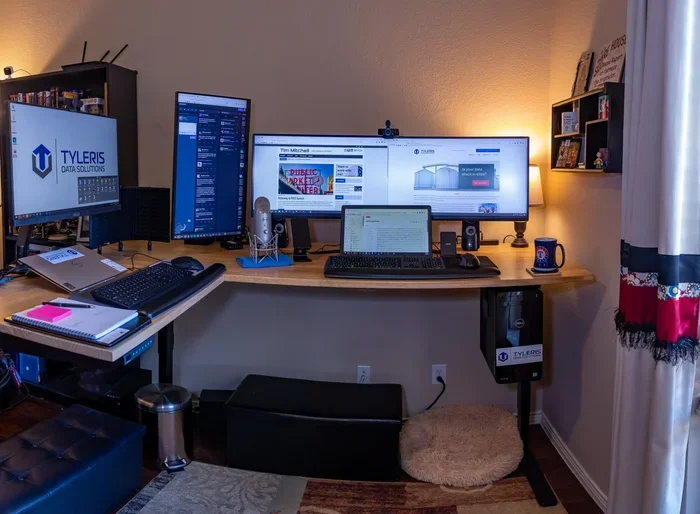
For a complete home office, look for a monitor with at least 1080p resolution and an IPS panel for accurate colors and wide viewing angles. A 24-inch or 27-inch screen size works well for most desk setups. If you need more screen real estate, consider a dual monitor configuration.
When building your full home office, check out our guide on the best computer monitors home office to find displays that complement your fast RAM and SSD setup. For those watching their budget, the best budget monitors for home office list offers great options that pair well with any configuration.
Common Mistakes to Avoid When Building Your Home Office PC
Even with the best intentions, many people make avoidable mistakes when setting up their home office computer. Here are some pitfalls to watch out for.
Skipping the SSD
Some buyers opt for a traditional hard drive to save money. This is a big mistake for a home office setup. A hard drive makes your system feel sluggish and outdated. Even a budget SSD will outperform a traditional drive in every way. The speed difference is noticeable from the first boot.
Underestimating RAM Needs
It is easy to assume 8GB of RAM is enough because it is the minimum for many computers. But modern work involves multitasking across many apps. 8GB will hold you back quickly. Always aim for at least 16GB if your budget allows. The extra cost is small compared to the productivity gains.
Overlooking Storage Speed
Not all SSDs are the same. NVMe SSDs are faster than SATA SSDs. If your computer supports NVMe, choose it for the best performance. The difference in read and write speeds matters when you are copying large files or opening heavy applications.
Buying More Than You Need
It is tempting to max out on specs, but that is not always wise. If you only use your computer for email and document work, 64GB of RAM is unnecessary. Match your purchase to your actual workload. You will save money and still get a great experience.
Quick Tips for Optimizing Your Home Office Computer
Once you have your RAM and SSD set up, a few simple tweaks can squeeze even more performance out of your system. Here are some quick tips that make a real difference.
- Keep your storage at 20% free capacity. SSDs perform best when they have room to manage data efficiently.
- Close unused applications. This frees up RAM for the tasks you are actively working on.
- Enable fast startup in Windows. This combines shutdown and boot processes for quicker startup times.
- Update your drivers regularly. Updated drivers improve compatibility and performance with your SSD.
- Use cloud storage for files you do not access daily. This keeps your local SSD from filling up with rarely used data.
- Restart your computer at least once a week. This clears your RAM and refreshes system processes.
Expert Insights on Home Office Performance
Technology experts consistently recommend focusing on RAM and SSD when building a work computer. These two components deliver the most noticeable improvement in day-to-day usability. A fast SSD and sufficient RAM make everything from booting up to opening large files feel instant.
For remote workers specifically, reliability matters as much as speed. You need a computer that will not crash during an important video call or freeze when you are mid-project. Quality RAM and a dependable SSD provide that stability. They are the unsung heroes of any productive home office.
When choosing components, prioritize brands with good warranties and track records. A reliable SSD from a reputable manufacturer gives you peace of mind. Similarly, well-tested RAM modules ensure stable performance over long work sessions. These small details add up to a much better work experience over time.
Conclusion
Building the best RAM SSD home office setup does not have to be complicated. The key is understanding your work needs and choosing components that match them. For most remote workers, 16GB of RAM and a 512GB or 1TB SSD provides the perfect balance of performance and value. This combination handles multitasking, video calls, and daily productivity tasks with ease.
Whether you are buying a new computer or upgrading an existing one, focus on these two components first. They deliver the biggest impact on your daily workflow. Pair your fast RAM and SSD with a quality monitor from our best computer monitors for home office guide, and you will have a workstation that keeps you productive and comfortable all day long.
The right setup makes remote work enjoyable and efficient. Take the time to choose wisely, and your computer will reward you with speed, reliability, and a smooth work experience every single day.
Frequently Asked Questions
What is the best RAM for a home office computer?
16GB of RAM is the best choice for most home office workers. It handles multitasking, video calls, and document editing without any slowdown. If you work with heavy applications like video editing, consider 32GB for smoother performance.
How much SSD storage do I need for remote work?
512GB is the minimum recommended for most remote workers. It gives you enough space for your operating system, apps, and work files. If you store lots of media or large project files, a 1TB SSD provides more breathing room.
Can I upgrade RAM and SSD in my existing laptop?
Many laptops allow RAM and SSD upgrades, but it depends on the model. Check your laptop’s specifications before buying. Some newer laptops have soldered RAM that cannot be replaced, but most still allow SSD upgrades.
Is an SSD really necessary for a home office setup?
Yes, absolutely. An SSD makes your computer significantly faster than a traditional hard drive. You will notice quicker boot times, faster app launches, and smoother overall performance. It is one of the best upgrades you can make for any work computer.
What is the difference between NVMe and SATA SSDs?
NVMe SSDs are faster than SATA SSDs. They use a direct connection to the motherboard, which allows for quicker data transfer. If your laptop supports NVMe, it is the better choice for a home office setup where speed matters.
How do I know if my home office setup is fast enough?
If your computer boots in under 15 seconds, apps open quickly, and you experience no lag during multitasking, your setup is working well. If you notice slow performance, upgrading your RAM or switching to an SSD are the first steps to improve speed.