Best SSD For Lenovo Thinkpad Performance Upgrade Guide
Upgrading your Lenovo ThinkPad with the right SSD is one of the easiest ways to breathe new life into your machine. Whether you own a ThinkPad X1 Carbon or a T series model, a fast NVMe M.2 drive can dramatically improve boot times, app loading, and overall system responsiveness. This guide walks you through everything you need to know, from choosing the right drive to installing it yourself.
If your Lenovo ThinkPad feels slow, you are not alone. Over time, every laptop starts to lag, especially when you are juggling multiple apps or working with large files. The good news is that a simple hardware upgrade can make a massive difference. Swapping in a best SSD for Lenovo Thinkpad is one of the most effective upgrades you can do.
A solid state drive replaces the old spinning hard drive and brings a whole new level of speed to your machine. Boot times drop from minutes to seconds. Apps open instantly. Files transfer in a flash. Whether you use your ThinkPad for work, study, or creative projects, the right SSD upgrade changes everything.
In this guide, we will cover exactly which SSDs work best with Lenovo ThinkPad models, how to choose the right one, and how to install it yourself. By the end, you will feel confident making the upgrade and getting the most out of your laptop.
Key Takeaways
- NVMe M.2 SSDs are the best choice for modern ThinkPads: They offer speeds up to 10x faster than older SATA drives.
- Check your ThinkPad model first: Not all ThinkPads support the same SSD form factor or interface.
- 512GB and 1TB are the sweet spots: They balance price, capacity, and performance for most users.
- Installation is straightforward: Most ThinkPads let you swap the SSD in under 15 minutes with basic tools.
- Cloning your old drive saves time: You can transfer your operating system and files without reinstalling everything.
- Pairing an SSD upgrade with RAM boosts makes a huge difference: Both upgrades together transform an older laptop into a fast machine.
📑 Table of Contents
- Why Upgrading Your SSD on a Lenovo ThinkPad Makes Sense
- Types of SSDs Compatible with Lenovo ThinkPad
- Top SSD Picks for Lenovo ThinkPad
- How to Install an SSD in Your Lenovo ThinkPad
- SSD Performance Benchmarks and What to Expect
- Common Mistakes to Avoid When Upgrading Your ThinkPad SSD
- Final Thoughts on Finding the Best SSD for Lenovo ThinkPad
Why Upgrading Your SSD on a Lenovo ThinkPad Makes Sense
Most Lenovo ThinkPads come with a hard disk drive or an older SATA SSD from the factory. These drives work fine for basic tasks, but they quickly become a bottleneck. When you open a heavy application or save a large file, the old drive struggles to keep up.
A best SSD for Lenovo Thinkpad solves this problem completely. NVMe M.2 drives use a direct connection to the motherboard, which means data moves much faster. Here is why the upgrade matters:
- Faster boot times: Your ThinkPad can start up in under 15 seconds instead of waiting a minute or more.
- Quicker app launches: Programs like Microsoft Office, Chrome, and Adobe apps open almost instantly.
- Better file transfer speeds: Moving large documents, videos, or project files takes seconds instead of minutes.
- Improved system responsiveness: Your laptop feels snappy and smooth, even when running multiple programs at once.
- Longer battery life: SSDs use less power than traditional hard drives, which helps extend your battery.
If your ThinkPad is more than a few years old, a laptop storage upgrade can make it feel like a brand new machine. It costs a fraction of what a new laptop would, and the results are immediate.
Types of SSDs Compatible with Lenovo ThinkPad
NVMe M.2 SSDs
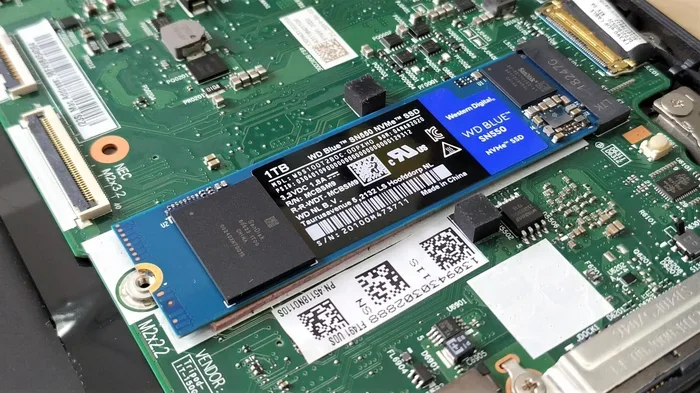
Most modern ThinkPads use the NVMe M.2 form factor. This is a small, rectangular card that plugs directly into a slot on the motherboard. NVMe stands for Non-Volatile Memory Express, and it is the fastest SSD interface available today.
These drives use the PCIe bus, which allows them to reach read speeds of 3,500 MB/s or higher. Some Gen4 drives even hit 7,000 MB/s. That is incredibly fast compared to older SATA III drives, which max out around 550 MB/s.
When shopping for a best SSD for Lenovo Thinkpad, look for NVMe M.2 2280 drives. The “2280” means the card is 22mm wide and 80mm long, which is the standard size for most ThinkPad models.
2.5 Inch SATA SSDs
Older ThinkPad models, especially some T series and X series laptops from before 2018, may still use a 2.5 inch SATA SSD or hard drive. These drives are thicker and connect through a SATA III port.
While they are slower than NVMe drives, a 2.5 inch SATA SSD is still a huge upgrade over a traditional hard disk drive. If your ThinkPad only supports this form factor, do not worry. A SATA SSD will still make your laptop feel much faster.
How to Check Which SSD Your ThinkPad Supports
Before buying any drive, check your specific ThinkPad model. You can find this information in a few easy ways:
- Look at the bottom of your laptop for the model number. It usually starts with “20” or “21” followed by letters and numbers.
- Open the Lenovo Vantage app on your laptop and check the system details.
- Visit the Lenovo support website and enter your model number. The specs page will list supported storage options.
Once you know your model, you can confirm whether it uses NVMe M.2, 2.5 inch SATA, or both. This step is crucial because buying the wrong type of drive will not work.
Top SSD Picks for Lenovo ThinkPad
Not all SSDs are created equal. Some offer great value, while others deliver top-tier performance. Here are some of the best options for a best SSD for Lenovo Thinkpad upgrade:
Samsung 980 Pro
The Samsung 980 Pro is one of the top-rated NVMe M.2 SSDs on the market. It offers read speeds up to 7,000 MB/s and write speeds up to 5,100 MB/s. It uses PCIe Gen4 technology, which means it is future-proof and ready for demanding workloads.
This drive comes in 250GB, 500GB, 1TB, and 2TB capacities. The 1TB version offers the best balance of speed and price for most ThinkPad users.
WD Black SN850X
The WD Black SN850X is another excellent choice. It delivers read speeds up to 7,300 MB/s and is built for gaming and heavy workloads. It is reliable, runs cool, and has a five-year warranty.
If you want a drive that handles large files and intensive tasks with ease, the SN850X is a strong contender. It is available in 1TB and 2TB options.
Kingston NV2 512GB
For users on a budget, the Kingston NV2 512GB offers solid performance at a very affordable price. It uses PCIe Gen3 technology and delivers read speeds up to 2,000 MB/s. While it is not as fast as the Gen4 drives, it is still much faster than any older drive you may have in your ThinkPad right now.
Check out the 512GB PCIe NVMe M.2 SSD for laptop options if you want a budget-friendly upgrade that still makes a real difference.
Crucial P3 Plus
The Crucial P3 Plus is a solid mid-range NVMe SSD. It supports PCIe Gen4 and offers speeds up to 5,000 MB/s. It is widely available and comes with a five-year limited warranty. The 1TB model is a great pick for most ThinkPad users who want reliable performance without breaking the bank.
Sabrent Rocket 4 Plus
The Sabrent Rocket 4 Plus is a budget-friendly Gen4 NVMe drive that punches above its price. Read speeds reach 7,100 MB/s, and it stays cool under load. It is a great option if you want fast speeds without spending too much.
How to Install an SSD in Your Lenovo ThinkPad
Installing an SSD in a ThinkPad is easier than most people think. You do not need to be a tech expert. With the right tools and a little patience, you can complete the upgrade in about 15 minutes.
What You Will Need
- A Phillips #1 screwdriver
- Your new NVMe M.2 SSD
- A small tray or magnetic mat to keep screws safe
- An external USB enclosure (optional, for cloning)
Step-by-Step Installation
- Power off your ThinkPad and unplug the charger. Remove the battery if your model allows it.
- Locate the SSD slot. On most ThinkPads, there is a small access panel on the bottom with a single screw. Remove the screw and slide the panel off.
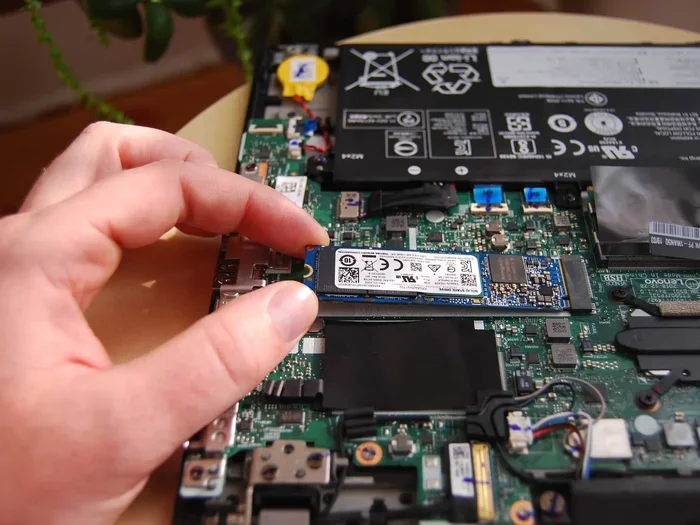
- Remove the old SSD. If you have an M.2 drive, unscrew the retention bracket and slide the old drive out at a slight angle.
- Insert the new SSD. Align the notch on the new drive with the slot. Slide it in at a 30-degree angle and press it down gently. Secure it with the retention screw.
- Replace the access panel and screw it back in.
- Power on your ThinkPad and enter the BIOS to confirm the new drive is detected.
If you are upgrading from an older drive, you may want to clone your existing system to the new SSD first. This way, your operating system, apps, and files transfer over without any extra setup. Once the clone is complete, swap the drives and you are good to go.
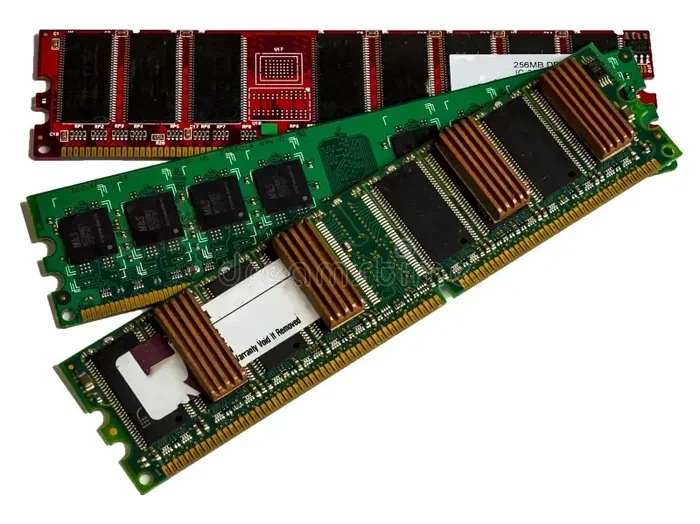
Want to pair your SSD upgrade with more memory? Check out the upgrade RAM for Lenovo laptop guide for tips on boosting your ThinkPad from both sides.
SSD Performance Benchmarks and What to Expect
When you upgrade to a best SSD for Lenovo Thinkpad, you will notice an immediate difference. But understanding the numbers behind the speed helps you make a smarter buying decision.
Read and Write Speeds
Read speed measures how fast your SSD can pull data from the drive. Write speed measures how fast it can save data. For most ThinkPad users, read speeds matter more because they affect how quickly your system loads apps and files.
Here is a quick comparison of common SSD types:
- SATA III SSD: Read speeds around 500-550 MB/s. Good for basic upgrades.
- NVMe Gen3 SSD: Read speeds around 3,500 MB/s. A solid step up for most users.
- NVMe Gen4 SSD: Read speeds around 5,000-7,300 MB/s. The fastest option available today.
Real-World Performance Gains
In everyday use, the difference between an old hard drive and a new NVMe SSD is dramatic. Here are some examples of what you can expect:
- Windows boot time: Drops from 60-90 seconds to 10-15 seconds.
- Microsoft Outlook launch: Goes from 8-10 seconds to under 2 seconds.
- Large file copy: A 10GB folder moves in seconds instead of minutes.
- Adobe Premiere Pro project load: Starts up much faster with fewer delays.
Even if you choose a budget-friendly Gen3 drive, you will still see a massive improvement over an old hard drive. The key is to avoid drives that are too slow or too small for your needs.
Common Mistakes to Avoid When Upgrading Your ThinkPad SSD
Upgrading your SSD is straightforward, but a few common mistakes can cause problems. Here is what to watch out for:
- Buying the wrong form factor: Always confirm whether your ThinkPad uses NVMe M.2 or 2.5 inch SATA before purchasing.
- Skipping the BIOS check: After installation, enter the BIOS and make sure the new drive is recognized. Sometimes you need to enable NVMe support in the BIOS settings.
- Forgetting to clone your old drive: If you do not clone, you will need to reinstall Windows and all your apps. This takes time and effort.
- Choosing too little storage: A 256GB drive fills up fast if you work with large files. Aim for at least 512GB for a comfortable experience.
- Overlooking thermals: Some high-performance NVMe drives run hot. If your ThinkPad has limited airflow, consider a drive with a heatsink or a low-power model.
Taking a few extra minutes to double-check compatibility and backup your data can save you a lot of headaches down the road.
Final Thoughts on Finding the Best SSD for Lenovo ThinkPad
Upgrading your best SSD for Lenovo Thinkpad is one of the smartest investments you can make for your laptop. A fast NVMe M.2 drive transforms your ThinkPad into a responsive, powerful machine that handles everyday tasks with ease. Whether you pick the Samsung 980 Pro for top-tier performance or the Kingston NV2 for a budget-friendly option, you will notice the difference from the very first boot.
The process is simple, the cost is reasonable, and the results are immediate. You do not need to buy a new laptop just because your current one feels slow. A fresh SSD gives your ThinkPad a second life and keeps it running smoothly for years to come.
Take a few minutes to check your model, pick the right drive, and enjoy the speed boost. Your ThinkPad will thank you.
Frequently Asked Questions
What is the best SSD for a Lenovo ThinkPad?
The Samsung 980 Pro and WD Black SN850X are top picks for most ThinkPad models. They offer blazing fast NVMe Gen4 speeds and come in 1TB and 2TB capacities. For a budget option, the Kingston NV2 or Crucial P3 Plus deliver solid performance at a lower price point.
Can I upgrade the SSD on any Lenovo ThinkPad?
Most modern ThinkPads support NVMe M.2 SSD upgrades. However, older models may use 2.5 inch SATA drives instead. Always check your specific model’s specs on the Lenovo website before purchasing a new drive.
How do I know if my ThinkPad uses NVMe or SATA?
You can check in the BIOS under the storage settings, or look up your model number on the Lenovo support page. NVMe M.2 drives are the standard in ThinkPads from 2018 and newer, while older models may still use SATA connections.
Is it hard to install an SSD in a Lenovo ThinkPad?
No, it is one of the easiest laptop upgrades you can do. Most ThinkPads have a single screw holding the SSD access panel. The entire process takes about 15 minutes and only requires a small Phillips screwdriver.
Should I clone my old drive or do a fresh Windows install?
Cloning saves you time and keeps all your apps and files intact. Use a free tool like Macrium Reflect or Clonezilla to create an exact copy of your old drive. If you prefer a clean start, a fresh Windows install works too but takes more setup time.
How much does a ThinkPad SSD upgrade cost?
A 512GB NVMe M.2 SSD typically costs between $40 and $70. A 1TB drive ranges from $70 to $120. The price depends on the brand, speed tier, and capacity. It is a very affordable upgrade that delivers noticeable performance gains.