Best Budget SSD Upgrade for Lightning Fast Performance
A budget SSD upgrade is the single easiest way to breathe new life into any PC. Whether you have an old laptop or a gaming rig, swapping in an affordable solid state drive delivers dramatically faster read and write speeds. This guide covers the top picks, installation tips, and everything you need to know to choose the right drive for your needs.
A slow computer can make even simple tasks feel painful. Waiting minutes for your PC to boot up or watching a loading bar crawl across the screen is frustrating. The good news is that a best budget SSD upgrade can transform your experience in under an hour.
Solid state drives have become incredibly affordable, and the performance difference compared to old hard disk drives is night and day. Whether you are working from home, gaming, or just browsing the web, upgrading your storage is the best first step toward a faster machine. In this guide, I will walk you through everything you need to know to pick and install the right drive without spending a fortune.
## Why an SSD Upgrade Makes Such a Big Difference
An old hard drive uses spinning metal disks to read and write data. This mechanical process is slow and creates bottlenecks. A solid state drive has no moving parts. It uses flash memory to access data almost instantly.
Here is what changes after an upgrade:
- Boot times drop from 2-3 minutes to 15-20 seconds.
- Apps open instantly instead of freezing while they load.
- File transfers happen much faster, saving you precious time.
- Games load quicker, and you get fewer stutters during gameplay.
- Overall system responsiveness feels like a brand new computer.
The impact is especially noticeable on older computers. If your PC has been slowing down over the years, a storage upgrade often costs less than a new machine and delivers similar results.
### SATA vs NVMe: Understanding the Two Main Types
Before you buy, you need to understand the two main types of SSDs. This is one of the most important decisions you will make.
SATA SSDs connect using the same interface as older hard drives. They are the most affordable option and very easy to install. A typical SATA drive delivers speeds of around 500-550 MB/s. For everyday tasks, this is more than enough.
NVMe SSDs use a faster connection directly to the motherboard. They can reach speeds of 3,000 MB/s or more. If you want the absolute fastest performance, an NVMe drive is the way to go. You can find great options in the best NVMe M 2 SSD guide for more detailed recommendations.
## Top Picks for the Best Budget SSD Upgrade
Not all SSDs are created equal. Some offer better value than others. Here are the drives I recommend based on performance, price, and reliability.
### Crucial MX500 (SATA)
The Crucial MX500 is a rock-solid choice for anyone upgrading from a traditional hard drive. It offers excellent speeds, good endurance, and comes in capacities from 250GB to 4TB. Prices start around $35 for the 500GB model, making it one of the most popular budget options on the market.
### Kingston A400 (SATA)
Kingston’s A400 is another fantastic entry-level SSD. It is widely available and very affordable. The 480GB version typically costs around $30, which makes it perfect for budget builds. It may not match the MX500 in endurance, but for everyday use, it performs wonderfully.
### WD Blue SN570 (NVMe)
If your motherboard supports NVMe, the WD Blue SN570 is a great pick. It offers fast read speeds of up to 3,400 MB/s and costs around $50 for 1TB. This drive strikes an excellent balance between price and performance.
### Samsung 870 EVO (SATA)
Samsung’s 870 EVO is considered a gold standard among SATA SSDs. It is reliable, fast, and backed by a strong warranty. The 1TB version usually runs around $70, which is slightly more than competitors but worth every penny for long-term use.
## How to Choose the Right SSD for Your PC
Picking the right drive depends on a few factors. Let me break them down so you can make a confident decision.
### Check Your Motherboard Compatibility
Not every PC supports NVMe drives. Older motherboards may only have SATA ports. Check your motherboard manual or look up your model online to see what connections are available. If you are building a new system, check out the best budget gaming PC motherboard guide to find boards that support both SATA and NVMe storage.
### Consider Your Storage Needs
Think about how much space you actually need. Here is a simple breakdown:
- 250GB: Good for the operating system and a few apps. Tight but workable.
- 500GB: The sweet spot for most users. Fits Windows,常用软件, and a handful of games.
- 1TB: Best value for gamers and content creators who need more room.
- 2TB+: Ideal for large media libraries or professional workloads.
I generally recommend going for at least 500GB. Prices have dropped so much that 1TB drives now offer incredible value.
### Think About Your Budget
A budget SSD upgrade does not mean settling for slow or unreliable drives. You can get a great SATA SSD for $30-50, and an entry-level NVMe drive for $40-60. These prices are lower than most people expect.
## Step-by-Step: Installing Your New SSD
One of the best things about upgrading to an SSD is how simple the process is. You do not need to be a tech expert. Here is how to do it.
### What You Will Need
- Your new SSD
- A Phillips head screwdriver
- A SATA cable (if your drive uses SATA and not NVMe)
- A USB-to-SATA adapter or cloning software (optional but helpful)
### Installation Steps
- Back up your data. Before you start, make sure your important files are safe. Use an external drive or cloud storage.
- Power down your PC and unplug it from the wall.
- Open your case. Remove the side panel to access your current drive.
- Locate the drive bay. Most PCs have a dedicated 2.5-inch bay for SATA SSDs. NVMe drives mount directly onto the motherboard.
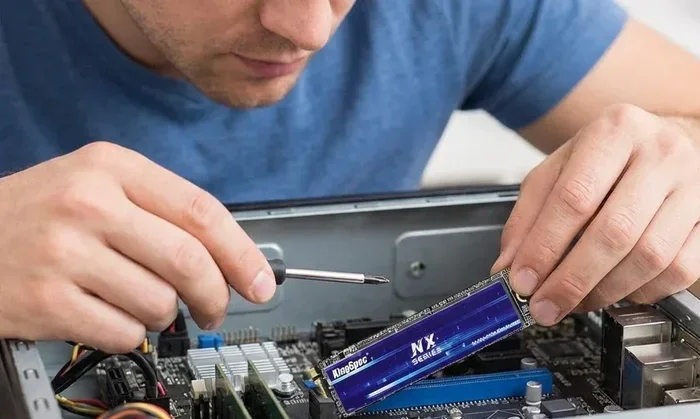
- Install the SSD. For SATA drives, connect the SATA data and power cables. For NVMe drives, slide the drive into the M.2 slot at an angle and press it down gently.
- Close up your case and plug everything back in.
- Boot up and format. If you cloned your old drive, your PC should boot right into Windows. If you installed a blank drive, you will need to format it during setup.
### Quick Tip: Cloning Your Old Drive
If you want to keep everything exactly as it is, use a cloning tool like Macrium Reflect or Clonezilla. These free programs copy your entire old hard drive to the new SSD. You simply swap the drives and boot up. It is a huge time saver and avoids the hassle of reinstalling Windows and all your programs.
## Common Mistakes to Avoid During an SSD Upgrade
Even though this upgrade is straightforward, people do make mistakes. Here are a few to watch out for.
### Skipping the Cloning Step
Many people buy a new SSD, install it blank, and then spend hours reinstalling Windows and all their software. This is unnecessary. Take 30 minutes to clone your old drive, and you will be up and running in minutes.
### Buying the Wrong Form Factor
SSDs come in different sizes. A 2.5-inch SATA drive will not fit in an M.2 slot, and an NVMe M.2 drive will not work in a standard SATA port. Double-check what your system supports before you buy.
### Ignoring the Warranty
Good SSD brands offer warranties of 3-5 years. Do not throw away the box and receipt right away. Keep them until you are sure the drive is working perfectly.
### Underestimating Capacity Needs
A 250GB drive fills up fast once you install Windows and a few apps. I always recommend going with at least 500GB or 1TB to avoid running into storage issues within a few months.
## Expert Insights: How Much Faster Is an SSD Really?
The numbers tell a clear story. According to various benchmarks, an SSD can be 5 to 10 times faster than a traditional hard drive in real-world usage. Boot times improve by up to 80%. Application launch times drop by 50-70%. Even gaming load times improve noticeably.
For gamers, pairing a budget SSD with the best budget graphics cards for gaming creates a well-balanced system that delivers excellent performance without overspending on any single component.
The truth is, a storage upgrade often gives you the biggest bang for your buck compared to other PC upgrades. It costs less than a new graphics card or processor, yet it makes your entire system feel faster.
## Who Benefits Most from a Budget SSD Upgrade?
This upgrade is not just for tech enthusiasts. A wide range of users benefit from swapping in a solid state drive.
- Students: Faster boot and load times mean less waiting and more studying.
- Remote workers: Quick access to files and apps improves productivity throughout the day.
- Gamers: Reduced load times and smoother gameplay make a noticeable difference.
- Older PC users: A $40 SSD upgrade can make a 5-year-old computer feel almost new.
- Content creators: Faster file transfers and quicker app launches save hours over time.
No matter who you are, a budget storage upgrade delivers real, tangible improvements to your daily computing experience.
## Final Thoughts on the Best Budget SSD Upgrade
Upgrading to a solid state drive is hands down one of the best investments you can make for your PC. It is affordable, easy to install, and delivers immediate results. Whether you choose a SATA drive or an NVMe model, you will notice the difference from the very first boot.
Do not let a slow computer hold you back anymore. Pick one of the drives from this guide, follow the simple installation steps, and enjoy the speed. Your old hard drive has served you well, but it is time to let it retire.
Start with a 500GB or 1TB drive from one of the brands listed above. You will be glad you did. And remember, if you are also planning a full system build, the best budget build gaming PC guide can help you put together a complete machine that balances performance and cost.
A faster PC is just one SSD away. Make the switch today and feel the difference every single time you turn on your computer.
Key Takeaways
- Massive Speed Boost: An SSD upgrade makes your PC boot and load apps in seconds instead of minutes.
- Affordable Options: Great SSDs start at around $30, so budget upgrades are within everyone’s reach.
- Easy Installation: Most SSD upgrades take less than 15 minutes with no technical skills needed.
- Two Main Types: SATA SSDs are cheaper and simpler, while NVMe SSDs offer the fastest speeds.
- Big Impact on Gaming: Faster storage means quicker game loads and smoother overall performance.
- Cloning Made Simple: You can transfer your old hard drive data to the new SSD without reinstalling Windows.
Frequently Asked Questions
How much does a budget SSD upgrade cost?
A basic SSD upgrade can cost as little as $30 for a 250GB SATA drive. Most users spend between $35 and $60 for a reliable 500GB or 1TB drive. NVMe drives cost slightly more, typically $45 to $70 for 1TB of storage.
Can I upgrade my laptop with an SSD?
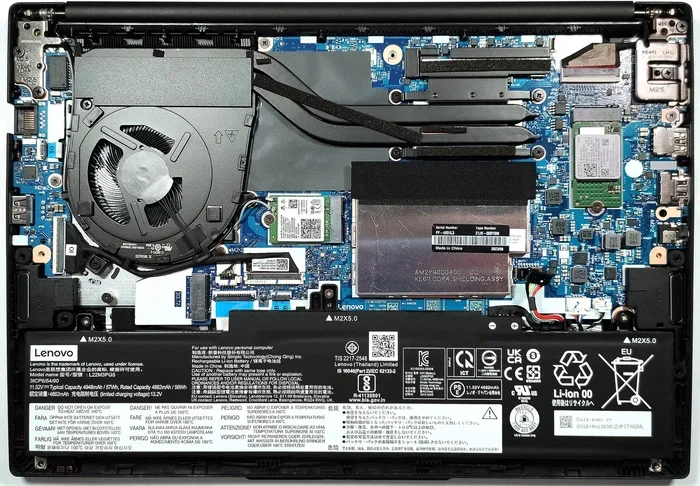
Yes, most laptops support SSD upgrades. Many older laptops have a 2.5-inch drive bay or an M.2 slot. Check your laptop’s manual to confirm compatibility before purchasing a drive.
Do I need to reinstall Windows after an SSD upgrade?
No, you do not have to. You can clone your old hard drive to the new SSD using free software like Macrium Reflect. This copies everything, including Windows and your programs, so you pick up right where you left off.
Is a SATA SSD or NVMe SSD better for gaming?
Both work great for gaming. NVMe SSDs offer faster load times, but the difference is often small in practice. SATA SSDs are cheaper and simpler to install, making them a great choice for budget gamers.
How long does an SSD upgrade take?
The actual installation takes about 15 to 30 minutes. If you are cloning your old drive, add another 30 to 60 minutes depending on how much data you have. The whole process is straightforward and does not require advanced technical skills.
Will an SSD upgrade improve gaming performance?
Yes, an SSD upgrade improves game load times and reduces stuttering during open-world games. It does not increase frame rates like a graphics card does, but it makes your system feel much more responsive overall. For the best gaming setup on a budget, pair your SSD with components from the best budget build gaming PC guide.