How To Check Ram Mac Easily With These Simple Tips
Checking your Mac ram is quick and easy once you know where to look. Whether you use a MacBook Air, MacBook Pro, or an older Mac desktop, this guide shows you exactly how to check ram mac using built-in tools, keyboard shortcuts, and third-party apps. You will learn how to see your mac memory, understand what ram type you have, and decide if you need a mac ram upgrade.
Do you ever wonder how much memory your Mac is actually using? Maybe your laptop feels slow, or you want to know if you can run a new app. Whatever the reason, learning how to check ram mac is one of the simplest things you can do to keep your computer running smoothly.
Macs are great machines, but many users never check their mac memory until something goes wrong. By that point, apps might be crashing or your system could be struggling to keep up. The good news is that checking your Mac ram takes just a few clicks. You do not need to be a tech expert. This guide walks you through every method, from the easiest to the most advanced.
By the end of this article, you will know exactly how to see ram on mac, understand what the numbers mean, and decide whether you need more memory. Let us get started.
Key Takeaways
- About This Mac: The fastest way to check ram mac is through the Apple menu in seconds.
- Activity Monitor: Use this built-in tool to see real-time mac memory usage and identify heavy apps.
- Terminal Commands: Advanced users can check ram mac details using simple command line tools.
- Third-Party Apps: Apps like Memory Clean and iStat Menus give you deeper insight into mac memory check results.
- Upgrade Options: If your mac memory is low, learn when and how to upgrade mac ram for better performance.
- Apple Silicon vs Intel: Newer Macs use unified memory, which changes how you view mac ram info.
📑 Table of Contents
- Why Checking Your Mac Ram Matters
- Method 1: Check Ram Mac Through the Apple Menu
- Method 2: Use Activity Monitor for Mac Memory Usage
- Method 3: Check Ram Mac Using Terminal Commands
- Method 4: Use Third-Party Apps for a Deeper Mac Memory Check
- How to Know If You Need More Mac Ram
- Mac Ram Types and Compatibility
- Common Mistakes When Checking Mac Ram
- Final Thoughts on Checking Your Mac Ram
Why Checking Your Mac Ram Matters
Your Mac uses ram, or random access memory, to handle everything you do. Every open app, browser tab, and background process uses a chunk of your mac memory. When your mac ram fills up, your computer slows down. Apps take longer to open. Videos lag. Even simple tasks feel frustrating.
Think of mac memory like a desk. A bigger desk lets you spread out more papers and work on several things at once. A small desk gets cluttered fast. Checking your Mac ram tells you how big your desk is and how full it currently is.
There are several reasons you should check your mac memory regularly:
- Performance issues: Slow startups or laggy apps often point to low mac memory.
- App compatibility: Some apps need a minimum amount of mac ram to run properly.
- Upgrade planning: Before buying a new Mac, check if your current machine can be upgraded.
- Troubleshooting: Finding memory-hungry apps helps you fix slowdowns fast.
Now that you understand why it matters, let us look at the easiest ways to check ram mac right now.
Method 1: Check Ram Mac Through the Apple Menu
The fastest way to see your Mac ram is through the Apple menu. This method works on every Mac, whether you have a MacBook Air, MacBook Pro, iMac, or Mac Mini. You will see your total memory and a quick overview of your system.
Step-by-Step Guide
- Click the Apple logo in the top-left corner of your screen.
- Select About This Mac from the dropdown menu.
- A window opens showing your Mac overview. Look for the Memory line.
- You will see something like 16 GB or 8 GB of memory.
That is it. In under ten seconds, you know how much mac memory your machine has. On newer Macs with Apple Silicon, this screen also shows your unified memory, which works a bit differently than traditional ram. But the idea is the same more memory means smoother multitasking.
If you want more details, click the System Report button in the About This Mac window. This opens a long list of hardware info. Scroll down to Memory to see your ram type, speed, and how many memory slots your Mac has. This is very helpful if you are planning a mac ram upgrade.
Many users also search for how to check my laptop ram when they first start exploring their system specs. The process on a Mac is just as simple, even though the menu looks a little different.
Method 2: Use Activity Monitor for Mac Memory Usage
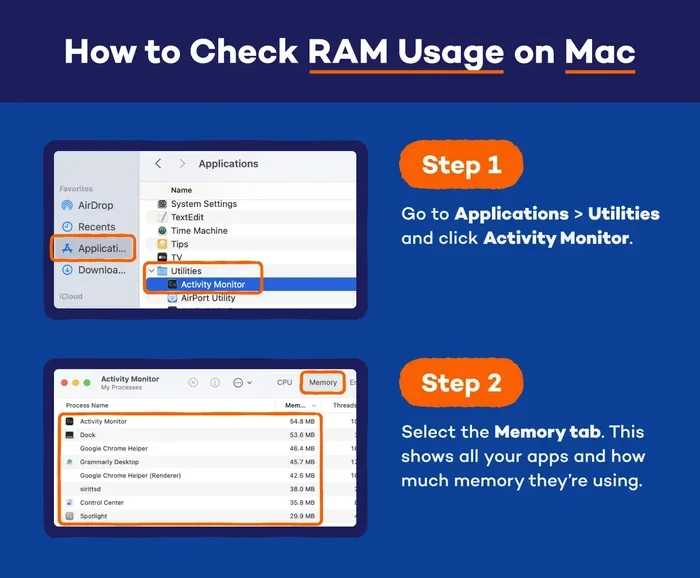
The About This Mac method shows you total memory. But what if you want to see how your mac memory is being used right now? That is where Activity Monitor comes in. This built-in tool is like a health checkup for your Mac.
How to Open Activity Monitor
- Press Command + Space to open Spotlight.
- Type Activity Monitor and press Enter.
- Click on the Memory tab at the top of the window.
Once you are in the Memory tab, you will see a lot of useful information. At the bottom, there is a Memory Pressure graph. Green means your mac memory is fine. Yellow means you are using a lot. Red means your Mac desperately needs more memory.
You can also see each app memory usage in the list. Sort by Memory column to find which apps are using the most ram. Some apps, like video editors or web browsers with many tabs, can eat up your Mac ram fast.
Here are some quick tips for using Activity Monitor effectively:
- Quit heavy apps: If one app uses a huge chunk of memory, close it to free up space.
- Check memory pressure over time: Watch the graph for a few minutes to spot patterns.
- Use the CPU tab too: Sometimes slowdowns come from the processor, not memory.
Activity Monitor is one of the best free tools for a mac memory check. Many people never open it, but it gives you real-time insight into how your Mac is performing.
Method 3: Check Ram Mac Using Terminal Commands
If you like working with the command line, Terminal gives you powerful ways to check ram mac. This method is perfect for advanced users who want detailed stats without clicking through menus.
Command 1: sysctl
Open Terminal and type this command:
sysctl -n hw.memsize
This shows your total mac memory in bytes. You can divide by 1073741824 to convert it to gigabytes. For most users, the About This Mac method is easier. But Terminal gives you precise numbers if you need them.
Command 2: vm_stat
Type vm_stat in Terminal to see page size and memory statistics. This command shows you how much free memory, active memory, and inactive memory your Mac currently has.
Here is a quick breakdown of what the numbers mean:
- Pages free: Memory not currently in use.
- Pages active: Memory currently being used by apps.
- Pages inactive: Memory used recently but can be freed up.
- Pages wired: Memory that cannot be swapped out.
Using Terminal to check ram mac is not for everyone. But if you troubleshoot often or manage multiple Macs, it is a handy skill to have.
Method 4: Use Third-Party Apps for a Deeper Mac Memory Check
Apple gives you great built-in tools, but sometimes you want more. Third-party apps can give you a deeper, more visual look at your mac ram usage. These apps sit in your menu bar and show you memory stats at a glance.
Top Apps for Checking Mac Memory
Memory Clean: This free app from the Mac App Store shows your mac memory usage and lets you clear cached memory with one click. It is simple and effective.
iStat Menus: A paid app that adds memory, CPU, and network stats right to your menu bar. It gives you a beautiful, real-time dashboard for your Mac.
Stats: Another free menu bar app that shows memory pressure and usage without taking up much space.
These apps are great if you want to keep an eye on your Mac ram throughout the day. They are especially useful for creative professionals who run heavy apps like Final Cut Pro, Photoshop, or Logic Pro.
Some users also visit guides about how to check ram of my laptop to compare Windows and Mac methods. While the tools differ, the goal is the same understanding your memory.
How to Know If You Need More Mac Ram
After you check ram mac, the next question is obvious do you need more memory? The answer depends on how you use your Mac and how much mac ram you currently have.
Signs You Need More Memory
- Your Mac feels slow even after restarting.
- Apps crash frequently or take a long time to open.
- You see the spinning beach ball often.
- Your Memory Pressure graph stays in the yellow or red zone.
- You regularly have many apps and browser tabs open.
How Much Mac Ram Do You Actually Need?
Here is a simple breakdown of memory needs based on usage:
| Usage Type | Recommended Ram |
|---|---|
| Basic browsing and email | 8 GB |
| Office work and light multitasking | 16 GB |
| Photo and video editing | 32 GB or more |
| Music production and 3D rendering | 64 GB or more |
If you find that your mac memory is always maxed out, consider a mac ram upgrade. Some Macs allow you to add memory. Others, especially newer MacBooks with Apple Silicon, have memory soldered to the motherboard. In those cases, you must choose the right amount when you buy.
Before upgrading, always check ram mac specifications on Apple’s website or your model number. Not all Macs support memory upgrades. Knowing your mac ram compatibility saves you time and money.
Mac Ram Types and Compatibility
Not all Mac ram is the same. Different Mac models use different types of memory. Understanding this helps you make smart decisions about upgrades and troubleshooting.
Intel Macs vs Apple Silicon Macs
Older Intel Macs use standard DDR4 or DDR3 ram. You can often upgrade these machines yourself by adding or replacing memory sticks. Newer Macs with Apple Silicon, like the M1, M2, M3, and M4 chips, use unified memory. This means the ram is shared between the CPU and GPU, which improves performance but also means you cannot upgrade it after purchase.
Here are some quick tips for understanding your mac ram type:
- Go to About This Mac to see your chip type.
- Search your Mac model number on Apple’s support page.
- Use a tool like System Information to see detailed memory specs.
When shopping for memory upgrades on older Intel Macs, always check your mac ram compatibility first. Using the wrong type of memory can cause problems or simply not work at all.
Common Mistakes When Checking Mac Ram
Even simple tasks can go wrong if you are not careful. Here are some common mistakes people make when they try to check ram mac and how to avoid them.
Mistake 1: Confusing Storage with Memory
Many users mix up storage and memory. Storage is your hard drive or SSD where files live. Memory (ram) is what your Mac uses to run apps. Checking your storage does not tell you anything about your mac ram. Always look in the right place.
Mistake 2: Ignoring Memory Pressure
Just because you have 16 GB of mac memory does not mean everything is fine. If your Memory Pressure graph is red, your Mac is struggling. Focus on how your memory is being used, not just the total amount.
Mistake 3: Not Quitting Unused Apps
Checking your Mac ram is only half the battle. If you find that your memory is full, quit apps you are not using. Browser tabs with videos or animations are especially memory-heavy. Closing them can instantly improve performance.
Mistake 4: Assuming All Macs Can Be Upgraded
Not every Mac allows ram upgrades. Many modern MacBooks have memory built into the chip. Before buying extra memory, confirm that your specific Mac model supports it.
Final Thoughts on Checking Your Mac Ram
Knowing how to check ram mac is an essential skill for every Mac user. Whether you use the Apple menu, Activity Monitor, Terminal, or a third-party app, you have powerful tools at your fingertips. These methods give you quick and accurate insight into your mac memory health.
Start with the Apple menu for a quick overview. Use Activity Monitor for real-time tracking. Try Terminal if you love the command line. And explore third-party apps for a richer experience. Each method has its strengths, and together they give you a complete picture of your Mac ram status.
If you find that your memory is consistently low, it might be time to close some apps, reduce browser tabs, or consider a mac ram upgrade. Regularly checking your memory keeps your Mac running at its best and helps you avoid frustrating slowdowns.
Take a few minutes today to check your Mac ram. Your future self will thank you when your computer runs smoothly and fast. A little knowledge goes a long way toward keeping your Mac in top shape.
Frequently Asked Questions
How do I check the ram on my Mac?
Click the Apple logo in the top-left corner and select About This Mac. The Memory line shows your total ram. For more details, click System Report and scroll to Memory.
Can I upgrade the ram on my Mac?
It depends on your model. Older Intel Macs often allow ram upgrades. Newer Apple Silicon Macs have unified memory soldered to the board and cannot be upgraded after purchase.
What is a good amount of ram for a Mac?
8 GB is enough for basic tasks. 16 GB is ideal for most users. 32 GB or more is recommended for video editing, music production, and heavy multitasking.
How do I free up ram on my Mac?
Close unused apps and browser tabs. Use Activity Monitor to find memory-hungry apps and quit them. Restarting your Mac also clears out temporary memory.
Is mac memory the same as storage?
No. Memory (ram) is what your Mac uses to run apps right now. Storage is your hard drive or SSD where files and apps are saved permanently. They are very different.
What does memory pressure mean on a Mac?
Memory pressure shows how hard your Mac is working with its available ram. Green means you have plenty of free memory. Yellow means you are using a lot. Red means your Mac needs more memory and may slow down.