The Most Common Windows Problems and How to Fix Them

Windows PCs can develop frustrating problems over time, from slow performance to blue screen errors. This guide covers the most common Windows problems and gives you clear, step-by-step fixes you can do yourself. You will learn how to troubleshoot startup issues, driver errors, and performance slowdowns without needing a technician.
Your Windows PC can start acting up in so many ways. Programs freeze, the screen turns blue, and sometimes your computer just won’t turn on. These common Windows problems affect millions of users every day. The good news? Most of them have simple fixes you can do right at home.
Many people panic when something goes wrong with their PC. They think they need to spend hundreds of dollars on repairs. But the truth is, most Windows issues come from a handful of causes. Drivers get outdated, storage fills up, and updates sometimes go wrong. Once you understand what triggers these problems, fixing them becomes much easier.
This guide walks you through the most frequent Windows issues. We will cover what causes them and exactly how to solve them. Whether you use Windows 10 or Windows 11, these tips will help. You do not need to be a tech expert to follow along.
Key Takeaways
- Blue Screen Errors: Most BSOD issues come from driver conflicts or hardware problems and can often be fixed with simple steps.
- Slow Performance: Regular disk cleanup, startup management, and updates keep your PC running fast.
- Driver Issues: Outdated or incompatible drivers cause many common problems, and updating them solves most cases.
- Windows Update Failures: Clearing the update cache and checking disk space usually resolves update errors.
- Application Crashes: Reinstalling apps, running diagnostics, and checking for conflicts fixes most crashing problems.
- Network Problems: Resetting network settings and updating adapters restores most internet connectivity issues.
📑 Table of Contents
- Blue Screen Errors (BSOD) and What Causes Them
- Slow Performance and Freezing Issues
- Windows Update Problems and Failures
- Driver Conflicts and Device Errors
- Application Crashes and Software Conflicts
- Network and Wi-Fi Connectivity Issues
- Preventing Common Windows Problems
- When to Seek Professional Help
Blue Screen Errors (BSOD) and What Causes Them
The blue screen of death is one of the most feared common Windows problems. It stops your work suddenly and shows a scary error message. But blue screens are actually quite common and usually fixable.
Why Blue Screens Happen
Blue screens happen when Windows encounters a critical error it cannot recover from. Several things trigger this:
- Outdated drivers: Old drivers confuse Windows and cause crashes.
- Hardware conflicts: New hardware sometimes clashes with existing components.
- Faulty RAM: Bad memory modules lead to random crashes.
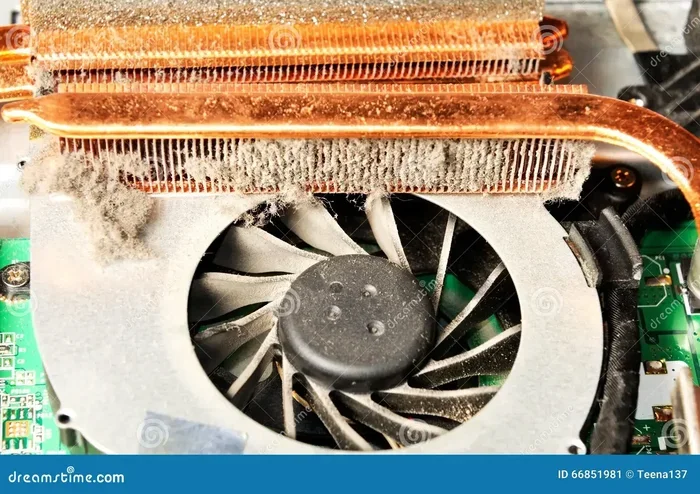
- Overheating: A hot PC will shut down to protect itself.
How to Fix Blue Screen Errors
Start by restarting your computer. Sometimes a single crash is just a temporary glitch. If the blue screen keeps coming back, try these steps:
- Boot into Safe Mode by holding Shift while clicking Restart.
- Uninstall any recent software or driver updates.
- Run the built-in System File Checker tool by typing sfc /scannow in Command Prompt.
- Check your RAM using Windows Memory Diagnostic.
If the problem persists, check your error code online. The code tells you exactly what went wrong. You can also roll back drivers through Device Manager. Right-click the Start button, open Device Manager, find the device, and choose Properties then Roll Back Driver.
Slow Performance and Freezing Issues
Nothing frustrates users more than a slow computer. When your PC takes forever to open programs or freezes in the middle of tasks, it is time to troubleshoot. Slow performance ranks among the top common Windows problems reported by users.
Why Your PC Gets Slow
Several factors drain your PC’s speed over time:
- Too many startup programs: Apps that launch at boot eat up memory.
- Full hard drive: Windows needs free space to operate smoothly.
- Outdated Windows version: Older builds lack performance improvements.
- Malware or viruses: Hidden software runs in the background and steals resources.
- Fragmented disk: Scattered data slows down read and write speeds.
How to Speed Up Your PC
Follow these steps to restore your PC’s speed:
- Open Task Manager (Ctrl + Shift + Esc) and close unused programs.
- Disable startup apps by going to Task Manager > Startup tab and turning off unnecessary items.
- Run Disk Cleanup by typing it in the Start menu search bar.
- Uninstall programs you no longer use.
- Check for malware using Windows Defender or a trusted antivirus tool.
If you have an older PC with 8GB RAM, consider upgrading your memory. A memory upgrade can make a huge difference. Check out our guide on Windows 11 with 8GB RAM laptops for tips on maximizing performance with your current setup.
Windows Update Problems and Failures
Windows updates are essential for security and performance. But update failures are among the most annoying common Windows problems. When updates get stuck or fail, your system can become vulnerable and unstable.
Why Updates Fail
Update failures happen for several reasons:
- Low disk space: Updates need several gigabytes of free room.
- Corrupted update files: Broken downloads cause installation errors.
- Network issues: A weak connection interrupts the download process.
- Third-party software conflicts: Antivirus programs sometimes block updates.
How to Fix Update Errors
Try these solutions when updates fail:
- Run the Windows Update Troubleshooter. Go to Settings > Update & Security > Troubleshoot.
- Clear the SoftwareDistribution folder by stopping Windows Update services, deleting the folder contents, and restarting the services.
- Make sure you have at least 20GB of free disk space.
- Temporarily disable your antivirus during updates.
- Try installing updates manually by downloading them from the Microsoft website.
Keeping your PC updated protects it from security threats and ensures smooth operation. If you are still running Windows 10, consider planning an upgrade to Windows 11 for better update reliability. You can find helpful information in our article on Windows 10 laptops with 8GB RAM to see if your system is ready.
Driver Conflicts and Device Errors
Drivers are the bridge between Windows and your hardware. When drivers go wrong, devices stop working properly. Driver conflicts are one of the most common Windows troubleshooting scenarios.
Signs of Driver Problems
Watch for these warning signs:
- Devices showing a yellow triangle in Device Manager.
- Printers or scanners that suddenly stop working.
- Audio or video glitches and crackling sounds.
- Wi-Fi adapters that disconnect frequently.
- Mouse or keyboard unresponsive after a Windows update.
How to Resolve Driver Issues
Follow these steps to fix driver problems:
- Open Device Manager by right-clicking the Start button.
- Find the problematic device and right-click it.
- Choose Update Driver and select Search automatically.
- If the update does not work, try Roll Back Driver.
- As a last resort, uninstall the device and restart your PC. Windows will reinstall the driver automatically.
Always download drivers from the manufacturer’s website. Third-party driver updater tools can sometimes install the wrong version. For specific device help, such as fixing a mouse that stopped working, check out our guide on fixing a disappeared mouse on a Lenovo laptop.
Application Crashes and Software Conflicts
Apps crashing is a daily annoyance for many Windows users. When your favorite program closes unexpectedly, it disrupts your workflow. Software conflicts and app crashes fall into the most common Windows problems people face.
Why Apps Crash
Applications crash for many reasons:
- Incompatible software: Some apps do not work well together.
- Missing Visual C++ redistributables: These runtime libraries are essential for many programs.
- Corrupted app files: Damaged installation files cause instability.
- Insufficient permissions: Apps sometimes crash when they cannot access certain folders.
How to Fix Crashing Apps
Try these fixes when applications keep crashing:
- Restart the app and check for updates within the application itself.
- Reinstall the application by uninstalling it and downloading a fresh copy.
- Run the built-in Windows Store Apps Troubleshooter for Store-related issues.
- Check for conflicting software by performing a clean boot.
- Run SFC and DISM scans to repair system files that apps depend on.
For users running music production software or creative apps, performance matters a lot. Check our guide on the best Windows laptops for music production if you experience crashes with audio software.
Network and Wi-Fi Connectivity Issues
Losing your internet connection is one of the most disruptive common Windows problems. Whether your Wi-Fi keeps dropping or you cannot connect at all, network issues can derail your entire day.
Common Network Problems
These network issues happen frequently:
- Wi-Fi connects but has no internet access.
- Network adapter keeps disabling itself.
- Very slow download speeds despite a strong signal.
- Cannot detect any Wi-Fi networks.
- Ethernet connection works but Wi-Fi does not.
How to Fix Network Issues
Follow these steps to restore your connection:
- Restart your router and modem. Wait 30 seconds before turning them back on.
- Run the Network Adapter Troubleshooter in Windows Settings.
- Forget the Wi-Fi network and reconnect by entering the password again.
- Update your network adapter driver through Device Manager.
- Reset the network stack by running netsh winsock reset in Command Prompt as Administrator.
If you are using a wireless mouse and it stops working, that can also relate to connectivity problems. We have a helpful guide on connecting a wireless mouse to a Windows 10 laptop that covers general wireless troubleshooting.
Preventing Common Windows Problems
Prevention is always better than cure. A little maintenance goes a long way in keeping your PC healthy. Here are habits that prevent most common Windows problems before they start.
Daily and Weekly Habits
- Restart your PC regularly: This clears memory and applies pending updates.
- Keep antivirus active: Never disable your security software for long.
- Monitor disk space: Keep at least 15-20% of your drive free.
- Back up your data: Use File History or cloud backup to protect your files.
- Avoid suspicious downloads: Only install software from trusted sources.
Monthly Maintenance Checklist
- Run Disk Cleanup and delete temporary files.
- Check for and install Windows updates.
- Update your drivers, especially graphics and network adapters.
- Scan for malware with a full system scan.
- Review startup programs and disable anything you do not need.
When to Seek Professional Help
Most common Windows problems can be fixed at home with the steps above. But some situations need professional attention. Knowing when to call for help saves you time and prevents further damage.
Seek professional help if:
- Your PC will not turn on at all, even after trying basic fixes.
- You smell burning or hear unusual noises from your hardware.
- You see repeated blue screens with the same error code despite multiple fixes.
- Your hard drive shows signs of failure, such as clicking sounds.
- You suspect a virus that antivirus tools cannot remove.
For general performance questions, especially with older hardware, our article on best Windows laptops for students offers great advice on choosing a reliable machine that minimizes future problems.
Dealing with common Windows problems does not have to be stressful. Most issues have straightforward solutions that anyone can follow. From blue screen errors to slow performance, driver conflicts to network problems, the fixes in this guide cover the essentials. Regular maintenance and timely updates keep your PC running smoothly for years.
Remember, the key is to act quickly when a problem appears. Ignoring small issues often leads to bigger ones. Start with the simplest fixes and work your way up. Your PC will thank you for the care and attention. With the right knowledge, you can handle almost any Windows problem that comes your way.
Frequently Asked Questions
What are the most common Windows problems users face?
The most frequent issues include blue screen errors, slow performance, Windows update failures, driver conflicts, application crashes, and network connectivity problems. These issues affect both Windows 10 and Windows 11 users and can usually be fixed with simple troubleshooting steps.
How do I fix a blue screen error on Windows?
Start by restarting your PC and booting into Safe Mode. Then uninstall recent updates or drivers that may have caused the crash. Run the System File Checker tool and check your RAM for errors. If the blue screen keeps appearing, search for the specific error code online for a targeted fix.
Why is my Windows PC running so slowly?
Slow performance is usually caused by too many startup programs, a full hard drive, outdated Windows versions, or malware. You can fix this by disabling startup apps, running Disk Cleanup, uninstalling unused programs, and scanning for viruses. A memory upgrade can also help older PCs run faster.
How do I fix Windows updates that keep failing?
First, run the Windows Update Troubleshooter from Settings. Then clear the SoftwareDistribution folder and make sure you have at least 20GB of free disk space. Temporarily disable your antivirus, reset the Windows Update components using Command Prompt, and try installing updates again.
Can outdated drivers cause Windows problems?
Yes, outdated drivers are one of the leading causes of blue screens, device errors, and system instability. Always update your drivers through Device Manager or download them directly from the manufacturer’s website. Avoid third-party driver updater tools as they can install incorrect versions.
How often should I maintain my Windows PC?
You should restart your PC at least once a week. Perform a full maintenance routine monthly, including disk cleanup, Windows updates, driver updates, and malware scans. Setting a simple reminder makes it easy to stay on top of maintenance and prevents most common issues from developing.
=== END ===