Compatible Ram for My Laptop
Finding compatible ram for my laptop doesn’t have to be confusing or overwhelming. This guide breaks down everything you need to know about laptop memory types, speed requirements, and upgrade compatibility so you can boost your system’s performance with confidence. Whether you need DDR4 or DDR5 memory, you’ll learn exactly what fits your machine and how to avoid costly mistakes.
Compatible ram for my laptop is one of the most important upgrades you can make. Whether your computer feels slow or you simply want better multitasking, choosing the right memory module makes a huge difference. But here is the catch not every RAM stick works with every laptop. The type, speed, and capacity all depend on your specific machine. In this guide, we walk you through everything you need to know about finding compatible ram for my laptop without the confusion. You will learn how to check your current setup, understand RAM types, and pick the perfect upgrade with confidence.
Many people buy RAM only to discover it does not fit their laptop. Others install the right stick but miss the speed or timing requirements. Both mistakes waste time and money. That is exactly why this guide exists. We break down the technical jargon into simple, practical steps anyone can follow. By the end, you will know exactly what to look for when shopping for compatible ram for my laptop. Let us get started.
Key Takeaways
- Check your laptop’s manual: Find the exact RAM type, speed, and maximum supported capacity before purchasing.
- Match the RAM generation: DDR4 and DDR5 are not interchangeable — always confirm your laptop’s generation.
- Verify the form factor: Most laptops use SO-DIMM modules, which are smaller than desktop RAM sticks.
- Test each slot individually: Use tools like MemTest86 to ensure your new compatible RAM runs without errors.
- Stick to matched pairs: Installing identical RAM sticks in dual-channel configuration boosts laptop performance significantly.
- Check motherboard limits: Even if your laptop has two slots, the chipset may cap total memory capacity.
- Buy from reputable brands: Kingston, Crucial, and Corsair offer reliable compatible RAM with solid warranty support.
📑 Table of Contents
- Understanding What Compatible RAM Means for Your Laptop
- How to Check Your Laptop RAM Requirements
- RAM Speed and Timing: What You Need to Know
- Best RAM Options for Popular Laptop Brands
- Common Mistakes When Buying RAM for Your Laptop
- Step-by-Step Guide to Upgrading Your Laptop RAM
- How Much RAM Do You Really Need
Understanding What Compatible RAM Means for Your Laptop
When we talk about compatible ram for my laptop, we mean a memory module that physically fits, works with your motherboard, and meets your system requirements. It is not just about buying any RAM stick and plugging it in. Several factors determine compatibility, and understanding them saves you from frustrating returns.
Different RAM Types: DDR3, DDR4, and DDR5
RAM comes in different generations, and each generation uses a different technology. DDR3 is older and slower but still found in many budget laptops. DDR4 is the current standard for most modern machines. DDR5 is the newest generation, offering faster speeds and better efficiency. You cannot mix generations. A DDR4 stick will not work in a DDR3 slot, and vice versa. Always check which type your laptop supports before buying compatible ram for my laptop.
Form Factor: SODIMM vs DIMM
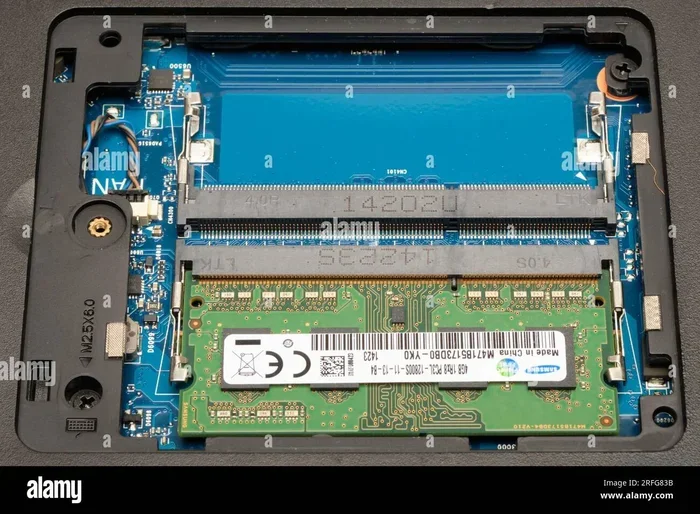
Laptops use smaller memory modules called SODIMMs. Desktop computers use full-sized DIMMs. This size difference is critical. Buying a DIMM for a laptop will not work because it simply will not fit. When searching for compatible ram for my laptop, always confirm the product is a SODIMM. Most product listings clearly state this, but it never hurts to double-check the specifications before purchasing.
How to Check Your Laptop RAM Requirements
Before you buy anything, you need to know what your laptop currently has and what it can support. Checking your requirements takes only a few minutes and prevents costly mistakes.
Using Built-in Tools to Check Current RAM
Windows users can open the Task Manager by pressing Ctrl + Shift + Esc. Click the Performance tab and select Memory. You will see your current RAM type, speed, and how many slots are in use. How to check the RAM on my laptop is a common question, and this built-in tool gives you the answer instantly. Mac users can click the Apple menu, select About This Mac, and view memory details right there.
Checking Maximum RAM Capacity
Every laptop has a maximum memory limit. Some older models only support 8GB total, while newer ones can handle 32GB or more. Check your laptop manufacturer’s website or user manual for the maximum compatible ram for my laptop capacity. If your laptop has two RAM slots and each supports 16GB, you can upgrade to 32GB total. Knowing this number helps you decide how much to buy.
RAM Speed and Timing: What You Need to Know
RAM speed is measured in megahertz, or MHz. Higher MHz numbers mean faster data transfer. For example, 3200MHz RAM is quicker than 2400MHz RAM. But speed is only one piece of the puzzle. Timing, often listed as CL (CAS Latency), also matters. Lower latency numbers mean faster response times.
Here is a practical tip. Always match your new RAM to your existing module’s speed and timing. Mixing different speeds can cause your system to run at the slower speed. When shopping for compatible ram for my laptop, look for a stick that matches or slightly improves your current setup without causing conflicts.
| RAM Type | Common Speed | Max Capacity per Stick | Best For |
|---|---|---|---|
| DDR3 | 1600 – 1866 MHz | 8GB | Older budget laptops |
| DDR4 | 2400 – 3200 MHz | 16GB – 32GB | Most modern laptops |
| DDR5 | 4800 – 5600 MHz | 16GB – 64GB | Latest high-performance laptops |
Best RAM Options for Popular Laptop Brands
Different laptop brands have specific compatibility quirks. Here is a quick look at what works best for popular models.
Lenovo Laptops
Lenovo laptops like the ThinkPad and IdeaPad series often use standard DDR4 SODIMMs. Many models support dual-channel memory, which means installing two matching sticks boosts performance. If you own a Lenovo machine, check 16GB RAM for Lenovo laptop options for reliable upgrades. Always verify the exact model number before purchasing.
HP and Dell Laptops
HP Pavilion and Dell Inspiron laptops are popular choices for everyday use. Most support DDR4 RAM with speeds between 2666MHz and 3200MHz. These machines typically have one or two RAM slots. How much RAM for laptop depends on your usage. For basic tasks like browsing and word processing, 8GB works well. For video editing or gaming, 16GB or more is better.
ASUS and Acer Laptops
ASUS and Acer laptops vary widely in their RAM support. Budget models may only accept 8GB total, while gaming and workstation laptops can handle 32GB or more. Always check the specific model’s specifications on the manufacturer’s website. This ensures you buy compatible ram for my laptop that works perfectly from day one.
Common Mistakes When Buying RAM for Your Laptop
Even experienced buyers sometimes make mistakes. Avoid these common pitfalls to ensure a smooth upgrade.
- Buying the wrong RAM type. DDR3 and DDR4 look similar but are not interchangeable. Always verify the generation first.
- Ignoring the maximum capacity. Your laptop may have a free slot but still cap total memory at 16GB. Check before you buy.
- Mixing RAM speeds. Installing a 3200MHz stick alongside a 2400MHz stick forces both to run at 2400MHz. You lose performance.
- Forgetting about dual-channel mode. Using two matching sticks in the correct slots can double your memory bandwidth. This is one of the easiest ways to boost compatible ram for my laptop performance.
- Skipping the BIOS update. Sometimes a BIOS update is needed to recognize newer RAM modules. Check your laptop manufacturer’s support page before upgrading.
Step-by-Step Guide to Upgrading Your Laptop RAM
Once you have the right compatible ram for my laptop, installation is straightforward. Follow these steps carefully for a safe and successful upgrade.
- Power off your laptop completely and unplug the charger. Remove the battery if possible.
- Ground yourself by touching a metal surface. This prevents static damage to sensitive components.
- Locate the RAM access panel on the bottom of your laptop. Use the correct screwdriver to remove the screws.
- Remove the existing RAM by gently pushing the side clips outward. The stick will pop up at an angle. Pull it straight out.
- Align the new RAM stick with the slot at a 30-degree angle. Press it down firmly until the side clips click into place.
- Replace the access panel and screw it back in. Reconnect the battery and charger.
- Power on your laptop and check if the new memory is recognized. You can verify this in the Task Manager or System Information.
If your laptop does not recognize the new RAM, try reseating the stick. Sometimes the module needs a bit more pressure to click fully. Also, make sure you are using the correct slot. Most laptops have specific slot priorities for dual-channel mode.
Upgrading your memory is one of the most satisfying DIY projects you can do. It costs a fraction of buying a new laptop, and the performance boost is immediate. You will notice faster app launches, smoother multitasking, and better overall responsiveness. Can I upgrade RAM in my laptop is a question many people ask, and the answer is usually yes, as long as you follow the right steps.
How Much RAM Do You Really Need
The right amount of memory depends entirely on what you do with your laptop. Here is a simple breakdown to help you decide.
- 4GB: Basic web browsing and document editing. Suitable only for very light tasks.
- 8GB: The sweet spot for everyday use. Handles browsing, office work, and light photo editing well.
- 16GB: Ideal for multitasking, moderate gaming, and video editing. Most users will be happy with this amount.
- 32GB: Best for professionals who run heavy software like video rendering, 3D modeling, or virtual machines.
If you are unsure whether your current setup is enough, consider how your laptop performs during a typical workday. Does it lag when you have multiple browser tabs open? Does it slow down when you switch between apps? These are signs you need more memory. For most people, compatible ram for my laptop means moving from 8GB to 16GB. That single upgrade transforms the day-to-day experience.
Choosing the right memory does not have to be confusing. Start by checking what your laptop currently has. Then determine what it supports. Match the type, speed, and capacity. Follow the installation steps carefully. You will end up with a faster, more responsive machine that feels like new. Investing in the right compatible ram for my laptop is one of the smartest decisions you can make for your computer. Take your time, do your research, and enjoy the results.
Frequently Asked Questions
How do I find compatible RAM for my laptop?
To find compatible RAM for your laptop, check your laptop’s manual or use a free tool like Crucial’s System Scanner. Look for the correct RAM type, speed, and maximum capacity your laptop supports. This ensures you buy the right compatible RAM for my laptop without any guesswork.
Can I use any RAM stick in my laptop?
No, you cannot use any RAM stick in your laptop. Each laptop model supports specific RAM types like DDR4 or DDR5, and has limits on speed and capacity. Always verify your laptop’s RAM specifications before purchasing to avoid compatibility issues.
What happens if I install incompatible RAM in my laptop?
Installing incompatible RAM can cause your laptop to fail to boot, crash frequently, or run very slowly. The system may not recognize the RAM at all, or it might downclock the speed to match the slowest module. Always confirm compatible RAM for my laptop before making a purchase.
How can I check my laptop’s current RAM details?
You can check your laptop’s RAM details by opening the Task Manager and clicking on the Performance tab. On Windows, you can also use the Command Prompt and type “wmic memorychip” to see your current RAM type and speed. This information helps you choose the right compatible RAM for my laptop upgrade.
Can I mix different RAM brands in my laptop?
Yes, you can mix different RAM brands if they share the same type, speed, and form factor. However, mixing RAM can sometimes cause instability or prevent your laptop from running at its full potential. Stick to matched pairs or verify compatibility to get the best results with your compatible RAM for my laptop setup.
Does the RAM speed matter when upgrading my laptop?
RAM speed does matter, but your laptop will only run at the speed its motherboard supports. Installing faster RAM than your laptop supports will not boost performance. Always match the speed and type to ensure you get the most out of your compatible RAM for my laptop upgrade.