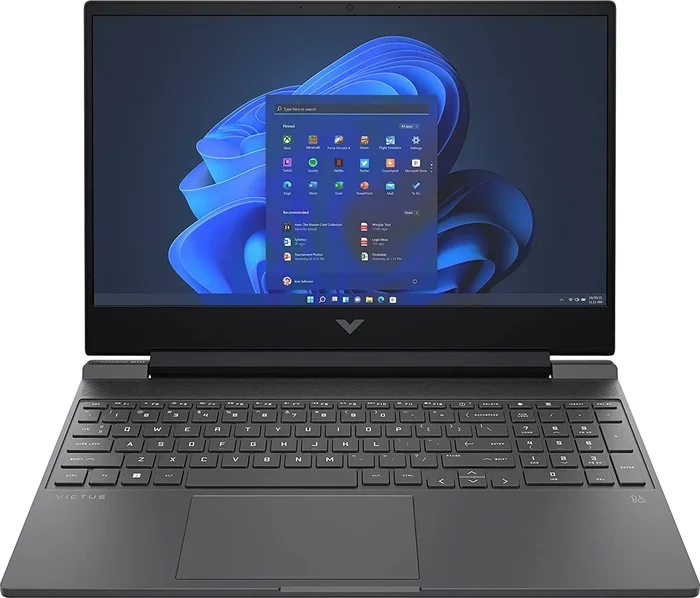
Ram Memory for Hp Laptop
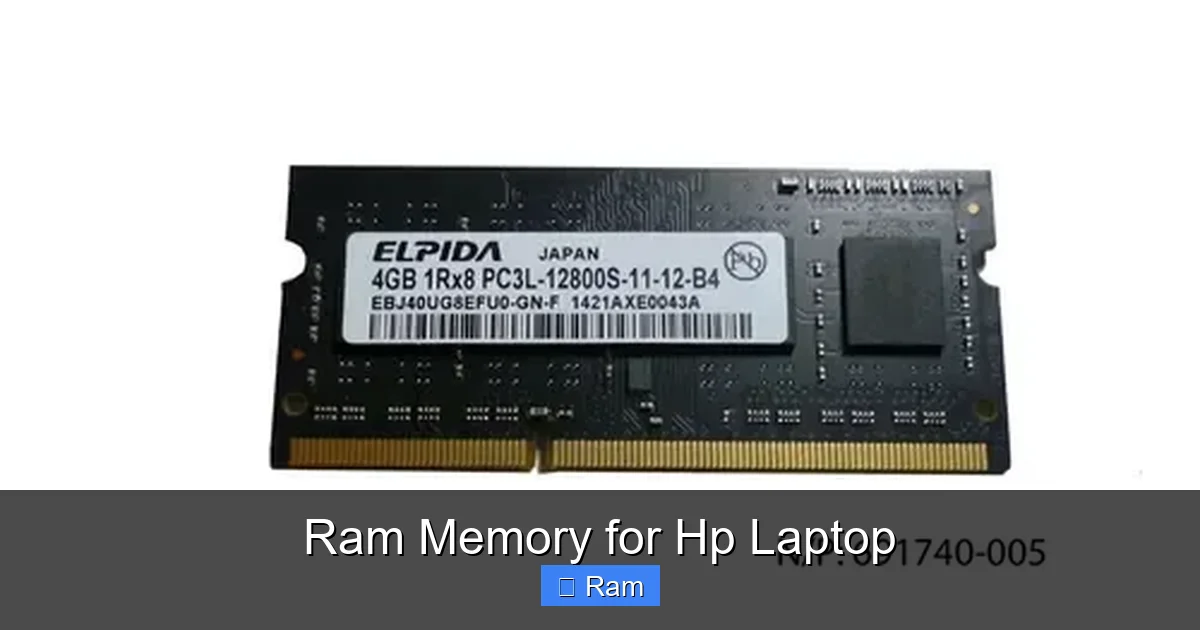
Looking to boost your HP laptop’s speed? This guide walks you through choosing the perfect RAM, checking compatibility, and installing it yourself. Follow our practical tips and top recommendations to get a faster, more responsive laptop today.
Key Takeaways
- Know your laptop model: Identify exact HP series and chipset before buying.
- DDR4 is the current standard: It offers better speed and lower power consumption than DDR3.
- Maximum supported capacity varies: Most HP laptops max out at 32 GB, some at 64 GB.
- Dual‑channel improves performance: Install RAM in matched pairs for optimal bandwidth.
- Installation is DIY‑friendly: With a few tools you can upgrade in under 30 minutes.
- Check BIOS and OS limits: Ensure your system firmware and Windows version recognize the new memory.
- Top picks for 2024: Crucial, Kingston, and Corsair offer reliable kits specifically tested on HP laptops.
📑 Table of Contents
- Introduction: Why RAM Matters for Your HP Laptop
- 1. Understanding RAM Types and Specifications
- 2. How to Determine the Right RAM for Your HP Laptop
- 3. Choosing the Best RAM Kit for HP Laptops
- 4. Step‑by‑Step Guide to Installing RAM in an HP Laptop
- 5. Optimizing System Settings After a RAM Upgrade
- Conclusion: Get the Most Out of Your HP Laptop
Introduction: Why RAM Matters for Your HP Laptop
Imagine trying to run a marathon with a backpack full of bricks. That’s what a laptop feels like when it doesn’t have enough RAM. Random‑Access Memory (RAM) is the short‑term storage that lets your computer juggle open apps, browser tabs, and background processes. When the RAM runs out, the system starts swapping data to the slower hard drive, and you notice lag, stutters, and longer load times.
HP laptops come in many flavors—from the budget Pavilion line to the high‑end Spectre and ZBook workstations. Each model has its own memory limits, but the core principle stays the same: more (and faster) RAM equals a smoother, more responsive experience. Whether you’re a student editing videos, a professional using CAD software, or just a gamer who wants quick load times, upgrading RAM can be the most cost‑effective performance boost.
1. Understanding RAM Types and Specifications
1.1 DDR3 vs. DDR4 vs. DDR5
DDR (Double Data Rate) is the family name for modern laptop memory. DDR3 was common up to 2015, offering speeds of 1333–1866 MHz. DDR4 took over after that, delivering 2133–3200 MHz, lower voltage (1.2 V vs. 1.5 V), and better efficiency. DDR5 is now entering the premium segment, but most HP laptops released before 2023 still use DDR4.
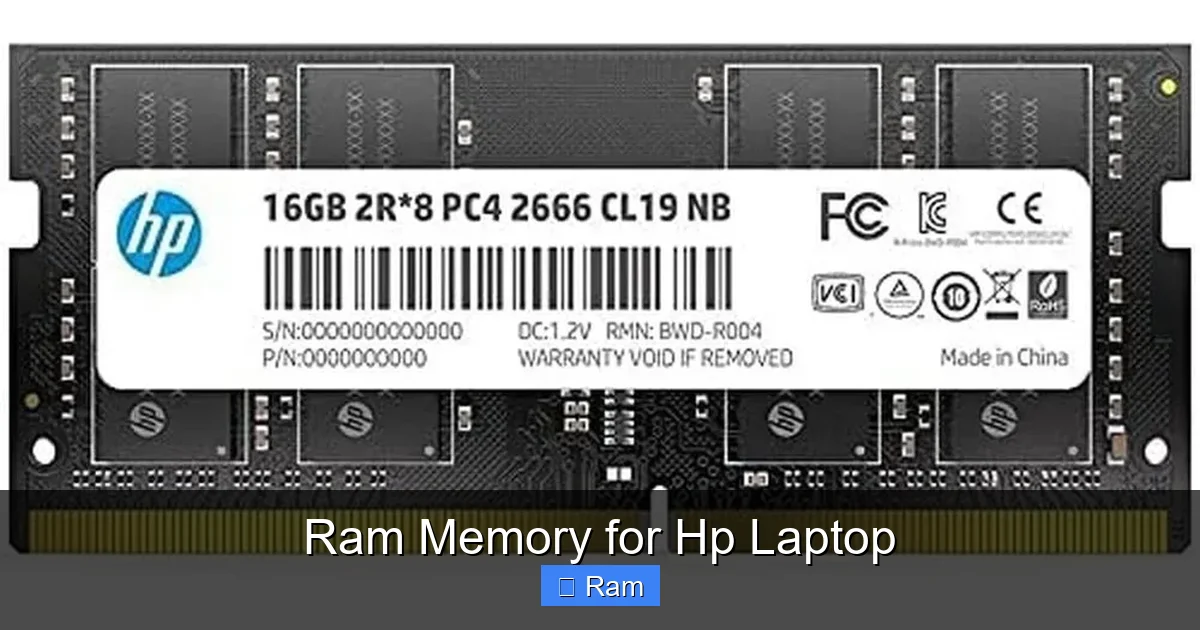
Visual guide about Ram Memory for Hp Laptop
Image source: 5.imimg.com
1.2 Speed (MHz) and Latency (CL)
Speed is measured in megahertz (MHz). Higher numbers mean more data transferred per second. Latency, shown as CL (CAS Latency), indicates how many clock cycles the module needs to access data. A good rule of thumb for DDR4 is to aim for 2666 MHz or 3200 MHz with a CL of 15‑18. The performance difference between 2666 MHz CL16 and 3200 MHz CL18 is modest, but the higher frequency usually wins in real‑world tasks.
1.3 Form Factor: SO-DIMM
All laptop RAM uses the Small Outline Dual‑Inline Memory Module (SO‑DIMM) format, which is about half the size of desktop DIMMs. When buying, make sure the module is listed as “SO‑DIMM” and matches the pin count (usually 260 pins for DDR4).
2. How to Determine the Right RAM for Your HP Laptop
2.1 Locate Your Model Number
The first step is to find the exact model. Look on the bottom of the laptop for a sticker that reads something like “HP Pavilion 15‑ec2000.” You can also type System Information in Windows and check the “System Model” field.
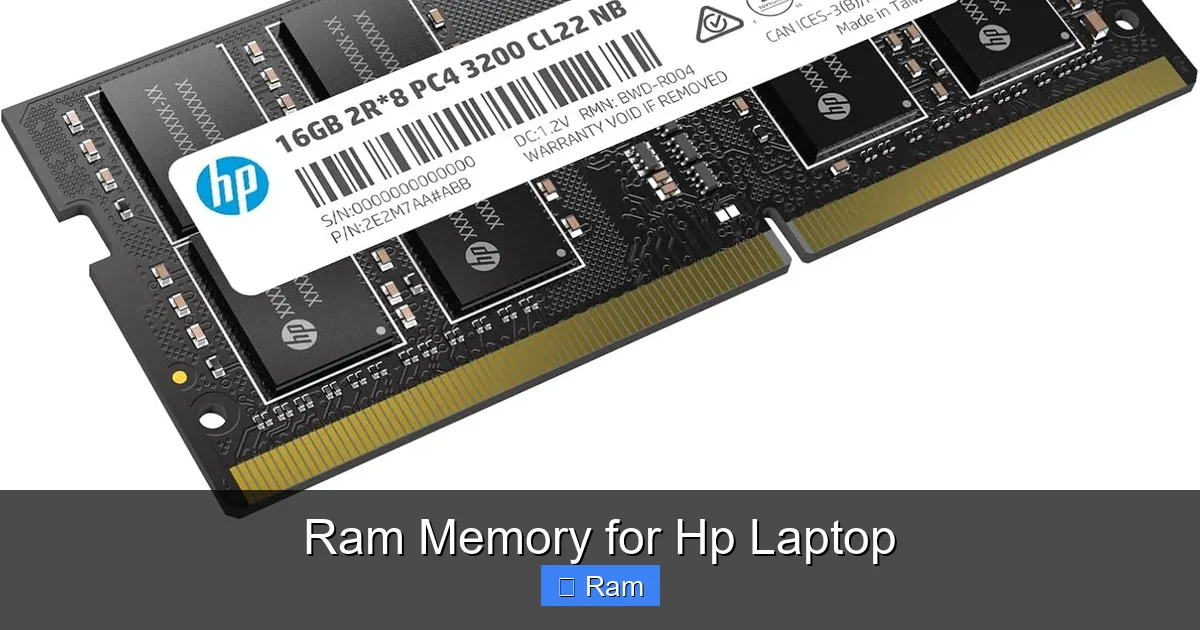
Visual guide about Ram Memory for Hp Laptop
Image source: m.media-amazon.com
2.2 Check the Manufacturer’s Specs
Visit HP’s official support page, enter your model, and review the “Memory” section. It will tell you:
- Maximum RAM capacity (e.g., 32 GB)
- Supported speed (e.g., up to 3200 MHz DDR4)
- Number of slots (usually 2)
2.3 Use Third‑Party Tools
Free utilities like CPU‑Z or Crucial System Scanner can automatically detect your current RAM and suggest compatible upgrades.
2.4 Consider Your Use‑Case
• Basic tasks (web browsing, Office): 8 GB is usually enough.
• Multitasking & light content creation: 16 GB gives headroom.
• Gaming, video editing, 3D rendering: 32 GB or more (if supported) ensures smooth performance.
3. Choosing the Best RAM Kit for HP Laptops
3.1 Brand Reputation
Stick with well‑known manufacturers that have a track record of laptop compatibility. The top three in 2024 are:
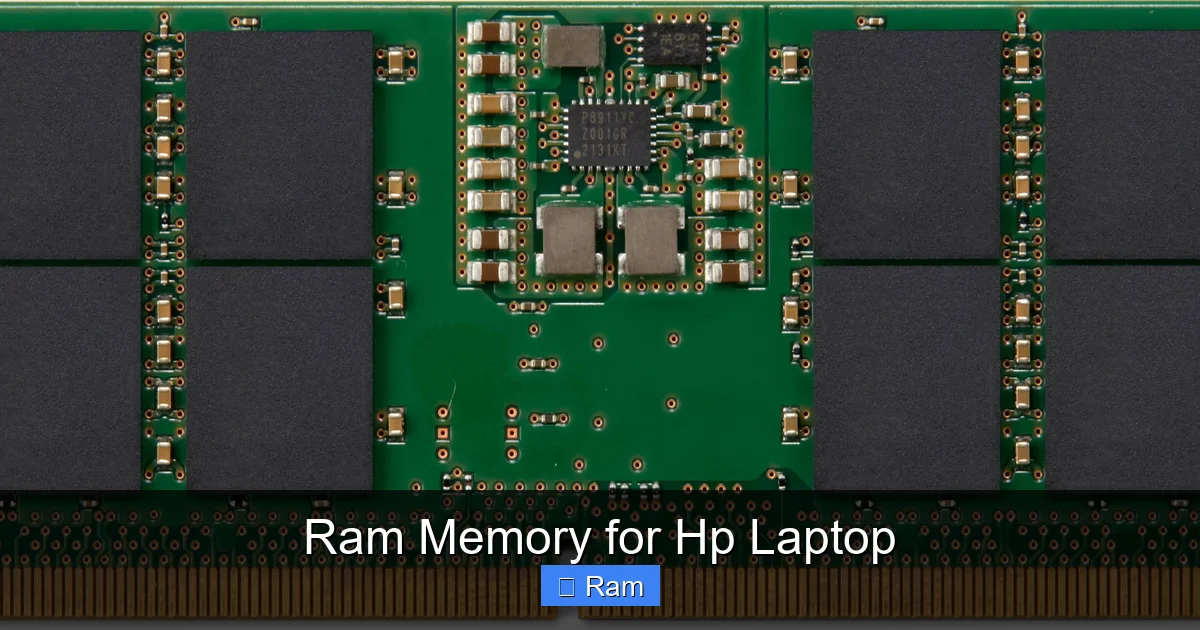
Visual guide about Ram Memory for Hp Laptop
Image source: pricerunner.com
- Crucial (Micron): Offers a “System Scanner” that matches modules to your HP model.
- Kingston Technology: Their “HyperX” and “ValueRAM” lines are widely tested on HP hardware.
- Corsair: Known for high‑performance kits, especially the “Vengeance” series.
3.2 Matching Pairs for Dual‑Channel
Dual‑channel mode doubles the data path by using two identical sticks. For best results, buy a kit that includes two matching modules (e.g., 2 × 8 GB). If you already have one stick, try to purchase the same capacity, speed, and brand for the second slot.
3.3 Example Configurations
Below are three ready‑to‑buy kits for popular HP models:
- HP Pavilion 15‑ec2000 (DDR4, 2 × 8 GB 2666 MHz): Crucial Ballistix 16 GB Kit (BL2K8G4D26A2B01).
- HP Envy 13 (DDR4, 2 × 16 GB 3200 MHz): Kingston HyperX Impact 32 GB Kit (HX429C15PB3K2/32).
- HP ZBook Fury 15 G8 (supports DDR5, 2 × 32 GB 4800 MHz): Corsair Vengeance DDR5 64 GB Kit (CM2X64GX5M2B5600C36).
4. Step‑by‑Step Guide to Installing RAM in an HP Laptop
4.1 Tools You’ll Need
- Small Phillips #0 screwdriver
- Anti‑static wrist strap (optional but recommended)
- Plastic pry tool or an old credit card
- Clean, static‑free workspace
4.2 Preparation
1. Shut down the laptop and unplug the power adapter.
2. Disconnect any peripheral devices (USB, external monitor).
3. Flip the laptop over and locate the memory compartment. Most HP models have a single panel secured by two screws.
4.3 Removing the Old Module (if applicable)
1. Use the screwdriver to remove the panel screws.
2. Gently pry the panel off with the plastic tool.
3. Locate the existing RAM stick; it will be angled at about 45°.
4. Push the side clips outward to release the stick and lift it away.
4.4 Installing the New Module
1. Align the notch on the new SO‑DIMM with the key in the slot.
2. Insert the module at the same 45° angle until you feel it click.
3. Press down gently until the side clips snap into place.
4. Replace the cover, screw it back, and flip the laptop over.
4.5 Verify the Upgrade
Power on the laptop. Right‑click “This PC” → “Properties” → “Installed RAM.” It should display the new total. You can also open Task Manager → Performance → Memory to see speed and channel mode (dual‑channel).
5. Optimizing System Settings After a RAM Upgrade
5.1 Update BIOS/UEFI
Some HP laptops need a BIOS update to recognize higher capacities. Visit the HP Support site, download the latest BIOS for your model, and follow the flashing instructions carefully.
5.2 Adjust Windows Memory Settings
- Virtual Memory (Paging File): Let Windows manage it automatically, or set a custom size equal to 1‑1.5× your RAM.
- Power Plan: Choose “High performance” if you want the CPU to run at full speed with the new memory.
5.3 Clean Up Startup Programs
More RAM means you can run more apps, but it’s still wise to disable unnecessary startup programs. Open Task Manager → Startup tab, and disable anything you don’t need.
5.4 Run Benchmark Tests
Use free tools like UserBenchmark or CPU‑Z Benchmark to compare before‑and‑after scores. You should see a noticeable jump in memory bandwidth and overall system responsiveness.
Conclusion: Get the Most Out of Your HP Laptop
Upgrading RAM is one of the simplest, most affordable ways to breathe new life into an HP laptop. By understanding the type of memory your machine supports, checking the maximum capacity, and installing a matched dual‑channel kit, you can enjoy faster app launches, smoother multitasking, and better gaming or creative performance. Follow the step‑by‑step guide, double‑check BIOS compatibility, and you’ll have a revitalized laptop in under an hour. Remember, the right RAM not only speeds up your current workflow but also future‑proofs your device for years to come.
Frequently Asked Questions
What type of RAM does my HP laptop use?
Most HP laptops released after 2016 use DDR4 SO‑DIMM modules, while older models may still run on DDR3. Check your model’s specifications on HP’s support site to be sure.
Can I mix different RAM brands or capacities?
Yes, but for optimal dual‑channel performance the two sticks should be identical in speed, size, and timing. Mixing brands can work, but mismatched modules may fall back to single‑channel mode.
How much RAM do I really need for gaming?
For modern games, 16 GB is the sweet spot on an HP laptop. Some demanding titles and future releases may benefit from 32 GB, especially if you stream or run background apps.
Will upgrading RAM void my HP warranty?
HP generally allows user‑upgraded RAM without voiding the warranty, as long as you don’t damage the device. Keep the original screws and use only compatible modules.
My laptop doesn’t boot after installing new RAM. What should I do?
First, reseat the modules to ensure they’re fully inserted. If it still won’t boot, try installing one stick at a time to identify a faulty module. Also verify that the BIOS version supports the new capacity.
Is it worth buying DDR5 for my HP laptop?
Only if your specific HP model lists DDR5 as supported (e.g., newer ZBook or Spectre models). DDR5 is more expensive and offers modest gains for most everyday tasks, so stick with DDR4 unless you need the extra bandwidth for heavy workloads.