Easy Fixes for Corrupted Windows Installation Issues

A corrupted Windows installation can freeze your PC, trigger blue screens, and make your system unusable. This guide walks you through proven fixes like SFC scans, DISM commands, startup repair, and system restore to get your PC running again. You will also learn how to prevent corruption and when to seek professional help.
A corrupted Windows installation is one of the most frustrating problems you can face. Your PC might refuse to boot, show weird error messages, or freeze at the worst possible moment. Whether you are working on a Windows 11 8GB RAM laptop or an older machine, corruption can strike anyone.
The good news is that you do not need to be a tech expert to fix this. Most corrupted Windows problems have simple solutions built right into the operating system. In this guide, we will walk you through every fix step by step. You will learn how to repair system files, fix boot errors, and even perform a clean reinstall if needed. Let us get your PC back to life.
Key Takeaways
- Run SFC and DISM: These built-in Windows tools scan and repair corrupted system files quickly.
- Use Startup Repair: The Windows Recovery Environment can fix boot issues without reinstalling Windows.
- System Restore is powerful: Rolling back to a previous restore point can undo recent damage.
- Reset or reinstall as a last resort: Fresh Windows installs solve deep-rooted corruption.
- Prevention matters: Regular updates, surge protectors, and proper shutdowns reduce corruption risk.
- Back up your data: Always back up files before attempting major repairs.
- Know when to call a pro: Persistent hardware failures need expert diagnosis.
📑 Table of Contents
- What Causes a Corrupted Windows Installation?
- Fix 1: Run the System File Checker (SFC)
- Fix 2: Use DISM to Repair the Windows Image
- Fix 3: Use Startup Repair to Fix Boot Issues
- Fix 4: Perform a System Restore
- Fix 5: Reset or Reinstall Windows
- How to Prevent Future Corruption
- When to Seek Professional Help
- Final Thoughts
What Causes a Corrupted Windows Installation?
Understanding the root cause helps you pick the right fix. Corruption rarely happens for just one reason. Here are the most common culprits behind a corrupted Windows installation:
- Power outages or sudden shutdowns: If your PC loses power during a Windows update, critical files can become corrupted.
- Bad sectors on your hard drive: Over time, your storage drive develops damaged areas that corrupt stored data.
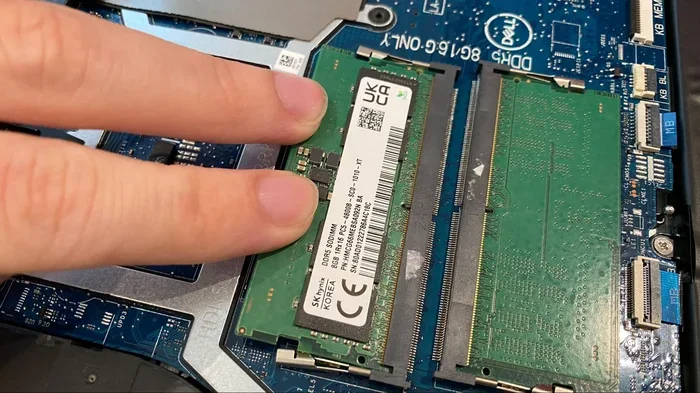
- Faulty RAM or hardware: Defective memory modules can cause random data corruption across the system.
- Malware and viruses: Malicious software can delete or alter essential Windows system files.
- Failed Windows updates: Sometimes updates do not install correctly, leaving your system in a broken state.
- Driver conflicts: Incompatible or outdated drivers can trigger system instability and file corruption.
How to Spot the Signs of Corruption
Corruption does not always announce itself loudly. Some signs are subtle and easy to ignore at first. Watch for these warning signals:
- Frequent blue screen errors with stop codes like CRITICAL_PROCESS_DIED or SYSTEM_THREAD_EXCEPTION.
- Windows freezing or crashing during startup or while using apps.
- Error messages saying “Windows could not complete the installation” or “corrupted file detected.”
- Programs opening slowly or closing unexpectedly.
- Missing system files that your PC needs to function properly.
Fix 1: Run the System File Checker (SFC)
The System File Checker is your first line of defense against a corrupted Windows installation. This built-in Windows repair tool scans every protected system file and replaces any that are damaged. It is simple, fast, and does not require an internet connection.
How to Run SFC Scan
Follow these steps to run the system file checker on your PC:
- Click the Start menu and type “cmd.”
- Right-click Command Prompt and select “Run as administrator.”
- Type
sfc /scannowand press Enter. - Wait for the scan to complete. It usually takes 10 to 20 minutes.
- Restart your PC and check if the issues are resolved.
If SFC finds corrupted files but cannot fix them all, do not worry. Move on to the next fix, which is DISM. This powerful tool repairs the Windows component store that SFC relies on.
Fix 2: Use DISM to Repair the Windows Image
DISM stands for Deployment Image Servicing and Management. It is a command-line tool that repairs the Windows system image. When corrupted system files are too damaged for SFC to handle, DISM steps in and fixes the underlying image that Windows uses during every operation.
Running DISM Commands
Open Command Prompt as an administrator again and run these commands one at a time:
- DISM /Online /Cleanup-Image /CheckHealth — This checks for any detected corruption.
- DISM /Online /Cleanup-Image /ScanHealth — This scans the image in detail.
- DISM /Online /Cleanup-Image /RestoreHealth — This downloads healthy files from Windows Update and repairs the image.
After DISM finishes, run sfc /scannow again. This two-step process resolves most Windows installation fix scenarios. It works on both Windows 10 laptop with 8GB RAM and newer systems.
Fix 3: Use Startup Repair to Fix Boot Issues
When your PC cannot boot at all, a startup repair is often the fastest solution. This tool runs automatically from the Windows Recovery Environment and fixes common boot problems caused by corrupted Windows error messages or missing boot files.
How to Access Startup Repair
You need to boot into the Windows Recovery Environment first. Here is how:
- Force your PC to shut down three times during the boot process. On the fourth attempt, Windows will enter the Automatic Repair screen.
- Select “Advanced Options.”
- Click “Troubleshoot” and then “Advanced Options” again.
- Choose “Startup Repair.”
- Follow the on-screen prompts and let Windows scan for issues.
Startup Repair works silently in the background. It can fix missing or corrupted boot files, repair the Master Boot Record, and resolve many boot issues without you lifting a finger. This is one of the easiest Windows recovery methods available.
Fix 4: Perform a System Restore
System Restore is like a time machine for your PC. It rolls back your system files, settings, and installed programs to a previous point in time. This is incredibly useful when a recent change caused corruption on your corrupted Windows installation.
Steps to Restore Your System
- Boot into the Windows Recovery Environment (use the three-shutdown method described above).
- Select “Troubleshoot” and then “Advanced Options.”
- Click “System Restore.”
- Choose a restore point from the list. Pick one dated before the corruption started.
- Confirm your choice and let Windows restore your system.
Quick Tip: System Restore does not delete your personal files. Your photos, documents, and downloads stay safe. However, programs installed after the restore point may need to be reinstalled. Always create a restore point before making major changes to your PC.
Fix 5: Reset or Reinstall Windows
When all else fails, resetting or reinstalling Windows gives you a fresh start. This is the most powerful fix for deep corruption that has damaged core system files beyond repair. Think of it as the nuclear option — but a clean one.
Reset This PC vs. Clean Install
Windows offers two reset options:
- Keep my files: This removes apps and settings but preserves your personal data. It is a quick way to fix a corrupted Windows installation without losing anything important.
- Remove everything: This performs a full clean install of Windows. Use this option when corruption is severe or when you want a completely fresh system.
To access these options, boot into the Windows Recovery Environment and select “Troubleshoot” followed by “Reset this PC.” If you prefer a completely clean install using a bootable USB, you can create one on another PC using the Media Creation Tool from Microsoft’s website.
Before you reset, back up all your important files to an external drive or cloud storage. A clean install wipes everything, so preparation is essential.
How to Prevent Future Corruption
Prevention is always better than repair. Once you fix your corrupted Windows installation, take these steps to stop it from happening again:
- Use a surge protector: Power surges are one of the top causes of file corruption. A good surge protector saves your hardware and data.
- Keep Windows updated: Regular updates patch security holes and fix known bugs that could lead to corruption.
- Shut down properly: Never force your PC to power off by holding the power button unless it is completely frozen.
- Run regular disk checks: Use the
chkdskcommand monthly to find and fix bad sectors before they cause problems. - Install reputable antivirus software: Malware is a leading cause of system file corruption. A good antivirus keeps your system safe.
- Back up regularly: Use Windows Backup or a third-party tool to create regular backups of your important files.
Quick Prevention Tips
Here are some extra habits that keep your Windows system healthy and corruption-free:
- Avoid installing software from untrusted sources.
- Do not unplug external drives without safely ejecting them first.
- Keep at least 15% of your hard drive free for system operations.
- Restart your PC at least once a week to apply pending updates and clear temporary files.
When to Seek Professional Help
Most corrupted Windows installation problems can be fixed at home using the methods above. However, some situations need expert attention. You should consider professional help if:
- Your PC makes clicking or grinding noises — this often signals a failing hard drive.
- You see the blue screen of death repeatedly even after trying all fixes.
- Windows Recovery Environment will not load at all.
- You suspect hardware failure, such as a dead motherboard or failing RAM.
- Your data is critically important and you are afraid of losing it during repairs.
A professional technician can run hardware diagnostics and recover data from failing drives. If you are using a Windows 10 laptop 8GB RAM or any other machine, do not hesitate to seek help when the situation feels beyond your control.
Final Thoughts
A corrupted Windows installation does not have to be the end of the world. With the right tools and a calm approach, you can repair almost any corruption issue. Start with SFC and DISM, then move to Startup Repair and System Restore if needed. Only reset or reinstall Windows as a last resort.
Remember to back up your data regularly and follow the prevention tips in this guide. A little maintenance goes a long way in keeping your PC healthy. If you ever feel stuck, reach out to a professional — there is no shame in asking for help. Your PC deserves the best care you can give it.
Frequently Asked Questions
What is a corrupted Windows installation?
A corrupted Windows installation means that critical system files have been damaged or deleted, causing your PC to malfunction. Symptoms include boot failures, blue screens, and frequent crashes.
Can I fix a corrupted Windows installation without reinstalling?
Yes, in most cases. Tools like SFC, DISM, Startup Repair, and System Restore can fix corruption without requiring a full Windows reinstall. These built-in tools handle the majority of corruption issues effectively.
How long does it take to repair a corrupted Windows installation?
Simple fixes like SFC scans take 10 to 20 minutes. Startup Repair may take 30 to 60 minutes. A full Windows reset or reinstall can take one to three hours depending on your hardware speed.
Will I lose my files when repairing a corrupted Windows installation?
Usually no. Most repair methods like SFC, DISM, and Startup Repair do not touch your personal files. However, always back up your data before attempting any major repair to be safe.
What should I do if Startup Repair does not work?
If Startup Repair fails, try running SFC and DISM commands from the Windows Recovery Environment. If those also fail, use System Restore to roll back to a healthy state. As a last option, reset or reinstall Windows.
How can I prevent my Windows installation from becoming corrupted again?
Use a surge protector, keep Windows updated, shut down your PC properly, run regular disk checks, install antivirus software, and back up your files frequently. These habits greatly reduce the risk of future corruption.