Crm for Gmail
Looking to turn Gmail into a sales powerhouse? A CRM for Gmail adds contact tracking, pipeline management, and automation right inside your inbox. Read on to learn how it works, which tools shine, and simple steps to get started.
Key Takeaways
- Seamless integration: A good CRM plugs directly into Gmail, so you never leave your inbox.
- Automation saves time: Auto‑log emails, set reminders, and create follow‑up sequences with one click.
- Pipeline visibility: View deals, stages, and forecasts without opening a separate dashboard.
- Collaboration made easy: Share contacts and notes with teammates straight from Gmail.
- Data security: Top CRM‑for‑Gmail solutions use encryption and comply with GDPR.
- Scalable pricing: Free tiers cover basics; paid plans add advanced reporting and AI insights.
- Quick setup: Most tools install as a Chrome extension and sync in minutes.
📑 Table of Contents
- Why Combine a CRM with Gmail?
- Top CRM‑for‑Gmail Solutions in 2024
- How a CRM for Gmail Works – Step by Step
- Practical Tips to Maximize Your Gmail CRM
- Security & Compliance – What to Watch For
- Choosing the Right Plan – Free vs. Paid
- Real‑World Example: Turning Gmail into a Sales Engine
- Integrating Other Tools with Your Gmail CRM
- Conclusion – Turn Your Inbox Into a Growth Engine
Why Combine a CRM with Gmail?
Gmail is the hub of most small‑business communication. Every prospect, lead, and customer conversation lands there. Yet, most teams still treat the inbox like a mailbox—reading, replying, and archiving—without turning those messages into actionable data. That’s where a CRM for Gmail comes in.
By embedding customer‑relationship features directly into your email client, you get:
- Instant contact enrichment: Pull social profiles, company details, and past interactions with a single click.
- Automatic logging: Every email is recorded in the contact’s timeline, so you always have a full history.
- One‑click deal creation: Turn an email thread into a sales opportunity without leaving Gmail.
In short, you keep the simplicity of Gmail while gaining the power of a full‑featured CRM.
Top CRM‑for‑Gmail Solutions in 2024
Not all CRM add‑ons are created equal. Below are the most popular tools, their key features, and who they’re best for.
1. HubSpot CRM – Gmail Integration
HubSpot offers a free Chrome extension that adds a sidebar to Gmail. Highlights include:
- Contact and company insights appear next to each email.
- One‑click logging of outgoing messages.
- Deal pipeline view inside the inbox.
- Free forever plan with unlimited users.
Best for startups and teams that want a robust free tier.
2. Streak CRM
Built inside Gmail, Streak feels like a native Gmail label system. Features:
- Custom pipelines for sales, support, or recruiting.
- Mail merge and email templates.
- Shared pipelines for team collaboration.
- Free for personal use; paid plans start at $19/user/month.
Ideal for small teams that love staying inside Gmail.
3. Copper (formerly ProsperWorks)
Copper syncs automatically with Google Workspace. Key points:
- Automatic email logging and contact creation.
- Smart reminders and follow‑up suggestions.
- Deep integration with Google Calendar and Drive.
- Free trial, then plans from $25/user/month.
Great for businesses already deep in the Google ecosystem.
4. Zoho CRM – Gmail Add‑on
Zoho’s add‑on brings the full Zoho suite to Gmail:
- One‑click lead capture from email.
- AI‑powered sales assistant (Zia) for suggestions.
- Custom modules and automation.
- Free plan for up to 3 users.
Perfect for companies that need a flexible, budget‑friendly solution.
5. Pipedrive – Gmail Integration
Pipedrive’s extension focuses on pipeline visibility:
- Log emails with a single button.
- View deal stage directly in Gmail.
- Smart contact fields and activity reminders.
- Paid plans start at $15/user/month after a 14‑day trial.
Best for sales teams that prioritize visual pipelines.
How a CRM for Gmail Works – Step by Step
Even if you’ve never used a CRM, the workflow is simple.
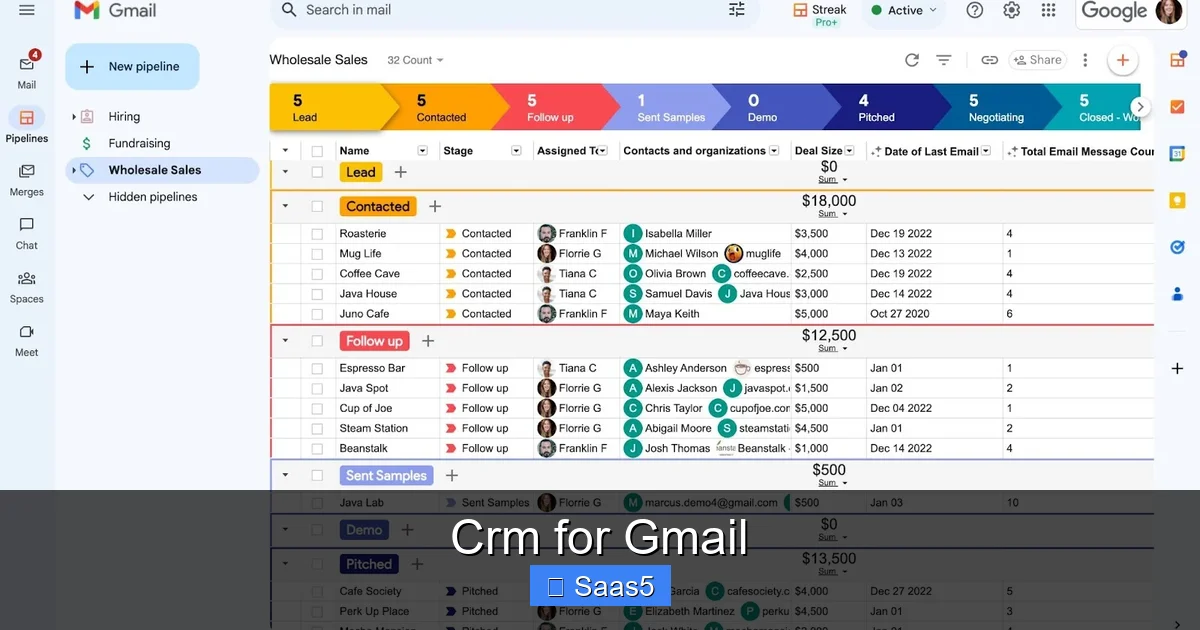
Visual guide about Crm for Gmail
Image source: cdn.prod.website-files.com
Step 1 – Install the Extension
Go to the Chrome Web Store, search for the CRM’s name, and click “Add to Chrome.” The extension adds a sidebar or toolbar inside Gmail.
Step 2 – Connect Your Account
Log in with your CRM credentials. Most tools will ask for permission to read and write Gmail data. This is required for automatic logging.
Step 3 – Sync Contacts
The CRM will scan your inbox, identify email addresses, and create contact records. You can enrich these contacts manually or let the CRM pull data from LinkedIn, Clearbit, etc.
Step 4 – Create a Pipeline
Choose a pre‑built pipeline (e.g., “New Lead → Qualified → Proposal → Closed”) or build a custom one. Each pipeline appears as a column in the Gmail sidebar.
Step 5 – Log Emails & Set Tasks
When you reply to a prospect, click the “Log” button. Add a note or tag the email to a specific deal. Set a follow‑up task and the CRM will remind you.
Step 6 – Review Reports
Most CRM‑for‑Gmail tools offer a lightweight reporting view inside Gmail. For deeper analytics, jump to the web dashboard.
Practical Tips to Maximize Your Gmail CRM
Installing a CRM is just the beginning. Here are proven tactics to get real value.

Visual guide about Crm for Gmail
Image source: parentingworry.com
1. Use Email Templates
Save common replies (e.g., meeting requests, pricing info) as templates. Most extensions let you insert a template with a single click, cutting response time by up to 40%.
2. Set Up Automated Follow‑Ups
Configure the CRM to create a follow‑up task if you haven’t heard back in 3 days. The reminder pops up in Gmail, so nothing falls through the cracks.
3. Tag Contacts for Segmentation
Apply tags like “Hot Lead,” “Newsletter,” or “Support.” Later you can filter your inbox or run a bulk email campaign from the CRM.
4. Leverage AI Suggestions
Tools like Copper’s Zia or HubSpot’s AI can suggest the best time to follow up, recommend email subject lines, or highlight risky deals. Turn these insights on for smarter outreach.
5. Keep Data Clean
Regularly merge duplicate contacts and archive stale deals. A tidy CRM means accurate forecasts and smoother team collaboration.
Security & Compliance – What to Watch For
Since a CRM for Gmail accesses your email content, security is a top concern.
Encryption
Choose a solution that uses TLS encryption for data in transit and AES‑256 for data at rest.
GDPR & CCPA
If you handle EU or California residents’ data, verify that the CRM is GDPR‑ and CCPA‑compliant. Look for clear data‑processing agreements.
Permission Controls
Assign role‑based access so only authorized users can view or edit sensitive contacts.
Backup Options
Some CRMs let you export contact lists and deal histories as CSV files. Schedule regular backups to avoid accidental loss.
Choosing the Right Plan – Free vs. Paid
Most CRM‑for‑Gmail tools start with a free tier that includes basic logging and pipeline features. As your team grows, consider these factors before upgrading:
- Number of users: Free plans often limit users to 1–3.
- Advanced reporting: Paid tiers unlock dashboards, funnel analysis, and forecasting.
- Automation limits: Free versions may cap the number of workflow automations.
- Support level: Paid plans usually include priority email or chat support.
Test a free plan for 30 days, then evaluate whether the added insights justify the cost.
Real‑World Example: Turning Gmail into a Sales Engine
Imagine a freelance web designer named Maya. She receives client inquiries via Gmail. Here’s how she uses Streak CRM:
- Lead capture: Every new email from an unknown address is automatically added as a “New Lead” in Starch’s pipeline.
- Template reply: Maya clicks a “Quote Request” template, fills in project details, and sends it—all logged.
- Follow‑up reminder: The CRM sets a 5‑day reminder. If Maya hasn’t heard back, a banner appears in Gmail prompting a gentle nudge.
- Deal closing: When the client accepts, Maya clicks “Move to Closed‑Won.” The deal value is recorded for future reporting.
- Invoice integration: With a Zapier connection, the closed deal triggers an invoice in QuickBooks automatically.
Within weeks, Maya sees a 30% increase in conversion because no email falls through the cracks.
Integrating Other Tools with Your Gmail CRM
While the CRM does most of the heavy lifting, you can boost productivity by linking other SaaS apps.
Calendar Sync
Connect Google Calendar so that follow‑up tasks appear as events. This keeps your schedule aligned with sales activities.
Project Management
Use Zapier or native integrations to push won deals into Asana or Trello, turning sales into actionable projects.
Document Storage
Attach proposals stored in Google Drive directly to the contact’s timeline. Everything stays searchable from Gmail.
Example of a Related Purchase
If you need a reliable peripheral for your laptop while handling sales on the go, consider a good wireless mouse for laptop. It offers smooth navigation when you’re juggling multiple CRM tabs.
Conclusion – Turn Your Inbox Into a Growth Engine
A CRM for Gmail bridges the gap between email communication and systematic sales management. By installing a simple extension, you gain contact enrichment, automated logging, pipeline visibility, and team collaboration—all without leaving your inbox. Choose a tool that matches your team size, budget, and workflow preferences, and follow the practical tips above to start seeing faster responses, higher conversion rates, and clearer forecasts.
Remember, the best CRM is the one you actually use every day. Start with a free trial, set up a few simple automations, and watch your Gmail transform from a passive mailbox into an active sales engine.
Frequently Asked Questions
Can I use a CRM for Gmail on a mobile device?
Yes. Most CRM extensions have companion mobile apps or responsive web dashboards that sync with your Gmail account, letting you manage contacts and tasks on the go.
Is a CRM for Gmail secure enough for sensitive client data?
Top providers use TLS encryption, AES‑256 storage, and comply with GDPR/CCPA. Always review the vendor’s security certifications before connecting your email.
Do I need a Google Workspace account?
While many integrations work with free Gmail accounts, some advanced features (like deep Calendar sync) require Google Workspace. Check the CRM’s requirements before signing up.
How much does a paid CRM for Gmail cost?
Pricing varies. Free tiers cover basic logging and pipelines. Paid plans typically range from $15 to $30 per user per month, adding reporting, automation limits, and priority support.
Can I migrate data from my current CRM to a Gmail‑based CRM?
Yes. Most CRM platforms offer CSV export/import tools. Export contacts and deals from your existing system, then import them into the new Gmail CRM.
Will a CRM for Gmail slow down my email?
Modern extensions are lightweight and run in the background. If you notice performance issues, try disabling unused add‑ons or clearing browser cache.