Dell Laptop Hdmi Port Not Working
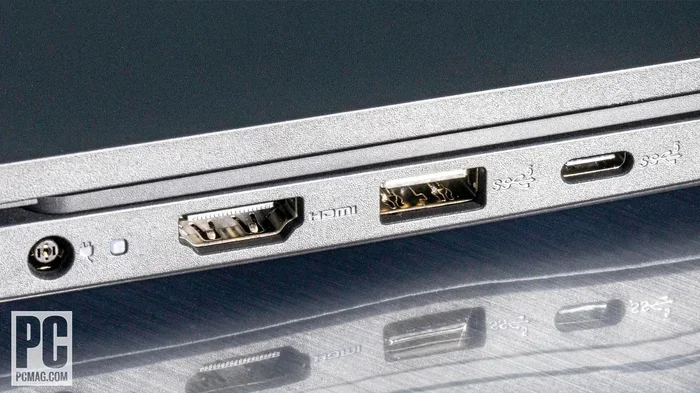
Dealing with a Dell Laptop HDMI Port Not Working can be frustrating, but most causes are simple to fix. This guide walks you through every troubleshooting step, from checking cables and drivers to testing for hardware damage. You will learn quick fixes, expert tips, and when it is time to seek professional help.
There is nothing worse than plugging in your HDMI cable and getting nothing but a blank screen. If your Dell Laptop HDMI Port Not Working, you are not alone. This is a very common problem that Dell laptop users face, and the good news is that it is usually fixable at home. In this guide, we will walk you through every possible cause and solution step by step.
Whether your HDMI port stopped working after a drop, a Windows update, or for no clear reason at all, this article has you covered. We will look at software fixes, hardware checks, and everything in between. By the end, you will know exactly what to do to get your external display back up and running.
Key Takeaways
- Loose or damaged HDMI cables are the most common reason your Dell laptop HDMI port stops working.
- Outdated or corrupted display drivers frequently cause HDMI output problems on Dell laptops.
- A simple restart and reseating of the HDMI cable can resolve many connection issues instantly.
- Windows display settings sometimes need manual adjustment to detect an external monitor.
- Physical damage to the HDMI port may require professional repair or replacement.
- Prevention tips like keeping cables clean and avoiding forceful plugging can extend port life.
📑 Table of Contents
Why Does Your Dell Laptop HDMI Port Stop Working?
Before jumping into fixes, it helps to understand what might be causing the problem. A Dell laptop HDMI port not working can stem from many different sources. Some causes are simple and easy to fix. Others may need a bit more effort or even professional help. Let us break down the most common reasons.
Loose or Damaged HDMI Cables
The simplest explanation is often the right one. Your HDMI cable might not be seated properly in the port. Over time, cables can also wear out, bend, or break internally. If the cable is damaged, it will not send a signal no matter what you do. This is the first thing you should always check when your Dell laptop HDMI port is not working.
Outdated or Corrupted Display Drivers
Windows relies on display drivers to communicate with your HDMI port. If these drivers become outdated or corrupted, your laptop may fail to send any signal to an external monitor. This happens frequently after Windows updates. Sometimes a new update can conflict with your current driver setup, causing the HDMI output to stop working.
Windows Display Settings Issues
Windows has a feature that lets you choose how your display works with external monitors. If the settings are set to “PC screen only” or “Second screen only,” your HDMI output will appear blank. This is a very common and easy-to-fix issue that many users overlook.
Physical Damage to the HDMI Port
If you have dropped your laptop or it has taken a hit, the HDMI port itself could be damaged. Bent pins inside the port or loose solder connections can prevent the port from working. Physical damage usually requires professional repair or port replacement.
Power Supply and Graphics Card Problems
In rare cases, your laptop’s dedicated or integrated graphics card may be failing. This can cause the HDMI port to stop sending any signal. If your Dell laptop HDMI port not working happens alongside screen flickering or graphical glitches, the GPU could be the culprit.
Step-by-Step Troubleshooting Guide
Now that you know the possible causes, let us get into the fixes. Follow these steps in order. Most people solve their HDMI problem within the first few steps.
Step 1: Check Your HDMI Cable and Connections
Start with the basics. Unplug the HDMI cable from both your laptop and your TV or monitor. Inspect the cable ends for any visible damage or bent pins. Plug the cable back in firmly, making sure it clicks into place. Try a different HDMI cable if you have one available. This alone fixes the problem for many users.
Also, try a different HDMI port on your TV or monitor if possible. Sometimes the issue is not with your laptop at all but with the receiving device. If you have another device like a gaming console or a Blu-ray player, plug it into the same TV port to test it.
Step 2: Restart Your Laptop and External Display
This sounds too simple, but it works more often than you would think. Turn off your Dell laptop completely. Unplug the HDMI cable. Wait about 30 seconds. Then plug the cable back in and turn on your laptop and your external display. A fresh start clears many temporary glitches that can block the HDMI signal.
If you have also noticed that your Dell laptop mouse touchpad is not working alongside the HDMI issue, this could point to a broader hardware or driver problem that needs deeper investigation.
Step 3: Update Your Display Drivers
Outdated drivers are one of the top reasons for HDMI problems. Here is how to update them:
- Right-click on the Start button and select Device Manager.
- Expand the Display adapters section.
- Right-click your graphics driver and select Update driver.
- Choose Search automatically for drivers.
- Follow the on-screen instructions to complete the update.
After updating, restart your laptop and test the HDMI connection again. If Windows does not find a new driver, visit Dell’s official support website and download the latest driver for your specific model.
Step 4: Adjust Windows Display Settings
Sometimes Windows simply needs a nudge to recognize your external display. Here is what to do:
- Press the Windows key + P on your keyboard.
- A sidebar will appear with display options.
- Select Duplicate, Extend, or Second screen only.
- Wait a few seconds and see if the external display activates.
If the second screen still does not show up, go to Settings > System > Display and click Detect. This forces Windows to look for any connected external displays through the HDMI port.
Step 5: Roll Back or Reinstall Display Drivers
If updating the driver did not help, the new driver might be causing the issue. You can roll back to a previous version:
- Open Device Manager and go to Display adapters.
- Right-click your graphics driver and select Properties.
- Go to the Driver tab and click Roll Back Driver.
- Restart your laptop and test the HDMI port.
If the Roll Back option is greyed out, try uninstalling the driver entirely. Restart your laptop, and Windows will reinstall a fresh driver automatically.
How to Test If Your HDMI Port Is Damaged
Sometimes software fixes are not enough, and the problem is physical. Here is how to test whether your HDMI port itself is damaged.
The External Monitor Test
Connect your Dell laptop to a different external monitor using the same HDMI cable. If the second monitor works perfectly, the problem is likely with your original TV or monitor, not your laptop. If neither monitor works, the HDMI port on your laptop is probably the issue.
The USB-C or Alternative Port Test
Many newer Dell laptops come with USB-C ports that support video output. Try connecting your external display using a USB-C to HDMI adapter. If this works, your HDMI port is likely damaged or malfunctioning.
If you have also experienced issues where your USB mouse is not working on your laptop at the same time, this could indicate a broader USB or port controller problem that affects multiple ports on your Dell laptop.
Software Fixes for Dell Laptop HDMI Issues
Beyond driver updates and display settings, there are several software-level fixes that can resolve HDMI problems on Dell laptops.
Run the Windows Troubleshooter
Windows has a built-in troubleshooter for display issues. To access it:
- Go to Settings > Update & Security > Troubleshoot.
- Click on Additional troubleshooters.
- Find and run the Hardware and Devices troubleshooter.
- Follow the prompts and apply any recommended fixes.
This tool can automatically detect and resolve common HDMI and display configuration problems.
Check for Windows Updates
Microsoft regularly releases updates that fix display and connectivity bugs. Make sure your system is fully up to date:
- Go to Settings > Update & Security > Windows Update.
- Click Check for updates.
- Install any pending updates.
- Restart your laptop and test the HDMI port.
Disable and Re-enable the Display Adapter
Sometimes simply toggling the display adapter can reset the connection:
- Open Device Manager.
- Expand Display adapters.
- Right-click your graphics adapter and select Disable device.
- Wait 10 seconds, then right-click again and select Enable device.
- Test your HDMI connection.
When to Seek Professional Repair
If you have tried every software fix and cable test and your HDMI port still does not work, it is time to consider professional help. Here are signs that you need expert repair.
Visible physical damage to the port, such as a bent or broken HDMI pin, is a clear indicator. If your laptop is still under warranty, contact Dell support first. They may offer free or low-cost repairs. If your warranty has expired, a local repair shop can replace the HDMI port for a reasonable fee, typically ranging from $50 to $150 depending on the model.
For older laptops, weigh the repair cost against the cost of a new laptop. If repair costs more than half the value of your machine, it might be time to upgrade.
You should also note that some hardware issues, like a failing motherboard or graphics card, can cause HDMI problems that are not easily fixable without major repair work. If your Dell laptop mouse is also not working and you see graphical artifacts on screen, these combined symptoms could point to a serious hardware failure that needs immediate professional attention.
Preventing HDMI Port Problems on Your Dell Laptop
Prevention is always better than cure. Here are simple habits that can keep your Dell laptop HDMI port working smoothly for years.
- Always plug in and unplug the HDMI cable gently. Forcing the cable can bend or break the pins inside the port.
- Keep your cables clean. Dust and debris can build up in the port and interfere with the connection. Use compressed air to clean it periodically.
- Use high-quality HDMI cables. Cheap cables can cause intermittent connection issues and may not support higher resolutions.
- Avoid running your laptop with cables plugged in at sharp angles. This puts stress on the port and can loosen the internal connections over time.
- Keep your drivers updated. Regular driver updates prevent compatibility issues that can affect your HDMI output.
- Use a surge protector. Power surges can damage internal components, including the HDMI port controller.
Following these simple tips can save you a lot of troubleshooting headaches down the road.
Quick Tips for Common HDMI Problems
- No signal at all? Try a different cable first. Most often, the cable is the problem, not the laptop.
- Flickering display? Check your cable connections and try lowering the resolution on your external monitor.
- Display shows but is blurry? Adjust the resolution in Windows Display Settings to match your external monitor’s native resolution.
- Sound works but no picture? Your HDMI cable might only be transmitting audio. Try reseating the cable or using a different port.
- Laptop recognizes the monitor but no image? Press Windows + P and try switching between display modes.
Conclusion
A Dell Laptop HDMI Port Not Working is a problem that most users can solve with the right approach. Start with the basics: check your cable, restart your devices, and update your drivers. Move on to display settings and software fixes if the simple steps do not work. Only consider professional repair if you have confirmed physical damage or a hardware failure.
Remember that most HDMI issues are caused by software glitches or cable problems, not by broken ports. With patience and the steps outlined in this guide, you will likely have your external display working again in no time. Do not panic, and do not throw your laptop out just yet. Follow the troubleshooting steps one by one, and you will find the solution that works for you.
Keep your drivers updated, handle your cables with care, and your Dell laptop HDMI port should serve you well for years to come. If problems persist, do not hesitate to reach out to Dell support or a trusted repair professional for help.
Frequently Asked Questions
Why does my Dell laptop HDMI port show no signal?
The most common reason is a loose or damaged HDMI cable. Try unplugging and replugging the cable firmly. If that does not work, try a different cable or test the cable on another device to rule out a cable problem.
Can I fix a damaged HDMI port on my Dell laptop at home?
Minor issues like dust buildup can be fixed at home with compressed air. However, if the port is physically bent or broken, you will likely need a professional repair. Replacing an HDMI port involves soldering, which requires technical skill.
How do I update the display driver on my Dell laptop?
Open Device Manager, expand Display adapters, right-click your graphics driver, and select Update driver. You can also visit Dell’s official support website and download the latest driver for your specific laptop model.
Why does my HDMI port work sometimes but not others?
Intermittent HDMI issues are often caused by a loose cable connection or a damaged cable. Make sure the cable clicks in firmly. If the problem persists, the port itself may have a partial connection issue that worsens over time.
Is it safe to use an HDMI adapter with my Dell laptop?
Yes, using a quality HDMI adapter is generally safe. However, cheap or poorly made adapters can cause connection problems or signal loss. Stick to reputable brands and make sure the adapter supports your desired resolution.
Will a Windows reset fix my Dell laptop HDMI port problem?
A Windows reset can fix HDMI issues caused by software conflicts or corrupted system files. However, it should be a last resort since it removes all your installed programs and personal files. Always back up your data before performing a reset.