How to Use Sim Card in Laptop
Using a SIM card in your laptop lets you access mobile data anywhere, without relying on Wi-Fi. This guide covers everything from inserting your SIM card and activating it to troubleshooting common problems. You will learn how to set up network settings, use mobile broadband, and get the most from your data plan.
Using a SIM card in a laptop is one of the easiest ways to stay connected on the go. Whether you travel often, work remotely, or live in an area with spotty Wi-Fi, a SIM card gives you reliable internet access right from your device.
Many people do not realize that laptops can use SIM cards just like phones do. You simply insert the card, activate your plan, and you are online. No need to tether your phone or hunt for a coffee shop with free Wi-Fi.
In this guide, we will walk you through everything you need to know about using a SIM card in a laptop. From finding the SIM slot to setting up your network and fixing common issues, we have you covered. Let us get started.
Key Takeaways
- SIM card slots are not available on all laptops: Check your laptop model first to see if it supports a SIM card or eSIM.
- You can get mobile data on the go: A SIM card turns your laptop into a portable hotspot, giving you internet anywhere with cell coverage.
- Activation is simple: Just insert the SIM, go to network settings, and follow your carrier’s setup steps.
- eSIM is the future: Many new laptops now support eSIM, which lets you activate a plan without a physical card.
- Troubleshooting is easy: Most SIM issues can be fixed by restarting, updating drivers, or reseating the card.
- Check your data plan: Make sure your carrier plan supports data sharing with your laptop before you start.
📑 Table of Contents
- What Is a SIM Card and How Does It Work in a Laptop?
- How to Check if Your Laptop Supports SIM Cards
- How to Insert and Set Up a SIM Card in Your Laptop
- How to Set Up Mobile Data and Network Settings
- Common Problems and How to Fix Them
- Tips for Getting the Most From Your SIM Card in a Laptop
- Conclusion
What Is a SIM Card and How Does It Work in a Laptop?
A SIM card, or Subscriber Identity Module, is a small chip that stores your carrier information. It connects your device to a cellular network. When you put a SIM card in your laptop, it allows the laptop to access mobile data just like a smartphone would.
The SIM card talks to cell towers nearby. It authenticates your account and lets you use your data plan. Some newer laptops use eSIM technology instead. An eSIM is built into the device and does not need a physical card at all.
Not every laptop has a SIM slot. You need to check your specific model. If your laptop does not have one, you can use a USB modem or a portable hotspot device. These work the same way but connect through a different port.
Most laptops that support SIM cards have a dedicated tray on the side or bottom. Some models have the SIM slot hidden under a panel. If you are unsure where yours is, check your laptop manual or the manufacturer website.
How to Check if Your Laptop Supports SIM Cards
Before you buy a SIM card or try to insert one, you need to confirm your laptop supports it. Here is how to check.
Check Your Laptop Specifications
Look up your laptop model online. Visit the manufacturer website and search for your model number. Check the specifications section for terms like “cellular,” “LTE,” “4G,” “5G,” or “SIM support.” If you see any of these, your laptop can use a SIM card.
You can also check the Device Manager on Windows. Open it and look for “Network adapters.” If you see a cellular or mobile broadband adapter listed, your laptop supports SIM connectivity.
Look for a SIM Card Slot
Physically inspect your laptop. Check the sides, back, and bottom for a small tray or slot. It is usually about the size of a micro-SIM card. Some laptops have a pop-out panel near the hinge area.
If you do not see a slot, your laptop may still support eSIM. Check the settings under Network & Internet on your laptop. If there is an option to add a cellular plan, eSIM is supported.
Some older laptops that claim to support SIM cards may need a driver update. If your laptop has the slot but does not recognize the card, updating your network drivers often fixes the problem.
How to Insert and Set Up a SIM Card in Your Laptop
Once you confirm your laptop supports a SIM card, the next step is simple. You insert the card and activate your plan. Here is a detailed walkthrough.
Step 1: Get the Right SIM Card Size
Laptops usually use nano-SIM cards. Some older models use micro-SIM or standard SIM. Check your laptop manual for the correct size. You can also ask your carrier for the right size when you order a new SIM.
If you are switching from a phone SIM, you may need a new SIM in the correct size. Most carriers offer free SIM swaps at their stores or online.
Step 2: Find the SIM Tray
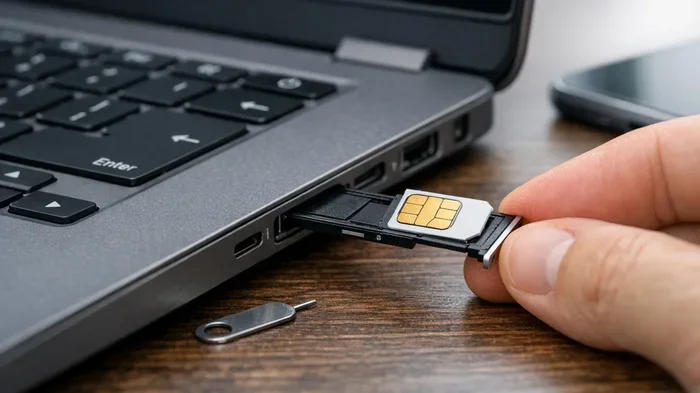
Locate the SIM tray on your laptop. It is usually on the side edge. Some trays have a tiny hole next to them. Use a SIM ejector tool or a small paperclip to gently push into the hole. The tray will pop out.
Place the SIM card into the tray with the gold contacts facing down. Make sure it sits flat and secure. Push the tray back in gently until it clicks into place.
Step 3: Activate Your SIM Card
After inserting the SIM, turn on your laptop. Go to Settings and then Network & Internet. Look for the Mobile or Cellular section. Your laptop should detect the SIM card automatically.
Follow the prompts to activate your plan. You may need to enter a PIN or APN settings provided by your carrier. APN stands for Access Point Name. It tells your laptop how to connect to the carrier’s data network.
If you are using an eSIM, the process is even simpler. Go to Settings, Network & Internet, and select “Add a cellular plan.” Scan the QR code provided by your carrier, and the plan activates instantly.
How to Set Up Mobile Data and Network Settings
Once your SIM card is active, you need to set up your network settings correctly. This ensures you get the best speeds and avoid data issues.
Configure APN Settings
APN settings are essential for mobile data. Without the correct APN, your laptop may not connect to the internet even if the SIM is recognized. Your carrier provides these settings.
To find them, go to Settings, Network & Internet, and select Mobile Network. Look for “Access Point Names” and tap “Add.” Enter the APN name, APN address, username, and password provided by your carrier. Save the settings and restart your laptop.
Choose the Right Network Mode
Your laptop lets you choose between 4G, 5G, or automatic network mode. For the fastest speeds, select 5G if it is available in your area. If 5G is not available, 4G LTE works great for most tasks.
Go to your mobile network settings and select the preferred network type. Choosing “Automatic” lets your laptop switch between networks as needed. This is the best option for most users.
Set Up a Portable Hotspot
You can also use your SIM card to share your laptop’s internet connection with other devices. This turns your laptop into a portable hotspot. Go to Settings, Network & Internet, and find the Mobile Hotspot option.
Turn it on, set a network name and password, and save. Other devices can now connect to your laptop’s internet through the SIM card. This is handy when you are traveling and only have one data connection available.
If you are having trouble finding the right settings or your laptop is not responding as expected, you might want to check how to use your laptop without a mouse while troubleshooting. Keyboard shortcuts can make navigating settings much faster.
Common Problems and How to Fix Them
Using a SIM card in a laptop is usually smooth, but sometimes issues pop up. Here are the most common problems and how to solve them.
SIM Card Not Detected
If your laptop does not recognize the SIM card, try reseating it. Remove the tray, take the SIM out, and put it back in carefully. Make sure the tray is fully seated and clicks into place.
Another common fix is updating your network drivers. Go to Device Manager, expand Network Adapters, right-click your cellular adapter, and select “Update Driver.” Windows will search for the latest driver automatically.
No Internet Connection After Activation
Check your APN settings first. Incorrect APN settings are the number one cause of “no internet” issues with SIM cards. Double-check the APN name, address, and credentials with your carrier.
Also, make sure your data plan is active. Log in to your carrier account online or call customer support to confirm your plan has data included and is not suspended or expired.
Slow Data Speeds
Slow speeds can happen for several reasons. First, check your network mode. Make sure it is set to 4G or 5G, not 3G. Next, check your signal strength. If you are in a basement or far from a cell tower, speeds will drop.
Restarting your laptop can also help. It forces the device to reconnect to the nearest cell tower. You can also try toggling airplane mode on and off to refresh the connection.
Keeping your laptop drivers updated is important for overall performance too. If you have recently upgraded your storage or RAM, make sure everything is running smoothly. For tips on checking your laptop’s memory, you can refer to how to check RAM in my laptop for a quick diagnostic.
Tips for Getting the Most From Your SIM Card in a Laptop
A few simple tips can help you get better performance and save money when using a SIM card in your laptop.
- Choose the right data plan: Pick a plan with enough data for your needs. If you stream videos or work from home, go for a higher data allowance. Most carriers offer unlimited plans that work well with laptops.
- Monitor your data usage: Keep an eye on how much data you use each month. Go to Settings, Network & Internet, and check your data usage. This helps you avoid surprise overage charges.
- Use Wi-Fi when available: SIM data can be more expensive than home Wi-Fi. Switch to Wi-Fi at home or work to save your mobile data for when you really need it.
- Keep your SIM card clean: Dust or debris on the SIM contacts can cause connection issues. Wipe the gold contacts gently with a dry cloth before inserting the card.
- Update your laptop regularly: System updates often include fixes for network connectivity. Keeping your laptop up to date ensures the best SIM card performance.
Using a SIM card in a laptop is a great way to stay connected without being tied to a Wi-Fi network. It gives you freedom and flexibility, especially when you are on the move. With the right setup and a good data plan, you can work, stream, and browse from anywhere.
For users who also upgrade other parts of their laptop, like storage or memory, staying on top of hardware maintenance helps everything run smoother. If you ever need to upgrade your storage, check out how to install an M 2 NVMe SSD in a laptop for a step-by-step guide.
Conclusion
Using a SIM card in your laptop opens up a world of connectivity options. You no longer have to depend on Wi-Fi networks or tether your phone for internet access. With a SIM card, you get fast, reliable mobile data wherever cell coverage is available.
The process is straightforward. Check your laptop for SIM support, insert the card, activate your plan, and configure your network settings. If you run into issues, most can be fixed with simple troubleshooting steps like reseating the card or updating drivers.
Whether you use a physical SIM or an eSIM, the key is to choose the right data plan and keep your settings optimized. Follow the tips in this guide, and you will enjoy seamless mobile broadband on your laptop every time.
Stay connected, stay productive, and make the most of your laptop’s cellular capabilities. Your next adventure or remote work session is just a SIM card away.
Frequently Asked Questions
Can any laptop use a SIM card?
No, not every laptop supports SIM cards. You need to check your laptop’s specifications first. Look for terms like “cellular,” “LTE,” “4G,” or “5G” in the specs. If your laptop does not have a SIM slot, you can still get mobile data using a USB modem or portable hotspot device.
What is the difference between a physical SIM and an eSIM?
A physical SIM is a small card you insert into a tray on your laptop. An eSIM is built into the laptop and does not require a physical card. You activate an eSIM by scanning a QR code from your carrier. Both give you access to mobile data, but eSIM is more convenient and flexible.
Do I need a special data plan for my laptop SIM card?
Yes, you need a data plan that supports laptop use. Most carriers offer mobile broadband plans designed for laptops and tablets. Check with your carrier to make sure your plan includes data sharing and works with the device you plan to connect.
Why is my SIM card not showing up in my laptop?
This can happen if the SIM is not seated properly or if your drivers are outdated. Try removing and reinserting the SIM card. If that does not work, update your network drivers through Device Manager. Restarting your laptop can also help the system detect the SIM card.
Can I use my phone SIM card in a laptop?
Yes, if the SIM card size matches your laptop’s SIM tray. Most laptops use nano-SIM cards. If your phone uses a different size, you may need a new SIM from your carrier. Most carriers offer free SIM size swaps at their stores or online.
How do I know if my SIM card is working properly?
Go to Settings, Network & Internet, and look for the Mobile or Cellular section. If your SIM is detected, you should see your carrier name and signal strength. Try loading a webpage to confirm you have an active data connection. If not, check your APN settings and restart your laptop.