Dell Power Save
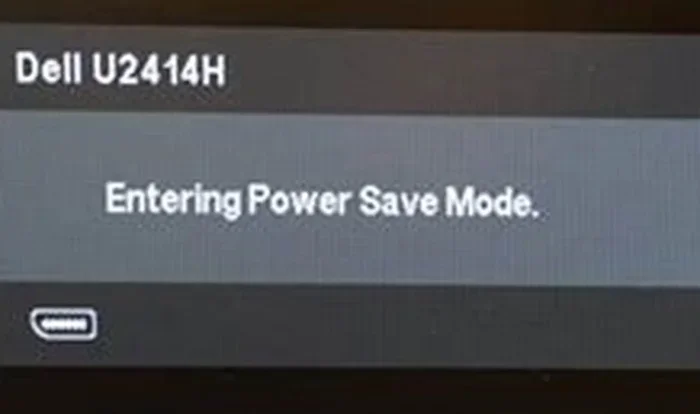
Dell Power Save is a built-in feature that helps your laptop use less energy and last longer on a single charge. It works by adjusting screen brightness, limiting background apps, and managing how your processor uses power. Whether you have a Dell Inspiron or a Dell XPS, understanding this tool can add hours to your battery life.
If you own a Dell laptop, you have probably noticed a battery icon or a power mode option hiding somewhere in your settings. That is Dell Power Save at work. It is a built-in feature designed to help your laptop use less energy so your battery lasts longer. Whether you are working from a coffee shop or sitting through a long flight, knowing how to use this tool can make a huge difference.
Many people never touch these settings. They let their laptop run at full power all day, which drains the battery fast. But with Dell Power Save, you can cut down on wasted energy without giving up the performance you need. In this guide, we will walk you through everything you need to know. We will cover what it does, how to turn it on, and the best ways to get the most out of it.
By the end of this article, you will know exactly how to make your Dell laptop run smarter and last longer on a single charge. Let us dive in.
Key Takeaways
- Dell Power Save reduces energy use: It lowers power consumption by managing CPU speed, screen brightness, and background processes.
- Easy to turn on and off: You can enable or disable it through Windows settings or Dell Power Manager with just a few clicks.
- Works across all Dell models: From the Dell Inspiron 16GB RAM laptop to the XPS line, power saving features are available on most Dell devices.
- Customizable power plans: You can adjust settings to balance performance and battery life based on your needs.
- Extends battery health over time: Using power save mode regularly helps protect your battery from wear and degradation.
- Pair it with good habits: Combining Dell Power Save with smart charging and brightness control gives the best results.
📑 Table of Contents
- What Is Dell Power Save?
- Why Dell Power Save Matters for Your Battery Life
- How to Turn On Dell Power Save
- Best Tips to Get the Most from Dell Power Save
- Common Mistakes That Drain Your Dell Battery
- Dell Power Save on Different Dell Models
- How Dell Power Save Helps With Long-Term Battery Health
- Final Thoughts
What Is Dell Power Save?
Dell Power Save is a power management system built into Dell laptops. It controls how much energy your device uses during different tasks. When you turn it on, your laptop automatically adjusts things like processor speed, screen brightness, and background activity. The goal is simple: use less power while still letting you get your work done.
This feature is part of a larger group of tools called Dell Power Manager. It works with Windows power plans to give you more control over how your laptop uses energy. You can think of it as a smart assistant that watches your battery level and adjusts settings to keep you going longer.
Most Dell laptops come with this feature already installed. It does not matter if you have a Dell Inspiron 16GB RAM laptop or a high-end Dell XPS model. The power save tools are there, waiting for you to use them. The key is knowing what each setting does and when to use it.
How Does It Work?
Dell Power Save works by limiting the power your laptop components draw. When your battery drops below a certain level, the system kicks in and starts making changes. Here is what happens behind the scenes:
- Processor speed drops: Your CPU slows down slightly to use less energy.
- Screen brightness decreases: The display dims to save power.
- Background apps pause: Apps that are not actively in use get paused.
- Wi-Fi and Bluetooth reduce power: Wireless connections use less energy.
- Hard drive spins down: The storage drive rests when it is not in use.
All of these changes happen automatically. You do not need to do anything except turn the feature on. And the best part is, you can customize which settings apply to your workflow.
Why Dell Power Save Matters for Your Battery Life
Battery life is one of the biggest concerns for laptop users. A laptop that dies after two hours is frustrating, especially if you are on the go. Dell Power Save directly addresses this problem by reducing the amount of energy your device wastes. When you use it, you can get several extra hours of work from a single charge.
Think about how much power your laptop uses when it is running at full speed. The processor works hard, the screen glows at full brightness, and every app running in the background pulls energy. That is a lot of drain. Dell Power Save cuts down on all of that waste. It helps you squeeze more time out of every percentage point of battery.
For people who work remotely or travel often, this feature is a game changer. You do not need to carry a charger everywhere. With Dell Power Save turned on, you can work through meetings, write documents, and browse the web without constantly hunting for an outlet.
Dell Power Save vs. Regular Power Plans
You might be wondering how Dell Power Save compares to the standard Windows power plans. Windows offers Balanced, Power Saver, and High Performance modes. Dell Power Save goes a step further. It adds Dell-specific optimizations that Windows alone does not provide.
Here is a quick look at how they compare:
- Windows Balanced: Good all-around performance but does not optimize for Dell hardware specifically.
- Windows Power Saver: Cuts power aggressively but can slow down your system noticeably.
- Dell Power Save: Smart adjustments that balance performance and energy use based on Dell hardware tuning.
As you can see, Dell Power Save gives you the best of both worlds. You get solid performance while still saving energy. It is the smartest choice for most Dell laptop users.
How to Turn On Dell Power Save
Turning on Dell Power Save is simple. You do not need to be a tech expert to get it working. Here is how you can do it step by step.
Method 1: Through Dell Power Manager
Dell Power Manager is the main app for managing power settings on your Dell laptop. Most newer Dell devices come with it pre-installed. Here is how to access it:
- Click the Start menu on your laptop.
- Type “Dell Power Manager” in the search bar.
- Open the app from the search results.
- Look for the “Battery” or “Power” tab.
- Select the power save mode you want to use.
Once you pick a mode, your laptop will start adjusting settings right away. You can switch between modes anytime depending on what you need.
Method 2: Through Windows Settings
If you prefer using Windows settings, you can also manage power save options there. Here is what to do:
- Open the Start menu and go to Settings.
- Click on System and then select Power & Sleep.
- Look for the battery saver option.
- Toggle it on to enable power saving mode.
This method works well for quick adjustments. However, Dell Power Manager gives you more detailed control over your settings.
Method 3: Using the Battery Icon
You can also access power save mode directly from your taskbar. Click on the battery icon in the bottom right corner of your screen. You will see quick options to switch between power modes. This is the fastest way to turn on Dell Power Save when you are in a hurry.
Best Tips to Get the Most from Dell Power Save
Turning on Dell Power Save is just the first step. To really make a difference, you should pair it with smart habits. Here are some tips that will help you maximize your battery life.
Lower Your Screen Brightness
Your display is one of the biggest battery hogs on any laptop. When Dell Power Save dims your screen, it saves a noticeable amount of power. Try keeping your brightness at around 50% or lower when you are not in a bright environment. You will be surprised at how much battery this simple change saves.
Close Apps You Are Not Using
Even with Dell Power Save on, running too many apps at once will drain your battery fast. Make it a habit to close programs you are not actively using. Browser tabs are a common culprit. Each open tab uses memory and processing power, which means more energy consumed.
Use Dell Power Save with a Dell XPS Laptop
If you own a Dell XPS laptop, you already have a powerful machine. But power also means higher energy use. Dell Power Save helps you manage that trade-off. After any Dell XPS laptop RAM upgrade, your system may use slightly more power. Enabling Dell Power Save can help offset that extra draw and keep your battery life where it should be.
Keep Your Dell Laptop Cool
Heat is the enemy of battery life. When your laptop gets too hot, the battery drains faster and degrades more quickly. Dell Power Save helps by reducing the workload on your processor, which in turn reduces heat. You can also help by using your laptop on a flat surface and keeping the vents clear.
Update Your Dell Drivers Regularly
Dell releases driver updates that improve how power management works on your laptop. These updates often include better battery optimization and bug fixes. Make it a habit to check for updates once a month. You can do this through Dell SupportAssist, which is built into most Dell laptops.
Enable Adaptive Brightness
Many Dell laptops support adaptive brightness. This feature automatically adjusts your screen brightness based on the lighting in your room. When combined with Dell Power Save, it creates a powerful combo that saves energy without you having to think about it.
Common Mistakes That Drain Your Dell Battery
Even with Dell Power Save turned on, some habits can still kill your battery fast. Here are common mistakes you should avoid.
Leaving Wi-Fi and Bluetooth On When Not Needed
Wireless connections use power even when you are not actively using them. If you are working offline, turn off Wi-Fi and Bluetooth. Your battery will thank you for it.
Keeping Your Screen at Full Brightness Indoors
Running your screen at 100% brightness inside is a quick way to drain your battery. Most people do not need that level of brightness indoors. Lower it to a comfortable level and let Dell Power Save handle the rest.
Running Too Many Background Programs
Apps that run in the background keep your processor active. This uses energy even when you are not actively using those apps. Check your task manager regularly and close programs you do not need.
Ignoring Battery Health Reports
Dell laptops can generate battery health reports through Dell Power Manager. Ignoring these reports means you might miss signs of battery degradation. Check them regularly and take action if your battery health drops below 80%.
Dell Power Save on Different Dell Models
Dell Power Save works across a wide range of Dell laptop models. However, the experience can vary slightly depending on which model you have. Here is a quick look at how it performs on different Dell lines.
Dell Inspiron Series
The Dell Inspiron series is one of the most popular lines from Dell. Models like the Dell Inspiron 16GB RAM laptop benefit greatly from Dell Power Save. These laptops are designed for everyday use, and the power save feature helps them run longer on a single charge. The Inspiron line often targets students and home users, so battery life matters a lot.
With Dell Power Save enabled, an Inspiron laptop can easily get through a full day of light use. That includes browsing, document editing, video calls, and streaming.
Dell XPS Series
The Dell XPS line is known for its premium build and powerful performance. But that power comes with higher energy use. Dell Power Save is especially important for XPS users because it helps balance performance with battery life. When you are doing demanding tasks, you can switch to a performance mode. When you are just working on documents, switch back to power save.
Dell Latitude and Vostro Series
These lines are built for business use. Battery life during long workdays is critical. Dell Power Save on Latitude and Vostro models includes additional enterprise-level optimizations. These can include automatic sleep timers, stricter background app limits, and more aggressive power reduction when the battery drops below 20%.
How Dell Power Save Helps With Long-Term Battery Health
Dell Power Save does not just help you get through the day. It also helps protect your battery over the long term. Every time you charge your laptop, the battery undergoes a small amount of wear. By reducing how hard your laptop works, Dell Power Save slows down this wear process.
When your processor runs at lower speeds, it generates less heat. Less heat means less stress on the battery cells. Over months and years, this adds up. Your battery will hold its charge longer and degrade more slowly than it would without power save mode enabled.
Another way Dell Power Save helps is by managing charging behavior. Some Dell laptops include a feature that limits charging to 80% or 90%. This prevents the battery from sitting at 100% charge, which can speed up degradation. Combined with Dell Power Save, this creates a powerful system for keeping your battery healthy.
If you are concerned about your battery health, check the battery report in Dell Power Manager. It will show you your battery’s current capacity compared to its original capacity. This gives you a clear picture of how well your battery is holding up over time.
Final Thoughts
Dell Power Save is one of the most useful tools built into your Dell laptop. It is easy to use, effective, and available on almost every Dell model. Whether you are using a budget Dell Inspiron or a premium Dell XPS, this feature can add meaningful hours to your battery life.
The key is to make it a habit. Turn it on when you are away from a charger, and adjust the settings to match your workflow. Combine it with smart battery habits like lowering brightness, closing unused apps, and keeping your laptop cool. Over time, you will notice a big difference in how long your laptop lasts on a single charge.
Take a few minutes today to explore your Dell Power Save settings. Your future self, sitting at an airport or in a meeting without a charger nearby, will thank you.
Frequently Asked Questions
What does Dell Power Save do?
Dell Power Save reduces the energy your laptop uses by lowering processor speed, dimming the screen, and pausing background apps. It helps your battery last longer without you having to do anything manually.
How do I turn on Dell Power Save?
You can turn it on through Dell Power Manager, Windows Settings, or by clicking the battery icon in your taskbar. Simply select the power save mode and your laptop will start adjusting settings automatically.
Does Dell Power Save slow down my laptop?
It can slightly reduce performance because it lowers processor speed and limits background activity. However, for everyday tasks like browsing, writing, and video calls, you will barely notice any difference.
Is Dell Power Save available on all Dell laptops?
Most modern Dell laptops include Dell Power Save or similar power management features. It is available on Inspiron, XPS, Latitude, and Vostro models. Check your Dell Power Manager app to see what options your specific model supports.
Can I customize Dell Power Save settings?
Yes, you can customize which settings apply when power save mode is active. You can adjust screen brightness limits, processor power reduction levels, and which background apps are allowed to keep running.
How does Dell Power Save help battery health?
By reducing the workload on your processor and limiting heat generation, Dell Power Save slows down battery degradation over time. It also helps by managing charging behavior and preventing your battery from sitting at full charge for too long.