Desktop Ram Not Working Here Are Easy Fixes You Can Try

Desktop ram not working is a frustrating problem, but most causes are easy to fix at home. Whether your PC won’t boot, keeps crashing, or shows error messages, bad RAM is often the culprit. This guide walks you through simple steps to diagnose and fix the problem fast.
There’s nothing worse than sitting down at your desk, ready to get work done, and your desktop ram not working. Your screen stays black. Your PC won’t start. Or maybe it boots but then crashes every few minutes. Before you panic or call a repair tech, take a breath. Most of the time, this is a simple problem with a straightforward fix.
Desktop memory issues are incredibly common. They happen to everyone from complete beginners to seasoned tech users. The good news? You can solve most of these problems yourself without spending a dime. This guide covers every major cause and fix for desktop ram not working. Let’s get your computer back up and running.
RAM, or Random Access Memory, is the short-term memory your computer uses to handle tasks right now. When you open a browser, a game, or a video editor, it all lives in RAM. If something goes wrong with your desktop memory modules, everything slows down or stops entirely. Understanding how RAM works helps you troubleshoot faster.
Key Takeaways
- Reseating the RAM stick solves most desktop ram not working issues quickly.
- Check RAM compatibility with your motherboard before installing new memory.
- Clean RAM contacts with a soft eraser or compressed air to restore connection.
- Test each stick individually to find the faulty module causing crashes.
- Update your BIOS as it can resolve memory detection and stability problems.
- Run Windows Memory Diagnostic to identify hidden RAM errors easily.
- Replace damaged RAM if none of the fixes work — it’s usually inexpensive.
📑 Table of Contents
- Why Desktop Ram Not Working Happens
- How to Diagnose Desktop Ram Not Working
- Easy Fixes for Desktop Ram Not Working
- Preventing Future RAM Problems
- When to Replace Your RAM
- Can You Use Laptop RAM in a Desktop?
- Quick Tips for Fixing Desktop Ram Not Working
- Common Mistakes People Make When Troubleshooting RAM
- FAQ
- Conclusion
Why Desktop Ram Not Working Happens
Several things can cause your desktop ram not working. Knowing the root cause helps you pick the right fix. Here are the most common reasons people run into RAM problems.
Loose or Poorly Seated RAM Sticks
This is the number one cause. A RAM stick that isn’t clicked in properly loses contact with the motherboard. Even a tiny gap means no connection. This happens often after cleaning your PC or moving it to a new location. The desktop memory module just needs to be pushed back in firmly until you hear a click.
Incompatible RAM
Not all RAM works with every motherboard. If you recently added new memory, incompatibility could be the problem. RAM speed, DDR generation, and capacity all matter. For example, putting DDR4 RAM in a DDR3 slot won’t work at all. Even if it physically fits, the system won’t recognize it properly.
Dust and Dirt Buildup
Over time, dust collects on the gold contacts of your RAM sticks. This buildup blocks the electrical connection between the memory module and the slot. It’s one of the sneakiest causes of desktop ram not working because you can’t always see it with the naked eye.
Faulty RAM Stick
Sometimes the RAM itself is defective. Manufacturing defects happen. A stick might work fine for weeks and then suddenly fail. Heat damage can also kill a memory module over time, especially if your computer runs hot.
BIOS or Firmware Issues
Your motherboard’s BIOS controls how it detects and communicates with RAM. An outdated BIOS can cause detection failures. This is more common after a BIOS update or when you install new RAM sticks that the old firmware doesn’t recognize well.
How to Diagnose Desktop Ram Not Working
Before you start fixing anything, you need to confirm that RAM is actually the problem. Several symptoms point directly to desktop ram not working. Watch for these signs.
Your PC won’t turn on at all. The fans spin but no display appears. This often means the motherboard can’t detect any RAM.
Frequent blue screens of death (BSOD). If you see a blue screen with memory-related error codes, your desktop memory is struggling.
Random crashes and freezes. Your system freezes during normal tasks, especially heavy ones like gaming or video editing.
Application errors and crashes. Programs close unexpectedly or refuse to open. This is a classic sign of faulty RAM.
Reduced performance. Your computer feels sluggish even for simple tasks. The system might be using your hard drive as temporary memory because RAM isn’t available.
If you notice any of these symptoms, don’t worry. The next section has the fixes you need.
Easy Fixes for Desktop Ram Not Working
Here’s where the real action happens. These are the steps that solve most desktop ram not working problems. Try them in order, starting with the simplest fix.
Fix 1: Reseat the RAM Sticks
This fixes the problem more than you’d think. Start by powering off your computer completely. Unplug it from the wall. Press the power button for 10 seconds to drain any remaining electricity.
Open your desktop case. You’ll see the RAM sticks in slots on your motherboard. They’re held in place by small clips on each side. Press those clips inward gently. The RAM stick will pop up at an angle. Pull it straight out.
Now take the stick and firmly push it back into the slot at the correct angle. Press down evenly on both ends until the clips click into place. Make sure you feel and hear a definite click. That click means the stick is fully seated.
Close the case, plug your computer back in, and power on. This simple step solves desktop ram not working for a huge number of people.
Fix 2: Clean the RAM Contacts
If reseating didn’t work, dirt on the contacts might be the issue. Remove the RAM sticks from your motherboard. Get a clean, soft eraser — a regular pencil eraser works great.
Gently rub the eraser along the gold contacts on the bottom of the stick. Do this lightly. You’re not trying to remove metal, just clean off any oxidation or grime. After erasing, wipe the contacts with a dry cloth to remove any eraser residue.
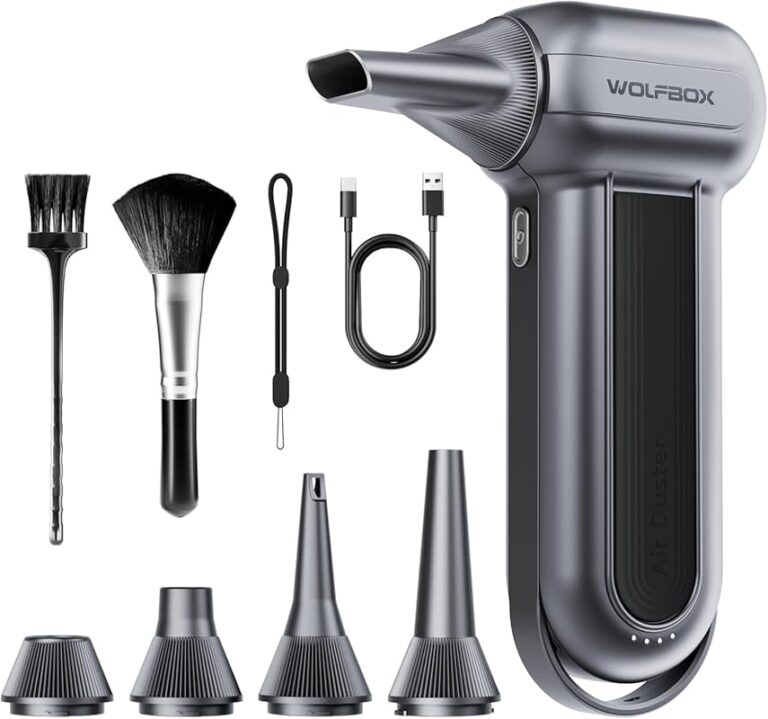
Alternatively, you can use compressed air to blow dust out of the RAM slots on the motherboard. Hold the can upright and use short bursts. Don’t tilt the can or you’ll get moisture on your components.
Once clean, reseat the memory modules and test your system. Many people are surprised how much dust buildup causes desktop ram not working.
Fix 3: Test Each RAM Stick Individually
If you have more than one stick installed, a single bad stick could be causing all your problems. Remove all the RAM sticks from your motherboard.
Insert only one stick. Power on your computer and see if it works. If it does, shut down and try the next stick. Repeat with each RAM module individually.
This process tells you exactly which stick is faulty. Once you identify the bad one, you know it needs to be replaced. This is one of the most reliable ways to troubleshoot desktop ram not working when multiple sticks are installed.
Fix 4: Check RAM Compatibility
If you recently added new RAM, compatibility issues could be at play. Check your motherboard manual for the supported RAM type, speed, and maximum capacity.
Make sure your new sticks match the existing ones in terms of DDR generation. DDR3, DDR4, and DDR5 are not interchangeable. Mixing different speeds can also cause problems. Your system will usually default to the slowest stick, but sometimes it just fails to work at all.
If you’re unsure whether your RAM is compatible, check the motherboard manufacturer’s website. They usually list tested and supported memory modules for each model.
Fix 5: Update Your BIOS
An outdated BIOS can cause all sorts of memory detection issues. Check your motherboard manufacturer’s website for the latest BIOS version.
Download the update file and follow the instructions on the manufacturer’s site. Be very careful during a BIOS update. Never turn off your computer during the process. A failed BIOS update can cause serious problems.
Once the BIOS is updated, restart your computer and check if the desktop ram not working issue is resolved. Many users report that a simple BIOS update fixed their memory problems entirely.
Fix 6: Run Windows Memory Diagnostic
Windows has a built-in tool that tests your RAM for errors. Press the Windows key, type “Windows Memory Diagnostic,” and open the app.
Choose “Restart now and check for problems.” Your computer will reboot and run a memory test before loading Windows. This can take a while. Let it finish completely.
If the tool finds errors, your desktop memory is definitely faulty. You’ll need to replace the affected RAM sticks. This tool is one of the easiest ways to confirm whether your RAM is physically damaged.
Fix 7: Try Different RAM Slots
Sometimes the problem isn’t the RAM stick itself but the slot on the motherboard. A damaged slot can prevent any memory module from working properly.
Try moving your RAM sticks to different slots. If a stick works in one slot but not another, the original slot might be damaged. Motherboards can have faulty slots due to physical damage or electrical issues.
Check your motherboard manual for the correct slot configuration. For two sticks, you typically want them in slots 2 and 4 (not 1 and 2). Using the right slots can make a big difference for desktop ram not working issues.
Preventing Future RAM Problems
Once you’ve fixed your desktop ram not working issue, you probably want to make sure it doesn’t happen again. Here are some simple prevention tips.
Keep your PC clean. Dust is the enemy of electronics. Open your case every few months and blow out dust with compressed air. Pay special attention to the RAM slots and memory modules.
Handle RAM with care. When installing or removing sticks, hold them by the edges. Never touch the gold contacts. Oils from your fingers can cause connection problems over time.
Buy quality RAM. Cheap RAM might save you money upfront but can cause headaches later. Stick with reputable brands for your desktop memory. Look for sticks with good reviews and solid warranty coverage.
Keep your BIOS updated. Regular BIOS updates improve RAM compatibility and stability. Check for updates every few months, especially after you install new hardware.
Monitor your system temperatures. Overheating can damage RAM sticks over time. Make sure your computer has good airflow and that fans are working properly.
When to Replace Your RAM
Sometimes fixing isn’t enough. If your RAM sticks are physically damaged — cracked, bent pins, burned contacts — no amount of cleaning or reseating will help. In these cases, replacement is the only option.
RAM is affordable. A standard 8GB DDR4 stick costs between $20 and $40. Even high-performance 16GB sticks rarely exceed $80. Replacing faulty desktop memory is one of the cheapest hardware upgrades you can make.
If you’ve gone through all the fixes and your desktop ram not working problem persists, it’s time to buy new sticks. Match the new RAM to your motherboard specifications. When in doubt, check the QVL (Qualified Vendor List) on your motherboard manufacturer’s website.
Can You Use Laptop RAM in a Desktop?
Some people wonder if they can save money by using a laptop RAM stick in their desktop. The short answer is no. Laptop RAM (SO-DIMM) and desktop RAM (DIMM) are completely different sizes and configurations. They are not interchangeable.
Laptop RAM is physically smaller and has a different pin layout. A laptop ram not working in desktop situation is guaranteed because the hardware simply doesn’t fit the same way. Desktop computers use full-size DIMM modules that are roughly twice the length of laptop SO-DIMMs.
If you’re looking for extra memory for your desktop, always buy desktop-grade RAM. Check your motherboard specs to confirm the right type. And if you’re wondering whether laptop ram work in desktop, the answer is a firm no. They are built for different form factors and won’t be compatible.
Similarly, you can’t use laptop ram be used in desktop setups or laptop ram in desktop computers. The physical differences make this impossible. Always match your RAM type to your system’s requirements for the best performance and reliability.
Quick Tips for Fixing Desktop Ram Not Working
- Always power off and unplug your computer before touching any internal components.
- Wear an anti-static wrist strap if possible to prevent static damage.
- Take photos before removing RAM so you remember the correct configuration.
- Try one stick at a time to isolate the problem quickly.
- Don’t force a RAM stick into a slot. If it doesn’t fit easily, check the orientation.
- Keep your motherboard manual handy for slot configuration and compatibility info.
Common Mistakes People Make When Troubleshooting RAM
Even experienced users make mistakes when dealing with desktop ram not working. Here are the ones to avoid.
Skipping the basics. Many people jump straight to complex solutions without first trying to reseat the RAM. Always start with the simplest fix.
Mixing different RAM types. Combining DDR3 and DDR4, or different speeds, often causes instability. Stick with matching RAM sticks for best results.
Ignoring the BIOS. An outdated BIOS can cause memory issues that look like hardware problems. Always check for BIOS updates before replacing RAM.
Not testing one stick at a time. If you have multiple sticks and skip individual testing, you might replace good RAM unnecessarily.
Forgetting about the slots. Sometimes the problem is a damaged slot, not the stick. Always try different slots before concluding the RAM is bad.
FAQ
Why does my desktop ram keep not working after I install it?
This usually means the stick isn’t fully seated. Remove the RAM and push it back in firmly until the clips click. Also check that you’re using the correct slots for your configuration. Compatibility issues with your motherboard can also cause repeated detection failures.
Can bad RAM damage my motherboard?
In rare cases, yes. A short-circuiting RAM stick can potentially damage the motherboard slot. This is why you should always power off completely before handling RAM. If you notice a burnt smell or visible damage, stop using that stick immediately.
How do I know if my RAM is compatible with my desktop?
Check your motherboard manual or the manufacturer’s website. Look for supported DDR type, maximum speed, and maximum capacity. The QVL (Qualified Vendor List) on the manufacturer’s site lists tested compatible memory modules for your specific board.
Is it safe to clean RAM with an eraser?
Yes, it’s completely safe and very effective. Use a soft, standard pencil eraser and rub gently on the gold contacts. Avoid pressing too hard. After erasing, wipe away any residue with a dry cloth before reseating the RAM sticks.
How many RAM sticks should I have in my desktop?
It depends on your needs and motherboard. Most users benefit from 2 or 4 sticks. Using matched pairs in the correct slots enables dual-channel mode, which improves performance. Check your motherboard manual for the optimal configuration.
What should I do if Windows Memory Diagnostic finds errors?
If the diagnostic tool finds errors, your desktop memory is faulty. Replace the affected RAM sticks with new ones that match your system specifications. Run the diagnostic again after replacing to confirm the problem is resolved.
Conclusion
Desktop ram not working doesn’t have to be a disaster. Most of the time, the fix is simple — a reseat, a cleaning, or a compatibility check. Start with the easiest solutions and work your way through the list. By the time you reach the more advanced steps, you’ve likely already solved the problem.
Your computer’s RAM is one of the most important components for smooth daily performance. Taking care of it with regular maintenance and proper handling goes a long way. Keep your system clean, use compatible memory modules, and don’t be afraid to open up your case and take a look inside.
If you’ve tried every fix and your desktop ram not working issue persists, the RAM is probably faulty and needs replacement. It’s an affordable, straightforward upgrade that can breathe new life into your computer. Don’t let a RAM problem slow you down. Take action today and get back to doing what you love.