Ram vs Storage What Is the Real Difference Between Them
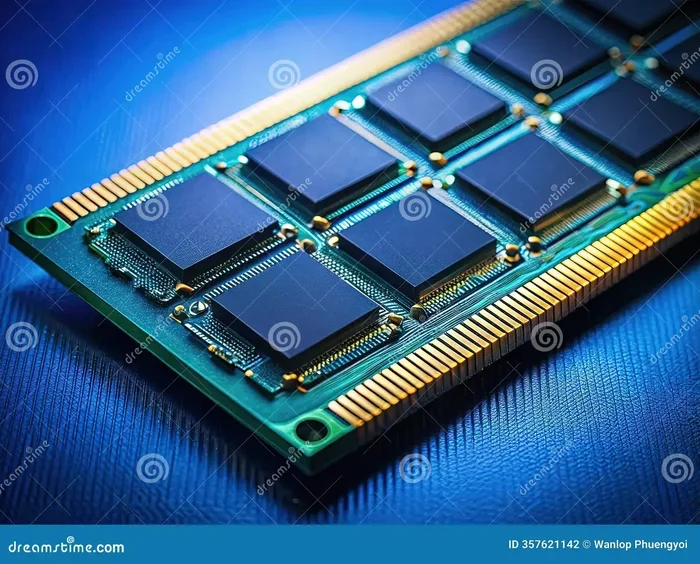
RAM and storage are two completely different parts of your computer. RAM handles short-term tasks while storage keeps your files safe long-term. Understanding this difference helps you choose the right setup for your needs.
You have probably heard people talk about RAM and storage when they discuss computers. These two terms come up all the time in tech conversations. But what do they really mean? And why does it matter for your daily computing experience?
The truth is that RAM and storage do very different jobs inside your PC. They are not interchangeable. One handles short-term tasks while the other keeps your data safe for the long haul. In this guide, we will break down the difference between RAM and storage in simple terms. You will walk away understanding exactly how each part works and why you need both.
Whether you are shopping for a new laptop with 1TB storage and 16GB RAM or just trying to understand your current setup, this article covers everything you need. Let us dive right in.
Key Takeaways
- RAM is temporary memory: It handles active tasks and clears when you shut down.
- Storage is permanent: It holds your files, apps, and operating system even when powered off.
- More RAM means better multitasking: Your system runs smoother with more memory modules.
- More storage means more room: You can save more files, games, and apps without running out of space.
- SSD storage is faster than old hard drives: It dramatically cuts down load times.
- Balancing both matters: A great setup needs the right mix of RAM and storage for your use case.
📑 Table of Contents
What Is RAM?
RAM stands for Random Access Memory. It is the short-term memory your computer uses to handle active tasks. When you open a program, browse the web, or edit a document, RAM jumps into action. It holds the data your processor needs right now.
Think of RAM like your desk at work. The bigger your desk, the more papers you can spread out and work on at the same time. When you close a program, that information gets cleared off the desk. RAM is volatile memory, which means it loses everything when the power goes off.
How RAM Works
Every time you click on an app or open a file, your computer copies that data from storage into RAM. The processor then accesses RAM directly because it is incredibly fast. This is why your system feels responsive when you have enough memory available.
Here is a quick look at what RAM does in real life:
- It loads your operating system into active memory.
- It keeps browser tabs open and running smoothly.
- It stores temporary data for running applications.
- It feeds information to your processor at high speed.
When you run out of RAM, your computer starts slowing down. It has to shuffle data back to storage, which is much slower. This is why having enough computer memory is so important for a smooth experience.
What Is Storage?
Storage is where your computer keeps everything permanently. Your files, photos, videos, apps, and operating system all live here. Unlike RAM, storage holds onto your data even when the computer is turned off. This makes it permanent storage.
The most common types of storage today are SSD (Solid State Drive) and HDD (Hard Disk Drive). SSDs use flash memory and are much faster. HDDs use spinning disks and are more affordable for large amounts of data storage.
Types of Storage Devices
Not all storage is the same. Here are the main types you will encounter:
- SSD (Solid State Drive): Blazing fast, no moving parts, and highly reliable.
- HDD (Hard Disk Drive): Slower but offers large capacity at a lower price.
- eMMC Storage: Found in budget laptops, faster than HDD but slower than SSD.
- External Drives: Portable storage you can connect via USB.
If you are looking for a system with fast performance, choosing a laptop with SSD and plenty of RAM is the best move. A machine like one of the laptops with 16GB RAM and SSD gives you both speed and capacity.
RAM vs Storage: The Key Differences
Now that you know what each part does, let us compare them directly. Understanding these differences is the key to making smart decisions about your PC setup.
Speed Comparison
RAM is orders of magnitude faster than storage. While storage reads and writes data in milliseconds, RAM does it in nanoseconds. This massive speed gap is why your system feels snappy when it has enough memory to work with.
When your system speed depends on quick data access, RAM wins every time. Storage is where data lives, but RAM is where data gets used.
Capacity Differences
Storage capacity is measured in hundreds of gigabytes or terabytes. A typical laptop might come with 256GB, 512GB, or 1TB of storage. RAM, on the other hand, is measured in gigabytes and usually ranges from 4GB to 64GB in most systems.
Storage capacity matters if you store lots of files, games, or media. RAM capacity matters if you run many programs at once or do heavy multitasking.
Volatile vs Non-Volatile
This is one of the biggest differences. RAM is volatile — it forgets everything when power is lost. Storage is non-volatile — it keeps your files safe even after a shutdown.
This distinction explains why you never save your work to RAM. You always save to storage so your files survive a power outage or restart.
Cost Comparison
RAM and storage also differ in price per gigabyte. RAM is more expensive per GB because of its speed and complexity. Storage, especially HDDs, is much cheaper per gigabyte for bulk data.
Here is a quick comparison table:
- RAM Cost: Higher per gigabyte, but smaller total capacity needed.
- Storage Cost: Lower per gigabyte, and larger total capacity is common.
- Upgrade Cost: Adding RAM is usually affordable. Adding storage is also budget-friendly.
Why Both RAM and Storage Matter Together
RAM and storage work as a team. Your processor relies on both to deliver a smooth experience. Without enough RAM, your system struggles to keep up. Without enough storage, you run out of room for your files and apps.
Here is how they work together in practice. When you open a game, the game files load from storage into RAM. Your processor then pulls data from RAM to render graphics and run the game engine. If your RAM is too small, the game stutters. If your storage is slow, the game takes forever to load.
This is exactly why pairing fast SSD storage with solid RAM makes such a big difference. A system with 4GB and 8GB RAM combined or a balanced setup will feel much more responsive than one with only one of these components upgraded.
Real-World Examples
Let us look at a few scenarios to make this clear:
- Web browsing: RAM keeps your tabs active. Storage saves your bookmarks and browsing data.
- Video editing: RAM handles the preview and timeline. Storage holds the raw video files and exports.
- Gaming: RAM loads game assets quickly. Storage holds the game installation files.
- Office work: RAM runs Word, Excel, and your browser. Storage saves your documents and spreadsheets.
In every case, both components play essential roles. Neither one alone can do the job.
How Much RAM Do You Need?
The right amount of RAM depends on what you do with your computer. Different tasks require different levels of processing power and memory.
For basic tasks like web browsing, email, and document editing, 8GB of RAM is usually enough. For multitasking with multiple apps open, 16GB is a sweet spot. For heavy workloads like video editing, 3D rendering, or gaming, 32GB or more gives you headroom.
If you are shopping for a laptop, consider your workflow carefully. A laptop with an i7 processor and 8GB RAM handles everyday tasks well. But if you push your system hard, stepping up to 16GB or more will make a noticeable difference in system resources availability.
Quick Tips for RAM
- Check your current RAM usage in Task Manager (Windows) or Activity Monitor (Mac).
- Upgrade RAM in pairs for dual-channel performance.
- Do not mix RAM sizes if you can avoid it — it can cause compatibility issues.
- More RAM does not always mean faster speeds. Match your RAM speed to your processor.
How Much Storage Do You Need?
Storage needs vary widely depending on your habits. If you store lots of photos, videos, or games, you will need more space. If you mostly use cloud services and stream media, you can get by with less.
A 256GB SSD works well for light users. 512GB is a solid middle ground for most people. 1TB or more is ideal for gamers, content creators, and anyone who stores large files locally.
When choosing between SSD and HDD, the speed advantage of SSDs is hard to ignore. An SSD makes your entire system feel faster. Boot times, app launches, and file transfers all improve dramatically with SSD storage.
Quick Tips for Storage
- Use an SSD for your operating system and frequently used apps.
- Store large files like photos and videos on a separate drive or cloud service.
- Keep at least 10-15% of your storage free for optimal performance.
- Consider cloud backup as a supplement to your local storage.
Common Mistakes People Make
Many people confuse RAM with storage, and this leads to poor buying decisions. Here are the most common mistakes to avoid:
- Buying more storage when you need more RAM: A full hard drive will not fix a slow computer caused by low memory.
- Thinking more RAM always means a faster PC: RAM helps with multitasking, but it does not speed up storage-dependent tasks like booting.
- Ignoring the storage type: An HDD with 16GB RAM will still feel slow compared to an SSD with 8GB RAM for everyday tasks.
- Skipping upgrades entirely: Both RAM and storage can be upgraded in many systems, giving your old laptop new life.
The best approach is to assess your actual needs. Think about what you do daily and where your system struggles. That tells you whether you need more memory, more space, or both.
Expert Insights on Memory and Storage
Tech experts agree that the balance between RAM and storage is critical. A system with top-tier RAM but a slow HDD will still feel sluggish. A system with plenty of storage but too little RAM will freeze up when you open too many apps.
The sweet spot for most users in 2024 is 16GB of RAM paired with a 512GB or 1TB SSD. This combination handles everything from casual browsing to professional workloads with ease. If you are on a tighter budget, 8GB of RAM with a 256GB SSD is a solid starting point.
For power users, consider a setup with 16GB RAM and an i7 processor paired with a 1TB SSD. This gives you the processing power and storage capacity to tackle demanding tasks without compromise.
How to Upgrade RAM and Storage
Upgrading your RAM and storage is one of the best ways to breathe new life into an older laptop. Both upgrades are relatively affordable and can make a huge difference.
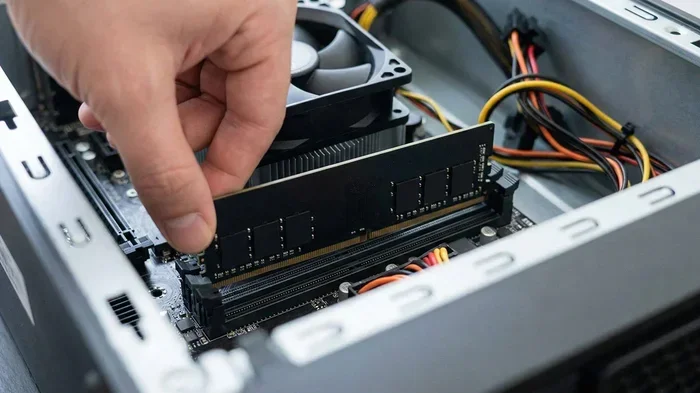
To upgrade RAM, you need to open your laptop or desktop case and install new memory modules into the RAM slots. Most modern laptops have at least one slot available. Check your system specifications before buying RAM to ensure compatibility.
To upgrade storage, you can replace an old HDD with a new SSD or add a second drive if your system has the slot. Many laptops now come with M.2 SSD slots that are easy to access and swap out.
If you are unsure about the process, consult your laptop or motherboard manual. Or visit a local tech shop for affordable assistance. The performance boost from these upgrades is well worth the effort.
Conclusion
The difference between RAM and storage is clear once you understand their roles. RAM handles short-term, active tasks at incredible speed. Storage keeps your files, apps, and operating system safe for the long term. Both are essential, and neither one can replace the other.
When shopping for a new laptop or upgrading your current one, always consider both components. A balanced system with enough RAM and fast storage delivers the best experience. Whether you are a casual user or a power professional, getting this balance right makes all the difference.
Now that you understand how RAM and storage work together, you can make confident decisions about your PC setup. Focus on both components, and your computer will thank you with smooth, reliable performance every day.
Frequently Asked Questions
Is RAM the same as storage?
No, RAM and storage are completely different. RAM handles temporary tasks while your computer is running, and storage keeps your files permanently. They work together but serve different purposes in your system.
Can I add more RAM to my laptop?
Many laptops allow RAM upgrades, but some have memory soldered to the motherboard. Check your laptop model before purchasing additional RAM. If upgradeable, adding more memory can significantly improve multitasking performance.
What happens if I run out of storage space?
When storage fills up, your computer slows down. Files become harder to save, apps may crash, and system updates can fail. Keeping at least 15% of your storage free helps maintain smooth performance.
Do I need an SSD if I already have lots of RAM?
Yes, SSDs and RAM serve different purposes. Even with plenty of RAM, a slow HDD will make your system feel sluggish. An SSD dramatically improves boot times, app loading, and overall responsiveness.
How much RAM is enough for everyday use?
8GB of RAM handles basic tasks like browsing and office work well. 16GB is ideal for multitasking, light creative work, and gaming. Power users who run heavy applications should consider 32GB or more.
Does more storage make my computer faster?
More storage alone does not make your computer faster. However, upgrading from an HDD to an SSD does improve speed significantly. Storage type matters more than storage capacity when it comes to performance.