16 Best Driver Update Software For Windows Computers
Keeping your drivers updated is one of the simplest ways to boost your Windows PC’s performance and stability. Driver update software automates this tedious task, saving you hours of manual work. In this guide, we reviewed 16 top-rated driver updater tools to help you pick the best one for your needs.
Key Takeaways
- Driver update software saves time: It scans your system and finds outdated drivers in seconds.
- Both free and paid options exist: You don’t need to spend money to get reliable driver updates.
- Outdated drivers cause real problems: They lead to crashes, slow performance, and hardware issues.
- Not all updaters are equal: Some tools are safer and more effective than others.
- Regular updates matter: Making driver updates part of your routine keeps your PC healthy.
- Backup features are essential: The best tools let you restore drivers if something goes wrong.
📑 Table of Contents
- Why Driver Updates Matter For Your Windows PC
- How To Choose The Best Driver Update Software
- 16 Best Driver Update Software For Windows Computers
- Free Vs Paid Driver Updaters: Which Is Better?
- Common Driver Problems And How To Fix Them
- Expert Tips For Keeping Drivers Updated
- Final Thoughts On Driver Update Software
Why Driver Updates Matter For Your Windows PC
Your Windows computer relies on drivers to communicate with hardware. Without them, your keyboard, mouse, printer, and graphics card simply won’t work. Over time, these drivers become outdated. When that happens, your system starts to slow down or act up.
Updating drivers manually is a real pain. You have to visit each manufacturer’s website, find the right version, and install it yourself. This process takes a lot of time. And if you pick the wrong version, you could make things worse.
Driver update software solves this problem. These tools scan your entire system, identify outdated device drivers, and install the correct versions automatically. Think of it as a maintenance checkup for your PC. It’s one of the easiest ways to keep your machine running at its best.
Many people ignore driver updates until something breaks. That’s a mistake. Regular updates improve performance, fix bugs, and even add new features to your hardware. Whether you use your PC for work, gaming, or school, keeping drivers current is essential.
How To Choose The Best Driver Update Software
Not all driver updater tools are created equal. Some are packed with features, while others are basic and bare-bones. Before you pick one, consider what matters most to you. Here are the key factors to weigh.
Scanning Speed And Accuracy
A good tool should scan your system quickly and find all outdated drivers. The last thing you want is a program that misses critical updates or takes forever to run. Look for software that uses a large, up-to-date driver database.
Safety And Reliability
Some free tools bundle unwanted software or install the wrong drivers. Stick with well-known brands that have positive reviews. The safest driver updater tool will create a backup before making any changes. This way, you can roll back if something goes wrong.
Free Vs Paid Versions
Many programs offer free scans but charge for the actual updates. Decide whether the extra features are worth the cost. For most users, a simple free tool works just fine. Power users and professionals may prefer paid versions with bulk updates and priority support.
Windows Version Compatibility
Make sure the software supports your version of Windows. Whether you run Windows 10 or Windows 11, the tool should work seamlessly. Compatibility issues can cause more problems than they solve.
16 Best Driver Update Software For Windows Computers
We tested and reviewed many driver update programs to bring you this list. Each tool has its strengths, so pick the one that fits your needs best.
1. TweakBit Driver Updater
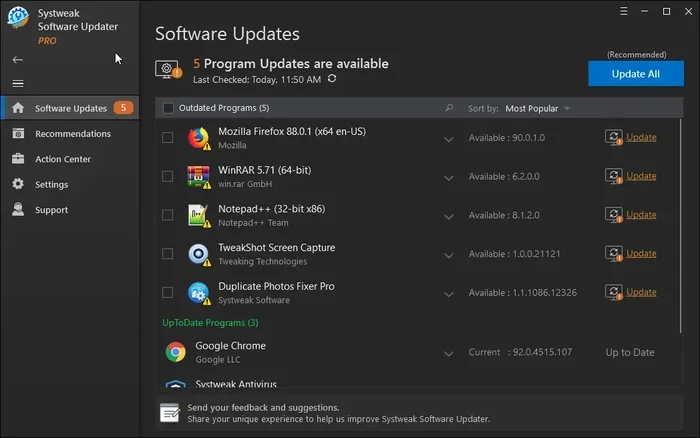
TweakBit Driver Updater is a popular choice for Windows users. It has a massive driver database and scans your system in minutes. The interface is clean and easy to navigate, making it great for beginners. It also backs up your current drivers before installing new ones.
2. Snappy Driver Installer
Snappy Driver Installer is a free, open-source option. It works offline, which is a huge plus if you don’t have reliable internet access. The tool downloads driver packs and installs them quickly. It’s not the prettiest interface, but it gets the job done.
3. Driver Booster
Driver Booster by IObit is one of the most well-known updaters on the market. It scans for outdated drivers and updates them with just one click. The free version handles basic updates, while the paid version adds game-ready drivers and priority support.
4. Outbyte Driver Updater
Outbyte Driver Updater focuses on safety and ease of use. It creates detailed reports of your driver status and recommends updates accordingly. The tool is lightweight and won’t slow down your system. It’s a solid choice for users who want a straightforward experience.
5. Driver Easy
Driver Easy offers both free and paid plans. The free version identifies outdated drivers, but you need the Pro version to auto-update them. It has a large database and supports a wide range of hardware. The user interface is simple and beginner-friendly.
6. SlimDrivers
SlimDrivers is a lightweight tool that won’t bog down your PC. It scans for missing or outdated drivers and offers one-click updates. The software also includes a driver backup feature. It’s a great option if you want something simple and fast.
7. Double Driver
Double Driver is another free tool that specializes in backup and restore. It scans your system and saves copies of all your current drivers. If a new driver causes problems, you can restore the old one instantly. It’s a safety-first choice for cautious users.
8. DriverPack Solution
DriverPack Solution is designed for users who need offline driver installation. It comes with a massive collection of drivers pre-packaged. This tool is especially useful for setting up new Windows PCs or reinstalling the operating system.
9. Ashampoo Driver Updater
Ashampoo Driver Updater has a polished interface and a reliable scanning engine. It identifies outdated drivers and updates them safely. The software also creates system restore points before making changes. It’s a trustworthy option for everyday users.
10. Revo Uninstaller (Driver Cleanup)
While primarily known as an uninstaller, Revo also helps clean up old or corrupted drivers. Removing outdated drivers can improve system stability. It’s a different approach but useful for troubleshooting driver conflicts.
11. Dell Driver Update Utility
If you use a Dell computer, this built-in utility is worth checking out. It automatically detects your Dell hardware and finds the right drivers. It’s a convenient option for Dell laptop and desktop users who want a hassle-free experience.
12. HP Support Assistant
HP Support Assistant works similarly for HP devices. It keeps your HP laptop’s drivers up to date with minimal effort. The tool also handles driver backups and troubleshooting. It’s a great built-in option for HP users.
13. Lenovo Vantage
Lenovo Vantage is Lenovo’s official software for managing drivers and updates. It scans your system and recommends the latest driver versions. It’s a reliable choice for Lenovo laptop and desktop owners who want official support.
14. Intel Driver & Support Assistant
Intel offers this free tool specifically for Intel hardware components. It detects Intel devices and installs the latest drivers automatically. If your PC uses Intel processors and integrated graphics, this is a must-have tool.
15. NVIDIA GeForce Experience
For gaming PCs, NVIDIA GeForce Experience is essential. It automatically updates your graphics card drivers to the latest version. It also optimizes game settings for the best performance. Gamers should definitely have this installed.
16. AMD Adrenalin Software
AMD’s official software serves the same purpose for AMD graphics cards. It keeps your GPU drivers current and offers performance tuning features. If you have an AMD Radeon graphics card, this is the go-to tool.
Free Vs Paid Driver Updaters: Which Is Better?
This is a common question, and the answer depends on your needs. Free tools like Snappy Driver Installer and Double Driver work well for basic updates. They scan your system and find the drivers you need. However, they may lack advanced features like automatic scheduling or priority support.
Paid tools like TweakBit Driver Updater and Driver Booster offer more convenience. They auto-update all drivers with one click and provide backup and restore features. For most regular users, a free tool is perfectly fine. But if you manage multiple PCs or need professional-grade features, a paid option makes sense.
If you’re a student or casual user, check out our guide on best apps for a PC for more free software recommendations. Many of these tools work great alongside driver updaters.
Common Driver Problems And How To Fix Them
Even with the best software, you might run into driver issues from time to time. Here are the most common problems and how to solve them.
Problem 1: Device Not Recognized. This usually happens when a driver is missing or corrupted. Run a driver scan with your updater tool. If that doesn’t work, visit the manufacturer’s website and download the driver manually.
Problem 2: Blue Screen of Death (BSOD). Outdated or incompatible drivers are a leading cause of BSOD errors. Use your driver updater to check for recent changes. Roll back to a previous driver version if needed.
Problem 3: Poor Performance. If your graphics card or sound card isn’t performing well, the driver might be outdated. Updating the driver often resolves these issues. For GPUs, tools like NVIDIA GeForce Experience make this process effortless.
Problem 4: Driver Conflicts. Sometimes two drivers fight for the same resources. This causes crashes or freezes. Use a tool like Revo Uninstaller to remove conflicting drivers, then reinstall the correct versions.
For broader PC maintenance tips, including driver management, check out our article on best antivirus for home PC. A well-maintained system includes not just drivers but also proper security software.
Expert Tips For Keeping Drivers Updated
Staying on top of driver updates doesn’t have to be a chore. Follow these simple tips to keep your Windows PC in top shape.
Tip 1: Set A Monthly Reminder. Schedule a driver check once a month. Even the best automatic tools benefit from a manual review now and then. Set a calendar alert so you don’t forget.
Tip 2: Use The Backup Feature. Always create a driver backup before installing updates. If a new driver causes issues, you can revert to the previous version instantly. This simple step saves a lot of headaches.
Tip 3: Focus On Critical Hardware First. Update your graphics card, network adapter, and audio drivers before anything else. These components affect your daily experience the most. Other drivers like webcam or printer can wait.
Tip 4: Avoid Sketchy Websites. Only download drivers from official sources or trusted updater tools. Random websites may contain malware or fake drivers. Stick with reputable software and manufacturer pages.
Tip 5: Keep Windows Updated Too. Windows Update often includes driver patches. Make sure your operating system is current. This works hand-in-hand with your driver update software to keep everything running smoothly.
For users who want a complete PC setup, having the right hardware matters too. If you’re shopping for a new machine, our guide on best Windows laptop for students covers top picks that pair well with driver management tools.
Final Thoughts On Driver Update Software
Keeping your drivers updated is one of the easiest ways to maintain a healthy Windows PC. The right driver update software for Windows saves you time, prevents problems, and boosts performance. Whether you choose a free tool or a paid one, the important thing is to stay consistent.
From TweakBit Driver Updater to NVIDIA GeForce Experience, the 16 tools on our list cover every need and budget. Free options work great for basic users, while paid tools offer more convenience and features. Pick the one that fits your workflow and stick with it.
Remember, your PC is only as good as its drivers. Take a few minutes each month to run a scan and update what’s needed. Your computer will thank you with faster speeds, fewer crashes, and better overall stability. Start today, and your future self will appreciate the effort.
Frequently Asked Questions
What is driver update software?
Driver update software is a tool that scans your Windows PC for outdated or missing device drivers and installs the latest versions automatically. It saves you the hassle of visiting each manufacturer’s website manually. These tools make maintaining your PC’s hardware much easier and faster.
Is free driver updater software safe to use?
Most free driver updaters are safe, especially well-known options like Snappy Driver Installer and Double Driver. However, always download from the official website to avoid malware. Read user reviews and check the tool’s reputation before installing anything on your PC.
How often should I update my drivers?
You should update your drivers at least once a month. Critical drivers like graphics and network adapters benefit from more frequent updates. Setting a monthly reminder helps you stay consistent and keeps your system running smoothly.
Can outdated drivers slow down my PC?
Yes, outdated drivers can significantly slow down your PC. They cause conflicts, crashes, and poor hardware performance. Updating your drivers often resolves these issues and restores your system to peak performance levels.
Do I need driver update software if I have Windows Update?
Windows Update handles basic driver patches, but it often misses the latest versions for specific hardware. Driver update software has larger databases and more comprehensive coverage. For the best results, use both Windows Update and a dedicated updater tool together.
What happens if I install the wrong driver?
Installing the wrong driver can cause device malfunctions, system crashes, or blue screen errors. This is why backup features in driver updater tools are so important. They let you restore the previous driver version quickly if something goes wrong.
=== CONCLUSION ===
Choosing the right driver update software for Windows doesn’t have to be overwhelming. The 16 tools we reviewed cover every type of user, from beginners to power users. Whether you prefer free options or paid features, there’s a solution on this list for you. The key is to pick a tool you trust and use it regularly. Your Windows PC will run faster, smoother, and more reliably with up-to-date drivers. Start scanning today and feel the difference.