Different Types Of Computer System Maintenance Guide
Computer system maintenance keeps your PC running at its best through regular hardware care, software updates, and performance tuning. This guide walks you through every type of maintenance you need, from basic cleaning to deep system optimization. Learn simple steps that save you time, money, and frustration in the long run.
Your computer works hard every single day. It runs apps, browses the web, plays media, and stores important files. Over time, all that use takes a toll. Slow boot times, unexpected crashes, and sluggish performance become the norm. But here is the good news. Different types of computer system maintenance can bring your machine back to life. Whether you are a casual user or a power user, understanding these maintenance types helps you keep your PC in top shape. This guide breaks down every method in plain, simple terms so anyone can follow along.
Think of computer system maintenance like taking care of a car. You change the oil, check the tires, and rotate the brakes. Without that care, things break down fast. The same logic applies to your PC. There are multiple layers of maintenance, from cleaning the outside to updating the software inside. Each type plays a specific role in keeping your system healthy. Let us dive into all of them.
Key Takeaways
- Preventive Maintenance: Regular checks stop small issues from becoming costly repairs.
- Hardware Care: Cleaning dust, updating drivers, and checking connections keeps parts lasting longer.
- Software Updates: Patching your OS and apps fixes security holes and boosts computer performance.
- Performance Optimization: Disk cleanup, startup tuning, and malware removal keep your system fast.
- Data Backup: Routine backups protect your files from sudden crashes or failures.
- Scheduled Routine: A simple maintenance calendar makes upkeep effortless and consistent.
📑 Table of Contents
What Is Computer System Maintenance?
Computer system maintenance means performing regular tasks to keep your PC running smoothly and safely. It covers both physical and digital aspects of your machine. Physical tasks include cleaning dust from fans and wiping down surfaces. Digital tasks involve updating software, scanning for threats, and optimizing performance. Together, these actions form a complete care routine.
Many people ignore maintenance until something goes wrong. A blue screen, a slow browser, or a dead hard drive can cause real stress. The truth is, most problems are preventable. A little effort on a regular basis saves hours of trouble later. Routine maintenance is the key to a long-lasting, reliable computer.
Why Maintenance Matters
Your PC faces many threats every day. Dust builds up inside the case. Software accumulates temporary files. Security vulnerabilities appear with every new threat. Without proper care, these issues pile up fast. Regular hardware upkeep and software care prevent slowdowns, data loss, and even complete system failure. Investing a little time in maintenance pays off big time.
Preventive Maintenance for Computers
Preventive maintenance is all about stopping problems before they start. It is the most important type of computer care. This approach focuses on regular, scheduled checks that keep everything running as it should. Think of it as a health checkup for your machine.
Preventive maintenance includes both physical inspections and digital checks. You look for early warning signs. You clean components before dust causes overheating. You update software before security holes get exploited. The goal is simple. Catch small issues early so they never become big, expensive problems.
Key Preventive Tasks
- Regular visual inspections of all hardware components
- Dust removal from fans, vents, and heat sinks
- Cable and connection checks to ensure everything is secure
- Software update schedules for the operating system and apps
- Antivirus scans on a weekly or monthly basis
- Temperature monitoring to watch for overheating signs
One of the best parts about preventive maintenance is that it does not take much time. A quick weekly check can make a huge difference. Spending just 15 to 20 minutes per week on basic tasks keeps your system running strong. Over months and years, this adds up to a much longer lifespan for your computer.
Hardware Maintenance Tasks
Hardware maintenance focuses on the physical parts of your computer. These are the components you can see and touch. Every piece of hardware needs care to perform at its best. Neglecting physical upkeep leads to overheating, loose connections, and premature wear.
Cleaning the Interior
Dust is the enemy of any computer. It collects on fans, clogs vents, and coats heat sinks. When dust builds up, airflow gets blocked. Components overheat, and performance drops. In some cases, overheating causes permanent damage. Cleaning the inside of your PC should happen every three to six months.
Use compressed air to blow out dust from fans and crevices. For stubborn grime, a soft cloth with a small amount of isopropyl alcohol works great. Always power off and unplug the machine before cleaning. Be gentle with sensitive parts like the motherboard and hard drive.
Checking and Replacing Components
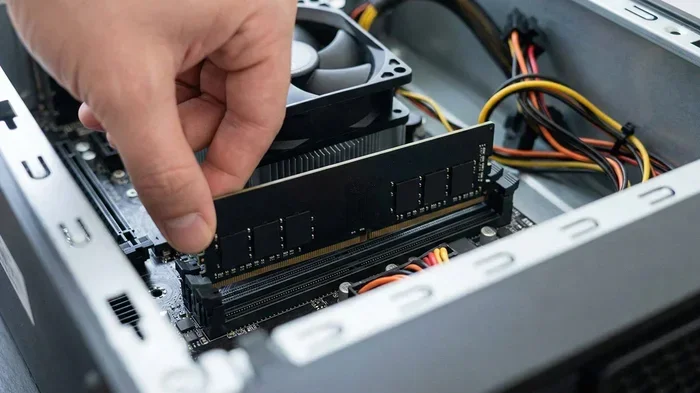
Hardware components wear out over time. Hard drives especially have a limited lifespan. RAM modules can become loose. Power supplies degrade with age. Regularly checking these parts helps you catch failures early. If you notice strange noises, frequent crashes, or error messages, it may be time to inspect or replace a component.
For those wondering about boosting performance, upgrading RAM is one of the most effective steps. You can check how much RAM your laptop has and decide if an upgrade makes sense. More memory means smoother multitasking and faster app loading. It is one of the easiest hardware improvements you can make.
Software Maintenance and Updates
Software maintenance is just as important as hardware care. Your operating system and applications need regular attention to stay secure and efficient. Outdated software creates vulnerabilities that hackers can exploit. It also causes compatibility issues and performance drops.
Operating System Updates
Your OS is the brain of your computer. It manages every program and process. When updates become available, they often include security patches and performance improvements. Ignoring these updates leaves your system exposed. Set your operating system to update automatically whenever possible.
For Windows users, checking for updates is simple. Go to Settings, then Update and Security, and click Check for Updates. On macOS, open System Preferences and select Software Update. These small steps keep your system protected and running efficiently.
Driver Updates
Drivers are the software that connects your operating system to hardware. Graphics cards, printers, and sound cards all need updated drivers. Outdated drivers cause glitches, crashes, and poor performance. Visit your device manufacturer’s website regularly to download the latest versions. Some tools can automate this process, saving you time and effort.
Uninstalling Unused Software
Over time, we all install programs we never use. These applications take up valuable disk space and sometimes run background processes. They slow down your system without you even knowing. Go through your installed programs every few months and remove anything you do not need. This simple step frees up resources and improves system optimization.
Performance Optimization Techniques
Even with regular care, computers can start to slow down. Performance optimization tackles these issues head-on. It is the process of tuning your system to run at peak efficiency. Several techniques fall under this category, and each one targets a specific area of your PC.
Disk Cleanup and Defragmentation
Your hard drive accumulates temporary files, cache data, and old backups over time. These files take up space and can slow things down. Running a disk cleanup tool removes unnecessary data and frees up room. On Windows, type Disk Cleanup in the search bar and run the tool. On macOS, use the built-in Storage Management feature.
For traditional hard drives, defragmentation reorganizes scattered data so your drive works faster. SSDs do not need defragmentation, though. If you are unsure what type of drive you have, check your system information. Using the wrong process on an SSD can actually cause harm.
Managing Startup Programs
Many programs launch automatically when you turn on your computer. Some are useful, but many are not. These startup programs consume memory and processing power from the moment you boot up. Disabling unnecessary startup items can significantly improve your boot speed.
On Windows, open Task Manager and go to the Startup tab. Right-click any program you do not need at launch and select Disable. On macOS, go to System Preferences, then Users and Groups, and manage Login Items. You will be surprised how much faster your PC starts with fewer programs loading in the background.
Malware Removal and Protection
Malware is one of the biggest threats to computer performance. Viruses, spyware, and adware run silently in the background. They consume resources, track your activity, and can even steal personal data. A reliable antivirus program is essential for every user.
Run full system scans regularly. Keep your antivirus software updated. Avoid downloading files from untrusted sources. If your system feels slow or behaves strangely, run a malware scan immediately. Quick action can prevent serious damage and data loss.
Data Backup and Recovery
Data backup is one of the most overlooked types of computer maintenance. Yet it is arguably the most important. Hard drives fail. Laptops get dropped. Ransomware attacks lock your files. Without a backup, lost data is often gone forever. A solid backup strategy protects you from these disasters.
There are several backup methods to consider. External hard drives provide physical copies of your files. Cloud storage services offer off-site protection that you can access from anywhere. Many users benefit from combining both approaches. Use an external drive for large files and a cloud service for important documents and photos.
Set a schedule for backing up your data. Weekly backups are ideal for most users. Automate the process whenever possible so you do not have to remember. Test your backups occasionally to make sure they work. A backup that does not restore is no backup at all.
Creating a Computer Maintenance Schedule
The best way to stay on top of all these tasks is to create a maintenance schedule. A schedule keeps you consistent and ensures nothing gets overlooked. You do not need to do everything every day. Spreading tasks across the week and month makes it manageable.
Here is a simple maintenance schedule you can follow. Daily tasks include scanning for malware and restarting your computer. Weekly tasks include disk cleanup and checking for software updates. Monthly tasks include cleaning the exterior, inspecting cables, and reviewing startup programs. Quarterly tasks include cleaning the interior and checking hardware health.
Sticking to a schedule might feel tedious at first. But after a few weeks, it becomes second nature. You will notice your computer running faster, staying safer, and lasting longer. That alone is worth the effort.
Quick Tips for Staying Consistent
- Set calendar reminders for each maintenance task
- Keep a simple checklist on your desk or fridge
- Use free tools that automate updates and scans
- Pair maintenance with a routine you already follow
- Reward yourself after completing a full maintenance cycle
Following these simple tips makes maintenance feel less like a chore and more like a habit. Once it becomes part of your routine, your computer will thank you for it every single day.
Common Mistakes to Avoid
Even with the best intentions, people make mistakes when maintaining their computers. Avoiding these common errors helps you get better results and protect your system.
One big mistake is ignoring warning signs. A loud fan, slow performance, or frequent crashes means something is wrong. Another mistake is using harsh cleaning products on hardware. Alcohol-based cleaners with high concentration can damage screens and casings. Always use safe, electronics-friendly products.
Skipping software updates is another common error. Updates fix bugs and patch security holes. Finally, never skip backups. Many users learn this lesson the hard way when a hard drive fails unexpectedly. A little prevention goes a long way.
If your computer is already running slow, do not panic. There are many steps you can take to fix performance issues. Start with a malware scan, then clean up disk space, and check for driver updates. For more detailed help with a sluggish system, you can explore how to fix a computer running slow and freezing for targeted solutions.
Expert Insights
Professional IT technicians agree on one thing. Consistent, small efforts beat big, infrequent cleanups every time. A five-minute daily check beats a five-hour marathon session once a year. Build small habits into your routine and your computer will reward you with reliable performance for years.
Experts also recommend paying attention to temperatures. Overheating is a silent killer of computer components. If your fans are running constantly, check for dust buildup and ensure proper ventilation. You can learn more about why fans keep running in our guide on why your computer fan keeps running and how to address it effectively.
When cleaning internal components, use the right tools and techniques. For delicate parts like CPU contacts, a small amount of isopropyl alcohol removes grime safely. Check our article on the right percentage of isopropyl alcohol to clean your CPU for safe and effective cleaning guidance.
Conclusion
Different types of computer system maintenance work together to keep your PC healthy, fast, and secure. Preventive care stops problems before they grow. Hardware maintenance keeps physical components in good shape. Software updates protect your system from threats and bugs. Performance optimization brings back speed and responsiveness. Data backup safeguards your precious files. And a solid schedule keeps all of it consistent.
You do not need to be a tech expert to maintain your computer. With a little knowledge and regular effort, anyone can keep their machine running at its best. Start small, stay consistent, and enjoy the benefits of a well-maintained PC. Your computer will run faster, last longer, and give you fewer headaches. That is a win for everyone.
Frequently Asked Questions
How often should I clean my computer internally?
You should clean the inside of your computer every three to six months. If you live in a dusty area or have pets, you may need to clean more often. Regular dust removal prevents overheating and keeps fans working efficiently.
What is the difference between preventive and corrective maintenance?
Preventive maintenance focuses on stopping problems before they happen through regular checks and updates. Corrective maintenance happens after a problem appears, like fixing a broken component or removing malware. Preventive care is always better because it saves time and money.
Do I really need to update my software regularly?
Yes, software updates are essential. They patch security vulnerabilities, fix bugs, and often improve performance. Skipping updates leaves your system exposed to threats and can cause compatibility issues with newer apps.
Can I use household cleaners to wipe my computer?
No, household cleaners can damage screens and plastic casings. Use a soft microfiber cloth lightly dampened with water or a small amount of isopropyl alcohol. Always check that your cleaning product is safe for electronics before using it.
What is the best way to back up my data?
The best approach combines an external hard drive with a cloud storage service. The external drive handles large files locally, while the cloud protects your data even if your computer is lost or damaged. Set both to back up automatically on a weekly schedule.
How can I tell if my computer needs maintenance?
Common signs include slow boot times, frequent crashes, unusual noises, and overheating. If your PC takes longer than usual to start or apps freeze often, it is time for a maintenance check. Running a system diagnostic tool can also reveal hidden issues before they become serious problems.