Why Isn’t the Mouse on My Laptop Working
Having trouble with the mouse on your laptop? It could be a simple software glitch, a touchpad setting, or a hardware hiccup. This guide walks you through practical, easy‑to‑follow steps to diagnose and fix the issue, so you can get back to clicking without the headache.
Key Takeaways
- Check the basics: power, connection, and touchpad status first.
- Software updates keep drivers fresh. Installing or reinstalling the touchpad driver often resolves missing cursor problems.
- Hardware reset can clear glitches: a simple power‑off and battery removal can reset the touchpad.
- External mice are a quick workaround: test with a USB or Bluetooth mouse to isolate the problem.
- Advanced fixes include BIOS and driver rollbacks. Use these when other steps fail.
- Prevent future issues: keep drivers updated and enable regular system scans.
📑 Table of Contents
- Why Isn’t the Mouse on My Laptop Working? A Friendly Breakdown
- 1. Quick Win: Check the Touchpad and External Mouse Settings
- 2. Driver Diagnosis: Update or Reinstall the Touchpad Driver
- 3. Hardware Reset: Power Cycle and Battery Removal
- 4. BIOS and Firmware Checks
- 5. Advanced Troubleshooting: Rollback, Clean Boot, and System Restore
- 6. When All Else Fails: Hardware Replacement
- Conclusion: Quick Fixes, Lasting Solutions
Why Isn’t the Mouse on My Laptop Working? A Friendly Breakdown
Imagine you’re in the middle of a presentation, the cursor suddenly disappears, and you can’t click back to your slides. That’s the panic many feel when the mouse on a laptop stops working. The good news? Most of the time, the solution is simple, and you can fix it without calling tech support.
In this article, we’ll walk through the common causes—software, hardware, and settings—and give you a checklist you can follow to get your mouse (or touchpad) back in action. By the end, you’ll know exactly what to do and when to look for professional help.
1. Quick Win: Check the Touchpad and External Mouse Settings
1.1 Is the Touchpad Disabled?
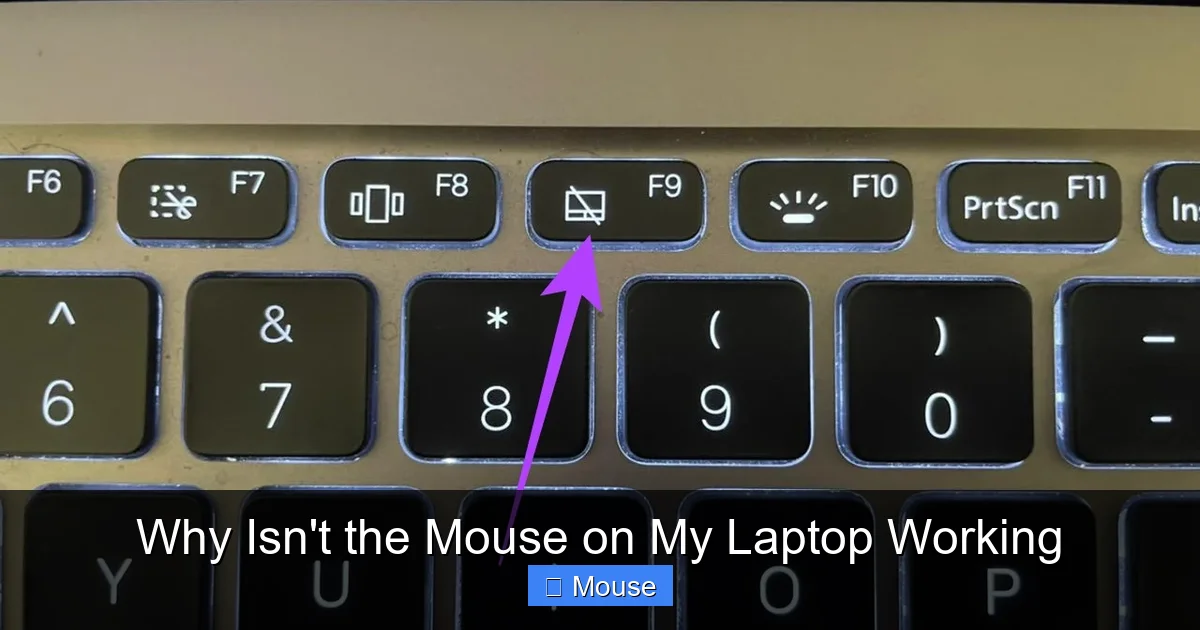
Many laptops let you toggle the touchpad on or off with a function key (often Fn + F7 or F9). The first thing to do is look for the little touchpad icon on your keyboard and hit the key combo. If you’re unsure, search your laptop’s manual or the Why Isn T The Mouse Working On My Laptop article for model‑specific instructions.
Visual guide about Why Isn’t the Mouse on My Laptop Working
Image source: img.youtube.com
1.2 Check “Touchpad” Settings in Windows
Open Settings → Devices → Touchpad. Make sure the slider is set to “On.” Also, toggle the “Touchpad” switch. If you’re using a Mac, go to System Preferences → Trackpad and ensure it’s enabled.
1.3 External Mouse Test
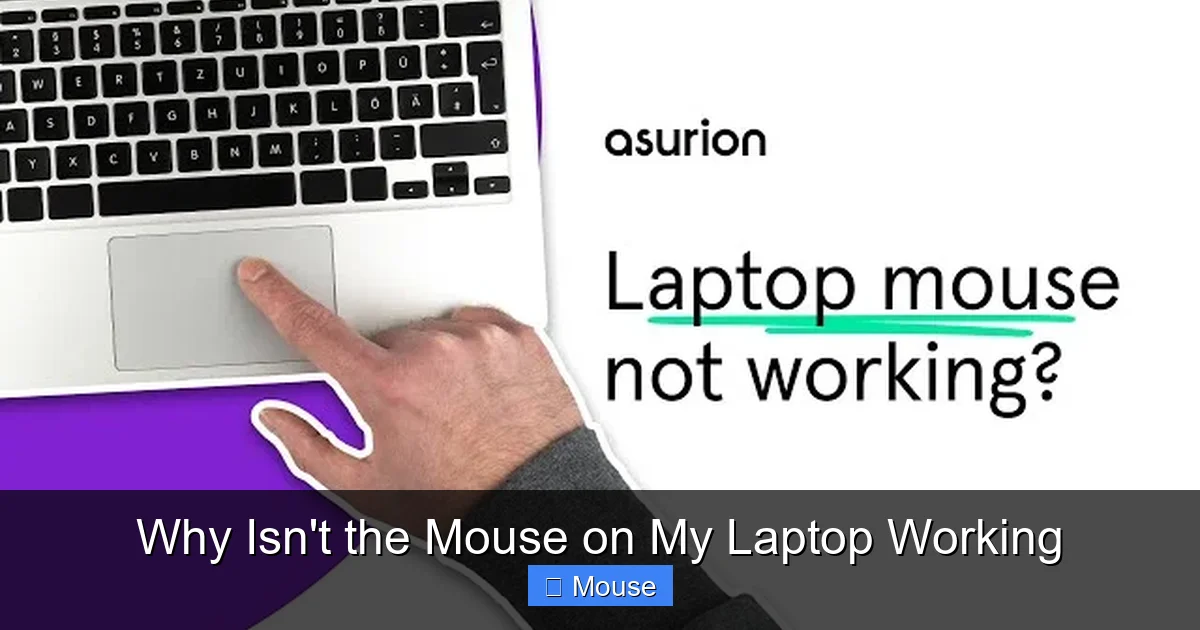
Plug in a USB mouse or a Bluetooth mouse. If the cursor returns, the problem is likely with the touchpad. If the external mouse also fails, the issue may be deeper—perhaps a driver problem or a system setting.
2. Driver Diagnosis: Update or Reinstall the Touchpad Driver
2.1 Why Drivers Matter
Your touchpad needs drivers—tiny programs that let Windows (or macOS) talk to the hardware. An outdated or corrupted driver can cause the mouse to stop responding.

Visual guide about Why Isn’t the Mouse on My Laptop Working
Image source: i.ytimg.com
2.2 Updating via Device Manager
Press Win + X and choose Device Manager. Expand Human Interface Devices or Mice and other pointing devices. Right‑click your touchpad device, select Update driver, then Search automatically for updated driver software. Follow the prompts. If Windows finds an update, install it and restart.
2.3 Reinstalling the Driver
If updating doesn’t help, try reinstalling. In Device Manager, right‑click the touchpad and choose Uninstall device. Check “Delete the driver software for this device” if available. After uninstalling, reboot your laptop; Windows will reinstall a fresh driver automatically.
2.4 Manufacturer’s Driver Download
Sometimes Windows’ automatic update misses the latest version. Visit your laptop manufacturer’s support site (Lenovo, HP, Dell, etc.) and download the latest touchpad driver. Install it manually and restart.
3. Hardware Reset: Power Cycle and Battery Removal
3.1 A Simple Power‑Off
Shut down your laptop, unplug the power cord, and hold the power button for 15 seconds. This clears residual power and can reset the touchpad controller.
Visual guide about Why Isn’t the Mouse on My Laptop Working
Image source: helpdeskgeek.com
3.2 Battery Reset (For Desktops/Laptops with Removable Batteries)
If your laptop has a removable battery, take it out, wait 30 seconds, reinsert it, then power on. This extra step can resolve hardware glitches that a simple power‑off can’t.
4. BIOS and Firmware Checks
In rare cases, the BIOS (Basic Input/Output System) settings control the touchpad. Enter BIOS by pressing F2, Del, or Esc during startup (check your manual). Look for an option like “Internal Pointing Device” or “Touchpad.” Ensure it’s enabled. Save and exit. If the BIOS shows the touchpad is already on, proceed to the next step.
5. Advanced Troubleshooting: Rollback, Clean Boot, and System Restore
5.1 Driver Rollback
If the touchpad worked before a recent driver update, roll back to the previous version. In Device Manager, right‑click the touchpad, choose Properties, go to the Driver tab, and click Roll Back Driver. Confirm and restart.
5.2 Clean Boot
Sometimes third‑party software interferes. Perform a clean boot to start Windows with only essential services. Type msconfig, go to the Services tab, check Hide all Microsoft services, then Disable all. Restart and test the mouse. If it works, re‑enable services one by one to find the culprit.
5.3 System Restore
If the problem started recently, use System Restore to revert your computer to a point before the issue. Search Restore in the Start menu, select a restore point, and follow the wizard. This will not affect personal files but may roll back drivers and settings.
6. When All Else Fails: Hardware Replacement
If none of the software fixes restore the mouse, the touchpad hardware may be damaged. In this case, consider:
- External Mouse: Keep a USB or Bluetooth mouse as a permanent solution.
- Repair Center: Contact your laptop’s support line or visit a certified repair shop.
- Replacement: Some manufacturers allow you to order a new touchpad module.
Remember, laptops are designed to work smoothly. Most touchpad issues are temporary—just a quick reset or driver tweak. If you’re still stuck, the How To Get My Mouse Back On My Laptop guide can offer deeper insights into hardware troubleshooting.
Conclusion: Quick Fixes, Lasting Solutions
When the mouse on your laptop stops working, the first instinct is to panic. But with a systematic approach—checking settings, updating drivers, resetting power, and, if needed, rolling back or restoring—you can usually resolve the issue in under ten minutes. Keep your drivers up to date, avoid unnecessary software that might conflict, and consider a backup external mouse for peace of mind.
Now you’re armed with the knowledge to tackle most touchpad hiccups. Keep this guide handy, and you’ll never be stuck staring at a blank screen again.
Frequently Asked Questions
Why does my laptop mouse stop working after a Windows update?
Windows updates can sometimes overwrite or conflict with touchpad drivers. Reinstalling the driver or rolling back to a previous version often restores functionality.
Can a broken touchpad be fixed with software?
Most touchpad issues are software related, but if hardware damage occurred (e.g., after a drop), a software fix won’t help. In that case, hardware replacement is required.
Is it safe to use an external mouse permanently instead of a touchpad?
Absolutely. Many users prefer external mice for precision and ergonomic reasons. Just ensure the mouse is compatible with your operating system.
How do I know if the touchpad is physically damaged?
If the cursor appears intermittently or only on a specific part of the pad, the hardware may be failing. A professional diagnostic can confirm this.
What should I do if my touchpad is unresponsive but my external mouse works?
Check the touchpad settings, update or reinstall drivers, and perform a power reset. If the issue persists, consider hardware repair or replacement.
Can I replace the touchpad on my own?
Replacing a touchpad requires opening the laptop, which can void warranties. If you’re comfortable with DIY repairs, follow a reputable guide; otherwise, seek professional assistance.