How Many Ram Slots Does Your Desktop Computer Need
Knowing how many RAM slots your desktop computer has is essential for boosting speed and multitasking. Most desktop motherboards offer two to four RAM slots, but the right number depends on your usage, motherboard type, and budget. This guide breaks down everything you need to choose the best configuration for your setup.
How Many Ram Slots Does Your Desktop Computer Need
When you build or upgrade a desktop, one of the first questions that comes up is how many RAM slots desktop systems actually have. The answer shapes everything from your motherboard choice to your final performance. Whether you are a casual user, a gamer, or a content creator, understanding your desktop memory slots helps you make smart decisions. In this guide, we walk you through everything you need to know about RAM slots, how many you really need, and how to get the most out of your setup.
Most desktop computers come with two, three, or four RAM slots on the motherboard. The exact number depends on the board form factor and chipset. Smaller boards like Micro-ATX often have two slots, while full-size ATX boards typically offer four. Some high-end boards even include six or eight slots for workstations and servers. Your choice of how many RAM slots desktop configuration to use should match your current needs and future upgrade plans.
RAM, or random access memory, acts as the short-term memory for your computer. It holds data that your processor needs right now. More RAM means your system can handle more tasks at once without slowing down. The number of slots determines how much RAM you can install and whether you can run in dual-channel or quad-channel mode. Each of these factors plays a big role in everyday performance.
Key Takeaways
- Standard desktops have 2 to 4 RAM slots: Most consumer motherboards come with four DIMM slots for memory expansion.
- Your usage determines the number of slots you need: Basic tasks require less memory, while gaming and creative work demand more.
- DDR4 and DDR5 are the current standards: Always match your RAM type to your motherboard’s supported generation.
- Dual-channel mode boosts performance: Using matched pairs of RAM sticks in the correct slots improves speed significantly.
- Check compatibility before buying: Use our check RAM compatibility guide to avoid costly mistakes.
- Upgrading is simple and affordable: Adding RAM is one of the easiest and most cost-effective ways to speed up your desktop.
📑 Table of Contents
Understanding Desktop RAM Slots
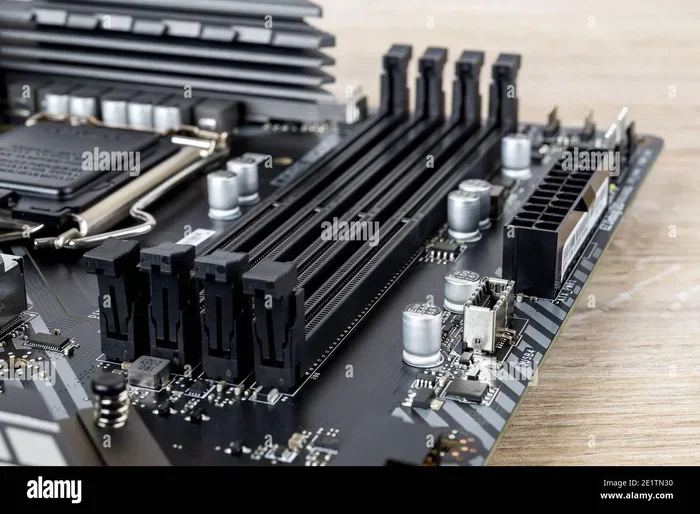
Every desktop motherboard has a set of RAM slots, also called DIMM slots. These slots hold your memory modules in place and connect them to the rest of the system. The type of slot your board uses depends on the RAM generation it supports.
What Are DIMM Slots?
DIMM stands for Dual Inline Memory Module. These are the standard sticks used in desktop computers. They sit flat on the motherboard and lock into place with small clips on each end. Each slot supports one RAM module. The number of slots varies by motherboard design and target audience.
DDR4 vs DDR5 RAM Slots
The two main types of RAM slots you will find today are DDR4 and DDR5. DDR4 has been the standard for years and offers reliable performance at an affordable price. DDR5 is the newer generation and brings higher speeds and better efficiency. Here is a quick comparison:
- DDR4: Speeds range from 2133 MHz to 5333 MHz. It is widely available and budget-friendly.
- DDR5: Speeds start at 4800 MHz and go well beyond 8000 MHz. It offers better bandwidth and power efficiency.
The key thing to remember is that DDR4 and DDR5 slots are not interchangeable. Your motherboard only supports one type. Always verify which type your board uses before buying memory. If you are unsure about compatibility, check out our guide on how to know what RAM is compatible with your laptop for tips on matching RAM to your system.
Single Channel vs Dual Channel vs Quad Channel
The way you fill your RAM slots matters just as much as how many you have. Here is why:
- Single Channel: One stick of RAM in any slot. This works but limits memory bandwidth.
- Dual Channel: Two matched sticks of RAM in the correct slots. This doubles the data pathway between RAM and the CPU, boosting performance noticeably.
- Quad Channel: Four matched sticks. This is common on high-end desktop boards and offers the best bandwidth for demanding tasks.
For most users, dual-channel mode is the sweet spot. It gives you a real performance boost without the cost of filling every slot.
How Many RAM Slots Do Desktops Typically Have
The standard answer is that most desktop motherboards have four RAM slots. But this is not always the case. The number of slots depends on the motherboard form factor and its intended use.
ATX Motherboards (Full Size)
ATX boards are the most common desktop motherboards. They almost always come with four DIMM slots. This gives you the flexibility to install up to four RAM sticks, usually supporting a maximum of 64 GB to 128 GB of total memory depending on the maximum capacity per module.
Micro-ATX Motherboards
Micro-ATX boards are smaller and often found in budget or compact desktops. They typically have two RAM slots. This limits your maximum memory but is fine for most everyday tasks. If you are building a basic office PC or a home theater system, two slots are usually enough.
Mini-ITX Motherboards
Mini-ITX boards are even smaller and designed for compact builds. Most have only two RAM slots. Despite the limited slots, modern Mini-ITX boards support high-capacity modules, so you can still get up to 64 GB of RAM in a small form factor.
E-ATX and Workstation Boards
High-end workstation boards use the E-ATX form factor and often feature four, six, or even eight RAM slots. These boards target professionals who need massive amounts of memory for video editing, 3D rendering, or scientific computing.
How Many RAM Slots Do You Actually Need
This is the question most people really want answered. The truth is, it depends on what you do with your computer. Let us break it down by use case.
Basic Use (Web Browsing, Office Work, Streaming)
If you mainly browse the web, check email, and use office apps, you do not need many RAM slots. Two slots with 16 GB of RAM (two 8 GB sticks) will handle these tasks easily. You can always add more later if needed.
Gaming
Modern games demand a fair amount of memory. For a smooth gaming experience, 16 GB is the recommended minimum, and 32 GB is becoming the new standard. Four RAM slots let you reach 32 GB or even 64 GB without replacing your existing modules. This is especially useful if you want to upgrade over time.
Content Creation and Professional Work
Video editors, 3D modelers, and music producers often push their systems to the limit. These users benefit from 32 GB or more of RAM. A four-slot motherboard lets you start with 32 GB and expand to 64 GB or beyond. If you want tips on how much memory different users need, our article on how much RAM does a laptop need covers general RAM requirements that apply to desktops as well.
Casual Upgraders and Budget Builds
If you are on a tight budget, start with two sticks in a dual-channel configuration. This gives you the best performance for the price. You can always add two more sticks later when your budget allows.
How to Check How Many RAM Slots Your Desktop Has
Before you buy any RAM, you need to know exactly how many slots your desktop has and how many are already in use. Here are the easiest ways to find out.
Method 1: Check Your Motherboard Manual
Every motherboard comes with a manual that lists the number of DIMM slots, supported RAM types, and maximum capacity. If you still have the manual or can find it online by searching your motherboard model, this is the most reliable method.
Method 2: Use System Information Tools
On Windows, you can open the Task Manager and go to the Performance tab. Click on Memory, and it will show you how many RAM slots your system has and how many are currently used. On macOS, click the Apple menu, choose About This Mac, and look under Memory for slot information.
Method 3: Open the Case and Look
If you are comfortable opening your desktop case, simply look at the motherboard. The RAM slots are long, narrow connectors usually located near the CPU. Count them to get the total number. This also lets you see which slots are already occupied by existing RAM sticks.
Method 4: Use Third-Party Software
Tools like CPU-Z and Speccy give you detailed information about your memory, including the number of slots, RAM type, speed, and how many slots are in use. These are free and very helpful when planning an upgrade.
Common Mistakes When Choosing RAM Slots
Even experienced builders sometimes make mistakes when setting up their RAM. Here are the most common ones and how to avoid them.
Mixing Different RAM Types
Never mix DDR4 and DDR5 RAM. They have different notch positions and physical designs. Plugging the wrong type into a slot can damage your motherboard and memory. Always match the RAM generation to your board.
Ignoring Motherboard Compatibility
Not all RAM works with all motherboards. Check your motherboard’s Qualified Vendor List (QVL) to see which RAM kits have been tested and approved. Buying RAM without checking compatibility can lead to instability or failure to boot.
Filling Slots in the Wrong Order
Motherboards have a specific order for filling RAM slots to enable dual-channel or quad-channel mode. Usually, you start with slot 2 and slot 4 (or the slots furthest from the CPU). Filling slots randomly can force your system into single-channel mode, cutting your memory bandwidth in half.
Buying Too Much Too Soon
It is tempting to max out all slots right away, but this can limit your future upgrade options. If you start with two sticks and leave two slots open, you can add more RAM later without removing anything. This is a smart strategy for anyone who wants room to grow.
Expert Tips for Maximizing Your RAM Slots
Buy Matched Pairs
For the best performance, always buy RAM in matched pairs. Two identical sticks work together in dual-channel mode and provide smoother multitasking. Many manufacturers sell kits of two or four sticks that are tested to work together.
Prioritize Speed and Latency
More RAM is not always better if your speed and latency are poor. Look for RAM with low CAS latency and high MHz speeds within your budget. The sweet spot for most users right now is DDR4-3200 or DDR5-5600.
Keep Some Slots Free
Leaving empty slots gives you room to upgrade later. If you currently have 16 GB in two slots, you can add 16 GB more later without removing your existing modules. This approach saves money and keeps your options open.
Consider Your Operating System
A 64-bit operating system can use much more RAM than a 32-bit one. If you are still running a 32-bit version of Windows, upgrading to 64-bit will let you take full advantage of your desktop memory slots. Most modern systems run 64-bit Windows, but it is worth checking.
Conclusion
Understanding how many RAM slots desktop computers use is the first step toward building or upgrading a system that truly fits your needs. Most desktops come with four slots, but smaller form factors may have only two. Your ideal configuration depends on your workload, budget, and future plans. Start by checking your motherboard, choose the right RAM type, and fill your slots in the correct order for the best results. Whether you are a casual user or a power user, getting your RAM setup right makes a noticeable difference every day. Take the time to plan your configuration, and your desktop will thank you with faster, smoother performance for years to come.
Frequently Asked Questions
How do I know how many RAM slots my desktop has?
You can check your motherboard manual, open your case and count the DIMM slots, or use software tools like CPU-Z or the Windows Task Manager. Each method gives you an accurate count of your available memory slots.
Can I use different RAM sticks in the same slots?
You can mix RAM sticks, but it is best to use matched pairs from the same brand, size, speed, and latency. Mixing different types like DDR4 and DDR5 will not work at all and can damage your system.
Is it better to have two sticks or four sticks of RAM?
Two sticks in dual-channel mode offer great performance for most users. Four sticks enable quad-channel mode on supported boards and are ideal for heavy workloads like video editing and 3D rendering.
What happens if I fill all my RAM slots?
Filling all slots maximizes your total memory capacity. However, it leaves no room for future upgrades without removing existing modules. It also means you must ensure all sticks are compatible with each other and your motherboard.
Do I need to install RAM in a specific order?
Yes. Most motherboards require you to fill slots in a specific order to enable dual-channel or quad-channel mode. Check your motherboard manual for the correct slot numbering and filling sequence.
How much RAM is enough for a desktop in 2025?
16 GB is the sweet spot for most users in 2025. Gamers and content creators should aim for 32 GB or more. The right amount depends on your tasks, but starting with two sticks and upgrading later is a smart approach.