Laptop Wont Boot After Ram Upgrade Try These Fixes Now
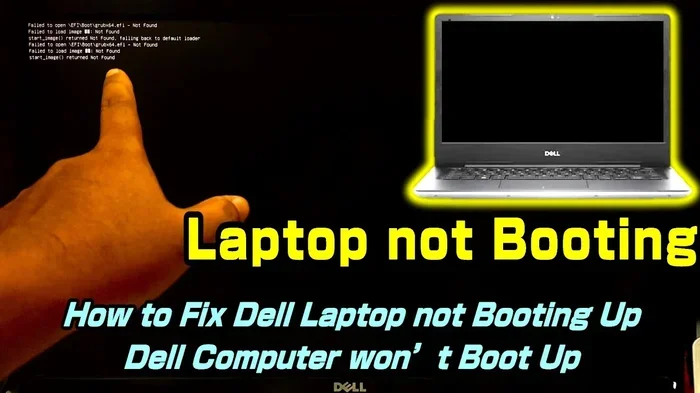
A laptop that won’t boot after a ram upgrade is a common but fixable problem. Whether your screen stays black, you hear beep codes, or the system freezes at the logo, the cause is usually simple. This guide walks you through proven fixes to get your computer running again fast.
You just finished upgrading your laptop’s memory. You put everything back together, hit the power button, and… nothing happens. No logo. No fans spinning. No signs of life. It’s frustrating, right? A laptop wont boot after ram upgrade more often than you’d think, and the good news is that most causes are easy to fix at home.
Whether you’re a student trying to speed up your machine or a professional who needs more multitasking power, a failed boot after a memory upgrade can feel like a disaster. But before you panic or rush to a repair shop, take a breath. In most cases, the fix is simple and takes just a few minutes. This guide covers every major reason your laptop won’t start after ram and gives you clear, step-by-step solutions to get back up and running.
Key Takeaways
- Reseat the RAM: Most boot failures after a ram upgrade happen because the memory module isn’t seated properly.
- Check compatibility: Using the wrong type of ram can prevent your laptop from starting at all.
- Reset BIOS/CMOS: Clearing the BIOS settings often fixes detection and boot issues after a memory upgrade.
- Test each stick individually: This helps you identify a defective ram module quickly.
- Clean the contacts: Dirty or oxidized ram contacts can cause boot failures and detection problems.
- Update your BIOS: An outdated firmware may not recognize newer memory modules correctly.
📑 Table of Contents
- Why Does a Laptop Won’t Boot After Ram Upgrade?
- How to Fix a Laptop That Won’t Boot After RAM Upgrade
- Common Symptoms of RAM Upgrade Boot Failure
- How to Prevent RAM Upgrade Boot Issues in the Future
- When Should You Seek Professional Help?
- Expert Insights on Laptop Boot Failures After RAM Installation
- Final Thoughts
Why Does a Laptop Won’t Boot After Ram Upgrade?
Understanding the root cause makes fixing the problem much easier. Several things can go wrong when you add or replace memory modules. Let’s break down the most common culprits.
Improper RAM Seating
The number one reason for a laptop not turning on after ram install is a loose module. When you push the ram stick into the slot, it needs to click firmly into place. If it’s even slightly off, the laptop can’t detect the memory and won’t start. This happens to everyone, especially during a first-time ram upgrade.
Incompatible Memory Modules
Not all ram is the same. Your laptop needs a specific type of memory — whether it’s DDR4, DDR5, or an older standard. Using the wrong ram compatibility type can completely prevent booting. Speed, voltage, and capacity also matter. Always double-check your laptop’s specifications before buying new modules.
BIOS or CMOS Issues
Your laptop’s BIOS controls how hardware components are recognized. After a memory upgrade, the BIOS sometimes needs a reset to recognize the new ram. A corrupted CMOS battery or outdated firmware can also lead to boot failure after ram upgrade.
Defective RAM Module
Sometimes the problem isn’t your laptop — it’s the ram stick itself. A faulty memory module can cause all sorts of issues, from a black screen to endless restarting. This is rare but definitely possible.
Dust or Debris in the RAM Slot
Dust buildup inside the laptop can interfere with the connection between the ram and the motherboard. If your laptop hasn’t been cleaned in a while, this could be the hidden cause of your laptop ram not working after the upgrade.
How to Fix a Laptop That Won’t Boot After RAM Upgrade
Now that you know the common causes, let’s get into the fixes. Work through these steps in order. Most people solve the problem within the first two or three steps.
Step 1: Reseat the RAM Modules
Start by opening your laptop back up. Carefully remove each ram stick and reinsert it firmly. You should hear a clear click when the module locks into place. Push down on both sides of the clip to ensure a secure fit. This simple step resolves the majority of ram upgrade troubleshooting cases.
Quick Tip: If you have multiple sticks, try booting with just one at a time. This helps you rule out a bad module or a specific slot problem.
Step 2: Verify RAM Compatibility
Check your laptop’s user manual or the manufacturer’s website. Confirm the exact type of ram your model supports. Look at the speed (MHz), the form factor (SO-DIMM), and the maximum capacity. If you bought your ram from a reputable source, the how to upgrade ram in laptop compatibility info should be listed on the product page.
If you’re unsure, visit the compatibility guide for upgrading laptop memory to double-check your setup.
Step 3: Reset the BIOS and CMOS
Resetting the BIOS clears any settings that might be conflicting with your new ram. Here’s how:
- Power off the laptop and unplug it.
- Remove the battery if possible.
- Locate the CMOS battery on the motherboard (it looks like a small silver coin cell).
- Remove it for about 30 seconds.
- Put it back in, reconnect the battery, and power on.
This often fixes the laptop stuck on logo after ram issue and helps the system detect the new memory properly.
Step 4: Clean the RAM Contacts
Take a soft, dry cloth or a pencil eraser and gently clean the gold contacts on the ram stick. Dirt and oxidation can block the electrical connection. Blow out any dust from the ram slots using compressed air. Clean contacts make a huge difference in laptop ram not working situations.
Step 5: Update Your BIOS Firmware
An outdated BIOS may not recognize newer ram modules, especially higher-capacity sticks. Visit your laptop manufacturer’s support page and download the latest BIOS update. Follow their instructions carefully. Updating BIOS can resolve many memory upgrade failure issues.
Step 6: Test Each RAM Stick Individually
If you added two new sticks, test them one at a time. Boot with only one stick in slot 1, then try slot 2. Then do the same with the other stick. This tells you whether the problem is with a specific module or a specific slot. This method is one of the most effective ram upgrade troubleshooting techniques.
Common Symptoms of RAM Upgrade Boot Failure
Different problems show different signs. Knowing what your laptop is “telling” you helps you diagnose the issue faster.
| Symptom | Likely Cause | Fix |
|---|---|---|
| No power, screen stays black | Improperly seated ram or incompatible module | Reseat ram, check compatibility |
| Laptop beeps repeatedly on startup | RAM not detected or faulty module | Reseat or replace the ram stick |
| Stuck on manufacturer logo | BIOS not recognizing new memory | Reset CMOS, update BIOS |
| Windows loads then restarts in a loop | Incompatible ram or defective stick | Test each stick individually |
| Blue screen of death (BSOD) | Ram not properly seated or wrong type | Reseat ram, verify specifications |
How to Prevent RAM Upgrade Boot Issues in the Future
Prevention is always better than fixing a problem. Follow these simple habits to avoid future laptop wont boot after ram upgrade headaches.
- Buy from trusted brands: Stick with well-known ram manufacturers like Corsair, Kingston, Crucial, or Samsung.
- Match your existing ram: If you’re adding to existing memory, try to match the speed, voltage, and type of your current modules.
- Check maximum capacity: Every laptop has a ram limit. Exceeding it can cause boot failures even if the system seems to accept the stick at first.
- Ground yourself before touching components: Static electricity can damage ram modules and motherboard slots. Use an anti-static wrist strap or touch a metal surface first.
- Keep your workspace clean: Work on a flat, dust-free surface when opening your laptop.
For a deeper dive into the general process, check out this complete guide on how to upgrade ram in a laptop to make sure you’re following the right steps from the start.
When Should You Seek Professional Help?
Most boot issues after a ram upgrade are fixable at home. But some situations call for a professional. If you’ve tried every step above and your laptop still won’t turn on, the problem might be with the motherboard itself. A damaged ram slot or a deeper hardware issue requires expert diagnosis.
Also, if your laptop is still under warranty, opening it up might void the coverage. In that case, contact the manufacturer’s support team before attempting any repairs. They can often guide you through remote troubleshooting or arrange a service appointment.
Cost Considerations
If you’re worried about repair costs, it helps to know what you might be dealing with. A basic ram upgrade typically costs between $20 and $80 for the memory itself. Professional installation and diagnosis usually run $50 to $150 depending on your location and the complexity of the issue. For more details on what to expect, visit the cost breakdown for laptop ram upgrades.
Expert Insights on Laptop Boot Failures After RAM Installation
Experienced technicians see these issues almost every day. Here’s what the pros want you to know:
- Don’t force the ram stick. If it doesn’t go in easily, check the alignment. Forcing it can damage the slot or the module.
- Watch for the click. The metal clips on both sides of the ram slot should snap inward automatically when the module is fully seated.
- Use the right slots. Many laptops have specific ram slot priorities. Consult your manual to know which slot to fill first for dual-channel performance.
- Your BIOS matters. Keeping your firmware updated is one of the easiest ways to prevent memory upgrade failure and ensure smooth operation after any hardware change.
These small tips save a lot of headaches. They also make your how to upgrade my laptop ram experience much smoother the next time you decide to add more memory.
Final Thoughts
A laptop wont boot after ram upgrade is almost always fixable. The most common causes — loose seating, incompatible modules, and BIOS issues — are all things you can handle yourself with basic tools and a little patience. Start with the simplest fix, which is reseating the ram, and work your way down the list.
Remember to always check compatibility before buying new memory. Match the type, speed, and capacity to your laptop’s specifications. And don’t skip the BIOS reset — it solves more problems than most people realize. With the right approach, your laptop will be back to running smoothly in no time.
If you found this guide helpful, share it with someone who might be dealing with the same issue. And next time you upgrade your ram, you’ll know exactly what to do if something goes wrong. Happy fixing!
Frequently Asked Questions
Why won’t my laptop turn on after I installed new RAM?
The most common reason is that the ram module isn’t seated properly. Open your laptop, remove the new stick, and reinsert it firmly until you hear a click. Also check that the ram type matches your laptop’s specifications. If the problem persists, try resetting your BIOS by removing the CMOS battery for 30 seconds.
Can using the wrong RAM prevent my laptop from booting?
Yes, absolutely. Using incompatible ram — whether it’s the wrong type (DDR3 vs DDR4), the wrong speed, or the wrong voltage — can completely prevent your laptop from starting. Always verify your laptop’s memory specifications before purchasing new modules.
How do I know if my new RAM is defective?
Test each ram stick individually by booting with only one module at a time. If the laptop boots fine with one stick but not the other, the defective stick is the problem. You can also try the working stick in a different slot to rule out a bad motherboard slot.
Should I update my BIOS after a RAM upgrade?
It’s a good idea, especially if your laptop won’t detect the new memory. An updated BIOS often includes improved memory compatibility and support for newer ram modules. Visit your laptop manufacturer’s website to find the latest firmware for your specific model.
Is it normal for a laptop to beep after a RAM upgrade?
Beeping sounds usually indicate that the laptop can’t detect or recognize the ram. This often means the module isn’t seated correctly or it’s incompatible. Reseat the ram firmly and make sure it matches your laptop’s specifications. If the beeping continues, try removing all ram and reinserting it one stick at a time.
Can dust cause boot issues after a RAM upgrade?
Yes, dust and debris in the ram slot can interfere with the connection between the module and the motherboard. Before installing new ram, clean the slots with compressed air and wipe the gold contacts on the ram stick with a soft, dry cloth. This simple step prevents many boot failures.