How to Activate Mouse on Laptop
Activating a mouse on your laptop is simple whether you use a wired USB mouse, a wireless Bluetooth device, or the built‑in touchpad. Follow the steps below to enable your pointer, install drivers, and troubleshoot any problems quickly.
When you get a new laptop or plug in a mouse for the first time, you might wonder how to activate mouse on laptop. The good news is that the process is usually quick and painless. In this guide we walk you through every common scenario, from a simple wired USB mouse to a Bluetooth model and even the built‑in touchpad. You will learn the exact clicks, the settings to check, and the fixes to try if something goes wrong.
We wrote this article for everyday users who want clear, step‑by‑step instructions without technical jargon. Each section covers a specific mouse type, so you can jump straight to the part that matches your device. By the end you will be able to activate mouse on laptop confidently and keep it running smoothly.
Before we dive in, remember that the phrase activate mouse on laptop applies to any pointing device you connect. Whether you use a classic wired mouse, a modern Bluetooth mouse, or the trackpad that came with your machine, the basic idea is the same: make sure the hardware is recognized, install any needed software, and adjust the settings to your liking.
Key Takeaways
- Know your mouse type: Wired, Bluetooth, or USB‑receiver mice each have a slightly different activation process.
- Check hardware first: Ensure USB ports work and Bluetooth is turned on before you start.
- Update drivers: Latest drivers prevent most detection issues.
- Use system settings: Windows Settings and macOS System Preferences both let you enable and customize the pointer.
- Fix common problems fast: Re‑pair, restart, or reinstall drivers if the mouse does not appear.
- Explore advanced options: DPI profiles, button mapping, and battery settings improve productivity.
📑 Table of Contents
Understanding Your Laptop’s Mouse Options
Built‑in Touchpad vs External Mouse
Most laptops ship with a touchpad that works out of the box. An external mouse gives you more precision and comfort for long sessions. Knowing which device you are using helps you pick the right activation steps. The touchpad is always present, but you may prefer a mouse for gaming, design, or heavy spreadsheet work.
If you rely on the touchpad, you still need to activate mouse on laptop settings for gestures and sensitivity. If you plug in an external mouse, the touchpad can stay on or turn off automatically depending on your preferences.
Wired USB Mouse
A wired mouse plugs into a USB port. It usually works instantly because the operating system loads a generic driver. No extra software is needed unless you want special features like programmable buttons or adjustable DPI. This is the simplest way to activate mouse on laptop for most users.
Wired mice draw power from the USB port, so you never worry about batteries. They also have the lowest latency, which is great for fast‑paced games or precise graphic work.
Wireless Bluetooth Mouse
A Bluetooth mouse connects through the laptop’s Bluetooth radio. You must put the mouse in pairing mode and then add it in the system settings. This type is popular because it leaves USB ports free for other peripherals. The pairing process is the same on Windows and macOS, though the menus look different.
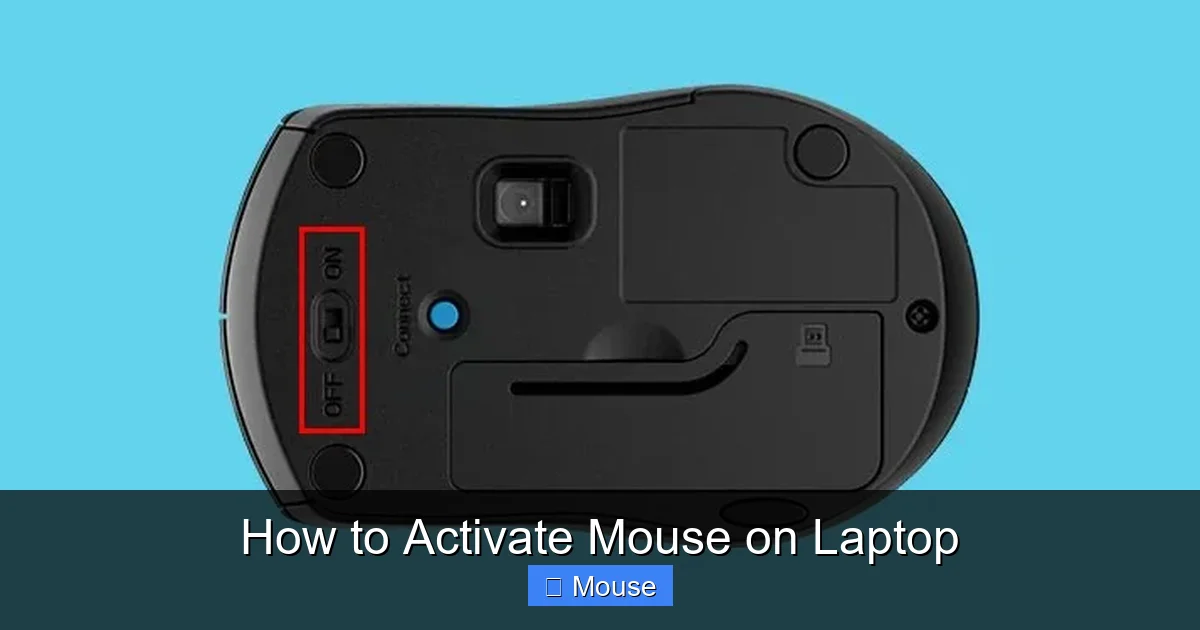
Bluetooth mice often have a small switch on the bottom to turn them on and off. Make sure the switch is in the on position before you try to activate mouse on laptop via Bluetooth.
Wireless USB Receiver Mouse
Some wireless mice come with a tiny USB dongle. The dongle acts like a dedicated receiver. You plug it in, and the mouse pairs automatically in most cases. This method is almost as plug‑and‑play as a wired mouse, but you keep the freedom of a cordless device.
If the mouse does not connect right away, press the connect button on the mouse or the dongle. Some brands require a short press on both devices to complete the link.
Specialty Mice (Gaming, Ergonomic, Trackball)
Gaming mice often include extra buttons, adjustable weights, and high‑DPI sensors. Ergonomic mice are shaped to reduce wrist strain. Trackballs stay stationary while you roll a ball with your thumb or fingers. All of these still follow the same basic steps to activate mouse on laptop, but they may need vendor software unlocks their full potential.
Preparing Your Laptop for Mouse Activation
Check USB Ports and Bluetooth
Before you try to activate mouse on laptop, verify that the USB ports are functional. Plug in a known working device like a flash drive. For Bluetooth mice, open the Bluetooth settings and make sure the radio is on. A quick hardware check saves time later.
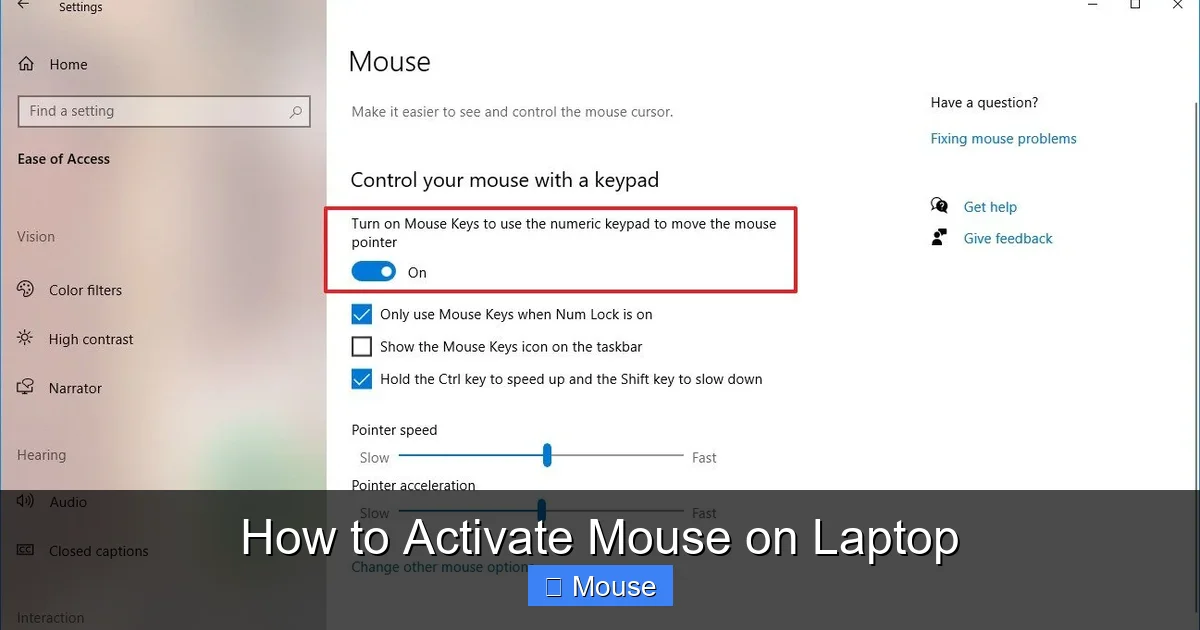
Visual guide about How to Activate Mouse on Laptop
Image source: windowscentral.com
If a USB port feels loose or does not power a device, try another port. On many laptops, the USB‑C port can also accept a USB‑A adapter for older mice.
Update Operating System
An outdated OS can miss drivers for newer mice. Run Windows Update or macOS Software Update and install any pending updates. A current system reduces compatibility problems and often adds support for the latest mouse features.
Set your laptop to install updates automatically so you never miss a critical driver release.
Install Latest Drivers
Visit the mouse manufacturer’s website and download the latest driver if the generic one does not provide all features. This step is optional for basic use but recommended for advanced buttons and DPI control. Drivers also fix bugs that cause cursor jitter or button misbehavior.
Some manufacturers offer a single installer that detects your device and applies the correct driver automatically.
Disable Conflicting Software
Third‑party mouse utilities or old driver packages can interfere with a new mouse. Uninstall any mouse‑related programs you no longer use. Restart the laptop after removal to clear any leftover services.
If you use a laptop with a proprietary touchpad driver (like Synaptics or ELAN), keep it updated but avoid running two pointer‑control apps at once.
Verify Power Settings
Windows and macOS can turn off USB ports or Bluetooth to save battery. Check Power Options (Windows) or Energy Saver (macOS) and disable “USB selective suspend” or “Bluetooth power saving” while you set up the mouse. This prevents the device from disconnecting during the activation process.
If you need a quick reference for turning on the built‑in pointer, see how to turn on laptop mouse for a concise walkthrough.
Activating a Wired USB Mouse
Plug‑and‑Play Basics
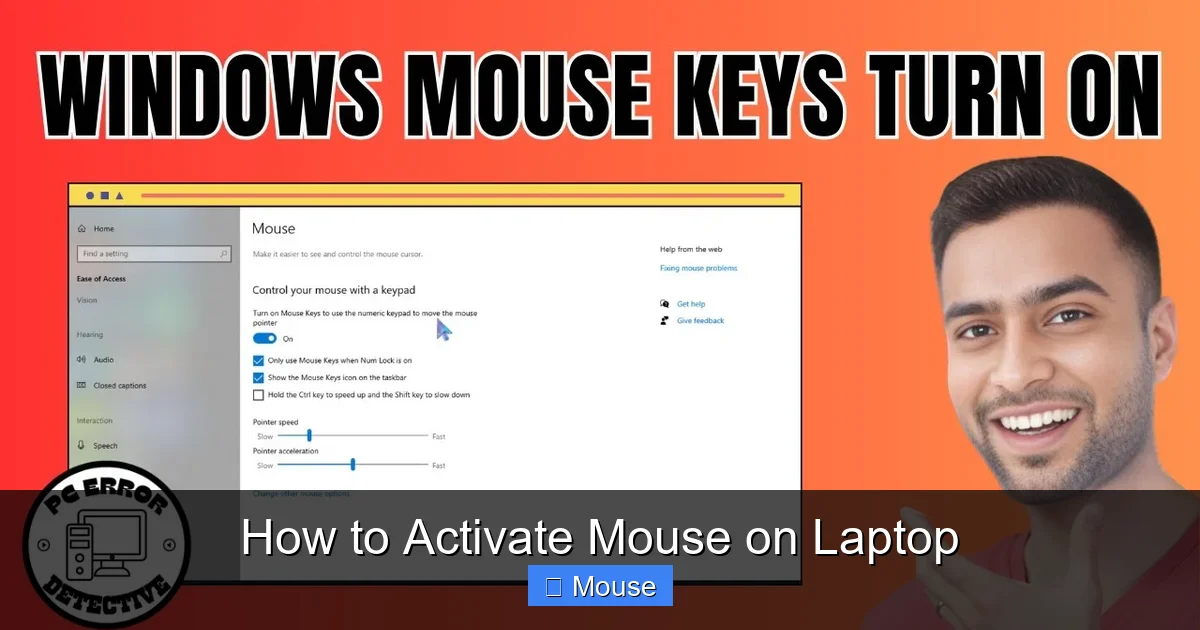
Insert the USB connector into any free port. Wait a few seconds. The cursor should appear and move as you slide the mouse. If nothing happens, try a different port. The plug‑and‑play nature of USB makes this the fastest way to activate mouse on laptop.
Visual guide about How to Activate Mouse on Laptop
Image source: i.ytimg.com
On some laptops, the first USB port you use may be a charging‑only port. Use a data‑capable port for best results.
Verifying Device Manager
Open Device Manager on Windows (right‑click Start, choose Device Manager). Look under “Mice and other pointing devices”. Your mouse should be listed without a warning icon. On macOS, open System Information and check the USB section. If you see a yellow triangle, right‑click and choose “Update driver”.
A clean Device Manager entry confirms the hardware is recognized and ready for configuration.
Adjusting Pointer Settings
Go to Settings > Devices > Mouse (Windows) or System Preferences > Mouse (macOS). Here you can change pointer speed, scroll direction, and primary button. These tweaks make the mouse feel natural and help you activate mouse on laptop exactly the way you like.
Enable “Enhance pointer precision” on Windows for smoother motion, or turn it off if you prefer raw input.
Customizing Button Functions
Many wired mice have extra side buttons. In Windows, open Settings > Devices > Mouse > Additional mouse options > Buttons tab. Assign functions like “Back”, “Forward”, or custom keystrokes. On macOS, use the vendor’s preference pane or a third‑party tool like Karabiner‑Elements.
Custom buttons can speed up common tasks such as copy‑paste, window switching, or launching apps.
Testing on Different Ports
If the mouse works on one port but not another, the port may be damaged or disabled in BIOS. Restart the laptop, enter BIOS/UEFI, and ensure all USB ports are enabled. This step is rare but useful when you cannot activate mouse on laptop on a specific port.
Activating a Wireless Mouse (Bluetooth & USB Receiver)
Pairing Mode Steps for Bluetooth
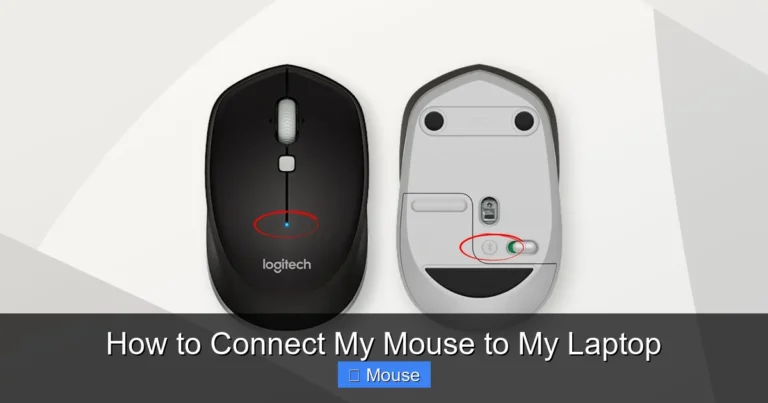
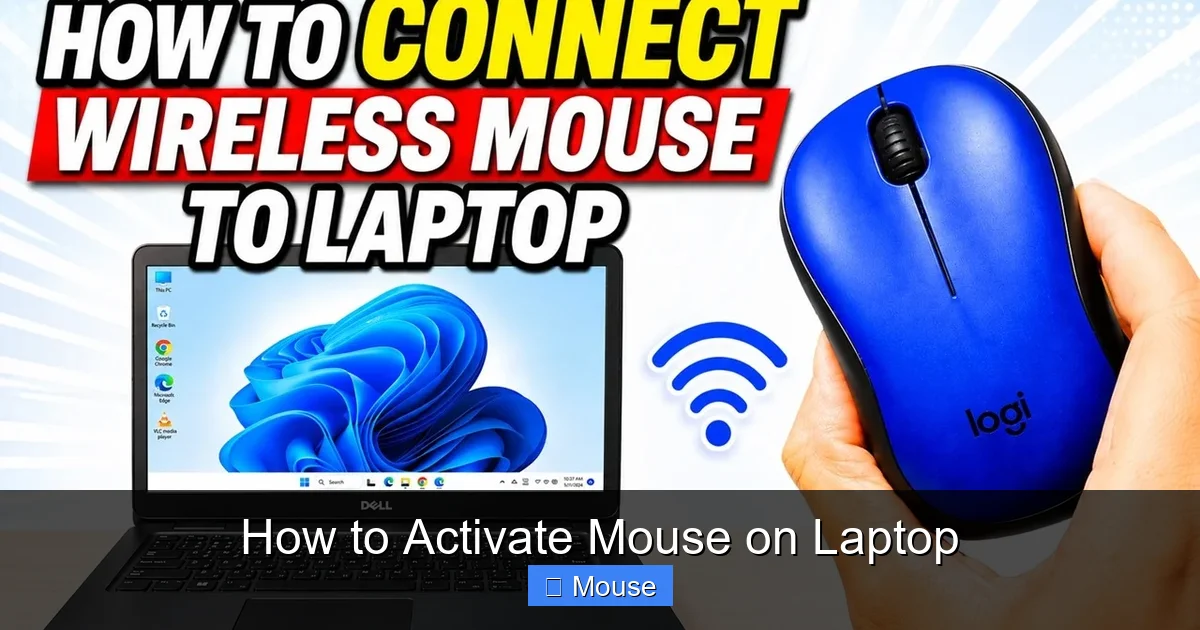
Turn the mouse on. Press and hold the pairing button until the LED flashes. This puts the mouse in discovery mode. The exact button location varies by brand, so check the manual. Once the LED blinks, the mouse is ready to be found by your laptop.
Visual guide about How to Activate Mouse on Laptop
Image source: i.ytimg.com
Keep the mouse close to the laptop during pairing. Distance over a meter can cause timeouts.
Windows Bluetooth Settings
Open Settings > Devices > Bluetooth & other devices. Click “Add Bluetooth or other device”, choose Bluetooth, and select your mouse from the list. Confirm the pairing code if prompted. The mouse will show as “Connected” and you can immediately activate mouse on laptop for wireless freedom.
If the mouse does not appear, click “Add device” again after a few seconds. Sometimes the first scan misses the device.
macOS Bluetooth Settings
Open System Preferences > Bluetooth. Make sure Bluetooth is on. Your mouse will appear under “Devices”. Click “Connect”. The mouse is ready when the status shows “Connected”. macOS also lets you rename the device for easy identification.
If the mouse disconnects after sleep, check “Allow Bluetooth devices to wake this computer” in the Bluetooth advanced options.
Using a USB Receiver
Plug the tiny dongle into a USB port. The mouse usually connects instantly. If not, press the connect button on the mouse or the dongle. Some brands require a short press on both devices. This method is nearly as simple as a wired mouse to activate mouse on laptop.
Keep the receiver in a front‑side port for the best signal. Avoid metal objects between the mouse and the dongle.
Driver Installation for Receiver Mice
Most receiver mice work with the generic driver. For extra buttons or DPI switching, install the vendor’s software from their support page. This unlocks custom profiles and firmware updates. The software often includes a battery‑level indicator.
Check the manufacturer’s site for a “unified” driver that supports multiple models.
Troubleshooting Pairing Issues
If the mouse does not show up, turn Bluetooth off and on again. Restart the laptop. Remove any old entries for the same mouse. Replace the mouse battery if it is low. For a detailed guide on Bluetooth activation, read how to activate wireless mouse on laptop.
Interference from other 2.4 GHz devices (Wi‑Fi, microwaves) can cause drops. Move the laptop away from strong sources or switch Wi‑Fi to 5 GHz.
For a step‑by‑step connection guide, check how to connect wireless mouse to a laptop.
Enabling and Configuring the Built‑in Touchpad
Touchpad Settings in Windows
Open Settings > Devices > Touchpad. Make sure the toggle is on. Adjust sensitivity, tap‑to‑click, and multi‑finger gestures. You can also disable the touchpad when an external mouse is connected. This gives you a clean way to activate mouse on laptop using only the external device.
Visual guide about How to Activate Mouse on Laptop
Image source: digitaltrends.com
Windows 10 and 11 both support precision touchpad drivers that enable advanced gestures like three‑finger swipe to switch apps.
Touchpad Settings in macOS
Open System Preferences > Trackpad. Enable “Tap to click” and configure scroll direction, zoom, and swipe gestures. The options are similar to Windows but organized in tabs. macOS also lets you adjust “Tracking speed” for a faster or slower cursor.
Force Touch trackpads add pressure‑sensitive clicks; explore the “Force Click” options for extra shortcuts.
Gestures and Sensitivity
Practice two‑finger scroll, three‑finger swipe, and pinch‑to‑zoom. Adjust the tracking speed until the cursor feels responsive. A well‑tuned touchpad can replace a mouse for many tasks, especially when you travel light.
If gestures feel sluggish, lower the “Scroll speed” slider and increase “Tracking speed” slightly.
Disabling Touchpad When Mouse Connected
Many laptops have a setting to automatically turn off the touchpad when a USB or Bluetooth mouse is detected. In Windows, go to Settings > Devices > Touchpad > “Leave touchpad on when a mouse is connected” and toggle it off. On macOS, check “Ignore built‑in trackpad when mouse or wireless trackpad is present” in Accessibility > Pointer Control.
This prevents accidental palm clicks while typing.
Advanced Touchpad Features
Precision touchpads support custom gesture mapping via the Windows Registry or third‑party tools like TouchMe Gesture Studio. You can assign four‑finger taps to open Action Center, or three‑finger taps to launch Cortana. Experiment to find a setup that matches your workflow.
Troubleshooting Common Mouse Issues and Advanced Tips
Mouse Not Detected
First, try a different USB port or a different mouse. Check Device Manager for unknown devices. Reinstall the driver by right‑clicking the device and choosing “Uninstall device”, then reboot. This often forces Windows to reload a clean driver and lets you activate mouse on laptop again.
Visual guide about How to Activate Mouse on Laptop
Image source: laptop.com.tr
On macOS, open System Information > USB, locate the mouse, and note the vendor ID. Search the vendor’s site for a macOS driver if none loads automatically.
Cursor Lag or Jitter
Clean the sensor on the bottom of the mouse. Use a mouse pad instead of a glossy surface. Reduce pointer speed in settings. Close heavy background apps that may steal CPU cycles. A clean sensor and a proper surface are the two biggest fixes for jitter.
If lag persists, test the mouse on another computer. If it works there, the issue is likely a driver conflict on your laptop.
Buttons Not Working
Open the mouse software (if installed) and verify button assignments. Reset to default. Test the mouse on another computer to rule out hardware failure. Sometimes a firmware update from the vendor restores missing button functions.
For mice without dedicated software, use Windows “Mouse Properties > Buttons” to reassign primary and secondary clicks.
Touchpad Disabled Accidentally
Many laptops have a function key (often F7 or F9) that toggles the touchpad. Press Fn + that key. Also check Settings > Devices > Touchpad to ensure the toggle is on. A quick key press can save you a trip to the settings menu.
If the function key does not work, update the keyboard/touchpad driver from the laptop manufacturer’s support page.
Custom DPI Profiles
Gaming and productivity mice let you set multiple DPI levels. Switch on the fly for precise design work or fast gaming. Save profiles in the vendor software. DPI stands for dots per inch; higher DPI means the cursor moves farther per inch of hand movement.
Create a low‑DPI profile for photo editing and a high‑DPI profile for large monitors.
Using Mouse Software for Macros
Logitech Options, Razer Synapse, and similar apps let you remap buttons, create macros, and adjust lighting. Spend a few minutes exploring these tools to boost workflow. A macro can automate repetitive keystrokes like “Ctrl+C, Ctrl+V” with a single button press.
Macros are especially useful in spreadsheets, coding, or video editing.
Battery Management for Wireless Mice
Turn off the mouse when not in use. Use rechargeable batteries or a charging dock. Many mice show battery level in the OS tray; keep an eye on it to avoid sudden disconnects. Some models enter a deep‑sleep mode after a few minutes of inactivity, extending battery life dramatically.
If your mouse uses a replaceable AA battery, keep a spare in your laptop bag.
Conclusion
You now have a complete roadmap to activate mouse on laptop no matter which type you own. Start by identifying your device, prepare the laptop, follow the specific steps, and tweak settings to your liking. If you hit a snag, the troubleshooting section covers the most common fixes. With a working mouse you can navigate, create, and play more comfortably. Happy clicking!
Visual guide about How to Activate Mouse on Laptop
Image source: i.ytimg.com
Frequently Asked Questions
How do I activate a wired USB mouse on my laptop?
Plug the mouse into a USB port. The system will install a generic driver automatically. If the cursor does not appear, try another port or check Device Manager for errors.
What steps activate a Bluetooth mouse on Windows?
Turn on the mouse and put it in pairing mode. Open Settings > Devices > Bluetooth & other devices, click Add Bluetooth device, select the mouse, and confirm pairing.
Can I use a wireless mouse with a USB receiver on a Mac?
Yes. Insert the receiver into a USB port. The mouse usually connects instantly. If not, press the connect button on the mouse or receiver.
Why is my touchpad not working after I connect an external mouse?
Some laptops disable the touchpad automatically when an external mouse is detected. Check Settings > Devices > Touchpad and ensure the toggle is on, or press the Fn key combination for touchpad toggle.
How do I fix a lagging cursor on a wireless mouse?
Clean the sensor, use a mouse pad, reduce pointer speed, and replace the battery. Also close unnecessary programs that may consume CPU resources.
Where can I find advanced settings like DPI and button mapping?
Install the manufacturer’s software such as Logitech Options or Razer Synapse. These apps expose DPI profiles, button remapping, and lighting controls.