How Can I Fix the Mouse on My Laptop
Dealing with a broken laptop mouse can be incredibly frustrating, but most issues have simple solutions you can try at home. This comprehensive guide walks you through step-by-step troubleshooting methods to fix the mouse on your laptop, whether you’re dealing with a frozen touchpad, an unresponsive external mouse, or driver conflicts. From quick keyboard shortcuts to advanced system settings, you’ll find the right fix for your specific problem.
[FEATURED IMAGE_PLACEHOLDER]
Key Takeaways
- Check the basics first: Many mouse issues are caused by simple things like a disabled touchpad, low battery, or loose USB connection that can be fixed in seconds.
- Keyboard shortcuts are your friend: Most laptops have a function key combination (like Fn + F7) that can instantly enable or disable your touchpad.
- Driver problems are common: Outdated or corrupted mouse drivers are one of the leading causes of mouse malfunctions and can usually be fixed through Device Manager.
- External mice need troubleshooting too: Wireless and USB mice can have connectivity issues, dead batteries, or USB port problems that prevent them from working properly.
- System settings matter: Windows and macOS have built-in mouse settings that can accidentally be changed, causing unexpected behavior or complete mouse failure.
- Software conflicts can disable your mouse: Third-party software, recent updates, or malware can interfere with mouse functionality and may require deeper troubleshooting.
- Know when to seek professional help: If software fixes don’t work, the issue might be hardware-related and require professional repair or replacement.
📑 Table of Contents
- Introduction: Don’t Panic When Your Laptop Mouse Stops Working
- Understanding the Different Types of Laptop Mice
- Quick Fixes: The First Things to Try
- Software Solutions: Fixing Driver and Settings Issues
- External Mouse Troubleshooting
- Advanced Troubleshooting Methods
- Touchpad-Specific Solutions
- Preventing Future Mouse Problems
- When to Seek Professional Help
- Conclusion
Introduction: Don’t Panic When Your Laptop Mouse Stops Working
There’s nothing quite like the moment your laptop mouse suddenly stops responding. You’re in the middle of an important project, a deadline is looming, and your cursor just freezes on screen. Or maybe your touchpad has become jumpy, erratic, or completely unresponsive. Whatever the situation, a malfunctioning mouse can bring your productivity to a grinding halt.
The good news is that most mouse problems on laptops are fixable without a trip to the repair shop. Whether you’re using a built-in touchpad, a wireless mouse, or a traditional USB mouse, there are several troubleshooting steps you can take to get things working again. The key is to approach the problem systematically, starting with the simplest solutions and working your way up to more complex fixes.
In this comprehensive guide, we’ll cover everything you need to know about how to fix the mouse on your laptop. We’ll explore common causes of mouse failures, walk you through step-by-step solutions, and provide tips to prevent future issues. By the end of this article, you’ll have the knowledge and confidence to tackle almost any laptop mouse problem that comes your way.
Understanding the Different Types of Laptop Mice
The Built-In Touchpad
The touchpad is the most common pointing device found on laptops. It’s that rectangular surface located below your keyboard that responds to finger movements and gestures. Touchpads are convenient because they’re always there — no extra equipment needed. However, they’re also the most common source of mouse-related complaints among laptop users.
Modern touchpads support multi-touch gestures like two-finger scrolling, pinch-to-zoom, and three-finger swipes. While these features are incredibly useful, they can also cause confusion when they malfunction. Sometimes what seems like a broken touchpad is actually just a disabled gesture or a sensitivity setting that needs adjustment.
External USB Mice
Many laptop users prefer external mice for comfort and precision. USB mice plug directly into your laptop’s USB port and are generally plug-and-play devices. They’re popular among gamers, graphic designers, and anyone who spends long hours working on their laptop.
USB mice are typically reliable, but they can encounter issues like loose connections, damaged cables, or USB port problems. If your external USB mouse stops working, the problem could be with the mouse itself, the cable, or the USB port on your laptop.
Wireless and Bluetooth Mice
Wireless mice offer the freedom of movement without cable clutter. They connect to your laptop either through a USB receiver (usually a small dongle) or via Bluetooth technology. While wireless mice are incredibly convenient, they introduce additional potential points of failure, including battery issues, signal interference, and pairing problems.
If you’re using a wireless mouse and it stops working, you’ll need to consider factors like battery level, receiver connection, and potential interference from other wireless devices in your environment.
Quick Fixes: The First Things to Try
Restart Your Laptop
It might sound too simple, but restarting your laptop solves a surprising number of mouse issues. When you restart, your operating system reloads all drivers and clears temporary glitches that might be causing your mouse to malfunction. Before diving into more complex troubleshooting, always try a simple restart first.
To restart properly, save your work, click the Start menu, select Power, and choose Restart. Wait for your laptop to fully boot up, then test your mouse. If the problem was caused by a temporary software glitch, your mouse should be working normally again.
Check for Physical Obstructions
If you’re using a touchpad, dirt, crumbs, or moisture on the surface can interfere with its responsiveness. Gently clean your touchpad with a soft, slightly damp cloth and dry it thoroughly. For external mice, check the sensor on the bottom for dust or debris that might be blocking it.
Also, make sure nothing is pressing against your touchpad. A book, your palm, or even a cable resting on the edge of your laptop can accidentally trigger the touchpad or prevent it from working properly.
Try the Function Key Shortcut
Most laptops have a dedicated function key that toggles the touchpad on and off. This is one of the most common reasons people think their mouse is broken when it’s actually just been accidentally disabled. Look for a key with a touchpad icon — it’s usually found on the F1-F12 row at the top of your keyboard.
On most laptops, you’ll need to press the Fn key along with the touchpad key. Common combinations include Fn + F5, Fn + F7, or Fn + F9, depending on your laptop brand. If you’re not sure which key to press, check your laptop’s manual or look for the icon on your function keys.
If you accidentally disabled your touchpad and need help re-enabling it, you can find detailed instructions on how to unlock the mouse on your laptop for various brands and models.
Software Solutions: Fixing Driver and Settings Issues
Update or Reinstall Mouse Drivers
Drivers are the software that allows your operating system to communicate with your mouse hardware. When drivers become outdated, corrupted, or incompatible, your mouse may stop working or behave erratically. Updating or reinstalling your mouse drivers is one of the most effective ways to fix the mouse on your laptop.
To update your drivers on Windows, follow these steps:
- Right-click the Start button and select Device Manager
- Expand the “Mice and other pointing devices” category
- Right-click your mouse device and select “Update driver”
- Choose “Search automatically for drivers”
- Follow the on-screen instructions to complete the update
If updating doesn’t work, try uninstalling the driver completely. In Device Manager, right-click your mouse device and select “Uninstall device.” Then restart your laptop — Windows will automatically reinstall the default driver. This fresh installation often resolves driver-related mouse issues.
Check Mouse Settings in Windows
Windows has numerous mouse settings that can affect how your mouse behaves. Sometimes these settings get changed accidentally, causing unexpected behavior. To access your mouse settings, go to Settings > Devices > Mouse (on Windows 10) or Settings > Bluetooth & devices > Mouse (on Windows 11).
Here are some settings to check:
- Primary mouse button: Make sure it’s set to Left if you’re right-handed
- Cursor speed: Adjust the slider to a comfortable speed
- Scroll settings: Ensure scrolling is enabled and set to your preference
- Touchpad settings: Verify that your touchpad is enabled and sensitivity is appropriate
If you’re using a touchpad, you might also want to check the additional touchpad settings, which often include options for tap-to-click, palm rejection, and gesture controls.
Disable and Re-enable the Mouse
Sometimes simply disabling and re-enabling your mouse in Device Manager can resolve the issue. This forces Windows to reinitialize the mouse connection and can clear up temporary glitches.
To do this, open Device Manager, expand “Mice and other pointing devices,” right-click your mouse, and select “Disable device.” Wait a few seconds, then right-click again and select “Enable device.” Test your mouse to see if it’s working properly now.
External Mouse Troubleshooting
Check the Connection
If you’re using an external mouse, the first thing to check is the physical connection. For USB mice, try unplugging the mouse and plugging it into a different USB port. Sometimes a specific USB port can fail while others continue to work normally.
For wireless mice with USB receivers, make sure the receiver is firmly plugged in. Try removing it and reinserting it. If your mouse uses Bluetooth, go to your Bluetooth settings and make sure the mouse is still paired and connected.
Replace the Batteries
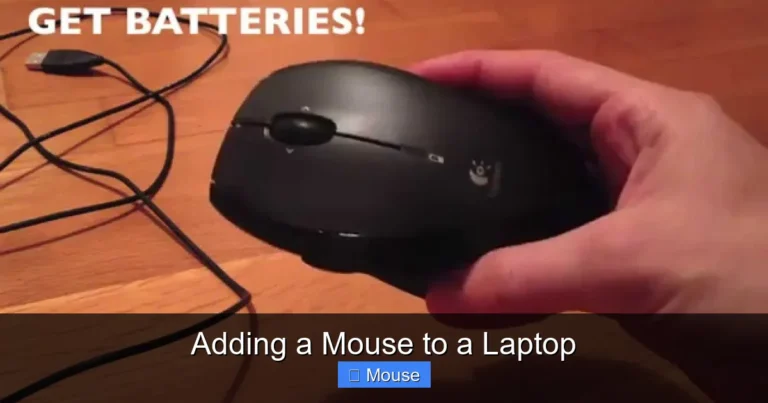
Dead or low batteries are one of the most common reasons wireless mice stop working. If your wireless mouse has become unresponsive or jumpy, try replacing the batteries with fresh ones. Even if the batteries aren’t completely dead, low power can cause erratic behavior.
Some wireless mice have a battery indicator light that will flash or change color when batteries are running low. Get in the habit of checking this indicator regularly to avoid unexpected mouse failures during important tasks.
Test on Another Computer
If your external mouse isn’t working, try connecting it to a different computer. If it works on another computer, the problem is likely with your laptop’s settings or USB ports. If it doesn’t work on another computer either, the mouse itself may be faulty and need replacement.
This simple test can save you a lot of troubleshooting time by helping you determine whether the issue is with the mouse or the laptop.
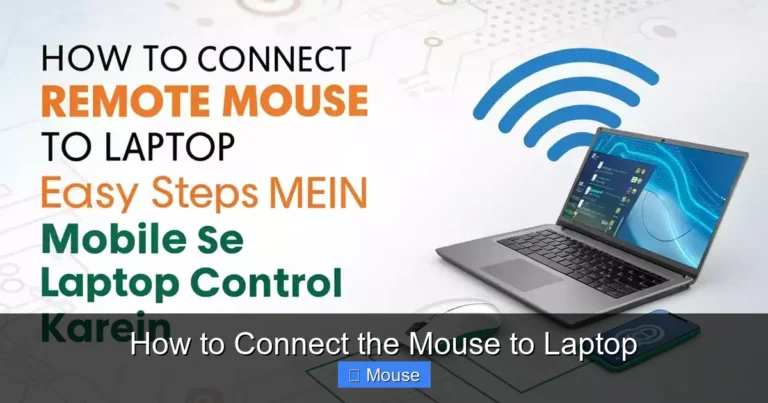
If you need help setting up a new external mouse, check out our guide on how to connect a mouse to your laptop for step-by-step instructions.
Advanced Troubleshooting Methods
Run the Hardware Troubleshooter
Windows includes built-in troubleshooters that can automatically detect and fix common hardware problems. To run the hardware troubleshooter, go to Settings > Update & Security > Troubleshoot > Additional troubleshooters. Look for the “Hardware and Devices” troubleshooter and run it.
The troubleshooter will scan your system for hardware issues and attempt to fix any problems it finds. While it won’t solve every mouse issue, it’s a useful tool that can identify and resolve common problems automatically.
Check for Windows Updates
Microsoft regularly releases Windows updates that include driver updates and bug fixes. Sometimes a mouse issue is caused by a known bug that’s been fixed in a recent update. To check for updates, go to Settings > Update & Security > Windows Update and click “Check for updates.”
Install any available updates and restart your laptop. After the restart, test your mouse to see if the issue has been resolved.
Scan for Malware
Malware can sometimes interfere with your mouse functionality. If your mouse is behaving erratically or not responding at all, and you’ve ruled out hardware and driver issues, it’s worth running a malware scan. Use Windows Defender or your preferred antivirus software to perform a full system scan.
Malware that affects mouse behavior is relatively rare, but it does happen. If the scan detects any threats, follow the recommended removal steps and then test your mouse again.
Perform a System Restore
If your mouse was working fine recently and suddenly stopped, a System Restore might help. System Restore reverts your computer’s state to a previous point in time, which can undo changes that caused your mouse to stop working.
To perform a System Restore, search for “Create a restore point” in the Start menu, click the System Restore button, and follow the prompts to select a restore point from before your mouse issues began. Keep in mind that this will also undo any other system changes made after the restore point.
Touchpad-Specific Solutions
Adjust Touchpad Sensitivity
If your touchpad is too sensitive or not sensitive enough, it can make your mouse cursor difficult to control. You can adjust touchpad sensitivity in your mouse settings. On Windows, go to Settings > Devices > Touchpad and adjust the sensitivity slider.
Some laptops also have touchpad-specific software (like Synaptics or ELAN) that offers more advanced settings. Check your system tray or Control Panel for touchpad configuration software that might give you additional control over your touchpad’s behavior.
Disable Palm Rejection Temporarily
Palm rejection is a feature that prevents accidental touchpad inputs while typing. However, sometimes palm rejection can be too aggressive and prevent legitimate touchpad use. Try temporarily disabling palm rejection to see if it resolves your mouse issues.
You can usually find palm rejection settings in your touchpad configuration software. If disabling it fixes your problem, you can then adjust the sensitivity to find a balance between preventing accidental inputs and allowing normal use.
Check Touchpad Gestures
Modern touchpads support various gestures that can sometimes interfere with normal mouse operation. If your touchpad is behaving strangely, try disabling gestures one by one to identify if a specific gesture is causing the problem.
Common problematic gestures include two-finger tap for right-click, three-finger swipe for switching apps, and edge scrolling. Disable these gestures temporarily to see if your touchpad returns to normal behavior.
For more detailed touchpad troubleshooting, visit our guide on how to fix touchpad mouse on laptop for brand-specific solutions.
Preventing Future Mouse Problems
Keep Your System Updated
One of the best ways to prevent mouse issues is to keep your operating system and drivers up to date. Enable automatic updates in Windows to ensure you always have the latest drivers and bug fixes. Regular updates can prevent many mouse problems before they start.

Visual guide about How Can I Fix the Mouse on My Laptop
Image source: embed.pixiv.net
Maintain Your Hardware
Regular maintenance can extend the life of your mouse and prevent issues. Keep your touchpad clean and free of debris. For external mice, periodically clean the sensor and check cables for damage. If you use a wireless mouse, keep spare batteries on hand.
Use a Mouse Pad
If you use an external mouse, a good mouse pad can improve tracking accuracy and protect your mouse’s sensor. Mouse pads also provide a consistent surface that helps prevent cursor jumping and erratic behavior.
Be Careful with Software Installations
Some third-party software can interfere with mouse functionality. Be cautious when installing new programs, especially those that claim to enhance or customize mouse behavior. If you notice mouse issues after installing new software, try uninstalling it to see if that resolves the problem.
When to Seek Professional Help
While most mouse issues can be resolved with the troubleshooting steps outlined above, there are times when professional help is necessary. If you’ve tried all the software solutions and your mouse still isn’t working, the problem might be hardware-related.

Visual guide about How Can I Fix the Mouse on My Laptop
Image source: map-of-toronto.com
Signs that you might need professional repair include:
- Physical damage to your touchpad or USB ports
- Your mouse doesn’t work even after trying it on another computer
- Multiple USB ports have stopped working
- Your laptop has been exposed to liquid
- You hear unusual sounds when trying to use your mouse
In these cases, it’s best to contact your laptop manufacturer’s support team or visit a certified repair technician. They can diagnose hardware issues and perform repairs that aren’t possible at home.
Conclusion
Learning how to fix the mouse on your laptop is an essential skill that can save you time, frustration, and potentially money on unnecessary repairs. Most mouse issues are caused by simple problems like disabled touchpads, outdated drivers, or loose connections that can be resolved in minutes.
Remember to start with the basics — restart your laptop, check for physical obstructions, and try the function key shortcut. If those don’t work, move on to software solutions like updating drivers, checking settings, and running troubleshooters. For external mice, always check the connection and batteries first.
By following the systematic approach outlined in this guide, you’ll be able to diagnose and fix most laptop mouse problems on your own. And if you do encounter a problem that’s beyond your ability to fix, you’ll at least have enough information to explain the issue clearly to a professional technician. Keep this guide bookmarked for the next time your mouse decides to stop cooperating — because with laptops, it’s not a matter of if, but when.
Frequently Asked Questions
Why did my laptop mouse suddenly stop working?
Your laptop mouse may have stopped working due to several reasons including accidentally disabling it with a function key, outdated or corrupted drivers, a recent Windows update that caused conflicts, or physical issues like a dirty touchpad or loose USB connection. Start by restarting your laptop and checking if you accidentally disabled your touchpad using the Fn key combination.
How do I fix an unresponsive touchpad on my laptop?
To fix an unresponsive touchpad, first try pressing Fn + the touchpad function key (usually F5, F7, or F9) to re-enable it. If that doesn’t work, go to Device Manager, find your touchpad under “Mice and other pointing devices,” right-click it, and select “Update driver” or “Uninstall device” followed by a restart to reinstall the driver automatically.
Can a virus cause my laptop mouse to stop working?
Yes, malware can potentially interfere with your mouse functionality by corrupting drivers or changing system settings. If your mouse issues started suddenly and you’ve ruled out hardware problems, run a full system scan using Windows Defender or your preferred antivirus software to check for and remove any malicious software.
How do I know if my mouse problem is hardware or software related?
To determine if your mouse issue is hardware or software related, try these tests: connect an external mouse to see if it works, test your mouse on another computer, and check if the mouse works in Safe Mode. If external mice work fine but your touchpad doesn’t, or if the mouse doesn’t work on any computer, it’s likely a hardware issue.
What should I do if my wireless mouse keeps disconnecting?
If your wireless mouse keeps disconnecting, first replace the batteries with fresh ones. Then try moving the USB receiver to a different port, preferably one closer to the mouse. Remove any potential sources of wireless interference like other Bluetooth devices, and try re-pairing the mouse with your laptop through your Bluetooth settings.
Is it safe to uninstall my mouse driver in Device Manager?
Yes, it’s completely safe to uninstall your mouse driver in Device Manager. When you restart your laptop after uninstalling, Windows will automatically detect the mouse and reinstall the default driver. This process often resolves driver-related mouse issues by giving you a fresh, clean driver installation.