How To Connect USB Mouse To iPad Pro With These Simple Steps
Connecting a USB mouse to your iPad Pro is simpler than you think. With the right adapter and a few quick steps, you can turn your iPad Pro into a powerful workstation. This guide walks you through every method, from wired connections to Bluetooth options, so you can get back to work fast.
Using a mouse with your iPad Pro changes everything. You get precise control, faster navigation, and a more comfortable workflow. Many people don’t realize that iPad Pro supports external mice quite well. Whether you prefer a wired USB mouse or a wireless one, you have options. This guide shows you exactly how to connect USB mouse to iPad Pro in simple steps.
We will cover everything from choosing the right adapter to fixing common connection problems. By the end, you will know exactly what to do. No tech degree needed — just follow along and you will be clicking away in no time.
Key Takeaways
- iPad Pro supports USB mice through adapters and Bluetooth, giving you more control and comfort.
- You need a USB-C adapter or Bluetooth connection depending on your mouse type and iPad Pro model.
- Setting up a USB mouse takes under two minutes once you have the right cable and adapter.
- Troubleshooting is easy if your mouse isn’t connecting — check settings, cables, and Bluetooth pairing.
- The Apple Magic Mouse and Logitech MX Master are top picks for iPad Pro users who want a premium experience.
📑 Table of Contents
Does iPad Pro Support USB Mice?
Yes, iPad Pro fully supports external mice. Apple added mouse support in iPadOS 13 and has improved it with every update. You can connect a USB mouse directly or pair a Bluetooth mouse wirelessly. The iPad Pro recognizes most standard mice without extra setup. This includes USB mice, Bluetooth mice, and even trackball mice.
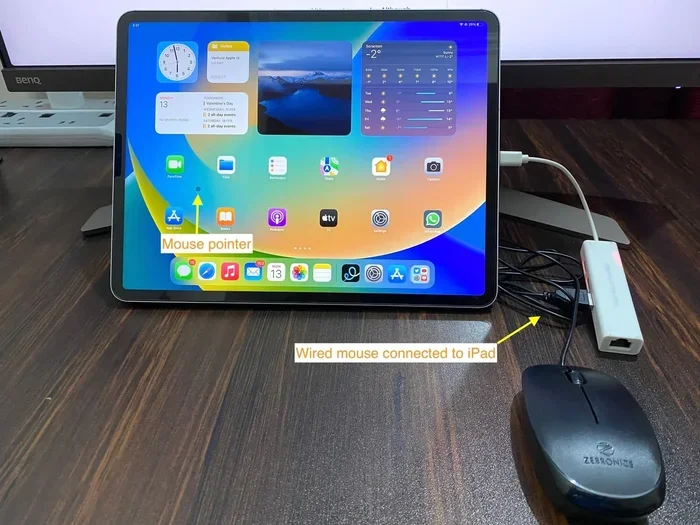
When you connect a mouse, you will see a circular cursor on your screen. It works just like a desktop computer cursor. You can click, scroll, and use gestures to navigate your iPad Pro with ease. The experience feels natural and smooth, especially on the newer iPad Pro models with M1, M2, or M4 chips.
What You Need Before You Start
Before you connect anything, make sure you have these items ready:
- A USB mouse — wired or wireless, any brand works.
- A USB-C adapter — needed if your mouse has a USB-A plug and your iPad Pro uses USB-C.
- A Bluetooth mouse (optional) — if you prefer a wireless setup without cables.
- iPadOS updated to the latest version — go to Settings, then General, then Software Update.
Having these ready saves you time and frustration. You do not want to start the process and realize you are missing something. A simple USB-C to USB-A adapter costs just a few dollars and works perfectly for most wired mice.
How To Connect USB Mouse to iPad Pro With a Cable
This is the most straightforward method. You plug your mouse in and it works. Let us walk through each step carefully so you get it right the first time.
Step 1: Plug In the Adapter
Take your USB-C adapter and plug it into the charging port on your iPad Pro. If your mouse has a USB-C cable, you can skip the adapter and plug it directly in. Make sure the adapter fits snugly and does not wobble. A loose connection is one of the most common reasons mice fail to connect.
Step 2: Connect the Mouse
Plug your USB mouse into the adapter. If you are using a wired USB mouse, this is all you need to do. The iPad Pro should recognize the mouse within a few seconds. You will see the cursor appear on your screen right away.
Step 3: Test the Mouse
Move the mouse around and check if the cursor moves smoothly. Try clicking both buttons and scrolling the scroll wheel. If everything works, you are all set. If the cursor does not move, try unplugging and replugging the adapter.
Quick Tip: If you have trouble with a wired connection, try a different USB-C cable or adapter. Sometimes cheap adapters cause connection issues. A quality adapter from a trusted brand makes a big difference.
How To Connect a Bluetooth Mouse to iPad Pro
Bluetooth mice are very popular for iPad Pro users. They give you freedom from cables and work just as well as wired mice. The process is a bit different but still very simple. This method is similar to how you would connect a Bluetooth mouse to a laptop, but with iPad-specific steps.
Step 1: Put Your Mouse in Pairing Mode
Most Bluetooth mice have a small button on the bottom or side. Press and hold it until a light starts blinking. This means the mouse is ready to pair. Some mice, like the Apple Magic Mouse, need you to hold the power button for a few seconds.
Step 2: Open Bluetooth Settings on iPad Pro
Go to Settings on your iPad Pro. Tap Bluetooth and make sure it is turned on. Your iPad Pro will start scanning for nearby devices. Wait a few seconds and your mouse should appear in the list of available devices.
Step 3: Pair the Mouse
Tap on your mouse name in the Bluetooth list. You may see a code on screen — just confirm the pairing. Once connected, the cursor will appear on your iPad Pro screen. You can now use your Bluetooth mouse just like a wired one.
Quick Tip: If your mouse does not appear, make sure it is fully charged. A low battery can prevent Bluetooth pairing. Also, keep the mouse close to your iPad Pro during the pairing process for the best results.
Troubleshooting: Mouse Not Working on iPad Pro
Sometimes things do not go as planned. Your mouse might not connect, or it might disconnect randomly. Here are the most common fixes that work in almost every case.
Fix 1: Check Your Cable and Adapter
A damaged cable or loose adapter is the number one cause of mouse connection problems. Try a different USB-C cable or adapter to rule this out. Inspect the cable for fraying or bent connectors. Even a small bit of dust in the port can stop your mouse from working.
Fix 2: Restart Your iPad Pro
Sometimes a simple restart fixes everything. Hold down the power button and volume button together. Slide to power off. Wait a few seconds, then turn your iPad Pro back on. This clears any temporary glitches that might be blocking the mouse connection.
Fix 3: Re-Pair the Bluetooth Mouse
If you are using a Bluetooth mouse, go to Settings, then Bluetooth. Find your mouse in the list and tap the “i” icon next to it. Choose “Forget This Device.” Then put the mouse back in pairing mode and connect it again. This fresh pairing often solves stubborn connection issues.
Fix 4: Update iPadOS
Apple regularly fixes bugs and improves mouse support in iPadOS updates. Go to Settings, then General, then Software Update. Install any available updates. After updating, restart your iPad Pro and try connecting your mouse again.
Common Mistake: Many people forget to check if their mouse is compatible. Some older or very cheap mice do not work well with iPadOS. If you have tried everything and still have issues, the mouse itself might not be fully compatible with iPad Pro.
Best Mice for iPad Pro
Not all mice are created equal when it comes to iPad Pro use. Some mice work better than others. Here are some top picks based on compatibility, comfort, and value.
| Mouse | Type | Best For | Price Range |
|---|---|---|---|
| Apple Magic Mouse | Bluetooth | Seamless Apple ecosystem | Premium |
| Logitech MX Master 3S | Bluetooth/USB | Productivity and comfort | Mid to High |
| Logitech M720 Triathlon | Bluetooth | Multi-device users | Mid Range |
| Anker Wireless Mouse | USB/Adapter | Budget-friendly option | Low |
| Microsoft Sculpt Mouse | USB | Ergonomic design | Mid Range |
The Apple Magic Mouse is the most natural choice for iPad Pro users. It is designed by Apple specifically for iPad and Mac. The Logitech MX Master 3S is a favorite among power users who need extra buttons and precise scrolling. For those on a budget, a basic USB wireless mouse with a USB-C adapter works just fine.
You can also look at how to connect a wireless mouse with a laptop for general tips that apply to iPad Pro as well. The pairing process is very similar across devices.
Tips for Using a Mouse With iPad Pro
Once your mouse is connected, there are a few things you can do to get the most out of it. These tips will help you work faster and more comfortably on your iPad Pro.
Customize Mouse Gestures
iPadOS supports several mouse gestures that make navigation faster. You can swipe up with three fingers to open the App Switcher. Swipe left or right with three fingers to switch between apps. Two-finger scrolling works just like on a trackpad. These gestures feel natural once you get used to them.
Adjust Cursor Speed
If the cursor moves too fast or too slow, you can adjust its speed. Go to Settings, then Accessibility, then Pointer Control. Use the slider to change the cursor speed to your liking. A slower speed helps with precision, while a faster speed helps you move around quickly.
Use a USB Hub for Multiple Devices
If you want to connect a mouse, keyboard, and flash drive all at once, use a USB-C hub. A good hub gives you multiple ports and keeps your workspace tidy. Just plug the hub into your iPad Pro and connect all your devices to the hub. This works great for desk setups and productivity stations.
Keep Your iPad Pro Cool
Using a mouse with your iPad Pro for long hours can generate some heat, especially on the M1 and M2 models. A cooling stand or fan can help keep your iPad Pro at a safe temperature. This also prevents the device from slowing down during heavy use.
For more general guidance on connecting wireless accessories, you might also find it helpful to learn how to connect a wireless mouse to a laptop. The principles are very similar and can apply to your iPad Pro setup too.
Why Use a Mouse With iPad Pro?
You might wonder why anyone would use a mouse with a tablet. The answer is simple — it makes iPad Pro so much more productive. Here are the biggest benefits:
- Precision: A mouse gives you exact control for design work, editing, and detailed tasks.
- Speed: Clicking and scrolling with a mouse is faster than tapping and swiping on screen.
- Comfort: Using a mouse reduces strain on your hands and wrists during long work sessions.
- Productivity: You can work faster and more efficiently with a mouse and keyboard combo.
- Accessibility: A mouse makes iPad Pro easier to use for people with touch screen difficulties.
Many professionals use iPad Pro as their main computer now. A mouse turns it into a true desktop replacement. Whether you are a designer, writer, student, or business user, a mouse makes your iPad Pro experience much better.
If you are still deciding, check out how to connect a wireless mouse to a laptop to understand the general setup process. The same ideas apply when you connect a mouse to your iPad Pro.
Final Thoughts
Connecting a USB mouse to your iPad Pro is a quick and easy process. Whether you choose a wired connection with an adapter or a Bluetooth setup, you will be up and running in minutes. The steps are simple, and the benefits are huge. You get better precision, faster navigation, and a more comfortable workflow.
Start with the method that fits your setup best. If your mouse came with a USB cable, use the wired method. If you have a Bluetooth mouse, go with the wireless pairing route. Either way, you will wonder how you ever worked without one.
Remember to keep your iPadOS updated, use quality accessories, and troubleshoot with the tips we shared. Your iPad Pro is a powerful tool, and a mouse makes it even more powerful. Get connected today and enjoy the difference a mouse makes.
Frequently Asked Questions
Can I connect any USB mouse to iPad Pro?
Most USB mice work with iPad Pro right out of the box. You just need a USB-C adapter if your mouse has a USB-A plug. Some very old or specialty mice might not be compatible, but the vast majority of modern mice work perfectly with iPadOS.
Do I need an adapter to connect a USB mouse to iPad Pro?
Yes, if your mouse has a standard USB-A plug, you need a USB-C adapter. Newer mice with USB-C cables can plug directly into the iPad Pro without any adapter. A good quality adapter ensures a stable and reliable connection.
Can I use a Bluetooth mouse instead of a wired USB mouse?
Absolutely. Bluetooth mice work great with iPad Pro. Just go to Settings, turn on Bluetooth, put your mouse in pairing mode, and select it from the list. No cables or adapters needed for a clean, clutter-free setup.
Why is my USB mouse not showing up on iPad Pro?
This is usually caused by a loose connection, a faulty cable, or an outdated iPadOS version. Try a different adapter or cable first. If that does not work, restart your iPad Pro and make sure your software is up to date. Re-pairing a Bluetooth mouse also fixes most connection issues.
Is using a mouse with iPad Pro good for productivity?
Yes, using a mouse significantly boosts productivity on iPad Pro. You get faster navigation, precise clicking, and easy scrolling. Combined with a keyboard, a mouse turns your iPad Pro into a powerful workstation that rivals a desktop computer.
Can I connect multiple USB devices to iPad Pro at once?
Yes, you can use a USB-C hub to connect multiple devices at once. This includes mice, keyboards, flash drives, and even external hard drives. Just plug the hub into your iPad Pro and connect all your devices to the hub for a complete workstation setup.