How To Connect Wireless Mouse To Mac Without Mouse
Finding out how to connect wireless mouse to Mac without mouse might sound tricky, but it is actually simple once you know the steps. You can use Bluetooth, a USB receiver, or even your keyboard and trackpad to get the job done. This guide walks you through every method with clear, easy-to-follow instructions that anyone can use.
Setting up a new wireless mouse on a Mac can feel confusing when you do not have a mouse to use. You are staring at a blank screen, and the cursor just sits there, waiting for you to do something. The good news is that connecting a wireless mouse to Mac without a mouse is entirely possible. You do not need any special tools or tech skills. This guide shows you every method that works, whether you prefer Bluetooth, a USB receiver, or even just your keyboard.
Many people assume they need a mouse to set up a mouse. That is the funny part. Your Mac has built-in tools like Bluetooth settings, keyboard navigation, and trackpad support that make the whole process smooth. We will walk you through each approach step by step. By the end, you will have your wireless mouse connected and ready to go.
Key Takeaways
- Bluetooth pairing is the most common way to connect a wireless mouse to a Mac without needing a mouse during setup.
- USB receivers work as a plug-and-play option that requires no Bluetooth configuration at all.
- Keyboard shortcuts and trackpad gestures can fully replace a mouse during the setup process.
- Common connection issues have simple fixes like resetting Bluetooth, replacing batteries, and restarting your Mac.
- Not all wireless mice work perfectly with Mac so check compatibility before you buy.
- Third-party software may be needed for advanced mouse features on macOS.
📑 Table of Contents
- Why Connect a Wireless Mouse to Your Mac
- Preparing Your Mac for a Wireless Mouse Connection
- Step-by-Step: How To Connect Wireless Mouse To Mac Without Mouse
- Troubleshooting Common Connection Issues
- Best Wireless Mice for Mac
- Using Your Mac Without a Mouse During Setup
- Common Mistakes to Avoid When Connecting a Wireless Mouse to Mac
- Expert Insights: Making the Most of Your Wireless Mouse on Mac
- Conclusion
Why Connect a Wireless Mouse to Your Mac
A wireless mouse makes using a Mac feel much more natural. It gives you precise control without being tied to your laptop. Whether you are working from home, gaming, or just browsing the web, a wireless mouse setup Mac setup improves your productivity. You can work from across the room, switch between tasks faster, and avoid the clutter of cables.
Using a Mac without a mouse for too long can be tiring. The trackpad works, but a real mouse offers better ergonomics. It reduces wrist strain and lets you work for longer periods comfortably. If your old mouse stopped working or you just got a new one, this guide will help you connect wireless mouse to Mac without any hassle.
Who This Guide Is For
- Mac users who lost their mouse and need a quick replacement setup.
- People who bought a new wireless mouse and want to pair it with their Mac.
- Users who only have a keyboard and need to navigate their Mac.
- Anyone dealing with Bluetooth issues on their Mac.
Preparing Your Mac for a Wireless Mouse Connection
Before you start pairing anything, you need to get your Mac ready. This step takes only a few minutes and saves you a lot of frustration later. Making sure everything is set up correctly means a smoother connect Bluetooth mouse Mac experience.
Check Your macOS Version
Most modern Macs support Bluetooth mouse connections out of the box. However, older versions of macOS may need updates. Click the Apple menu in the top left corner and select System Settings (or System Preferences on older Macs). Look for the Software Update section and install any pending updates.
Enable Bluetooth on Your Mac
Bluetooth is the main way most wireless mice connect to a Mac. To turn it on, go to System Settings, then click Bluetooth. If the toggle is off, switch it on. You should see the Bluetooth icon appear in your menu bar at the top of the screen. This icon lets you quickly access Bluetooth settings anytime.
If you do not see the Bluetooth icon, you can add it manually. Go to System Settings, click Control Center, and find Bluetooth in the list. Turn on the option to show it in the menu bar. This small change makes it much easier to manage your Mac Bluetooth pairing connections.
Charge or Replace Your Mouse Batteries
This sounds obvious, but many people skip it. A low battery is the number one reason a wireless mouse fails to connect. Check your mouse battery level before you start. If your mouse uses disposable batteries, swap in fresh ones. If it has a rechargeable battery, plug it in and let it charge for at least 30 minutes.
Step-by-Step: How To Connect Wireless Mouse To Mac Without Mouse
Now comes the main part. You will learn three different methods to connect wireless mouse to Mac without mouse. Each method works independently, so pick the one that fits your situation best. All of these methods use only your keyboard and trackpad to complete the setup.
Method 1: Connect Using Bluetooth
Bluetooth is the most popular way to pair a wireless mouse with a Mac. Most modern wireless mice support Bluetooth connectivity, which means no extra cables or adapters are needed. Here is exactly what to do:
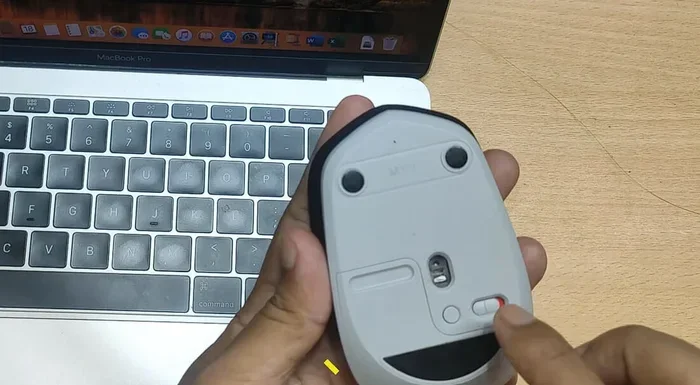
- Put your mouse in pairing mode. Look for a small button on the bottom or side of your mouse. Press and hold it for about 3 to 5 seconds. The LED light on your mouse should start flashing, which means it is ready to be found.
- Open Bluetooth settings on your Mac. Click the Apple menu, then System Settings, then Bluetooth. Or click the Bluetooth icon in your menu bar.
- Find your mouse in the device list. Your mouse should appear under Other Devices or Non-Apple Devices. Click on it to start the pairing process.
- Click Connect. Your Mac will pair with the mouse automatically. You should see a confirmation message and the mouse cursor start moving on your screen.
Once paired, your wireless mouse will remember your Mac. You will not need to repeat this process every time you turn on your computer. Just make sure Bluetooth stays enabled on both devices.
If you are having trouble with Bluetooth specifically, you might want to check our guide on how to connect a Bluetooth mouse to laptop for additional tips that apply to Mac as well.
Method 2: Use a USB Receiver
Some wireless mice come with a small USB receiver, sometimes called a dongle. This is a tiny plug-in device that creates a direct connection between your mouse and your Mac. It is simple, fast, and does not require Bluetooth at all.
- Plug the USB receiver into your Mac. Find an available USB port on your Mac. If you have a MacBook with only USB-C ports, you may need a USB-C adapter.
- Install any driver software if needed. Most receivers work automatically, but some mice require a quick driver installation. Check the manufacturer’s website or the included CD for instructions.
- Move the mouse to test the connection. The cursor should start responding immediately. If it does not, try unplugging the receiver and plugging it back in.
The USB receiver method is great because it bypasses all Bluetooth settings. It is also more stable for users who experience frequent Bluetooth disconnections. If you own a Logitech wireless mouse, check out our guide on how to connect a wireless Logitech mouse to a laptop for brand-specific receiver setup tips.
Method 3: Use Keyboard Navigation and Trackpad
If you have absolutely no pointing device, your Mac keyboard and trackpad can help you navigate the setup process. macOS has built-in accessibility features that let you control everything with just a keyboard.
- Use Tab and Arrow keys to move between on-screen buttons and menu items.
- Press the Spacebar to click on highlighted items, just like a mouse click.
- Use the trackpad with gestures to move the cursor around the screen.
- Enable Mouse Keys in Accessibility settings to control the cursor using your numeric keypad or keyboard keys.
To enable Mouse Keys, go to System Settings, then Accessibility, then Pointer Control, and turn on Mouse Keys. This feature lets you use your keyboard to move the cursor precisely. It is a lifesaver when you are setting up a new mouse and your hands are empty.
Quick Tips for a Smooth Setup
- Restart your Mac before pairing a new mouse. This clears any temporary Bluetooth glitches.
- Keep your mouse close to your Mac during the initial pairing process.
- Remove other Bluetooth devices temporarily if your Mac is struggling to find your mouse.
- Check the manufacturer’s website for Mac-specific drivers or firmware updates.
Troubleshooting Common Connection Issues
Even when you follow every step correctly, things can go wrong. Wireless mouse connection problems are common, but they are almost always easy to fix. Here are the most frequent issues and how to solve them.
Mouse Not Showing Up in Bluetooth
If your Mac does not detect your wireless mouse, the first thing to do is make sure the mouse is in pairing mode. Most mice need you to hold down a small button for several seconds. The flashing LED light confirms pairing mode is active.
Next, try turning Bluetooth off and back on from your Mac settings. Sometimes a simple refresh is all it takes. You can also try removing old or unused Bluetooth devices from your Mac to free up connection slots. Go to System Settings, Bluetooth, click on the device, and select Remove.
Cursor Jumps or Moves Erratically
An unstable cursor usually means interference from other wireless devices. Wi-Fi routers, USB 3.0 devices, and even microwaves can cause wireless interference. Move your mouse closer to your Mac and remove any nearby wireless devices temporarily.
If the problem continues, check your mouse surface. Some mice do not work well on glossy or reflective surfaces. A simple mouse pad can fix this issue immediately.
Mouse Disconnects Frequently
A wireless mouse that keeps disconnecting often has a low battery. Replace the batteries or recharge the mouse and see if the problem stops. If it does not, try resetting the Bluetooth connection on your Mac. Go to System Settings, Bluetooth, click on your mouse, and choose Disconnect. Then pair it again from scratch.
For more help with connection problems, our guide on how to connect wireless mouse to laptop covers universal troubleshooting steps that work for Mac too.
Best Wireless Mice for Mac
Not all wireless mice work equally well with macOS. Some mice are designed specifically for Mac users, while others need extra setup or lack full feature support. Here is a quick comparison of popular options.
| Mouse Model | Connection Type | Mac Compatibility | Price Range |
|---|---|---|---|
| Apple Magic Mouse | Bluetooth | Excellent – Native support | $70 – $100 |
| Logitech MX Master 3S | Bluetooth + USB | Very Good – Full feature support | $90 – $100 |
| Logitech M720 Triathlon | Bluetooth + USB | Very Good – Works out of box | $50 – $70 |
| Microsoft Bluetooth Mouse | Bluetooth | Good – Basic functions work | $30 – $50 |
| Anker Vertical Wireless Mouse | USB Receiver | Good – Plug and play | $20 – $35 |
The Apple Magic Mouse offers the most seamless experience since it is made by Apple. However, it lacks side buttons and has a flat design that some users find uncomfortable. Logitech mice are excellent alternatives because they offer more buttons, better ergonomics, and strong Mac compatibility.
If you are looking at a Logitech option, check out our detailed guide on how to connect a wireless Logitech mouse to a laptop for setup instructions that work on Mac too.
Using Your Mac Without a Mouse During Setup
One of the biggest concerns people have is how to navigate their Mac while setting up a new mouse. The truth is, your Mac is fully usable without a mouse. macOS has strong keyboard navigation and trackpad support built right in.
Essential Keyboard Shortcuts for Mac Setup
- Tab – Move forward through clickable items on screen.
- Shift + Tab – Move backward through clickable items.
- Spacebar – Click on the currently highlighted item.
- Command + Space – Open Spotlight search to find any app or setting quickly.
- Control + F7 – Toggle between keyboard focus modes.
- Arrow Keys – Navigate menus, lists, and on-screen elements.
These shortcuts let you open System Settings, navigate Bluetooth menus, and complete the entire mouse setup process without ever touching a mouse. Practice them a few times and you will be surprised how fast you can get around.
Enable Full Keyboard Access
For the best keyboard navigation experience, turn on Full Keyboard Access. Go to System Settings, then Keyboard, then Keyboard Shortcuts, and check the box for “Full Keyboard Access.” This lets you use the Tab key to reach every button and menu item on your screen.
Once your new wireless mouse is connected, you can turn this setting off if you prefer. But having it enabled during setup makes the whole process much easier and faster.
Common Mistakes to Avoid When Connecting a Wireless Mouse to Mac
Even experienced users make mistakes when setting up a new wireless mouse. Here are the most common ones and how to avoid them.
- Skipping the pairing mode step. Many users try to connect a mouse that is not in pairing mode. Always check for a flashing light before you look for the device on your Mac.
- Using outdated macOS. Older versions of macOS may not support newer Bluetooth protocols. Keep your system updated.
- Ignoring battery levels. A low battery causes weak signals and frequent disconnections. Always start with a full charge or fresh batteries.
- Connecting to the wrong Bluetooth device. If you have multiple Bluetooth devices nearby, make sure you are pairing with the correct one.
- Forgetting to remove old pairings. If your mouse was previously paired with another device, it may try to reconnect to that device instead. Reset the mouse and clear old pairings on both devices.
Avoiding these simple mistakes will save you time and frustration. Most connection problems come down to small oversights that are easy to fix once you know what to look for.
Expert Insights: Making the Most of Your Wireless Mouse on Mac
Once your wireless mouse is connected, you can fine-tune its settings for the best experience on macOS. Go to System Settings, then Mouse, to adjust scrolling speed, tracking speed, and primary button preference. You can also customize buttons on compatible mice using the manufacturer’s software like Logi Options+ or Logitech G HUB.
If you ever need to use your Mac without a mouse for any reason, remember that your trackpad and keyboard can handle almost everything. For tips on navigating your Mac without a pointing device, check out our article on how to use laptop without mouse for helpful shortcuts and techniques.
Wireless mice are convenient, but they do need a little maintenance. Keep your mouse clean, replace batteries regularly, and update firmware when available. These small habits will keep your wireless mouse setup Mac running smoothly for years.
Conclusion
Learning how to connect wireless mouse to Mac without mouse is a skill that saves time and frustration. Whether you use Bluetooth, a USB receiver, or keyboard navigation, the process is straightforward once you know the steps. Start by preparing your Mac, then choose the connection method that works best for your mouse. If you run into issues, the troubleshooting tips in this guide will help you fix most problems quickly.
A wireless mouse transforms how you interact with your Mac. It gives you precision, comfort, and freedom from cables. With the right setup, you will wonder how you ever worked without one. Follow this guide, and you will have your new mouse connected and ready to use in no time.