How To Connect Wireless Mouse To Mac Without Hassle
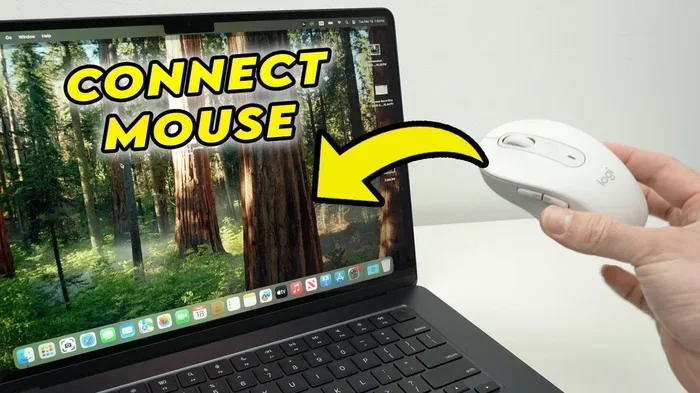
Connecting a wireless mouse to your Mac is simpler than you think. This guide walks you through every method, from Bluetooth pairing to USB receiver setup, so you can get back to work or play in minutes. Whether you own a Logitech, Apple Magic Mouse, or any other brand, you will find clear steps and helpful tips here.
So you just got a wireless mouse for your Mac, and you are eager to start using it. Maybe you are tired of the trackpad, or perhaps your old mouse finally gave out. Either way, setting up a new wireless mouse to Mac does not have to be a headache. In this guide, we will walk you through every method, brand, and troubleshooting tip you need to know.
Whether you use a Bluetooth mouse or one that comes with a tiny USB receiver, the process is straightforward. We will also cover specific brands like Logitech and Apple so you can get started fast. By the end of this article, you will have your new wireless connectivity up and running without any hassle.
Key Takeaways
- Bluetooth Pairing: Most modern wireless mice connect to Mac via Bluetooth in just a few simple steps.
- USB Receiver Method: Older or specialized mice may need a USB dongle for wireless connectivity.
- Apple Magic Mouse: Apple’s own mouse offers a seamless pairing experience with Mac computers.
- Troubleshooting: Common issues like unresponsive cursors or connection drops have easy fixes.
- Battery & Power: Keeping your mouse charged or powered with fresh batteries ensures reliable performance.
- Compatibility: Most wireless mice work with Mac, but checking driver support avoids frustration.
📑 Table of Contents
- Why Use a Wireless Mouse With Your Mac?
- How To Connect a Wireless Mouse to Mac via Bluetooth
- How To Connect a Wireless Mouse With a USB Receiver
- Connecting Specific Wireless Mouse Brands to Mac
- Troubleshooting Common Wireless Mouse Issues on Mac
- Optimizing Your Wireless Mouse for Mac
- Is a Wireless Mouse Worth It for Mac Users?
- Final Thoughts
Why Use a Wireless Mouse With Your Mac?
There is a reason wireless mice have become so popular. They free up desk space, reduce cable clutter, and let you work from farther away. If you have a Mac computer, a wireless mouse adds a layer of convenience that a wired option simply cannot match.
Here are a few reasons to consider a wireless mouse for Mac:
- Cleaner workspace: No cables means less mess on your desk.
- Portability: Easy to pack up and take with you.
- Comfort: Move freely without being tethered to your laptop.
- Aesthetics: A sleek wireless mouse complements any Mac setup.
Most wireless peripherals today offer reliable signal strength and long battery life. You will not need to worry about the mouse disconnecting every few minutes. Modern wireless technology has made these devices dependable for everyday use.
How To Connect a Wireless Mouse to Mac via Bluetooth
The most common way to pair a wireless mouse with a Mac is through Bluetooth. Almost all modern wireless mice support this method. It works with MacBook Pro, MacBook Air, iMac, and Mac Mini models.
Step-by-Step Bluetooth Pairing Guide
Follow these simple steps to connect your Bluetooth mouse to your Mac:
- Turn on your wireless mouse. Make sure it has fresh batteries or a full charge. Most mice have a power switch on the bottom.
- Put the mouse in pairing mode. Look for a small button on the bottom or side. Press and hold it until a light starts blinking. This signals that the mouse is ready to be found.
- Open Bluetooth settings on your Mac. Click the Apple menu in the top-left corner. Select System Settings, then click Bluetooth.
- Find your mouse in the list. Your Mac will scan for nearby devices. The name of your mouse should appear in the list of available devices.
- Click Connect. Click on the mouse name and select Connect. Wait a few seconds for the pairing to complete.
- Test your mouse. Move the cursor around to confirm everything works smoothly.
That is it! Your wireless mouse to Mac connection is now live. If you want to learn more about general wireless mouse setup, you can also check out how to connect a wireless mouse to a laptop for additional tips.
Quick Tips for Bluetooth Pairing Success
- Keep your mouse close to the Mac during the first pairing attempt.
- Make sure no other Bluetooth devices are interfering with the connection.
- Restart Bluetooth on your Mac if the mouse does not show up right away.
- Turn the mouse off and on again before retrying the pairing process.
Sometimes the first attempt does not work. Do not worry. Simply repeat the steps above. Most wireless mouse models pair successfully on the second try.
How To Connect a Wireless Mouse With a USB Receiver
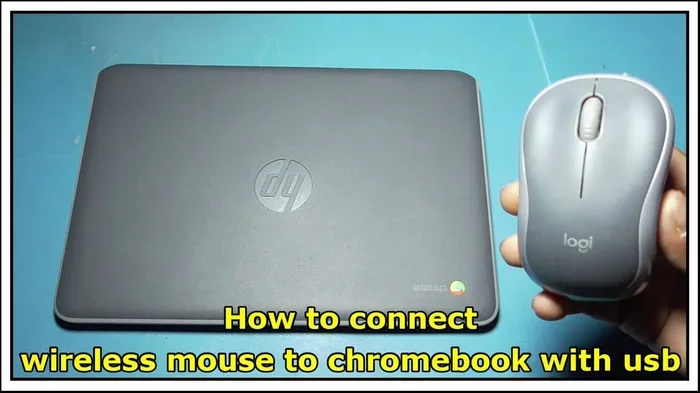
Not all wireless mice use Bluetooth. Some come with a tiny USB receiver, also called a dongle. This small plug-in device creates a dedicated wireless signal between the mouse and your Mac. Brands like Logitech often use this approach.
Setting Up a USB Receiver Mouse
Here is how to get a receiver-based wireless mouse working on your Mac:
- Plug the USB receiver into your Mac. Find an available USB port. If you are using a MacBook with limited ports, a USB hub works great.
- Install any required software. Some brands, especially Logitech, may require a driver or companion app. Visit the manufacturer’s website to download the latest version.
- Turn on the wireless mouse. Insert batteries or charge the mouse as needed.
- Wait for the connection. The receiver should automatically detect the mouse within a few seconds.
- Test the cursor movement. Move the mouse around to verify that the pointer responds correctly.
If you own a Logitech wireless mouse, you can find detailed pairing instructions in this guide for connecting a Logitech wireless mouse to a laptop. The process is very similar for Mac users.
USB Receiver vs. Bluetooth: Which Is Better?
Both methods have their strengths. Here is a quick comparison:
- Bluetooth: No extra hardware needed. Saves USB ports. Works with most modern Macs.
- USB Receiver: Often more stable connection. Lower latency for gaming. Works with older Mac models.
For everyday tasks like browsing and office work, Bluetooth is usually enough. For gaming or precise design work, a USB receiver may offer a slight edge. Choose the method that fits your needs best.
Connecting Specific Wireless Mouse Brands to Mac
Different brands have slightly different setup processes. Below, we cover the most popular wireless mouse brands and how to connect them to a Mac.
Apple Magic Mouse
The Apple Magic Mouse is designed specifically for Mac. It uses Bluetooth and offers a sleek, multi-touch surface. To connect it:
- Turn on the Magic Mouse using the switch on the bottom.
- Go to System Settings > Bluetooth on your Mac.
- Select the Apple Magic Mouse from the list and click Connect.
The Magic Mouse supports gestures like swiping and scrolling. It feels natural on a Mac and integrates seamlessly with macOS.
Logitech Wireless Mouse
Logitech makes some of the most popular wireless mice on the market. Models like the Logitech M720 and MX Master series work great with Mac. You can connect them via Bluetooth or USB receiver depending on the model.
For Logitech-specific steps, check out how to connect a Logitech wireless mouse to a laptop. The process is nearly identical for Mac users.
Most Logitech mice come with the Logi Options+ software. This app lets you customize buttons, scroll speed, and cursor sensitivity on your Mac.
HP Wireless Mouse
HP wireless mice are reliable and affordable. They typically use a USB receiver for connectivity. Plug the receiver in, install any HP software if prompted, and the mouse should work right away. These mice are a solid choice for budget-conscious Mac users.
Bluetooth Mice From Other Brands
Brands like Microsoft, Dell, and Anker also make excellent Bluetooth mice. The setup process is the same as the general Bluetooth method described earlier. Just put the mouse in pairing mode and find it in your Mac Bluetooth settings.
If you are looking for a broader guide on connecting different mice to laptops, this comprehensive guide covers many brands and connection types.
Troubleshooting Common Wireless Mouse Issues on Mac
Even with the best wireless mouse, you may run into occasional problems. Here are the most common issues and how to fix them.
Mouse Cursor Not Moving
If the cursor does not respond, try these steps:
- Check that the mouse is turned on and has battery power.
- Make sure Bluetooth is enabled on your Mac.
- Remove the mouse from the Bluetooth device list and pair it again.
- Restart your Mac and try reconnecting.
Intermittent Connection Drops
A wireless mouse that keeps disconnecting can be frustrating. Common causes include:
- Low battery power. Replace or recharge the batteries.
- Distance from the Mac. Stay within 30 feet of your computer.
- Interference from other wireless devices. Move USB 3.0 devices away from the receiver.
- Outdated drivers. Check the manufacturer’s website for updates.
Mouse Not Showing Up in Bluetooth List
If your Mac cannot find the mouse, try the following:
- Turn off Bluetooth and turn it back on.
- Restart the mouse and re-enter pairing mode.
- Reset the Bluetooth module on your Mac by holding Shift and Option and clicking the Bluetooth icon.
- Check for macOS updates that may affect Bluetooth performance.
Most connection issues resolve quickly with these simple steps. Your wireless mouse to Mac setup should work smoothly once you apply the right fix.
Optimizing Your Wireless Mouse for Mac
Once your mouse is connected, a few tweaks can improve your experience significantly.
Adjust Mouse Speed and Tracking
Go to System Settings > Mouse to adjust tracking speed. Move the slider until the cursor feels comfortable. Faster speeds help with navigation, while slower speeds give you more precision for design work.
Customize Buttons and Gestures
Many wireless mice have extra buttons you can customize. Use the manufacturer’s software to assign shortcuts, gestures, or macros. This can boost your productivity significantly.
Manage Battery Life
To get the most out of your wireless mouse, follow these battery tips:
- Turn off the mouse when you are not using it.
- Use rechargeable batteries or a charging cable when possible.
- Lower the mouse polling rate if your software allows it.
- Replace alkaline batteries every few months for consistent performance.
Taking care of your mouse’s power needs ensures that you always have a reliable wireless connection when you need it most.
Is a Wireless Mouse Worth It for Mac Users?
The short answer is yes. A wireless mouse offers freedom, comfort, and a cleaner workspace. Modern wireless technology has eliminated the lag and reliability issues that plagued older models. Whether you are a student, professional, or casual user, a wireless mouse enhances your Mac experience.
If you are still deciding, consider your use case. For office work, a simple Bluetooth mouse works perfectly. For creative work, a mouse with a high-resolution sensor and customizable buttons makes a big difference. For gaming, look for a model with low latency and responsive tracking.
Setting up a wireless mouse to Mac takes only a few minutes. The benefits last for years. Once you make the switch, you will wonder how you ever worked without one.
Final Thoughts
Connecting a wireless mouse to Mac is a quick and rewarding process. Whether you prefer Bluetooth or a USB receiver, the steps are simple and easy to follow. From Apple Magic Mouse to Logitech and HP models, this guide has covered the most popular options available.
Remember to keep your mouse charged, update your drivers, and troubleshoot any issues using the tips shared above. With the right setup, your wireless mouse will feel like a natural extension of your Mac.
Now that you know how easy it is, go ahead and connect your mouse. You will be amazed at how much smoother and more enjoyable your Mac experience becomes. Happy clicking!
Frequently Asked Questions
Can I connect any wireless mouse to my Mac?
Most wireless mice work with Mac computers, especially those that support Bluetooth or come with a USB receiver. However, some mice may require specific drivers or software. Always check the manufacturer’s website for Mac compatibility before purchasing.
Why won’t my wireless mouse connect to my Mac via Bluetooth?
This usually happens when the mouse is not in pairing mode, Bluetooth is turned off, or the mouse is already connected to another device. Try turning Bluetooth off and back on, resetting the mouse, and placing it close to your Mac during pairing.
Do I need to install software for my wireless mouse on Mac?
It depends on the brand. Apple Magic Mouse works without extra software. Logitech mice often benefit from the Logi Options+ app for customization. Basic mice usually work right out of the box without any additional downloads.
How do I know if my wireless mouse is connected to my Mac?
Check the Bluetooth settings on your Mac. If the mouse appears in the list of connected devices and the cursor moves when you use the mouse, it is successfully connected. Most mice also have a small LED light that stops blinking once paired.
Can I use a wireless mouse with a Mac that does not have Bluetooth?
Yes, you can use a USB Bluetooth adapter to add Bluetooth capability to older Mac models. Alternatively, choose a wireless mouse that comes with a USB receiver, which does not require built-in Bluetooth on the Mac.
How long does the battery last on a wireless mouse for Mac?
Battery life varies by model and usage. Most wireless mice last between 3 to 12 months on a single set of batteries. Rechargeable models typically last several weeks to a few months on a single charge, depending on how frequently you use the mouse.