How to Fix My Mouse on My Laptop

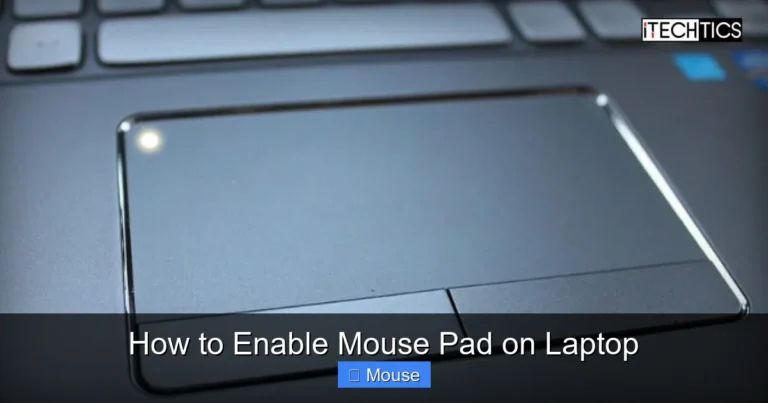
Start by checking the touchpad settings and drivers, as most mouse issues on laptops are resolved by updating or reinstalling them. If the problem persists, clean the touchpad surface, adjust sensitivity settings, and ensure no external devices are causing conflicts. These quick steps will get your laptop’s cursor moving smoothly again.
This is a comprehensive guide about how to fix my mouse on my laptop.
Key Takeaways
- Check the touchpad settings: Ensure it’s enabled and sensitivity is properly configured.
- Update or reinstall drivers: Use Device Manager to install the latest touchpad or mouse drivers.
- Clean the touchpad surface: Remove dust and oils with a soft, lint‑free cloth.
- Test with an external mouse: Determines whether the issue is hardware or software related.
- Disable conflicting software: Turn off third‑party mouse utilities that may override default settings.
- Run Windows troubleshooter: Let the built‑in tool detect and fix common mouse problems.
Frequently Asked Questions
What should I do if the mouse on my laptop stops responding?
First try a simple restart; if that doesn’t help, check the touchpad settings in Control Panel or System Settings to ensure it’s enabled. You can also try updating the touchpad driver or rolling back to a previous version if the issue started after an update.
How can I fix a jittery or laggy mouse on my laptop?
Check for dust or debris on the touchpad surface and clean it gently with a microfiber cloth. If the lag persists, adjust the pointer speed in the mouse settings and consider installing the latest driver from the laptop manufacturer’s support site.
My laptop’s mouse pointer jumps randomly. What could be causing this?
Random jumps often stem from a bad touchpad connection or driver corruption. Disconnect any external mouse, run a hardware diagnostic if available, and reinstall or update the touchpad driver to resolve the issue.
Can I use an external mouse when the built‑in mouse on my laptop is malfunctioning?
Yes, simply plug in a USB or Bluetooth mouse and it should work immediately. If it doesn’t, ensure the USB port is functioning and that the external mouse is turned on and has fresh batteries.
Why does my laptop’s mouse work only when I connect an external mouse?
This can indicate a firmware or driver problem with the built‑in touchpad. Updating the BIOS, installing the latest touchpad firmware, or performing a clean driver reinstall often restores normal functionality.
How do I troubleshoot a dead mouse button on my laptop?
Start by cleaning the touchpad surface; sticky residue can affect button responsiveness. If cleaning doesn’t help, test the laptop with an external mouse to confirm the issue is hardware‑related, then consider replacing the touchpad or contacting the manufacturer for repair.