How To Fix Driver For Mouse And Get It Working Again
Dealing with a mouse driver problem can be frustrating, but this guide walks you through every fix step by step. You will learn how to update, reinstall, and roll back your mouse driver on both Windows and Mac systems. By the end, your laptop mouse not working issue will be a thing of the past.
A mouse driver is the software that lets your computer talk to your mouse. Without it, your cursor sits still, clicks do nothing, and scrolling becomes impossible. If your laptop mouse not working has you pulling your hair out, you are in the right place.
This guide covers every practical method to fix driver for mouse problems on Windows and Mac. We keep things simple and action-focused. No fluff, no jargon, just clear steps that get results. Whether your mouse stopped working after an update or it has been acting weird for weeks, this article has you covered.
We will also explore common mouse driver problems, share quick tips to prevent future issues, and answer the most frequently asked questions. By the time you finish reading, you will have the knowledge and confidence to solve mouse driver issues on your own.
Key Takeaways
- Device Manager is your best friend: It lets you update, roll back, or uninstall your mouse driver in just a few clicks.
- Windows and Mac have different processes: Each operating system handles mouse driver updates differently, and we cover both.
- Outdated drivers cause most issues: Keeping your pointing device driver current prevents many common mouse problems.
- System Restore can undo driver damage: If a recent update broke your mouse, restoring your system often fixes it fast.
- Hardware issues mimic driver problems: Always check cables and USB ports before assuming it is a driver issue.
📑 Table of Contents
Understanding Mouse Driver Problems
Before you jump into fixes, it helps to understand what a mouse driver actually does. Think of it as a translator between your mouse and your computer. When you move your mouse, the hardware sends signals. The driver translates those signals into cursor movement on your screen.
When something goes wrong with this translation process, you get frustrating symptoms. Your mouse pointer issues might show up as a frozen cursor, random jumps, or a completely unresponsive device. Sometimes clicking does nothing at all. Other times, scrolling stops working mid-use.
Common Causes of Mouse Driver Failures
Several things can break your mouse driver software. Here are the most common culprits:
- Windows updates: Sometimes a system update overwrites or corrupts your HID-compliant mouse driver. This is one of the top reasons mouse not responding suddenly appears.
- Outdated drivers: Old drivers lose compatibility with newer operating systems. This leads to erratic behavior or complete failure.
- Conflicting software: Some programs interfere with driver operations. Antivirus tools and system optimizers are frequent offenders.
- Corrupted files: A damaged driver file stops communication between the mouse and the computer entirely.
- Physical connection issues: A loose USB cable or a faulty port can mimic driver problems perfectly.
Knowing the cause helps you choose the right fix. If your mouse just stopped working after a Windows update, a driver rollback often solves it. If it has been acting up slowly over time, a fresh update is probably the answer.
How To Check If Your Mouse Driver Needs Updating
Not sure whether your pointing device driver is the problem? Run through these quick checks first. They help you confirm the issue before diving into fixes.
Step 1: Test Your Mouse on Another Computer
Plug your mouse into a different computer. If it works fine there, the problem is almost certainly a driver issue on your main machine. If it still fails, the mouse itself might be broken.
Step 2: Open Device Manager
On Windows, right-click the Start button and select Device Manager. Look for “Mice and other pointing devices.” Expand that category. If you see a yellow triangle warning icon next to your mouse, the driver definitely needs attention.
Step 3: Check for Error Codes
Right-click your mouse device and select Properties. The General tab shows error codes if something is wrong. Code 43 means Windows has stopped the device. Code 10 means the device cannot start. These codes guide your next steps.
Steps To Fix Driver For Mouse On Windows
Windows makes it relatively easy to manage and repair mouse drivers. Here are the most effective methods, listed from simplest to most advanced.
Method 1: Update the Mouse Driver Automatically
This is the easiest first step. Windows can search for and install the latest driver for you.
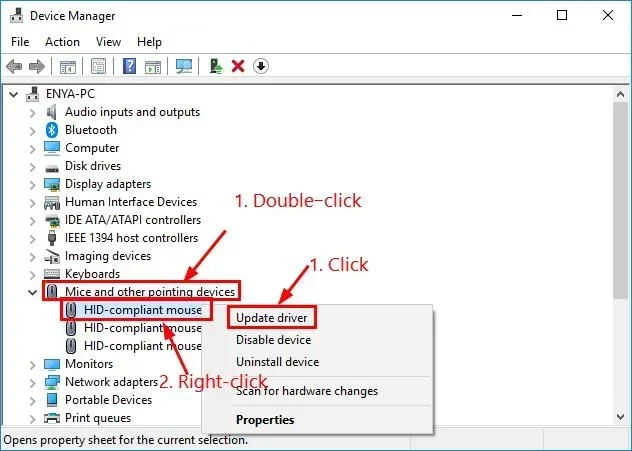
- Open Device Manager (right-click Start, then select Device Manager).
- Expand “Mice and other pointing devices.”
- Right-click your mouse device and choose Update Driver.
- Select “Search automatically for drivers.”
- Follow the on-screen instructions to complete the process.
After updating, restart your computer. Test your mouse to see if the mouse pointer issues are resolved. This method works for most users and takes less than two minutes.
Method 2: Uninstall and Reinstall the Driver
Sometimes a clean slate fixes what an update cannot. This method removes the current driver completely and lets Windows reinstall a fresh copy.
- Open Device Manager.
- Find your mouse under “Mice and other pointing devices.”
- Right-click and select Uninstall Device.
- Check the box that says “Delete the driver software for this device.”
- Click Uninstall.
- Restart your computer.
When Windows boots back up, it automatically reinstalls the driver. This often resolves stubborn mouse driver corruption. If your laptop mouse not working persisted before, this fresh installation usually clears it up.
Method 3: Roll Back the Driver
If your mouse worked fine before a recent update, rolling back restores the previous version. This is especially useful when a Windows update broke your mouse functionality.
- Open Device Manager.
- Right-click your mouse and select Properties.
- Go to the Driver tab.
- Click “Roll Back Driver.”
- Follow the prompts and restart your PC.
Keep in mind that the Roll Back option only appears if Windows has a previous driver version saved. If it is grayed out, move on to Method 2 or Method 4.
Method 4: Download the Driver Manually From the Manufacturer
For the most control, download the driver directly from the manufacturer’s website. This works especially well for branded mice like Logitech, Razer, or Microsoft.
- Visit the manufacturer’s support page.
- Search for your exact mouse model.
- Download the latest driver for your operating system.
- Run the installer and follow the setup wizard.
- Restart your computer when prompted.
Manual downloads often include extra software like customization tools and button remappers. These can enhance your mouse usage experience beyond just fixing the driver.
How To Fix Mouse Driver On Mac
Mac computers handle mouse drivers differently than Windows. Apple manages most drivers through system updates, which simplifies the process but gives you less manual control.
Step 1: Check for macOS Updates
Most mouse driver issues on Mac resolve with a system update. Apple includes updated drivers in every macOS release.
- Click the Apple menu in the top-left corner.
- Select System Settings (or System Preferences on older Macs).
- Go to General, then Software Update.
- Install any available updates.
- Restart your Mac after the update completes.
Step 2: Reset the Bluetooth Connection
If you use a wireless mouse, a Bluetooth issue might mimic a driver problem. Resetting the connection often fixes this.
- Turn off your Bluetooth mouse.
- Open System Settings and go to Bluetooth.
- Find your mouse in the list and click the (i) icon next to it.
- Select Remove Device.
- Turn the mouse back on and pair it again.
Step 3: Delete Driver Caches
For persistent issues, clearing driver caches forces macOS to rebuild them from scratch. This is similar to the uninstall-and-reinstall method on Windows.
- Open Finder and press Command + Shift + G.
- Type /Library/Caches and press Enter.
- Look for any files related to your mouse manufacturer.
- Move them to the Trash.
- Restart your Mac.
Be careful when deleting cache files. Only remove files you are certain are related to your mouse. Deleting unrelated system files can cause other problems.
Advanced Troubleshooting For Stubborn Mouse Driver Issues
When the basic methods do not work, it is time to dig deeper. These advanced techniques handle the trickiest mouse driver problems.
Use System Restore To Undo Driver Changes
If your mouse worked perfectly before a specific date, System Restore can undo everything that changed since then. This is a powerful tool for fixing driver-related issues without losing your personal files.
On Windows, search for “Create a restore point” in the Start menu. Open System Restore and choose a date when your mouse was working. The process rolls back system files, settings, and drivers to that earlier state. Your personal documents, photos, and emails stay safe.
Check for Hardware Conflicts
Sometimes the problem is not the driver at all. A second mouse, a drawing tablet, or even a USB hub can create conflicts. Disconnect all pointing devices except your primary one and test again. If the mouse starts working, reconnect them one by one to find the culprit.
Run the Windows Hardware Troubleshooter
Windows includes a built-in tool that automatically detects and fixes driver problems. To access it, go to Settings, then System, then Troubleshoot, and select Hardware and Devices. Run the troubleshooter and follow its recommendations.
Update All Device Drivers At Once
Mouse driver problems sometimes stem from broader system driver issues. Updating all your device drivers ensures nothing else is interfering. You can do this through Device Manager by right-clicking each device and selecting Update Driver. Alternatively, third-party driver update tools can automate this process, though you should use them carefully and only from trusted sources.
Preventing Future Mouse Driver Problems
Once you fix your mouse driver, you want to keep it working. Prevention is always easier than troubleshooting. Here are simple habits that protect your setup.
- Enable automatic Windows updates: This ensures your HID-compliant mouse driver stays current without effort.
- Avoid sketchy driver update tools: Some free driver updater programs bundle malware. Stick to official manufacturer websites or Windows Update.
- Keep your system clean: Regularly clear temporary files and run disk cleanup. A healthy system supports healthy drivers.
- Use quality USB ports: Cheap or damaged ports cause connection drops that confuse drivers. Plug your mouse directly into the computer when possible.
- Restart regularly: A simple restart clears temporary driver glitches. Make it a weekly habit.
Following these steps means fewer mouse pointer issues and less time spent troubleshooting. Your laptop mouse not working problems become rare instead of routine.
When To Seek Professional Help
Most mouse driver issues resolve with the methods above. However, some situations call for professional support. If you have tried every fix and your mouse still does not work, the problem might be hardware-related.
A failing sensor, a damaged circuit board, or internal wire breakage cannot be fixed with driver software. In these cases, replacing the mouse is the most practical solution. Before you buy a new one, test your mouse on another computer. If it fails there too, the hardware is definitely the issue.
Also, if your computer shows multiple device errors beyond just the mouse, a broader system problem might be at play. A professional technician can diagnose deeper issues safely.
If you are dealing with a laptop mouse not working and it is built into the touchpad, check out our guide on how to fix my laptop mouse for touchpad-specific solutions. For broader issues where your mouse not responding affects your entire workflow, you might also find our article on how to fix your mouse on your laptop helpful for additional troubleshooting steps.
Key Takeaways
- Device Manager is your best friend: It lets you update, roll back, or uninstall your mouse driver in just a few clicks.
- Windows and Mac have different processes: Each operating system handles driver updates differently, and we covered both.
- Outdated drivers cause most issues: Keeping your pointing device driver current prevents many common mouse problems.
- System Restore can undo driver damage: If a recent update broke your mouse, restoring your system often fixes it fast.
- Hardware issues mimic driver problems: Always check cables and USB ports before assuming it is a driver issue.
- Prevention beats troubleshooting: Regular updates and clean system habits keep your mouse driver healthy long-term.
Fixing your mouse driver does not have to be intimidating. With the right steps and a little patience, you can get your cursor moving and your clicks working again. Start with the simplest method and work your way down the list. Most users find their fix within the first two or three methods. Remember, a working mouse driver means a smooth, frustration-free computing experience. Apply what you learned here, and your laptop mouse not working days are officially over.
Frequently Asked Questions
How do I know if my mouse driver is the problem?
Check Device Manager for yellow warning icons next to your mouse. Also test your mouse on another computer. If it works elsewhere but not on your main machine, the driver is likely the culprit. Error codes like 43 or 10 in the device properties confirm a driver issue.
Can a bad mouse driver damage my computer?
No, a faulty mouse driver cannot damage your hardware. It may cause frustration and disrupt your workflow, but it stays isolated to the pointing device. The worst case is an unresponsive cursor until you fix or reinstall the driver.
How often should I update my mouse driver?
You do not need to update it manually very often. Let Windows Update handle it automatically. If you notice problems after a system update, then check for a driver update manually. For gaming mice or specialized devices, check the manufacturer’s website every few months.
What is an HID-compliant mouse driver?
HID stands for Human Interface Device. An HID-compliant mouse driver is the standard driver Windows uses for most mice and trackpads. It handles basic functions like movement, clicking, and scrolling without needing special software from the manufacturer.
Why does my mouse driver keep getting corrupted?
Corrupted drivers often result from incomplete Windows updates, conflicting software, or malware. Running a full system antivirus scan and keeping Windows updated helps prevent repeated corruption. If it keeps happening, consider performing a clean driver install using the uninstall method described above.
Do I need to restart my computer after updating the mouse driver?
Yes, always restart after updating or reinstalling a driver. The restart allows Windows to fully load the new driver into memory. Skipping this step is a common reason why fixes appear not to work immediately.